Best meeting recording app in 2026: a two-axis pick
There is no single best meeting recording app. Pick by two axes (your platform, and bot vs no-bot), with 7 tools compared on price, storage, and consent.
Updated October 7, 2026
On this page6 sections
Most "best meeting recording app" lists hand you a ranked top 10 and dodge the actual decision. The right pick comes down to two questions, not a feature checklist: which platforms do you really use (Google Meet, Zoom, Teams), and is a bot showing up in your meeting acceptable? Answer those two and the field collapses from "seven options" to one, and for most people that is Scribbl: Google Meet, Zoom, and Teams in one account, with nothing joining the call. This guide walks the two axes, compares seven real tools on the numbers that decide it, and gives you a decision flow you can run in under a minute.
What "recording a meeting" actually has to do
Before comparing tools, get clear on the job. "Record my meeting" usually means five things, and most native recorders only do the first one well:
- Capture audio and video reliably without admin gymnastics or a license upgrade.
- Produce a transcript with correct speaker names, not "Speaker 1 / Speaker 2."
- Turn it into notes you would actually reread: a summary, decisions, and a real list of action items.
- Store it somewhere durable and shareable, not a folder that auto-expires in 30 days.
- Do all of this with appropriate consent.
Native recording in Meet, Zoom, and Teams nails capture and falls short on the other four. That gap is why the third-party AI recorder category exists, and why the bot question matters.
Axis 1: native-but-gated recorders, and why they are rarely enough
Google Meet, Zoom, and Microsoft Teams all record. The catch is that "built in" does not mean "available to you," and a raw recording is not notes.
Google Meet. Recording is only available on paid Workspace editions (Business Standard, Business Plus, several Enterprise and Education tiers, Teaching and Learning Upgrade), the Workspace Individual subscription, or Google One subscribers with 2 TB or more of storage. A free personal Gmail account cannot record at all. When it does record, the file lands in the "Google Meet" folder in the meeting organizer's My Drive, in a sub-folder for that meeting, and the email link goes to the organizer and whoever started the recording (Google Meet help, as of 2026-10-06). You get raw video. Real notes require "Take Notes with Gemini," a separate paid add-on.
Microsoft Teams. Non-channel meeting recordings go to the organizer's OneDrive "Recordings" folder; channel meetings go to the channel's SharePoint document library. Both count against your OneDrive or SharePoint storage quota, and a one-hour recording is roughly 400 MB (Microsoft Learn, as of 2026-06-12). There is a gotcha worth knowing: when an organizer turns off Microsoft 365 Copilot for a meeting, recording and transcription get turned off with it.
Zoom. Cloud recording needs a paid license. Included storage is 10 GB per licensed user on Pro and Business, 15 GB on Business Plus, and unlimited on Enterprise, pooled at the account level (Zoom support, as of 2026-06-12). For anyone recording daily, 10 GB fills in weeks.
The pattern across all three: native recording is gated behind a paid or admin-enabled account, it dumps raw video into one person's drive, that video eats storage and can auto-expire, and the AI notes layer is always a separate purchase. Native is the right call only when you are already all-in on one platform, already paying for the eligible edition, and willing to pay again for the AI add-on.
Axis 2: third-party AI recorders, and the bot problem
This is the axis nobody warns you about. Otter.ai, Fireflies.ai, and Fathom default to sending a visible participant into your call. Fireflies' standard method joins as "Fireflies.ai Notetaker" and may request admission if you are not the host (Fireflies guide, as of 2026-06-12). Otter and Fathom behave the same way by default.
A bot in the participant list creates three real problems. It can be blocked by a host or stuck in a waiting room, which means you silently get no recording. It is an optics problem, because everyone sees an uninvited "Notetaker" tile. And it is a consent problem, which now carries more weight after Google's 2026 change (below).
"Bot-free" modes exist, but they come with trade-offs. Fireflies' bot-free desktop mode does not add a participant, but it also does not save audio or video files and labels speakers generically as "Speaker 1 / Speaker 2"; its no-bot Chrome extension is Google Meet only (Fireflies guide, as of 2026-06-12).
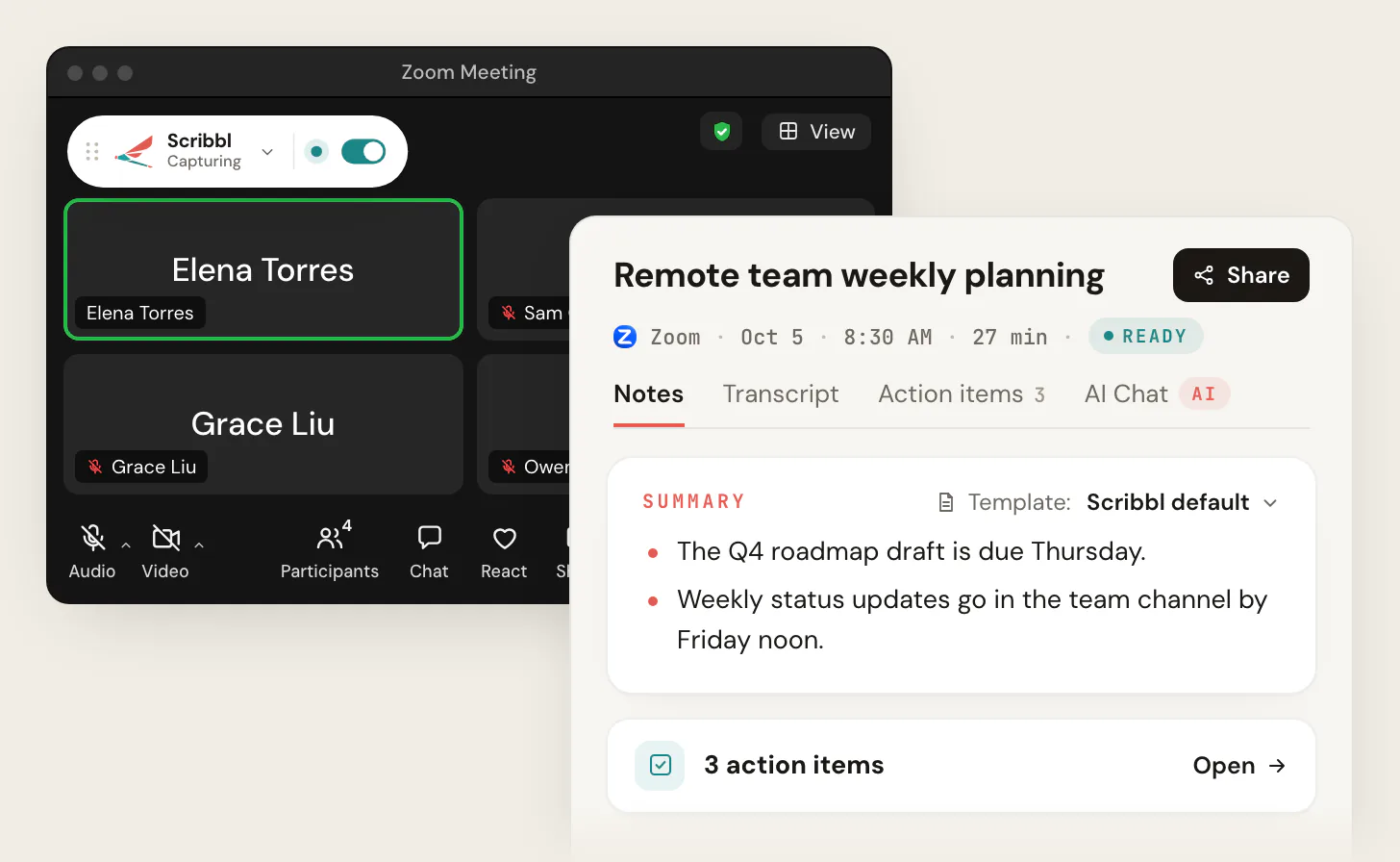
A purpose-built no-bot recorder closes that gap. Scribbl records Google Meet through a Chrome extension and Zoom and Microsoft Teams through Scribbl Desktop (Mac with Apple silicon and Windows), with nothing in the participant list, and the notes open in a new tab after the call ends (scribbl.co, as of 2026-06-12). Nobody sees a "Notetaker," nothing can be blocked at the door, and you keep real speaker names and a video.
The 7 best meeting recording apps, compared honestly
Here is the field, ranked by how well each one fits the two-axis decision rather than by feature count. Prices and limits are from each vendor's own pricing page, as of 2026-06-12.
- Scribbl (no-bot, Google Meet, Zoom, and Teams). Chrome extension for Meet and Scribbl Desktop for Zoom and Teams, nothing in the participant list, real speaker names, video kept. The free plan includes Google Meet, Zoom and Microsoft Teams (Zoom and Teams through the desktop app), with 10 meetings a month; Pro is $13/user/month annual ($20 monthly) with unlimited meetings; Team adds Smart Collections and Automations that include teammates' meetings once each person says yes, plus seats, admins and one bill. After the call, Automations draft the follow-up email, log notes in HubSpot or Pipedrive, and post to Slack or Teams, asking before they change anything by default. Best for: anyone on Meet, Zoom, or Teams who wants notes without a bot, a Workspace upgrade, or a host license.
- Fathom (bot, multi-platform). Works across Meet, Zoom, and Teams. Free plan gives unlimited recording, transcription, and storage, and every call gets an AI summary (advanced summaries cover only your first 5 calls a month), but AI action items, AI follow-up emails and "Ask Fathom" need Premium, and the notetaker joins as a bot; Premium is $20/user/month ($16 annually). Best for: people who want unlimited free recording and accept a bot in every call.
- Otter.ai (bot, strong live transcription). Free Basic is 300 minutes/month; Pro is $8.33/user/month annual (1,200 minutes); Business is $19.99/user/month annual (unlimited). Best for: live transcription you watch in real time.
- Fireflies.ai (bot, with limited no-bot modes). Free is 400 minutes per team; Pro is $10/seat/month annual (8,000 minutes/seat); Business is $19/seat/month annual. Meeting search across calls. Best for: teams that want every call indexed and accept a bot.
- Zoom (native). Cloud recording on a paid license, 10 GB/license pooled. Best for: Zoom-first orgs already paying for licenses.
- Microsoft Teams (native). Recording lands in OneDrive or SharePoint at ~400 MB/hour against your quota. Best for: M365 shops standardized on Teams.
- Google Meet (native + Gemini). Recording on eligible Workspace editions, notes via the paid Gemini add-on. Best for: Workspace orgs on a supported edition willing to pay for Gemini.
| Feature | Scribbl | Fathom | Otter | Fireflies |
|---|---|---|---|---|
| No bot joins the call | Yes | Bot by default | Bot by default | Bot by default |
| Google Meet, Zoom, and Teams | Yes | Yes | Yes | Yes |
| Transcript and AI notes | Yes | Yes | Yes | Yes |
| Free plan | 10 meetings/mo, no bot | Unlimited recording; AI action items need Premium | 300 min/mo | 400 min per team |
- How it records: Chrome extension for Meet, Scribbl Desktop for Zoom and Teams; no bot in the call
- Platforms: Google Meet, and Zoom and Teams via the desktop app, on every plan
- Free tier: 10 meetings/month, no limit on meeting length
- Paid entry: Pro $13/user/mo annual, unlimited meetings
- Best for: anyone on Meet, Zoom, or Teams who wants notes without a bot
- How it records: visible Notetaker bot joins the call
- Platforms: Meet, Zoom, and Teams
- Free tier: unlimited recording/transcription; AI action items need Premium
- Paid entry: Premium $20/mo ($16 annual)
- Best for: free, multi-platform capture when a bot is fine
How to choose in under a minute
Run your situation through this in order. The first two questions decide most of it; the rest are tiebreakers.
- 1
What platform are your meetings on?
Mostly Google Meet, or a mix of Meet, Zoom, and Teams? This decides your native options and which no-bot tools even exist for you.
- 2
Is a bot in the participant list acceptable?
If no, you want a no-bot recorder, and Scribbl covers Meet, Zoom, and Teams. Bot tools like Fathom, Otter, and Fireflies put a visible tile in the call that can be blocked at the door.
- 3
Do you need AI notes, or just a video file?
A raw recording is one job; structured summaries and action items are another. Native recording gives you the file on a paid license; Scribbl gives you the video plus a transcript, AI notes, and action items.
- 4
Free or paid, and how much retention?
Free tiers cap fast (Otter 300 min/mo, Fireflies 400 min/team). If you record daily or need long retention, price the paid tier on the tool your first two answers chose.
The short version: if you meet on Google Meet, Zoom, or Teams and do not want a bot, a Workspace upgrade, or a host license, Scribbl is the answer. It covers all three platforms in one account, starts free with 10 meetings a month, and Pro is $13 per user per month billed annually with unlimited meetings. Bot-based tools and native recorders each solve part of the job; Scribbl does the whole job without anything joining the call.
For sales teams syncing notes to a CRM, see Scribbl for sales. For agencies juggling client calls across stacks, Scribbl for agencies covers the multi-platform case. And if you want to go deeper on a single platform, our guides on how to record a Google Meet, where Google Meet recordings go, and how to get a transcript from a recorded Zoom meeting get specific.
Meeting recording apps FAQ
Can I record a Google Meet on a free Gmail account?
No. Native Google Meet recording is only available on paid Workspace editions, the Workspace Individual subscription, or Google One plans with 2 TB or more of storage, so a free personal Gmail account cannot record natively. To record on a free account, use a recorder that does not depend on the platform's recording feature, such as Scribbl, whose free plan includes 10 meetings a month on Google Meet, Zoom and Teams with nothing joining the call.
Where do my recordings go, and do they expire?
With native recording they go to one person's storage (the organizer's My Drive in Meet, OneDrive or the channel's SharePoint in Teams, and Zoom's pooled cloud), all of which count against a quota and can be set to auto-expire. Third-party recorders store recordings in the tool's own cloud with their own retention policies, so check the retention number on the plan you pick.
Do I have to tell people I am recording?
Yes, you should always disclose. Many states have all-party-consent laws, and as of May 2026 Google offers an admin-controlled setting that requires participants to explicitly consent before recording, transcription, or Gemini notes can start in Meet.
What is the difference between a bot recorder and a no-bot recorder?
A bot recorder dials into your meeting as a visible participant (for example, Fireflies.ai Notetaker) and records from inside the call. A no-bot recorder runs on your own computer, so nothing appears in the participant list. Bots can be blocked by hosts or waiting rooms and create an optics and consent surface; no-bot capture avoids both. Scribbl is no-bot on Google Meet with its Chrome extension and on Zoom and Teams with Scribbl Desktop.
Which one is truly free?
Scribbl's free plan gives 10 meetings a month on Google Meet, Zoom, and Teams with no bot in the call and no credit card. Fathom's Free plan has unlimited recordings, transcriptions, and storage, but AI action items and Ask Fathom need Premium, and its notetaker joins as a bot. Otter Free is 300 minutes a month and Fireflies Free is 400 minutes per team, both with a bot by default. Match the cap to how often you actually record before assuming free means unlimited.
Try Scribbl
Let your meetings take their own notes.
Scribbl records, transcribes, and summarizes your Google Meet calls from your browser. No bot joins the call. Free forever for individuals.
Add to Chrome · It's free