How to Record a Zoom Meeting in 2026 (Even If You're Not the Host)
Every way to record a Zoom meeting: as host or participant, on the free plan, on a phone or in a browser. Real Zoom 7.1 screenshots and fixes.
Updated October 7, 2026
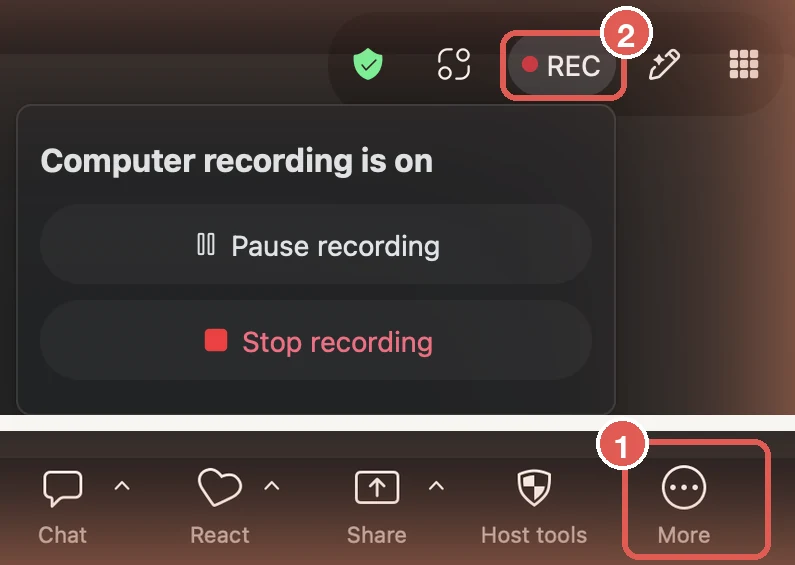
To record a Zoom meeting, open it in the Zoom desktop app, click More on the toolbar, then Record, or press Cmd + Shift + R on Mac (Alt + R on Windows). A red REC appears at the top right so everyone knows. When the meeting ends, Zoom converts the recording to an MP4 in Documents › Zoom. It works on the free plan, but only if you're the host or the host lets you.
Everything below was tested on October 1, 2026, in Zoom Workplace 7.1.9 for Mac on a free Zoom account. Windows uses the same buttons; where the keyboard shortcuts differ, both are listed.
How to record a Zoom meeting on Mac or Windows
Step 1: Start or join the meeting in the Zoom desktop app
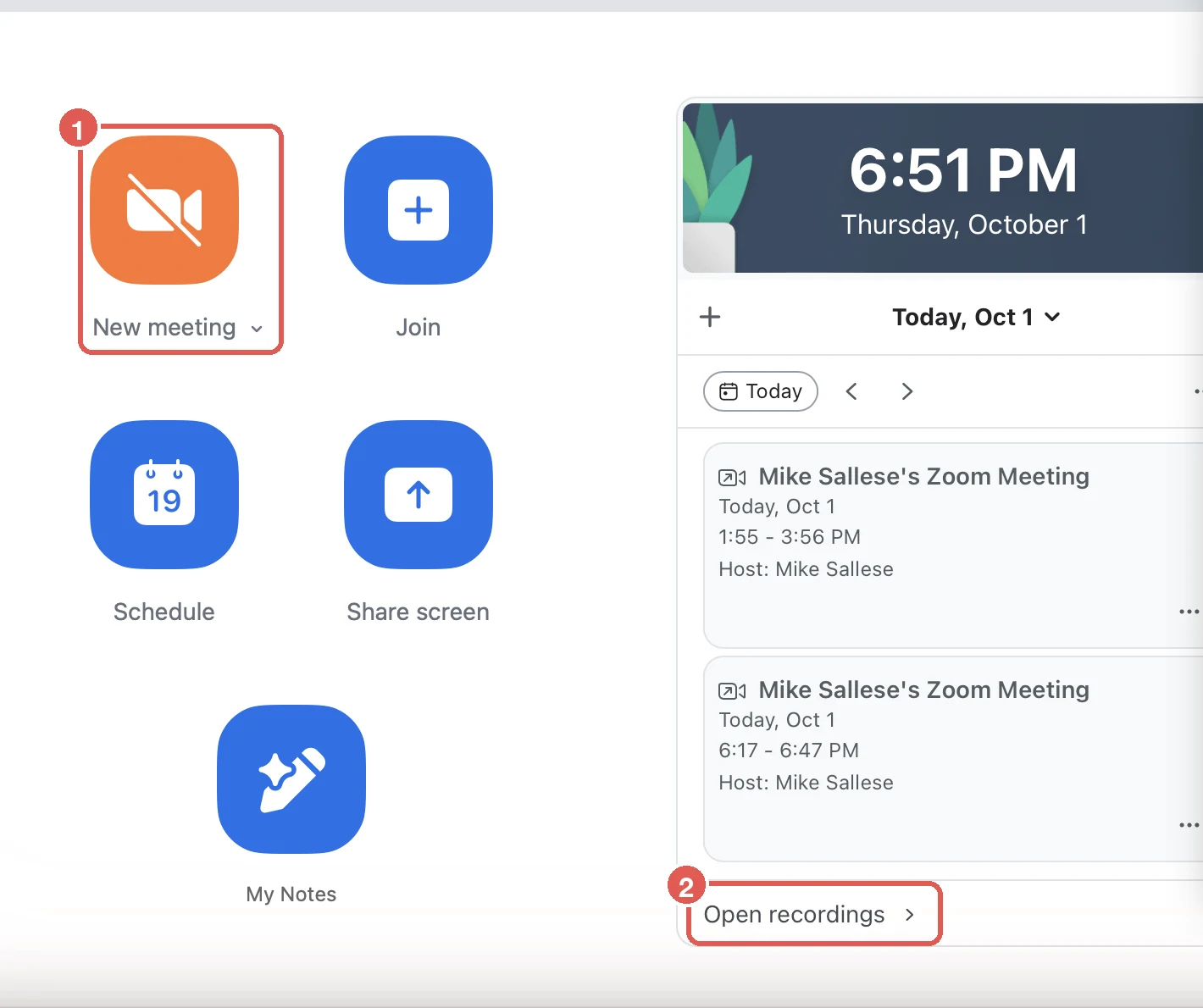
Recording to your computer only works in the Zoom desktop app for Mac, Windows or Linux. It doesn't exist in the browser version of Zoom or in the phone app. Open the app, then click New meeting to start your own meeting, or Join to join someone else's.
Step 2: Click More, then Record
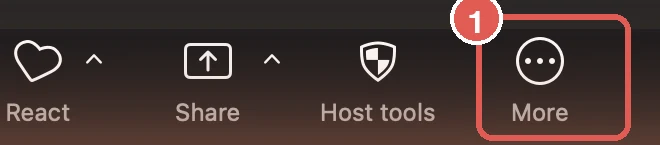
Older Zoom guides tell you to click a Record button on the toolbar. Since Zoom 6.7, Record sits under More, the ··· button at the right end of the toolbar, and that's where it was in our test. Zoom pins the feature you used most recently to the toolbar, and you can pin Record yourself, so if your toolbar does show a Record button, use that.
On a paid plan, Zoom then asks where to save it: Record on this computer or Record to the cloud. On the free plan, it records to your computer. The keyboard is faster than the menus:
| Start or stop | Mac | Windows |
|---|---|---|
| Record on this computer | Cmd + Shift + R | Alt + R |
| Record to the cloud | Cmd + Shift + C | Alt + C |
| Pause or resume | Cmd + Shift + P | Alt + P |
Step 3: Check for REC at the top right
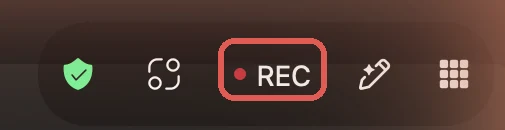
As soon as recording starts, a red REC appears at the top right of the meeting window, and everyone in the meeting sees it. Zoom's own help page still says the top left; in 7.1.9 it's on the right. Hover over it to pause or stop. Zoom calls a recording saved to your computer a computer recording.
Step 4: Pause or stop
Pause recording keeps everything in one file, and REC changes to REC paused until you resume. Stop recording ends that file; if you record again in the same meeting, Zoom starts a new one.
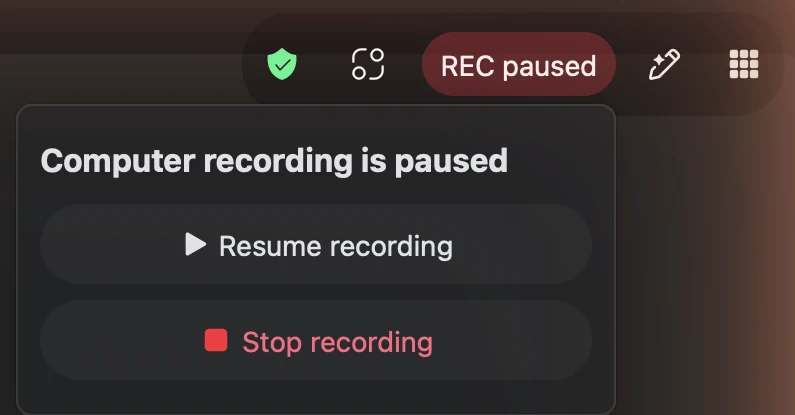
If you stop before the meeting is over, Zoom reminds you the file isn't ready yet:

Step 5: End the meeting and let Zoom convert the file
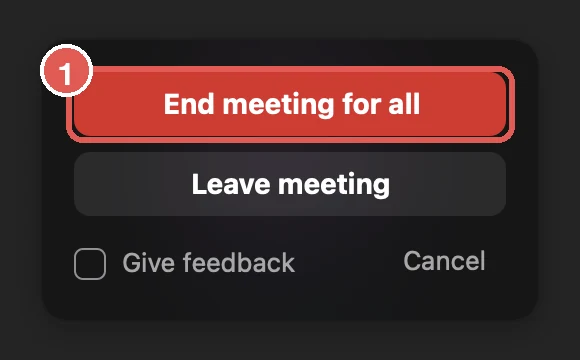
A computer recording isn't usable until the meeting ends. Click End, then End meeting for all (or Leave meeting if you're not the host).
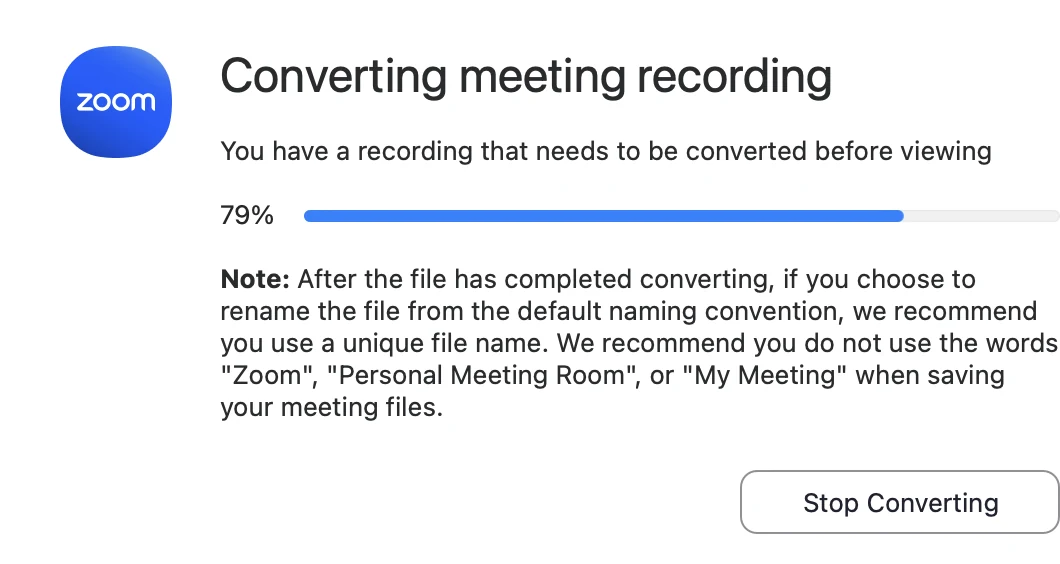
Zoom then converts the recording into MP4 and M4A files and shows its progress:
Step 6: Open the file
When the conversion finishes, Zoom opens the folder for that meeting.
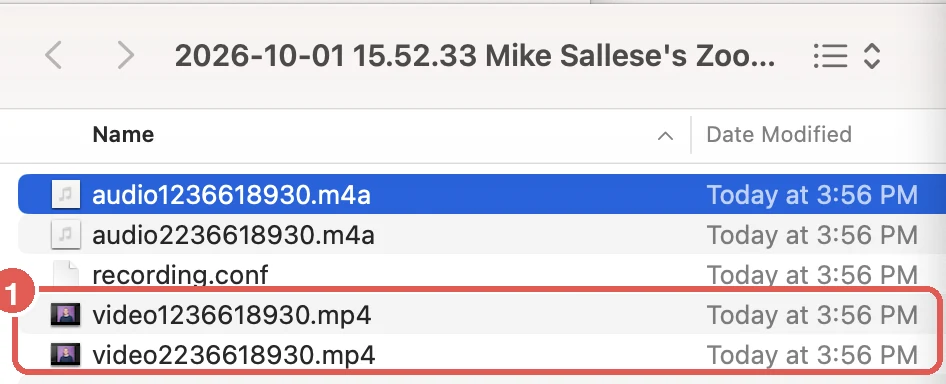
video…mp4is the video with sound. This is the one you want.audio…m4ais the audio on its own.recording.confis Zoom's settings for the recording. You can ignore it.double_click_to_convert_01.zoomonly appears if the conversion didn't finish. Double-click it to finish converting.
Where do Zoom recordings go?
| Recording type | Where it's saved by default |
|---|---|
| On this computer, Mac | /Users/[your name]/Documents/Zoom |
| On this computer, Windows | C:\Users\[your name]\Documents\Zoom |
| On this computer, Linux | home/[your name]/Documents/Zoom |
| In the cloud | Zoom web portal › Recordings & Transcripts › Cloud recordings |
Every meeting you record gets its own folder, named with the date, the time and the meeting name.
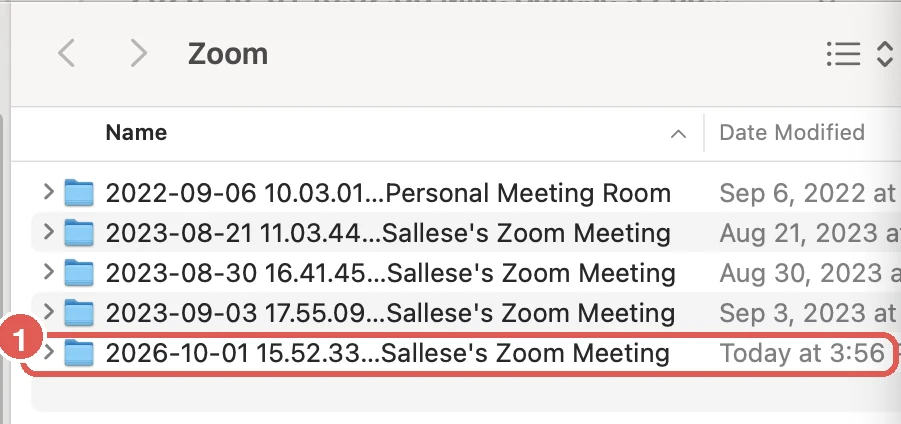

Three ways to get there:
- From Zoom: on the Home tab, click Open recordings.
- From your computer: open Finder or File Explorer and go to Documents › Zoom.
- From the web: sign in at zoom.us, click Recordings & Transcripts, then Computer recordings for a list, or Cloud recordings for cloud recordings.
To change where recordings are saved, open Zoom's Settings and search for "recording". The storage location is at the top, with Open and Change.
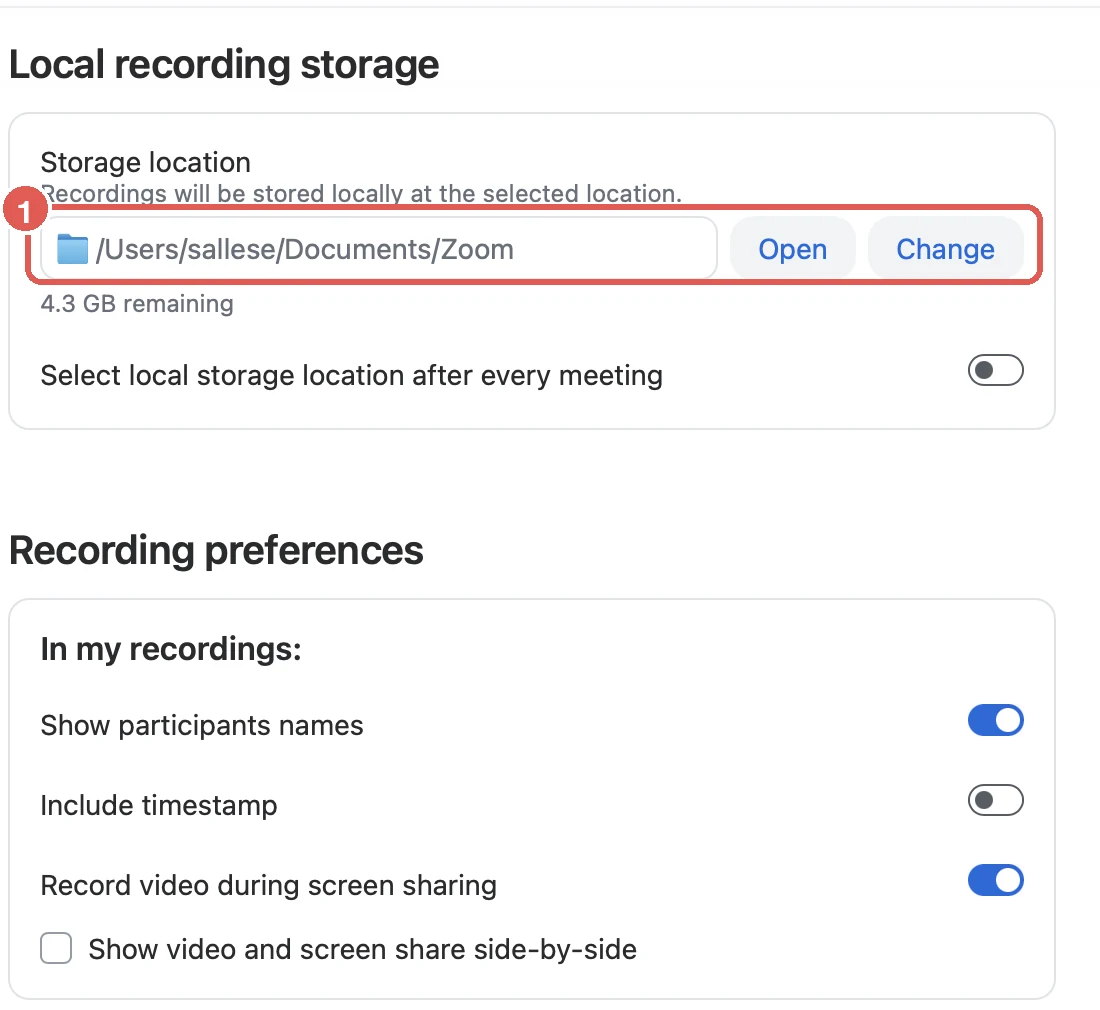
Zoom recommends against choosing a folder that syncs to the cloud, such as Dropbox, Google Drive or OneDrive, because syncing can break the files while Zoom converts them. The same page has two useful switches under Recording preferences: Include timestamp stamps the date and time on the video, and Show video and screen share side-by-side keeps people visible while someone shares their screen.
Recording a Zoom meeting on this computer vs. to the cloud
- Free and paid plans
- Zoom desktop app only (Mac, Windows, Linux)
- Saved as an MP4 on your computer
- Share it by sending or uploading the file
- No VTT transcript (Meeting transcript works on paid plans)
- Limited by your disk space
- The host, or participants the host allows
- Paid plans (Pro and up, or Basic Plus)
- Desktop app, phone app and browser
- Saved to your Zoom account online
- Share it with a link from the web portal
- VTT transcript, if Create audio transcript is on
- Limited by your plan's cloud storage
- The host and co-hosts
How to record a Zoom meeting if you're not the host
With Zoom's own recorder, participants can't record unless the host allows it. You have three options.
Option 1: Ask the host to allow recording
The host can give you permission during the meeting:
- The host clicks Participants.
- They hover over your name and click More.
- They click Allow Record.
Your More › Record then works, but only for recording to your computer, not the cloud. You can also ask from your side: click More › Record and choose Request to record to this computer. If the host doesn't see Allow Record, they need Record to computer files turned on in the Zoom web portal under Settings › Recording, where they can also choose who is allowed to ask.
Option 2: Use your computer's screen recorder
Recorders built into your computer don't need the host's permission, but they come with limits:
- Mac: press Cmd + Shift + 5 and choose to record the screen or part of it. On macOS 27 or later, choose Include System Audio in Options so the other people's voices are recorded. On older versions the built-in recorder only records your microphone, so their voices come out faint or not at all unless you add extra audio software.
- Windows 11: the Snipping Tool has a record mode that can capture the screen with the computer's sound, and Win + Alt + R records the window you're in with the Xbox Game Bar.
You'll get a screen video and nothing else: no transcript, no notes, and a large file.
Option 3: Use a desktop recorder that doesn't need the host
A desktop recording app records the Zoom meeting from your own computer, so the host doesn't need to do anything and nothing joins the call. Scribbl's AI note taker for Zoom works this way: it gives you the video, a searchable transcript and AI notes, without you pressing Record at all. More on that below. To compare other tools, see meeting recording software.
Recording on the free Zoom plan
Our test account is on Zoom's free plan, and every screenshot above came from it. What the free plan can't do:
- No cloud recording. Only recording on your computer, in the desktop app.
- Meetings end at 40 minutes. When the meeting ends, so does the recording. For a longer session you'd have to start a new meeting and a new recording.
- No transcript file from Zoom. Zoom's transcripts (on cloud recordings, or Meeting transcript) need a paid plan. Zoom's pricing page does list 3 AI meeting summaries a month on the free plan.
- No recording on your phone or in a browser, since those only do cloud recording.
How to record a Zoom meeting on iPhone or Android
The Zoom phone app only records to the cloud, so you need a paid Zoom plan and you need to be the host or a co-host.
- In the meeting, tap More (···).
- Tap Record, then Start recording.
- To stop, tap More again, or tap the recording indicator, then Stop.
The recording appears in the Zoom web portal under Recordings & Transcripts once Zoom has processed it, and Zoom emails the host when it's ready.
On the free plan, your phone's own screen recorder is the only option (Control Center on iPhone, Quick Settings on Android). Test it on a call that doesn't matter first, because phones don't always capture the other people's audio during a call.
How to record in the Zoom web app (browser)
If you joined from a browser, you can only record to the cloud, which needs a paid plan. Recording to your computer isn't available in the browser. If you're on the free plan, switch to the desktop app.
How to get a transcript of a Zoom recording
- Zoom cloud recordings: on paid plans, turn on Create audio transcript in the Zoom web portal under Settings › Recording. Zoom then adds a VTT transcript file next to each cloud recording in Recordings & Transcripts. Transcripts are in English by default, and Zoom's help page lists 18 other languages you can switch to.
- Any meeting, recorded or not: on paid plans, turn on Meeting transcript, then click More › Transcript in the meeting and Save transcript to get a TXT file.
- Computer recordings on their own: Zoom doesn't transcribe the MP4. You'd have to upload it to a transcription service (see how to transcribe a meeting).
- An AI notetaker: writes the transcript during the meeting, with no upload step.
For the full walkthrough, see how to get a transcript from a recorded Zoom meeting.
Record Zoom without pressing Record: Scribbl
If you record Zoom meetings regularly, the steps above get old: remembering to press Record, being the host, waiting for the conversion, then still having to watch an hour of video to find the one thing someone said.
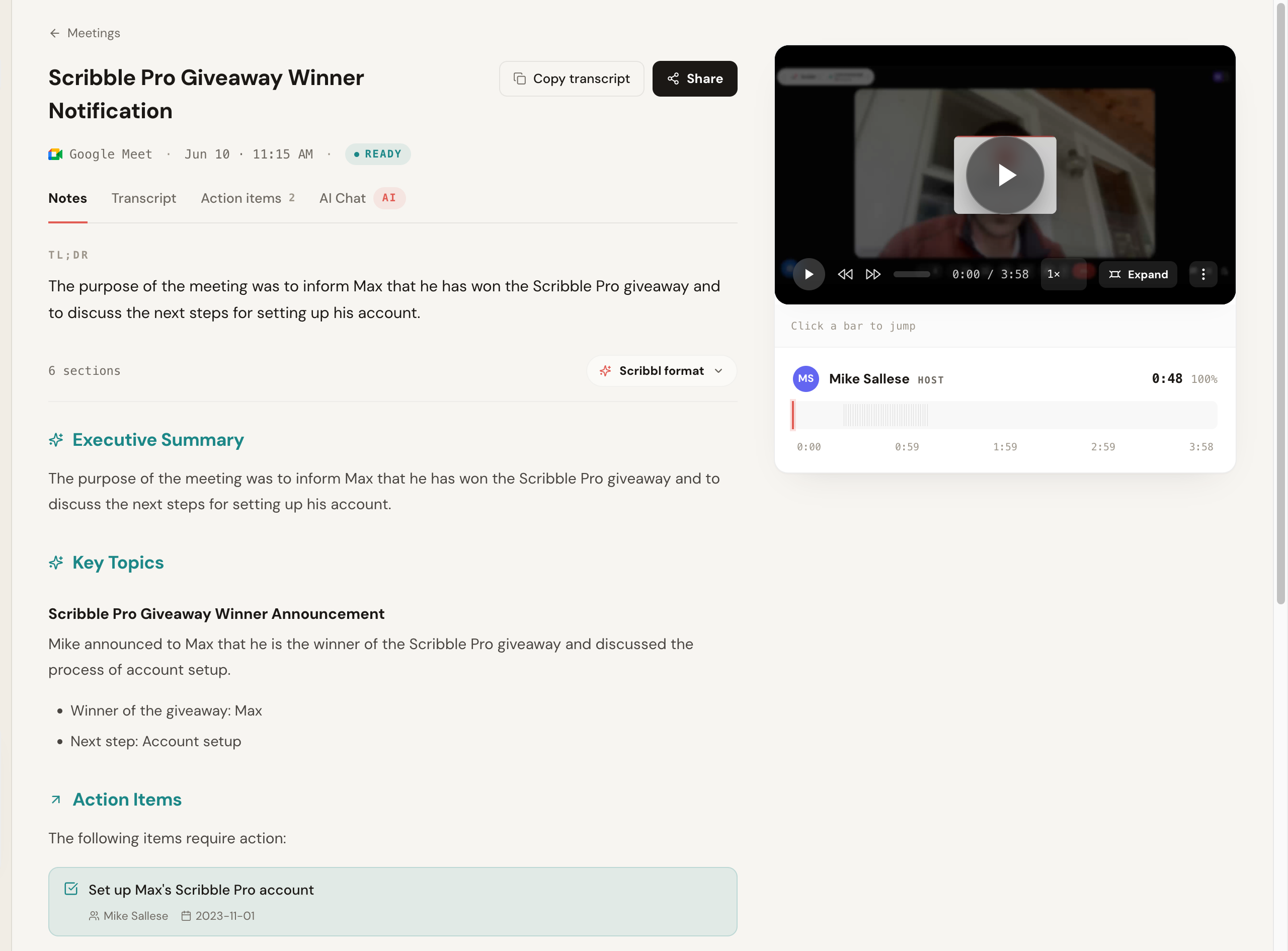
Scribbl's desktop app records your Zoom meetings from your own computer. In our test it started recording as soon as the Zoom meeting began, with nothing to click.

What you get after every meeting:
- The full video, with a timeline of who spoke when.
- A searchable transcript with speaker names and timestamps.
- AI notes: a summary, the key topics, decisions and action items.
- Ask anything about the meeting and get an answer from what was actually said.
- Ask Claude or ChatGPT about every meeting. On Pro, connect Scribbl once and ask across all your meetings, or just the meetings in one Smart Collection.
- The follow-up done for you. Automations draft the follow-up email, post a summary to Slack or Teams, or log meeting notes in HubSpot or Pipedrive. They ask before changing anything by default.
And what you don't need: no bot joins the call, and you don't need to be the host.
What it needs: a Mac with Apple Silicon (M1 or newer) or a 64-bit Windows PC. The desktop app is included in every Scribbl plan, including free. On Google Meet, Scribbl is a Chrome extension instead. The free plan includes Google Meet, Zoom and Teams, with 10 meetings a month, and Pro is $13 per user per month billed annually, or $20 monthly.
Get Scribbl for ZoomTroubleshooting: when Zoom recording doesn't work
There's no Record button
In Zoom 7.1 it's under More. If it's not there either: you're not the host and haven't been given permission, the host or your company has turned recording off, or you're on a phone or in a browser on the free plan. Ask the host to allow recording, or switch to the desktop app.
Record is greyed out
Your company's Zoom admin has turned recording off and locked the setting. Only your Zoom admin can change it.
There's no Record to the cloud option
You're on the free plan, or cloud recording is turned off. Cloud recording needs a paid plan and has to be turned on in the Zoom web portal under Settings › Recording.
The recording didn't show up
Zoom only converts after the meeting ends, so wait for the conversion window to finish. If it was interrupted, open the meeting's folder in Documents › Zoom and double-click double_click_to_convert_01.zoom. In our test, those files sat in the folder while the meeting was still being recorded.
The recording stopped at 40 minutes
Free Zoom meetings end at 40 minutes, and the recording ends with them. Use a paid plan, or start a new meeting and record again.
The files are damaged
The storage location is probably a folder that syncs to iCloud, Dropbox or OneDrive. Change it to a normal folder in Zoom's Settings (search "recording", then Change).
The cloud recording isn't there yet
Zoom processes cloud recordings after the meeting and emails the host when they're ready. Long meetings take longer.
Do you need permission to record a Zoom meeting?
When you use Zoom's recorder, Zoom tells everyone: REC appears in the meeting, and depending on the account's settings, Zoom shows a notice saying the meeting is being recorded and that staying in it means agreeing to that.
Recorders outside Zoom, like your computer's screen recorder or a desktop recording app, don't trigger that notice. Whether you need consent then depends on where you and the other people are. In the US, federal law and most states require only one person on the call to agree, which can be you. See the one-party consent states. Some states require everyone's agreement, including California, Florida, Illinois, Maryland, Massachusetts, Pennsylvania and Washington. Many other countries have their own rules. For more, see is it illegal to record a conversation.
The simple rule that covers you everywhere: say you're recording at the start of the meeting. This isn't legal advice; if it matters, check the rules where you and your participants are.
Zoom meeting recording FAQ
Can I record a Zoom meeting for free?
Yes. The free Zoom plan includes computer recording (also called local recording) in the Zoom desktop app for Mac, Windows and Linux. It saves an MP4 to your computer. Cloud recording, recording on a phone and recording in a browser all need a paid Zoom plan. Free Zoom meetings end at 40 minutes, so the recording stops there too.
Can I record a Zoom meeting if I'm not the host?
With Zoom's own recorder, only if the host allows it. The host opens Participants, hovers over your name, clicks More and chooses Allow Record. Without that, you can use your computer's screen recorder or a desktop recording app such as Scribbl, which records Zoom from your own computer without host permission and without anything joining the call. Either way, tell people you are recording.
Why is there no Record button in my Zoom meeting?
In Zoom Workplace 7.1 the Record button is under the More button on the meeting toolbar, not on the toolbar itself. If it is not under More either, the usual reasons are that you are not the host and have not been given permission, the host or your company admin has turned recording off, or you joined from a phone or a browser on a free plan, where only cloud recording exists.
Where are Zoom recordings saved?
Computer recordings are saved to Documents > Zoom by default: /Users/[name]/Documents/Zoom on Mac, the Documents\Zoom folder in your user folder on Windows, and home/[name]/Documents/Zoom on Linux. Each meeting gets its own dated folder with the video as an MP4 and the audio as an M4A. Cloud recordings are in the Zoom web portal under Recordings & Transcripts.
How do I know a Zoom meeting is being recorded?
In Zoom Workplace 7.1 a red REC label appears at the top right of the meeting window for everyone in the meeting. Hovering over it shows Computer recording is on, with Pause recording and Stop recording. Depending on account settings, Zoom also shows participants a notice that the meeting is being recorded. Recorders outside Zoom do not show REC, so you need to tell people yourself.
Can you record a Zoom meeting on your phone?
Only to the cloud, and only on a paid Zoom plan as the host or a co-host. In the Zoom app, tap More, then Record, then Start recording. The recording shows up in the Zoom web portal under Recordings & Transcripts. On the free plan you can try your phone's built-in screen recorder, but test it first, because some phones do not capture the other people's audio during a call.
How do I record myself on Zoom?
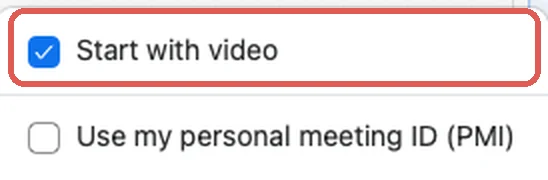
Start a meeting on your own in the Zoom desktop app, share your screen if you are presenting, then click More > Record or press Cmd + Shift + R on Mac or Alt + R on Windows. Click the arrow next to New meeting and uncheck Start with video if you only want your screen and voice. End the meeting and Zoom saves the MP4 to Documents > Zoom.
How long can you record a Zoom meeting?
On the free plan, meetings end after 40 minutes, so that is the practical limit. On paid plans, computer recordings are limited only by your disk space, and cloud recordings by the cloud storage on your plan.
How do I get a transcript of a Zoom recording?
On paid Zoom plans there are two ways. Turn on Create audio transcript and Zoom adds a VTT transcript file next to each cloud recording. Or turn on Meeting transcript, then click More, Transcript during any meeting, recorded or not, and save it as a TXT file. On the free plan, Zoom's pricing page lists 3 AI meeting summaries a month but no transcript file. An AI notetaker such as Scribbl writes the transcript and notes for you during the meeting.
How we tested: every step and screenshot in this guide comes from real meetings recorded in Zoom Workplace 7.1.9 on a Mac on October 1, 2026, on a free Zoom account: started, recorded, paused, resumed, stopped, restarted and converted. Plan limits and settings come from Zoom's own help pages on computer recording, cloud recording, audio transcripts and meeting transcripts, rechecked on October 5, 2026, when the current version was 7.2.2. Zoom moves buttons between versions; if yours looks different, the shortcuts still work.
Try Scribbl
Let your meetings take their own notes.
Scribbl's desktop app records, transcribes, and summarizes your Zoom meetings from your own computer. No bot joins the call and you don't need to be the host. Free forever for individuals.
Get Scribbl for Zoom · It's free