How to Transcribe a Meeting (2026): Google Meet, Zoom and Teams, Free and Paid
How to transcribe a meeting on Google Meet, Zoom or Teams: each app's own transcript, the plans it needs, and one free way that works on all three.
Updated October 29, 2026
The short answer
Google, Zoom and Microsoft details checked against their own help pages on October 12, 2026
Turn on the transcript built into your meeting app, mostly on paid plans and usually only for the host's organization, or run an AI note taker that transcribes every meeting for you.
- Google Meet
- Meeting tools Transcribe Start transcription. Paid Workspace plans from Business Standard. The transcript goes to the organizer's Google Drive.
- Zoom
- Turn on Meeting transcript in settings, then More Transcript in the meeting. Pro, Business or Enterprise, and the host starts it.
- Microsoft Teams
- More Record and transcribe Start transcription. Work or school accounts, when your admin allows it. The transcript is in the meeting chat under Recap.
- Any plan, host or not
- Scribbl transcribes every Meet, Zoom and Teams meeting you join, with speaker names, the video, AI notes and action items, in your own account. Nothing joins the call.
To transcribe a meeting, either turn on the transcript built into your meeting app (Google Meet, Zoom and Microsoft Teams each have one, mostly on paid plans and usually only for the host's organization), or run an AI note taker that transcribes every meeting for you. The best way for most people is the note taker: Scribbl gives you a transcript with speaker names, the video and AI notes on Google Meet, Zoom and Teams, with nothing joining the call, and the free plan includes Google Meet, Zoom and Microsoft Teams.
Scribbl makes this page. Every Google, Zoom and Microsoft detail below comes from their own help pages, checked on October 12, 2026, with links next to each fact and in Sources.
What is the best way to transcribe a meeting?
The best way to transcribe a meeting is the one that runs every time, without you or the host having to remember. The meeting apps' own transcripts work, but each one has conditions: the host needs the right paid plan, the feature has to be turned on, and guests from other companies usually can't start it. Miss one and the meeting ends with no transcript.
An AI note taker removes those conditions. Scribbl runs on your own computer: the Chrome extension for Google Meet, and Scribbl Desktop for Mac (Apple silicon) and Windows for Zoom and Teams. Nothing joins the call, so nobody sees an extra participant, and every meeting ends with the transcript in your account.
| Feature | Scribbl | Google Meet transcripts | Zoom Meeting transcript | Teams transcription |
|---|---|---|---|---|
| Google Meet, Zoom and Teams in one place | Yes | Meet only | Zoom only | Teams only |
| Free plan | Yes, 10 meetings a month | No, Business Standard and up | No, Pro and up | Work or school accounts, if your admin allows it |
| Works when you're a guest from another company | Yes | No | Only if the host starts it | No |
| Starts on its own every meeting | Yes | If set when creating the meeting | If the host or admin sets it | If set in meeting options |
| What you get | Transcript with speaker names, video, AI notes, action items | Transcript | Transcript (.txt) | Transcript (.docx or .vtt) |
| Where it goes | Your own Scribbl account | The organizer's Drive | Your computer, when saved | The meeting chat, under Recap |
The best way to transcribe meetings, by platform
| Platform | Built-in transcript | Plans that have it | Where it goes | Any plan, as a guest too |
|---|---|---|---|---|
| Google Meet | Meeting tools › Transcribe › Start transcription | Business Standard, Business Plus, Enterprise, Workspace Individual, Education Plus, Teaching and Learning Upgrade | A Google Doc in the organizer's Drive | Scribbl Chrome extension |
| Zoom | More › Transcript, after Meeting transcript is turned on | Pro, Business, Enterprise | A .txt file on your computer when you save it | Scribbl Desktop |
| Microsoft Teams | More › Record and transcribe › Start transcription | Work and school accounts, when your admin allows it | Meeting chat › Recap › Transcript | Scribbl Desktop |
Sources: Google Meet Help, Zoom Support, Microsoft Support, as of October 12, 2026.
How to transcribe a meeting with Scribbl (Google Meet, Zoom and Teams)
Scribbl is an AI note taker for Google Meet, Zoom and Microsoft Teams. You set it up once, and after that every meeting you join is transcribed.
- 1
Install Scribbl
The Chrome extension for Google Meet. Scribbl Desktop for Mac (Apple silicon) or Windows for Zoom and Teams. Sign in with a free account.
- 2
Join your meeting as usual
Scribbl starts on its own. Nothing joins the call. Tell everyone you're recording.
- 3
Open the meeting in Scribbl
After the call: the video, a transcript with speaker names, AI notes and action items.
- 4
Use it
Search or copy the transcript, share the meeting, or let Automations draft the follow-up email.
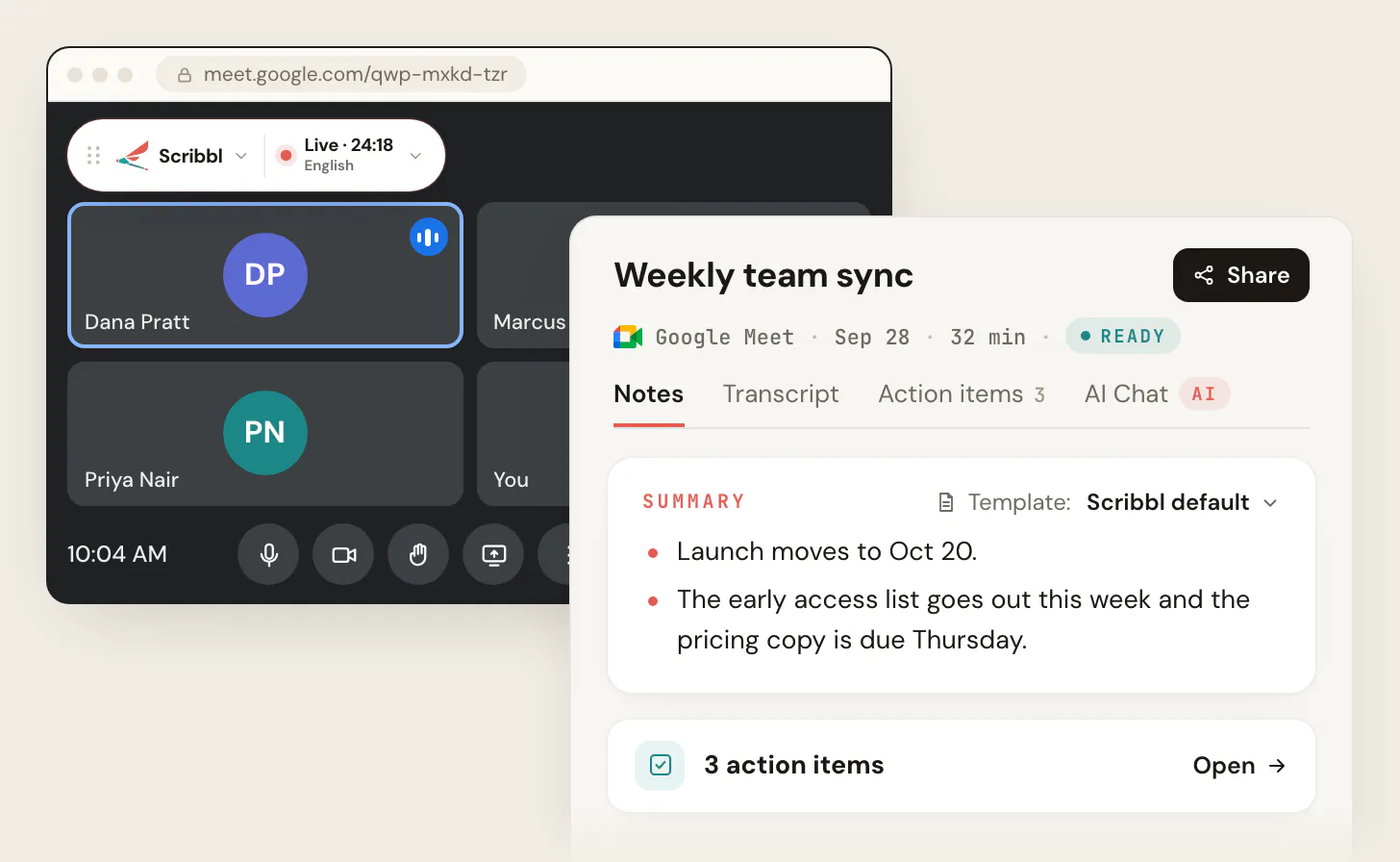
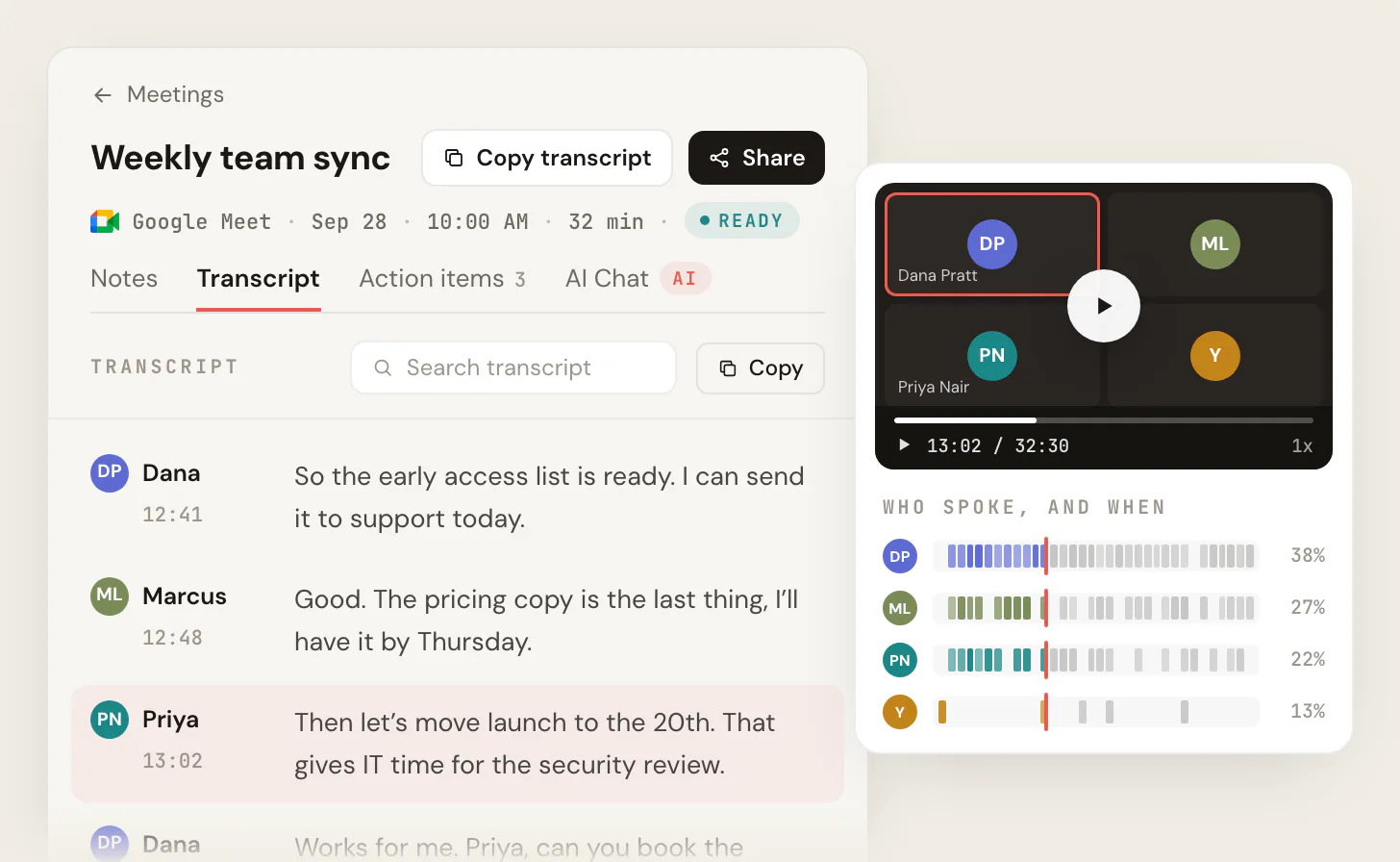
Because Scribbl runs on your computer instead of asking the meeting app to transcribe, you don't need to be the host, you don't need a paid Google Workspace, Zoom or Microsoft plan, and you don't need anyone to share the file with you. Your Meet, Zoom and Teams meetings all land in one account. Recordings are private by default, and Scribbl doesn't use your meetings to train AI for anyone other than you.
The free plan includes Google Meet, Zoom and Microsoft Teams, for 10 meetings a month. Pro is $13 per user per month billed annually, or $20 monthly.
How to transcribe a Google Meet meeting
Google Meet's own transcripts are on these Google Workspace plans: Business Standard, Business Plus, Enterprise Starter, Enterprise Standard, Enterprise Plus, Workspace Individual, Education Plus and the Teaching and Learning Upgrade. Free Gmail and Business Starter don't have them. Business Standard is listed at $14 per user per month on an annual plan (Google Workspace pricing).
- Join the meeting on a computer or Android device. iPhone and iPad can't start a transcript.
- Click Meeting tools, then Transcribe, then Start transcription.
- Click Start in the pop-up. Everyone in the call is told.
- To stop, click Meeting tools › Transcribing › Stop transcription. It also stops when everyone leaves.
If Host management is off, anyone from the host's domain can start it; if it's on, only the host and co-hosts can. The transcript is saved as a Google Doc in the meeting organizer's Google Drive, in the Google Meet folder. Only the spoken words are included, not the chat. To find a recording, see where Google Meet recordings go. Transcripts work in English, French, German, Italian, Japanese, Korean, Portuguese and Spanish. (Source: Google Meet Help, as of October 12, 2026.)
If you're on free Gmail, or a guest in someone else's meeting, there's no Transcribe button for you. Use the Scribbl Chrome extension instead. Full walkthrough: Google Meet transcription.
How to transcribe a Zoom meeting
Zoom has two kinds of saved transcript, both on paid plans:
- Meeting transcript, during the call. It needs a Pro, Business or Enterprise account, and Zoom says it isn't on by default: a host or admin turns on Meeting transcript in the Zoom web portal under Settings › Meeting › In Meeting (Advanced). In the meeting, the host clicks More, then Transcript, and can save it as a .txt file to the Zoom folder in Documents. A participant who clicks the same button sends the host a request.
- Audio transcript of a cloud recording, after the call. It needs a Pro, Business, Education or Enterprise account, with cloud recording and audio transcription turned on before you record. The transcript is a VTT file next to the recording, and Zoom emails you when it's ready.
On Zoom's free plan, live captions show on screen, but Zoom says that since May 2026 nobody can save or download captions after the meeting. (Sources: Zoom Support, Using Meeting transcripts, Enabling or disabling meeting transcripts, Using audio transcription for cloud recordings and captions and transcript updates, as of October 12, 2026.)
To transcribe Zoom meetings on any plan, hosted or not, use Scribbl Desktop. Every Zoom option in detail: Zoom meeting transcription.
How to transcribe a Microsoft Teams meeting
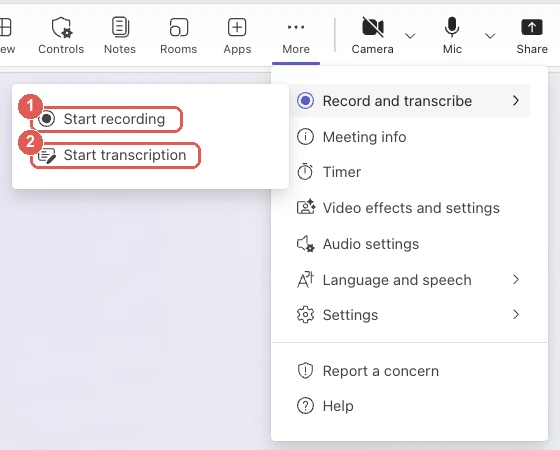
- In the meeting, click More, then Record and transcribe, then Start transcription.
- Confirm the language everyone is speaking and click Confirm. Everyone sees that the meeting is being transcribed.
- After the meeting, open Chat, select the meeting's chat, then Recap › Transcript.
- To download it, choose .docx or .vtt. By default only the organizer and co-organizers can download.
Starting a recording starts transcription too. Organizers, co-organizers and presenters can start it; people who joined without signing in and people who called in by phone can't, and neither can guests or people from other organizations. (Sources: Microsoft Support, Start, stop, and download live transcripts and I can't transcribe a meeting in Microsoft Teams.)
Microsoft's help for free Teams for personal use covers live captions, which aren't saved, and doesn't describe meeting transcripts (Microsoft Support). For free Teams, or for meetings another company organizes, use Scribbl Desktop. Full walkthrough: Teams transcription.
How to get a transcript of a meeting you don't host
This is where the meeting apps' own transcripts most often leave people with nothing. In Google Meet and Teams, guests from another company can't start a transcript, and the file is saved in the organizer's account. In Zoom, the host starts the Meeting transcript and decides whether to accept a participant's request.
You can ask the host to transcribe and send you the file. Or run Scribbl on your own computer: it transcribes a client's Meet call, a partner's Zoom or a vendor's Teams meeting the same way it transcribes your own, and the transcript lands in your account. As with any recording, tell everyone you're recording.
How to transcribe a conversation
If the conversation is a call on Google Meet, Zoom or Teams, transcribe it as a meeting: run Scribbl during the call, or use the app's own transcript. For other conversations, the way depends on where it happens:
- A recording on your iPhone: Voice Memos shows a transcript of your recordings on iPhone 12 or later, while you record or afterward. Open the recording and choose Copy Transcript to paste the text anywhere. It works in English, Spanish, Portuguese, Italian, French, German, Japanese, Korean and Chinese, and not in every country or region (Apple Support).
- An audio or video file you already have: run it through a transcription tool. See the best free transcription software.
- Typing it out by hand: play the recording in short pieces with headphones, type what you hear, and start each line with the speaker's name. Mark sounds that matter in brackets, such as [laughs] or [inaudible], and add a time stamp every few minutes so you can find a part again.
Whichever way you choose, a clear recording does more for the transcript than the tool. Keep the microphone close to the people talking, find a quiet room, and ask people not to talk over each other. Then check names, numbers and dates in the transcript, since those are the words most often wrong. For interviews, see how to transcribe an interview.
Tell people you're transcribing
Google Meet, Zoom and Teams all tell people in the call when their own transcript starts. Do the same with any tool: say at the start that you're recording and transcribing. US federal law lets a person who is part of a conversation record it (18 U.S.C. section 2511), but some states, including California, require everyone's consent (California Penal Code section 632). This is general information, not legal advice. More in is it legal to record a meeting.
What to do with the transcript
A transcript is most useful when the follow-up comes out of it without more work. With Scribbl, each meeting also has AI notes and action items. On Pro you can connect Scribbl to ChatGPT or Claude and ask about past meetings, such as what a client asked for last month.
Smart Collections sort meetings by themselves, and Automations do the follow-up when a meeting lands in a collection: draft the follow-up email (copy it or open it in Gmail; it never sends by itself), log a note in HubSpot or Pipedrive, send meeting notes to Slack or Microsoft Teams, save to Google Drive, Notion or Confluence, open an Asana, Monday, Linear or Jira ticket, or add a Google Sheet row. They ask before they change anything by default. See plans and pricing.
FAQ
What's the best way to transcribe a meeting?
Use an AI note taker that transcribes every meeting for you, so you don't have to remember to press anything or depend on the host's plan. Scribbl does this on Google Meet, Zoom and Microsoft Teams with nothing joining the call, and gives you a transcript with speaker names, the video, AI notes and action items. The free plan includes Google Meet, Zoom and Microsoft Teams, for 10 meetings a month. If you host on a paid plan, each meeting app's own transcript also works once it's turned on.
How to get a transcript of a meeting?
In Google Meet, click Meeting tools, then Transcribe, then Start transcription; the transcript goes to the organizer's Google Drive. In Zoom, the host clicks More, then Transcript, after Meeting transcript is turned on in settings. In Microsoft Teams, click More, then Record and transcribe, then Start transcription; the transcript is in the meeting chat under Recap. Each needs a supported plan and usually someone from the host's organization. To get a transcript of any Meet, Zoom or Teams meeting in your own account, run Scribbl during the call.
Can I transcribe a meeting for free?
Yes. Scribbl's free plan includes Google Meet, Zoom and Microsoft Teams, for 10 meetings a month, with a transcript with speaker names, the video and AI notes. The meeting apps' own transcripts mostly need a paid plan: Google Meet transcripts start at Business Standard, and Zoom's Meeting transcript needs Pro, Business or Enterprise. Live captions are free in all three apps but aren't saved as a transcript.
Can I transcribe a meeting if I'm not the host?
With the meeting apps' own transcripts, often not. Guests from other companies can't start a Google Meet or Teams transcript, and in Zoom the host starts a Meeting transcript; participants can only ask. Scribbl runs on your own computer, so it transcribes meetings you join as a guest the same way it transcribes meetings you host, and the transcript lands in your own account. Tell everyone you're recording.
Do Google Meet, Zoom and Teams transcribe meetings automatically?
Only if someone sets it up. In Google Meet, when you create the meeting, click Video call options, then Meeting records, then Transcribe the meeting. In Zoom, a host or admin turns on Meeting transcript and can choose to generate transcripts for all meetings. In Teams, the meeting options let the organizer record and transcribe automatically. Scribbl starts on its own for every meeting you join.
Are live captions the same as a transcript?
No. Live captions show the words on screen during the call and aren't saved. Zoom says that since May 2026 nobody can save or download captions. A transcript is a saved record you can read, search and share after the meeting.
How do I transcribe a conversation?
Start with where it happens. For a conversation on Google Meet, Zoom or Teams, run an AI note taker such as Scribbl during the call and you get a transcript with speaker names afterward. For a recording on an iPhone 12 or later, Voice Memos shows a transcript. For an audio file, use a transcription tool, or play it back and type it out, labeling each speaker and checking names and numbers. Tell people before you record.
Is it legal to transcribe a meeting?
Usually, if you're in the meeting and tell people. US federal law lets a person who is part of a conversation record it, but some states, including California, require everyone's consent. The simple rule: say at the start that you're recording and transcribing. This is general information, not legal advice.
Sources
All checked October 12, 2026, unless noted.
- Google Meet Help, Use transcripts with Google Meet (plans, devices, steps, Host management, where transcripts are saved, chat not included, languages, automatic transcripts)
- Google Workspace, Pricing (Business Standard $14 per user per month on an annual plan)
- Zoom Support, Using Meeting transcripts (More, Transcript; participant requests; .txt in the Zoom folder)
- Zoom Support, Enabling or disabling meeting transcripts (Pro, Business or Enterprise; not on by default; where to turn it on)
- Zoom Support, Using audio transcription for cloud recordings (plans, VTT file, email when ready)
- Zoom Support, Frequently asked questions about meeting captions and transcript updates (captions can't be saved since May 2026)
- Microsoft Support, Start, stop, and download live transcripts in Microsoft Teams meetings (steps, who can start, Recap, .docx and .vtt, who can download)
- Microsoft Support, Record a meeting in Microsoft Teams (Record automatically when scheduling a meeting; recording also starts transcription)
- Microsoft Support, I can't transcribe a meeting in Microsoft Teams (guests and other organizations), checked October 6, 2026
- Microsoft Support, Live captions in Microsoft Teams for personal use, checked October 6, 2026
- Apple Support, View a transcription in Voice Memos on iPhone, checked October 7, 2026
- Cornell Legal Information Institute, 18 U.S.C. section 2511
- California Legislative Information, Penal Code section 632
- Scribbl, Pricing (free plan and Pro)
Try Scribbl
Transcribe every meeting, host or not
Scribbl records, transcribes, and summarizes your Google Meet calls from your browser. No bot joins the call. Free forever for individuals.
Add to Chrome · It's free