Does Zoom Transcribe Meetings? (2026) Zoom AI Transcription, Free and Paid
Yes, on paid plans, if the host turns it on. How Zoom AI transcription works, what's free, how to download and save a Zoom transcript, and every other way.
Updated October 12, 2026

Yes, Zoom transcribes meetings on paid plans (Pro and up) when the host or an admin turns it on, in three ways: a Meeting transcript during the call, an audio transcript of a cloud recording, or a Zoom AI meeting summary with Generate transcript ticked. On the free plan, live captions show on screen but Zoom doesn't save them, so the free ways to keep a transcript are My Notes (3 uses a month on Zoom's free plan) or a free note taker that runs on your own computer, such as Scribbl.
Scribbl makes an AI note taker for Google Meet, Zoom and Microsoft Teams, and wrote this guide. Zoom's own options come first, and Scribbl is the way to get a transcript of any Zoom meeting, whether you host it or not, on any Zoom plan, with the video too. Every Zoom detail below comes from Zoom's own help center and pricing page, and every detail about another note taker from that company's own help pages, all checked on October 7, 2026, with the links next to each fact and at the end.
Is there a transcription tool on Zoom?
Yes. Zoom has six built-in features that turn a meeting into text or a recording, and four of them leave you a transcript to open later: Meeting transcript, cloud recording audio transcripts, Zoom AI meeting summaries and My Notes. Live captions aren't saved, and computer recordings come without a transcript. Third-party note takers are the other way: one that joins the call, or one that runs on your own computer.
| Way | What you get | Zoom plan | Who turns it on | Where the transcript ends up |
|---|---|---|---|---|
| Scribbl Desktop (our pick, from the company that makes this page) | The video, a transcript with speaker names, AI notes and action items | Doesn't depend on your Zoom plan. Scribbl's free plan covers 10 meetings a month | You, on your own computer. Nothing joins the call, so tell people you're recording | In Scribbl |
| Live captions (Show captions) | Live text with each speaker's name. You can scroll back about 3 minutes | Every plan, including free Basic | Anyone in the meeting, unless the host limits captions (then you request them) | Nowhere. Zoom stopped saving captions in May 2026 |
| Meeting transcript (More › Transcript) | A running transcript in a side panel that you can keep | Pro, Business or Enterprise | The host; participants can request it. Off until a host or admin turns it on in settings | A .txt file in Documents › Zoom when you click Save transcript. The host's settings decide who can save it |
| Cloud recording audio transcript | A time-stamped transcript of the recording, with speakers labeled, that you can edit and search | Pro, Business, Education or Enterprise, with cloud recording | The host or a co-host starts a cloud recording; Create audio transcript must be on first | A VTT file next to the recording in the web portal, under Recordings & Transcripts › Cloud recordings. Zoom emails a link |
| Zoom AI meeting summary, with Generate transcript | A summary and next steps, plus a transcript if ticked | Paid plans on Zoom's help pages. Free Basic: summaries for 3 hosted meetings a month | The host or a co-host; participants can click Ask host to start Zoom AI | Summary by email and Zoom Chat. Transcript on the Transcripts tab of Recordings & Transcripts, as a VTT file you can download, if your account keeps them |
| My Notes | Your own notes with a transcript, private to you | Pro and up, or a My Notes account. Free Basic: 3 uses a month | You. In a Zoom meeting, the host can turn off My Notes transcription for participants | The My Notes tab in the Zoom app |
| Computer recording (More › Record) | Video and audio files, with no transcript | Every plan, including free Basic | The host, or a participant the host allows | Documents › Zoom. The host can add the captions as a VTT file with Save closed caption as a VTT file |
| A note taker that joins the call, such as Otter's Notetaker, Fireflies or Read AI | A transcript and an AI summary, plus whatever else the tool adds | Doesn't depend on your Zoom plan; Otter and Read AI say free Zoom works | You, but it joins as a participant everyone can see, and the host may have to admit it | In the note taker's app |
| Another note taker on your own computer, such as Granola or Otter's desktop app | A transcript and AI notes, without the video | Doesn't depend on your Zoom plan | You. Nothing joins the call, so tell people you're recording | In the note taker's app |
(Sources: Zoom Support pages on Meeting transcripts, captions, cloud recording transcripts, meeting summary, My Notes and computer recording, and Zoom pricing; for note takers, Otter's help center, Fireflies' guide, Read AI support and Granola. All as of October 7, 2026.)
How to transcribe a Zoom meeting
If you host on a paid plan, you have two ways to keep a transcript of the whole meeting: Meeting transcript, which runs during the call, or an audio transcript of a cloud recording, which Zoom makes afterward. Both have to be turned on before you need them. A third way, a Zoom AI meeting summary with a transcript, is below.
Option 1: Turn on Meeting transcript
Zoom added Meeting transcript in May 2026, when it split saved transcripts from live captions. Zoom says transcripts aren't on by default: a host or admin has to turn them on. It needs a Pro, Business or Enterprise account.
Set it up once, in the Zoom web portal:
- Sign in at zoom.us, click your profile picture, then My account.
- Click Settings, then Meeting.
- Under In Meeting (Advanced), turn on Meeting transcript. If a dialog appears, click Enable.
- Choose the sub-settings, then click Save:
- Automatically generate transcripts for: all meetings, or only meetings that have a summary. Leave it off if you'd rather start transcripts yourself.
- Allow all meeting participants to view transcripts during the meeting.
- Allow saving of transcripts to computer by: the host only, the host and co-hosts, everyone who isn't a guest, people on specific IP addresses, or all participants.
If the toggle is grayed out, your admin has locked it, and only they can change it. Admins set the same thing for everyone under Admin Center › Settings › Meeting, where they can also add a custom notice for participants and delete transcripts after a set number of days.
In the meeting:
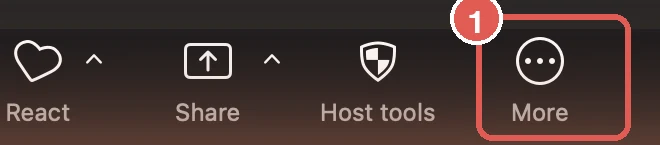
- On the meeting toolbar, click More, then Transcript. The transcript starts, and the Transcript panel opens on the right and fills in as people speak.
- At the bottom of the panel, click Save transcript. Zoom saves a .txt file to your computer; click View in Folder (Windows) or Finder (Mac) to open it.
- To stop, hover over the Transcript icon at the top right of the meeting window and click Stop transcription. Tick Delete transcript first if you don't want to keep it.
Participants see the Transcript icon at the top right and can ask the host to stop. If a participant clicks More › Transcript while it's off, the host gets a request to Start transcription or Decline. (Source: Zoom Support, Using Meeting transcripts and Enabling or disabling meeting transcripts, as of October 2026.)
Option 2: Get a transcript of a cloud recording
This needs a Pro, Business, Education or Enterprise account with cloud recording, and it has to be set up before you record.
- In the Zoom web portal, click Settings, then the Recording tab.
- Check that Cloud recording is on.
- Under Advanced cloud recording settings, tick Create audio transcript and click Save.
In the meeting, click More, then Record, then Record to the cloud. Only hosts and co-hosts can start a cloud recording, and a co-host's recording shows up in the host's list. After the meeting, Zoom emails you when the recording is ready, then again when the transcript is ready. Zoom says cloud recordings usually take about twice the recorded time to process, and occasionally up to 24 hours.
The transcript is a VTT file, split into time-stamped sections, that you can edit, search, and turn on as captions when you play the video. (Source: Zoom Support, Using audio transcription for cloud recordings, Enabling or disabling audio transcription for cloud recordings and Starting a cloud recording, as of October 2026.) For where to find it, how to edit it and how to download it, see how to download a cloud recording transcript below.
Is Zoom AI transcription free?
Partly. Live captions are free on every plan, and Zoom's pricing page gives the free Basic plan a small AI allowance. Anything that saves a full transcript of the meeting needs a paid plan.
| Free (Basic) | Paid (Pro, Business, Enterprise) | |
|---|---|---|
| Price per user | Free | Pro: $16.99 a month, or $14.16 a month billed annually. Business: $21.99, or $18.33 billed annually |
| Meeting length | 40 minutes | 30 hours |
| Live captions | Yes, not saved | Yes, not saved |
| Meeting transcript | No | Yes |
| Recording | On your computer only, no transcript | On your computer, or to the cloud with a transcript |
| Zoom AI meeting summaries | 3 hosted meetings a month | Unlimited |
| My Notes AI note-taking | 3 uses a month | Unlimited |
(Source: Zoom pricing, as of October 7, 2026; Meeting transcript plans from Zoom Support.)
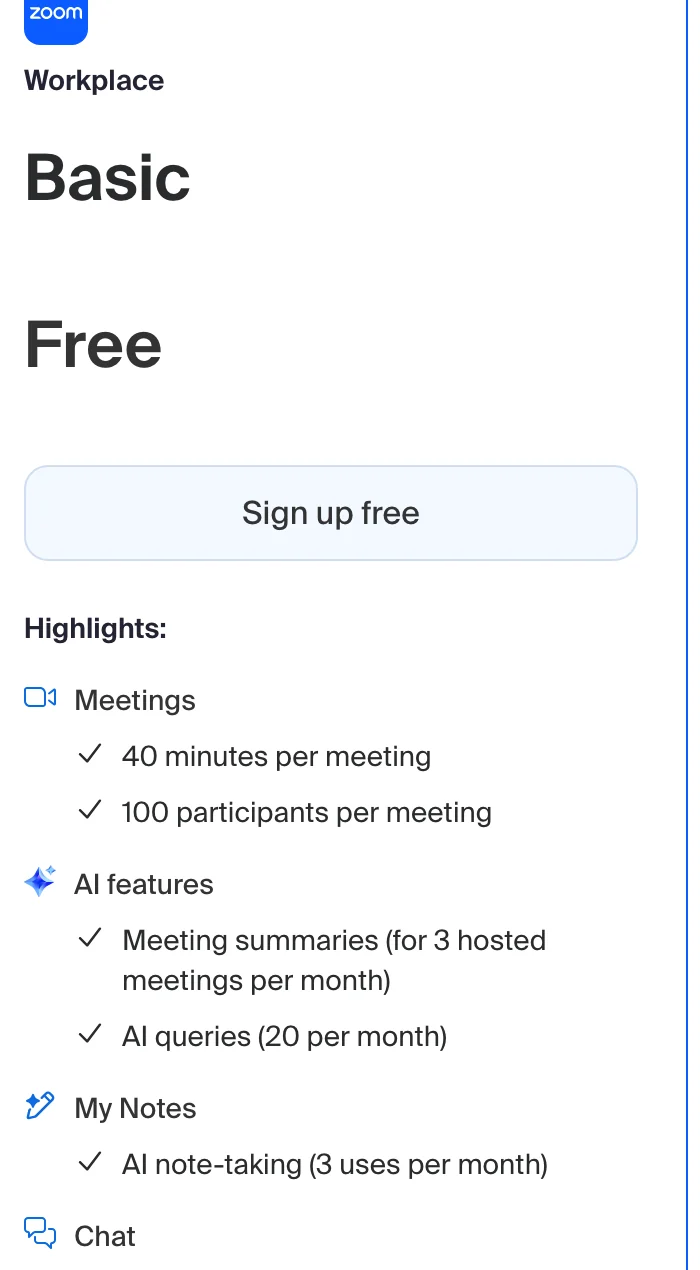
Three things to know before you count on the free allowance:
- Zoom's help pages list paid plans only. The requirements for Meeting summary and My Notes on Zoom's help pages name paid plans (and a My Notes account). The free allowance is on the pricing page.
- A summary isn't a transcript. The free plan's meeting summaries give you the key points and next steps. Zoom's help pages tie keeping the transcript to Meeting transcript settings, which need a paid plan.
- Unlicensed seats on company accounts don't count. Zoom's pricing page says AI features don't apply to users with Basic permissions on paid accounts.
How to get AI transcript on Zoom?
Zoom AI transcription comes from two Zoom features: a meeting summary with Generate transcript ticked, which the host starts, and My Notes, which keeps a transcript just for you. The other way is a third-party note taker, and some work even when you aren't the host.
Zoom AI is what Zoom now calls the features it used to sell as AI Companion. Zoom retired the AI Companion name in June 2026; the features are still built into Zoom Workplace and still included with eligible paid plans, and each one is named for what it does (Zoom Blog, June 24, 2026; Getting started with Zoom AI features).
Meeting summary, with a transcript
- Start the meeting as the host in the Zoom desktop app. Meeting summary has to be turned on in your Zoom settings first (how to turn it on).
- Hover over the Zoom AI icon at the top right of the meeting window.
- Tick Meeting summary, and tick Generate transcript to keep a transcript after the meeting.
- Click Start Zoom AI. Participants see Zoom's diamond-shaped AI icon change color.
When the meeting ends, the summary is sent by email and, if continuous meeting chat is on, posted in Zoom Chat. The transcript goes to the Zoom web portal: click your profile picture, then Profile, Recordings and Transcripts, and the Transcripts tab, where you can search and Download it. That tab only has your transcripts if your account allows hosts to view and manage transcripts after the meeting.
Limits, from Zoom's help pages:
- Only the host and co-hosts can start or stop it. Participants can click Ask host to start Zoom AI.
- It covers only the time it was on.
- It doesn't work in breakout rooms.
- People who weren't signed in to Zoom don't get the summary automatically.
(Source: Zoom Support, Using Meeting Summary with AI and Accessing meeting transcripts for Meeting Summary with AI, as of October 2026.) For who receives the summary and how to share it, see Zoom AI Companion is now Zoom AI.
My Notes
My Notes is your own notes with a transcript, and Zoom doesn't share them with the host or other participants unless you do. It runs in the Zoom desktop app, mobile app, web app and Zoom Rooms, and works in Zoom meetings, in-person meetings and, from a computer, calls on other platforms using your computer's audio. Zoom's pricing page lists speaker identification for Zoom meetings. It comes with paid Zoom Workplace plans, and Zoom's My Notes page also lists a standalone My Notes plan from $8.33 per user per month.
In a Zoom meeting, the host can turn off My Notes transcription for one participant or for everyone, and participants can ask the host for access. Zoom also reminds you to follow the law when you transcribe other people, which may include telling them. (Source: Zoom Support, Using My Notes, and Zoom's My Notes page, as of October 2026.)
Zoom AI in Google Meet and Teams meetings
Zoom AI can also transcribe your meetings on Google Meet and Microsoft Teams. It joins the meeting as a participant, transcribes it, and gives you a summary afterward. You need a paid Zoom Workplace plan (Pro and up), your calendar connected to Zoom, the setting Allow AI Companion to join third-party meetings turned on, and the Zoom desktop app 6.4.5 or higher.
To invite it, open the Calendar tab in the Zoom desktop app, find the meeting, and turn on Invite AI Companion (this help page still uses the old name). Zoom posts a chat message 3 minutes after the meeting starts so people know it's there, and its video tile shows whose it is and that it's transcribing. The transcript is in the Zoom web portal under Recordings & Transcripts, on the Transcripts tab. (Source: Zoom Support, Using AI Companion in third-party meetings, as of October 2026.)
With a third-party note taker
Third-party note takers reach a Zoom meeting in one of two ways:
- An app on your own computer. Nothing joins the call, and you don't need the host. Scribbl Desktop keeps the video as well as a transcript with speaker names, AI notes and action items. Otter's desktop app for Mac and Windows records Zoom meetings without its Notetaker, and Granola, for Mac and Windows, transcribes from your computer's audio; neither keeps the video.
- A note taker that joins the call. Otter's Notetaker joins your Zoom meeting as a participant everyone can see, and Fireflies and Read AI also join as participants. If you aren't the host, the host may have to admit it. Read AI says that under Zoom's new rules for meeting bots, its bot only joins Zoom meetings you're in, signed in to the Zoom account you connected.
If the meeting is already over and recorded, see what to do with a recording Zoom didn't transcribe. Whichever you use, tell everyone at the start that you're recording. (Sources: Otter Help Center, Fireflies guide, Read AI support and Granola, as of October 7, 2026.)
Live captions vs. a saved Zoom transcript
Captions and transcripts both turn speech into text on your screen, which is why people mix them up. Only one of them is still there after the meeting.
- Show captions on the meeting toolbar (or More › Show captions)
- Every plan, including free Basic
- Anyone can turn them on, unless the host limits them
- Each line labeled with the speaker's name
- Not saved: scroll back about 3 minutes, nothing to download
- More › Transcript on the meeting toolbar
- Pro, Business or Enterprise
- The host starts it; participants can request it
- Off until a host or admin turns it on in settings
- Saved: Save transcript downloads a .txt file
What changed in May 2026. Zoom used to let people save captions at the end of a meeting, and many guides and videos still describe that as the free way to get a transcript. Zoom ended it in a rollout from May 24 to May 26, 2026: nobody can save or download captions anymore, and the Save captions and Full transcript settings were removed and folded into the new Meeting transcript setting. Captions still show during the meeting, with about 3 minutes of scroll-back, and when you play a recording. If you relied on saved captions, Zoom says to turn on Meeting transcript instead. (Source: Zoom Support, FAQ about meeting captions and transcript updates (May 2026) and Saving closed captions in a meeting.)
How to turn on captions. Click Show captions on the meeting toolbar, or More › Show captions if you don't see it. If the host has limited captions, you'll see Request captions instead, and the host decides. The caption language you pick applies to everyone, so pick the language people are speaking; Zoom says captions come out wrong if it's expecting a different one. (Viewing captions in a meeting or webinar)
Accuracy. Zoom says caption accuracy depends on background noise, how loud and clear people speak, and regional words and dialects, and it suggests a human captioner where accuracy is a legal or accessibility requirement (Managing automated captions).
How to get, download and save a Zoom transcript
Where your Zoom transcript is, and how you download it, depends on which kind you made. Find yours in the table, then follow the steps below it. If Zoom made no transcript at all, skip to what to do with a recording Zoom didn't transcribe.
| Kind of transcript | Where it is after the meeting | How to get the file | File |
|---|---|---|---|
| Scribbl Desktop (our pick) | On the meeting page in Scribbl, next to the video, AI notes and action items | Nothing to download or save. It's there when the meeting ends, for any Zoom meeting you're in, hosted or not | Read and search it in Scribbl |
| Cloud recording audio transcript | Zoom web portal › Recordings & Transcripts › Cloud recordings | Open the meeting and download the audio transcript | VTT |
| Zoom AI meeting summary transcript | Zoom web portal › Profile › Recordings and Transcripts › Transcripts tab | Click Download | Downloaded from the Transcripts tab |
| Meeting transcript | Documents › Zoom on your computer, if someone saved it | Click Save transcript in the Transcript panel during the meeting | .txt |
| My Notes | The My Notes tab in the Zoom app | Open it in the Zoom app | Private to you |
| Live captions | Nowhere | Can't be saved or downloaded since May 2026 | None |
(Sources: Zoom Support pages on cloud recording transcripts, meeting summary transcripts, Meeting transcripts, My Notes and captions, as of October 12, 2026.)
Download a cloud recording transcript
If the meeting was recorded to the cloud with Create audio transcript on, the transcript already exists. Zoom sends two emails: one when the cloud recording is ready, and a second when the audio transcript is ready. If the video is there and the transcript isn't yet, give it more time.
- Sign in to the Zoom web portal at zoom.us.
- Click Recordings & Transcripts, then the Cloud recordings tab.
- Click the meeting name. You see the recording's files, including the audio transcript.
- To download it, hover over the audio transcript and click the download arrow. You get a VTT file.
- To read or fix it first, click the recording thumbnail. The transcript opens on the right of the video. Hover over a line and click the pencil icon to edit it, including Unknown Speaker names, then click the check mark to save.
- To find a meeting by what was said, type in the Search text in audio transcript field on the Cloud recordings tab.
Admins can search every transcript in the account under Account Management › Recording & Transcript Management. (Sources: Zoom Support, Using audio transcription for cloud recordings, and Temple University's help page, Zoom: Audio Transcript, for the download arrow, as of October 12, 2026.)
Download a Zoom AI meeting summary transcript
If the host started Zoom AI with Generate transcript ticked:
- Sign in to the Zoom web portal and click your profile picture, then Profile.
- Click Recordings and Transcripts, then the Transcripts tab.
- Set the date range, or search by meeting ID, topic or a word that was said.
- Click Download.
The tab only shows transcripts if your account has Allow hosts to view and manage transcripts after the meeting turned on. Admins find everyone's under Admin Center › Content Management › Recordings and Transcripts › Transcripts. (Source: Zoom Support, Accessing meeting transcripts for Meeting Summary with AI, as of October 12, 2026.)
Save a Meeting transcript before the meeting ends
A Meeting transcript is saved from the meeting itself. Zoom's help page on it describes one way to keep the file: during the call, click More › Transcript, then Save transcript at the bottom of the panel. The host's Allow saving of transcripts to computer by setting decides who sees that button. Save it before you leave. (Using Meeting transcripts)
Where Zoom saves transcripts on your computer
A saved Meeting transcript is a .txt file in the Zoom folder in your Documents:
- Windows:
C:\Users\[Username]\Documents\Zoom - Mac:
/Users/[Username]/Documents/Zoom - Linux:
home/[Username]/Documents/Zoom
Computer recordings go to the same folder as video and audio files, with no transcript. More in where do Zoom recordings go.
Make a Zoom transcript readable
A VTT file is time-stamped text. Open it in any text editor or word processor to read it. To share it as plain text, paste it into a document and delete the time stamps. Then check names, product words and jargon, which is where automatic transcripts go wrong most often; find and replace fixes a name that's wrong all the way through. To turn the text into something people will read, see how to summarize a meeting and the action items template.
Can you transcribe a Zoom meeting if you're not the host?
Only partly, with Zoom's own tools:
- Live captions: yes, unless the host has limited them to hosts and co-hosts. Then click Request captions.
- Meeting transcript: you can request it, and the host chooses to start it or decline. Whether you can read it during the meeting or save it depends on the host's settings.
- Cloud recording: no. Only hosts and co-hosts can start one, and the transcript goes to the host.
- Zoom AI meeting summary: you can click Ask host to start Zoom AI. The host decides whether you get the summary.
- My Notes: yes, if you have it, but the host can turn off My Notes transcription for participants.
- Recording to your computer: only if the host allows it, and it comes with no transcript. See how to record a Zoom meeting if you're not the host.
The way around the host is a third-party note taker. One that joins the call shows up as a participant, and the host may have to admit it. One that runs on your own computer, such as Scribbl Desktop, doesn't need the host's permission, so the responsibility is yours: tell everyone at the start that you're recording. Some places require everyone's consent; see do you have to tell people you're recording.
Can Zoom transcribe a meeting you already recorded?
Usually not. Zoom's help pages describe audio transcripts only for cloud recordings made while Create audio transcript was on, on a paid plan, and say audio transcription doesn't apply to recordings saved to your computer. If your recording is a computer recording, or a cloud recording made with the setting off, you'll need to upload the file to a transcription service. Changing the setting now doesn't add a transcript to a past recording.
What to do, by situation:
- Cloud recording with Create audio transcript on: the transcript exists. Download it.
- Recording saved to your computer: find the .mp4 or .m4a in Documents › Zoom and upload it to a transcription service. Zoom only adds text to a computer recording if live captions were running and Save closed caption as a VTT file was on.
- Cloud recording with the setting off, or the free plan: download the .mp4 from the Cloud recordings tab (free accounts only have computer recordings) and upload it to a transcription service.
For your next meetings, turn on Create audio transcript or Meeting transcript, or use Scribbl Desktop so every Zoom meeting you're in has a transcript without anything to set up, upload or download.
Zoom transcription languages
- Live captions: 49 languages and dialects, from Afrikaans to Zulu, including English, Spanish, French (Canada and France), German, Portuguese, Chinese (Simplified and Traditional), Cantonese, Japanese, Korean, Hindi and Arabic. The host's account settings decide which ones are offered (Enabling or disabling automated captions).
- Cloud recording transcripts: made in English by default. You can change a transcript's language afterward in Recordings & Transcripts (hover over the audio transcript, click Change Language) and Zoom transcribes it again. Zoom's help page lists 19 languages: English, Spanish, French, German, Italian, Chinese (Simplified), Russian, Ukrainian, Japanese, Korean, Vietnamese, Dutch, Portuguese, Arabic, Polish, Romanian, Swedish, Turkish and Danish. Zoom's settings page for the same feature still says it supports English only, so check yours.
Transcribe any Zoom meeting, hosted or not: Scribbl
Zoom's transcripts need the host, a paid plan and settings turned on before the meeting. Scribbl's meeting transcription needs none of that, and it covers your Google Meet and Teams calls too.
Scribbl is an AI note taker for Zoom, Google Meet and Microsoft Teams, and we make it. For Zoom, you use Scribbl Desktop for Mac (Apple silicon) and Windows, and nothing joins the call. After each meeting you get:
- The video recording.
- A transcript with speaker names.
- AI notes and action items.
- Answers about past meetings: connect Scribbl to ChatGPT or Claude and ask.
- The follow-up done for you: Automations draft the follow-up email, post a summary to Slack or Teams, log meeting notes in Pipedrive or HubSpot, or save them to Notion. They ask before changing anything by default.
- Meetings sorted by themselves: Smart Collections put each new meeting into the groups you describe.
How to record and transcribe a Zoom meeting with Scribbl
- Install Scribbl Desktop. Download it from scribbl.co/desktop for a Mac with Apple silicon (M1 or newer) or 64-bit Windows 10 or 11. On first run, allow the screen and audio recording permission your computer asks for, once.
- Sign in with your free Scribbl account.
- Join your Zoom meeting in the Zoom app, the way you always do. Scribbl Desktop sees the meeting and starts on its own. There's no button to remember, and nothing joins the call, so nobody sees an extra participant.
- Tell everyone you're recording, then run the meeting as usual. If you join late, you get everything from the moment you arrived.
- End the call. The video, a transcript with speaker names, AI notes and action items are waiting in Scribbl.
- Use them. Read and search the transcript, share the meeting, or let Automations draft the follow-up email for you.
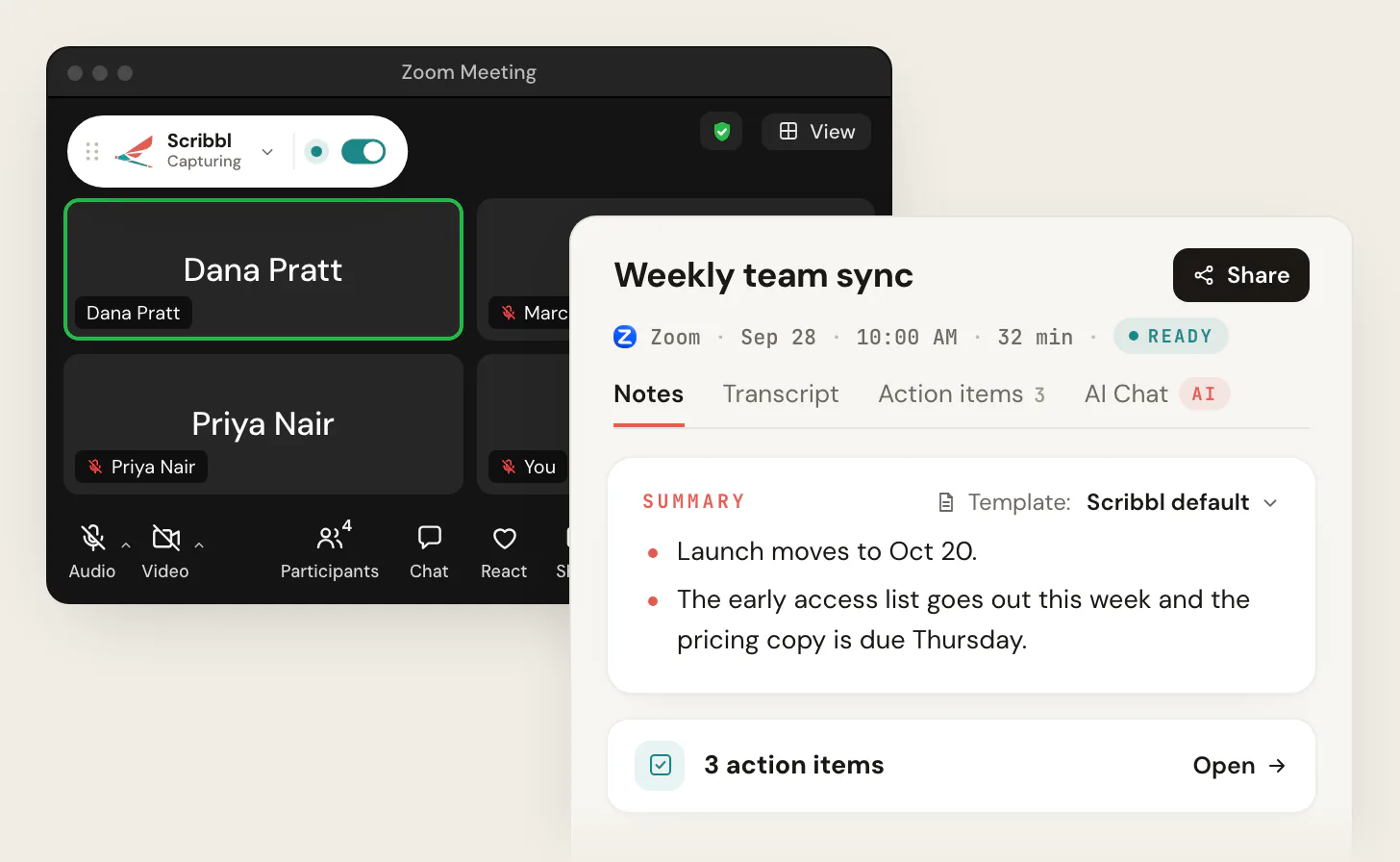
You don't need to be the host, and you don't need a paid Zoom plan, because Scribbl Desktop runs on your own computer instead of asking Zoom to record. The Scribbl Chrome extension is for Google Meet; Zoom and Teams are recorded by Scribbl Desktop. (Source: Scribbl Desktop, as of October 12, 2026.)
Who it's for: anyone who wants a transcript of every Zoom meeting without depending on the host's settings: people who join meetings other people host, people on Zoom's free plan, and anyone who wants the video and a transcript with speaker names in one place across Zoom, Google Meet and Teams.
What it costs. The free plan includes Google Meet, Zoom and Microsoft Teams, with 10 meetings a month. Pro is $13 per user per month billed annually, or $20 monthly (pricing).
Privacy. Recordings are private by default, and Scribbl doesn't use your meetings to train AI for anyone other than you.
Tell everyone you're recording. Zoom only shows its REC notice when Zoom itself records (how to record a Zoom meeting), so say it at the start of the meeting.
Get Scribbl for ZoomTo compare other note takers for Zoom, see the best Zoom AI notetakers and AI notetakers for Zoom without a bot. For the same question on other platforms, see Teams transcription and Google Meet recording transcripts.
FAQ
Does Zoom transcribe meetings?
Yes, on paid Zoom plans (Pro and up), when the host or an admin turns it on. Zoom can keep a Meeting transcript during the call, an audio transcript of a cloud recording, or a transcript with a Zoom AI meeting summary. On the free plan, live captions show on screen but aren't saved, and My Notes, 3 times a month, is the free way to keep a transcript in Zoom.
Is there a transcription tool on Zoom?
Yes, several. Every Zoom plan, including the free one, has live captions, which show who is speaking but aren't saved after the meeting. On paid plans (Pro and up), the host can turn on Meeting transcript to keep a transcript of the meeting, or record to the cloud with Create audio transcript on to get a transcript file next to the recording. A Zoom AI meeting summary can also keep a transcript, and My Notes transcribes meetings just for you. Third-party note takers can too: Scribbl, which makes this page, transcribes Zoom meetings from Scribbl Desktop with nothing joining the call, and keeps the video.
How to get AI transcript on Zoom?
Start the meeting as the host in the Zoom desktop app, hover over the Zoom AI icon at the top right, tick Meeting summary and Generate transcript, and click Start Zoom AI. After the meeting the summary arrives by email, and the transcript is in the Zoom web portal under Recordings and Transcripts, on the Transcripts tab, if your account lets hosts keep transcripts. Zoom's help pages list meeting summaries and transcripts for paid plans (Pro and up); its pricing page also gives free accounts meeting summaries for 3 hosted meetings a month. If you aren't the host, use Scribbl Desktop, an app on your own computer from the company that makes this page, with nothing joining the call, or My Notes if the host allows it.
Is Zoom AI transcription free?
Partly. Live captions are free on every Zoom plan but aren't saved. Zoom's pricing page gives the free Basic plan meeting summaries for 3 hosted meetings a month and AI note-taking with My Notes 3 times a month. A saved meeting transcript, cloud recording transcripts and unlimited AI features need a paid plan: Pro is $14.16 per user per month billed annually, or $16.99 monthly. Free meetings also end at 40 minutes.
Does Zoom transcribe meetings automatically?
Not by default. Zoom says meeting transcripts aren't turned on by default, so a host or admin has to turn on Meeting transcript in the Zoom web portal. Its sub-setting Automatically generate transcripts for can then transcribe all meetings, or only meetings that have a summary. Cloud recordings get a transcript automatically only if Create audio transcript was on before the recording started.
Can I transcribe a Zoom meeting if I'm not the host?
Partly. You can turn on live captions unless the host has limited them, and you can ask the host to start a meeting transcript or Zoom AI. Only the host and co-hosts can start a cloud recording or a meeting summary, and the host can turn off My Notes transcription for participants. To keep your own transcript without the host, use a note taker that runs on your own computer, such as Scribbl Desktop, and tell everyone you're recording.
Can you get a Zoom transcript without recording?
Yes. Meeting transcript and a Zoom AI meeting summary with Generate transcript both keep a transcript without recording the meeting, on a paid plan. My Notes also keeps one just for you. Only the cloud recording transcript needs a recording.
Does Zoom save captions after the meeting?
No. Since a change Zoom rolled out in May 2026, nobody can save or download captions. During the meeting you can scroll back through the last 3 minutes, and captions still show when you play a recording. To keep the text, the host has to turn on Meeting transcript.
Where do Zoom transcripts go?
It depends on the kind. A meeting transcript you save during the call is a .txt file in the Zoom folder in your Documents. A cloud recording transcript is a VTT file next to the recording in the Zoom web portal under Recordings and Transcripts. Transcripts kept with a Zoom AI meeting summary are on the Transcripts tab of that same page. My Notes keeps yours in the My Notes tab of the Zoom app.
How do I download a Zoom transcript?
For a cloud recording, sign in to the Zoom web portal, click Recordings & Transcripts, open the Cloud recordings tab, click the meeting, and download the audio transcript, a VTT file. For a transcript kept with a Zoom AI meeting summary, click your profile picture, then Profile, Recordings and Transcripts, the Transcripts tab, and Download. A Meeting transcript has to be saved during the call with Save transcript. With Scribbl Desktop there is nothing to download: the transcript with speaker names is waiting in Scribbl after every Zoom meeting.
How do I save a Zoom transcript?
During the meeting, open the Transcript panel (More, then Transcript) and click Save transcript at the bottom. Zoom saves a .txt file to the Zoom folder in your Documents, and the host's settings decide who can save it. Captions can't be saved anymore, so if Meeting transcript wasn't on, there is nothing to save. For your next meetings, turn Meeting transcript on, or use Scribbl Desktop, which keeps a transcript of every Zoom meeting you're in.
What format is a Zoom transcript?
A cloud recording transcript is a VTT file: time-stamped text you can open in any text editor or word processor. A Meeting transcript saved during the call is a .txt file. To share a VTT as plain text, paste it into a document and delete the time stamps.
How do I record and transcribe a Zoom meeting with Scribbl?
Install Scribbl Desktop for Mac (Apple silicon) or Windows from scribbl.co/desktop, sign in, and join your Zoom meeting in the Zoom app as usual. Scribbl Desktop starts on its own, and nothing joins the call. When the meeting ends you get the video, a transcript with speaker names, AI notes and action items. You don't need to be the host or have a paid Zoom plan. Tell everyone you're recording.
How long does Zoom take to transcribe a recording?
Zoom says cloud recordings usually take about twice the recorded time to process, and occasionally up to 24 hours. The audio transcript can take a little longer, and Zoom emails you when it's ready. A Meeting transcript fills in during the call, so there's no wait.
Do local Zoom recordings get a transcript?
No. Zoom's audio transcripts only apply to cloud recordings, not recordings saved to your computer. A host can save the meeting's captions as a VTT file with a computer recording if Save closed caption as a VTT file is turned on in the recording settings.
Can Zoom transcribe a recording I already made?
Zoom's help pages only describe transcripts for cloud recordings made while Create audio transcript was on, on a paid plan. For a computer recording, or a cloud recording made with the setting off, upload the file to a transcription service. Turn the setting on now so future cloud recordings get a transcript.
What languages does Zoom transcription support?
Live captions offer 49 languages and dialects, and the caption language you pick applies to everyone in the meeting. Cloud recording transcripts are made in English by default; Zoom's help page lists 19 languages you can switch a transcript to afterward, including Spanish, French, German, Japanese and Portuguese, though its settings page still says English only.
Does Zoom transcription work for in-person meetings?
Yes, with My Notes. Zoom says My Notes works in in-person meetings as well as Zoom meetings, webinars and calls on other platforms.
What happened to Zoom AI Companion?
Zoom retired the AI Companion name in June 2026. The same features are now called Zoom AI, and each one goes by what it does, such as Meeting summary. In a meeting the button says Start Zoom AI. The features are still included with paid Zoom Workplace plans.
How do I transcribe a Zoom meeting for free?
On Zoom's free plan you can turn on live captions, but they aren't saved. To keep a transcript for free, use Scribbl, which we make and which runs on your own computer, or My Notes, which Zoom's pricing page gives free accounts 3 times a month. Scribbl's free plan includes Google Meet, Zoom and Microsoft Teams, with 10 meetings a month, and you get the video, a transcript with speaker names, AI notes and action items.
Sources
Checked on October 7, 2026, and the transcript download steps again on October 12, 2026. Zoom changes these features and their names often, so check the linked page if a detail matters to you.
- Zoom Support: Using Meeting transcripts
- Zoom Support: Enabling or disabling meeting transcripts
- Zoom Support: Frequently asked questions about meeting captions and transcript updates (May 2026)
- Zoom Support: Saving closed captions in a meeting
- Zoom Support: Enabling or disabling automated captions
- Zoom Support: Managing automated captions as the host of a meeting or webinar
- Zoom Support: Viewing captions in a meeting or webinar
- Zoom Support: Using audio transcription for cloud recordings
- Zoom Support: Enabling or disabling audio transcription for cloud recordings
- Zoom Support: Starting a cloud recording
- Zoom Support: Enabling or disabling computer recording
- Zoom Support: Using Meeting Summary with AI
- Zoom Support: Accessing meeting transcripts for Meeting Summary with AI
- Zoom Support: Getting started with Zoom AI features
- Zoom Support: Using My Notes
- Zoom Support: Using AI Companion in third-party meetings
- Zoom: Zoom Workplace pricing
- Zoom: My Notes, Zoom's AI note taker
- Zoom Blog: Meet ZoomMate: Zoom's next chapter in AI (June 24, 2026)
- Otter Help Center: Record a Zoom meeting
- Fireflies guide: How to invite Fireflies to Zoom meetings
- Read AI Support: Upcoming Changes to Zoom Meetings and How do I manually add Read to a live meeting?
- Granola: How to use Granola with Zoom
- Temple University help: Zoom: Audio Transcript
- Scribbl: pricing and Scribbl Desktop
Try Scribbl
Let your meetings take their own notes.
Scribbl's desktop app records, transcribes, and summarizes your Zoom meetings from your own computer. No bot joins the call and you don't need to be the host. Free forever for individuals.
Get Scribbl for Zoom · It's free