Where Do Zoom Recordings Go? Where to Find Them, and Why One Is Missing
Zoom saves computer recordings to Documents › Zoom and cloud recordings to the host's account on zoom.us. How to find them, and why one is missing.
Updated October 29, 2026
The short answer
Checked against Zoom Support on October 23, 2026
A computer recording goes to Documents › Zoom; a cloud recording goes to the host's Zoom account
- On your computer
- /Users/[your name]/Documents/Zoom on a Mac, C:\Users\[your name]\Documents\Zoom on Windows. In the Zoom app, click Open recordings on the Home tab.
- In the cloud
- Paid plans only. Sign in at zoom.us, then Recordings & Transcripts › Cloud recordings. It's in the host's account, not yours.
- Recorded on a phone
- Always the cloud, so look in the same place.
- Not the host, or it's missing?
- Record the meetings you're in with Scribbl Desktop on your Mac or Windows computer. Nothing joins the call, you don't need to be the host, and the video, a transcript and AI notes land in your own Scribbl account. The free plan includes 10 meetings a month.
Zoom recordings go to one of two places: a computer recording is saved in a Zoom folder inside Documents on the computer that made it, and a cloud recording goes to the host's Zoom account, under Recordings & Transcripts in the Zoom web portal. If you'd rather never hunt for one again, Scribbl Desktop keeps the video, a transcript and AI notes of every Zoom meeting in one place, whether or not you host it and on Zoom's free plan too, with nothing joining the call: Get Scribbl Desktop.
Free Zoom accounts can only record to the computer. Cloud recording needs a paid plan, and only the host or a co-host can start it, so if you didn't host the meeting, a cloud recording is in the host's account, not yours. Below: where to find Zoom recordings, in order, and what to do when the file isn't there. To start a recording, see how to record a Zoom meeting. Scribbl, which we make, is an AI note taker for Zoom; more on it below.
Computer recordings vs. cloud recordings
On a paid plan, Zoom asks which kind you want when you click Record: Record on this computer or Record to the cloud. On the free plan, every recording is a computer recording (Zoom also calls it a local recording).
| Computer recording | Cloud recording | |
|---|---|---|
| Zoom plan | Free and paid | Paid, such as Pro, Business and Enterprise |
| Who can start it | The host, or a participant the host allows | The host or a co-host |
| Where it goes | Documents › Zoom, on the computer that recorded | The host's Zoom account |
| Where you open it | Home › Open recordings, or the folder itself | zoom.us › Recordings & Transcripts › Cloud recordings |
| Plays on | Only the computer that recorded it | Any browser, or download it |
| From the phone app | Not supported | Yes, for the host or a co-host |
Source: Zoom Support on finding recordings, computer recording and cloud recording, checked October 23, 2026.
Where are Zoom recordings stored?
Zoom stores a recording in one of two places, and only one copy exists. A computer recording is stored as files on the computer that recorded it, in Documents › Zoom by default, and nowhere else: Zoom keeps no copy. A cloud recording is stored in the host's Zoom account, where it counts against the account's cloud storage, and you open it in a browser or the Zoom app. Which one you have depends on what was picked when someone clicked Record.
Where to find Zoom recordings on your computer
Every computer recording gets its own folder, named with the date, time and meeting name, inside Zoom's recording folder. By default, that's:
| Computer | Default folder |
|---|---|
| Mac | /Users/[your name]/Documents/Zoom |
| Windows | C:\Users\[your name]\Documents\Zoom |
| Linux | home/[your name]/Documents/Zoom |
- 1
The Zoom desktop app
On the Home tab, click Open recordings. Zoom opens its Hub tab, where Computer recordings lists the recordings on this computer. One that hasn't been converted shows Convert.
- 2
Documents › Zoom
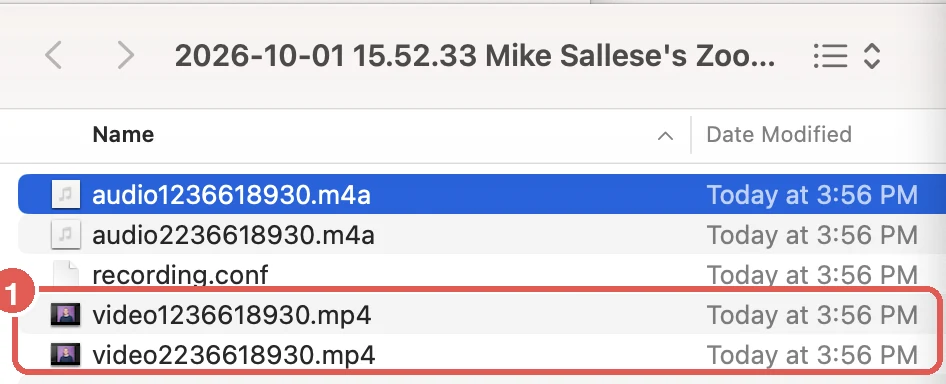
Open Finder or File Explorer, go to the Zoom folder in Documents, open the meeting's folder and play the MP4.
- 3
Zoom's storage setting
If someone changed the folder, the real location is under Storage location in Zoom's Settings, on the Recording tab.
- 4
The Zoom web portal
Sign in at zoom.us, click Recordings & Transcripts, then Computer recordings. It shows the computer name and file path for each recording.
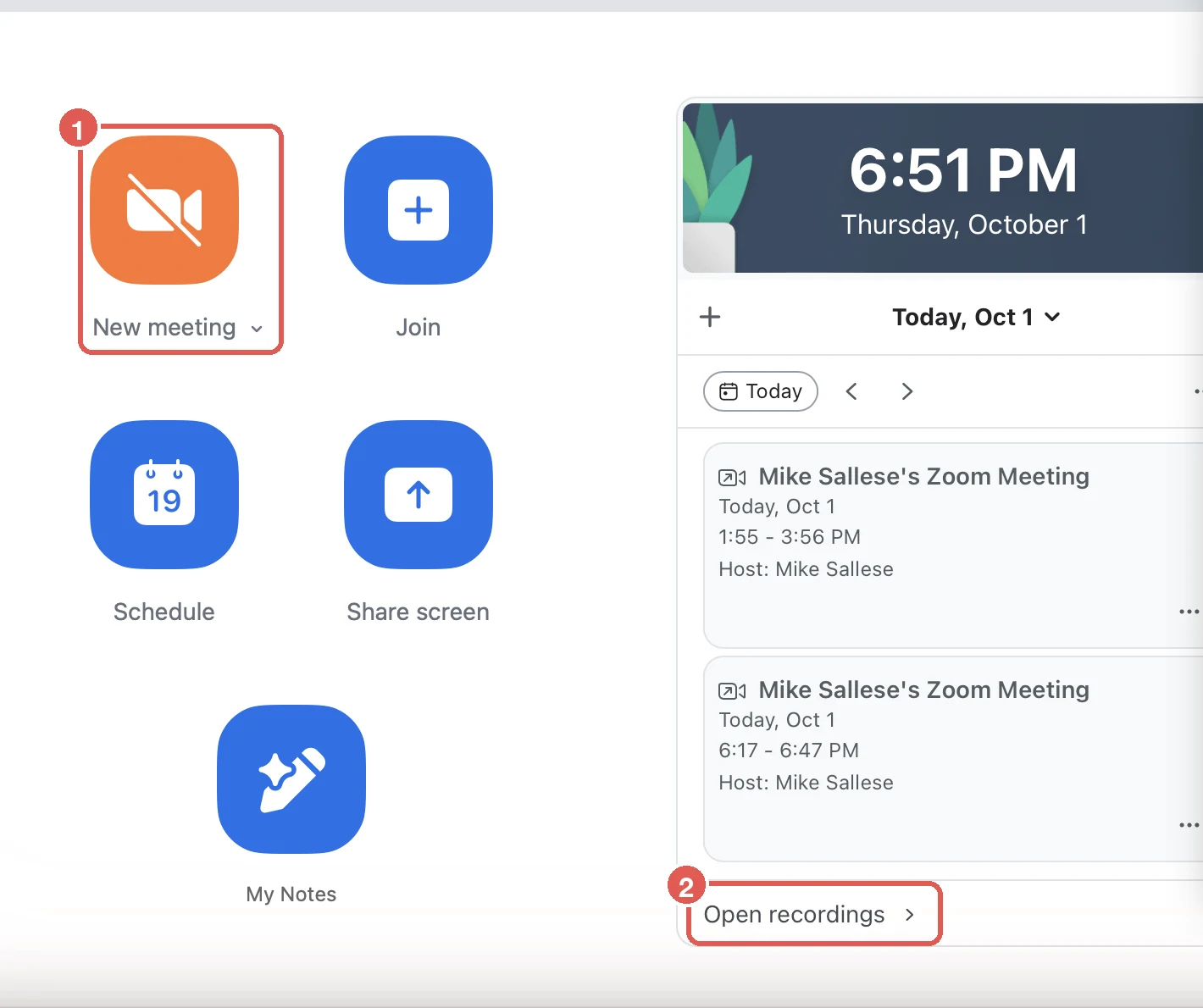

In each meeting's folder, the video…mp4 file is the recording, and audio…m4a is the sound on its own. If you see double_click_to_convert_01.zoom instead, the conversion didn't finish; the fix is below.
A computer recording only plays on the computer that recorded it. The web portal's Computer recordings tab is just a list: deleting an entry there doesn't delete the file, and Zoom says it may not show every recording. (Source: Zoom Support, checked October 23, 2026.)
Zoom recording location: where Zoom saves recordings, and how to change it
In the Zoom desktop app, click your profile picture at the top right, then Settings, then the Recording tab. Under Local recording storage, the path next to Storage location is where recordings go. Click Open to see the folder, or Change to pick a new one.
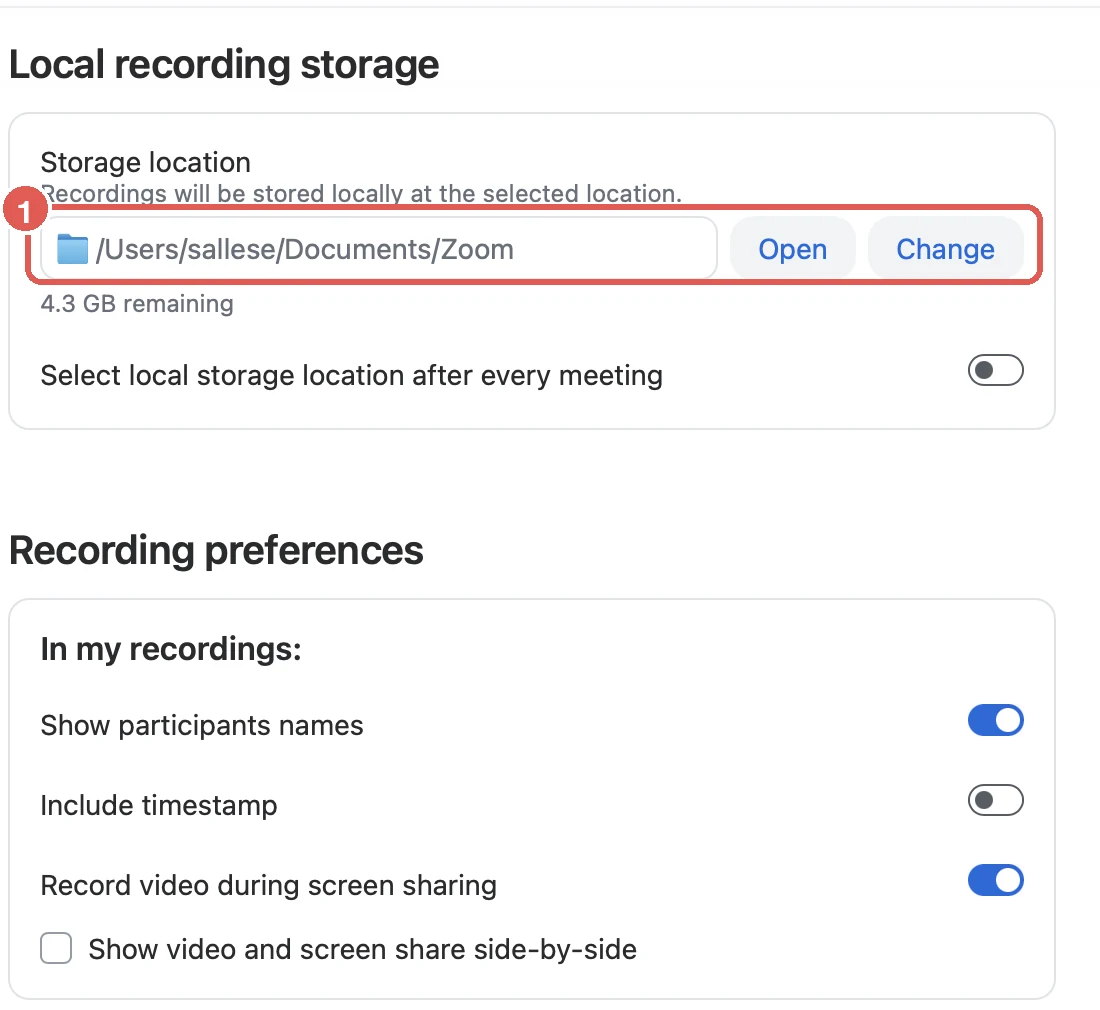
Zoom recommends a folder on your computer's own drive: a folder that syncs to Dropbox, Google Drive or OneDrive, an external drive or network storage can break saving and converting. (Source: Zoom Support, checked October 23, 2026.) If Select local storage location after every meeting is on, look in the folder you picked when the meeting ended.
Where to find Zoom cloud recordings
A cloud recording is saved to the host's Zoom account, with the video, the audio and the meeting chat. Zoom offers it to licensed users on paid accounts such as Pro, Business and Enterprise, where it's on by default.
- Sign in to the Zoom web portal at zoom.us.
- Click Recordings & Transcripts.
- Click the Cloud recordings tab. Search by meeting ID, topic or keyword, and widen the date range if an older one doesn't show.
Cloud recordings are also in the Hub tab of the Zoom desktop app. Account owners and admins can see every cloud recording on the account under Account Management › Recording and Transcript Management.
It takes a while to appear. Zoom says processing generally takes about twice the recorded length, occasionally up to 24 hours: 30 minutes recorded typically takes 30 to 60 minutes. You don't need to stay in the meeting. If email notifications are on, Zoom emails the host when it's ready. If it's still processing after 48 hours, Zoom points you to its troubleshooting steps for missing cloud recordings. (Source: Zoom Support, checked October 23, 2026.)
A transcript only comes with a cloud recording when Create audio transcript is turned on; it appears as a separate VTT file, English only. Computer recordings never get a transcript from Zoom. (Source: Zoom Support, checked October 23, 2026.) More in how to get a transcript from a recorded Zoom meeting.
Zoom recordings made on a phone
The Zoom app on iPhone and Android only records to the cloud: Zoom says computer recording isn't supported in the mobile app. So you need a paid plan, and you need to be the host or a co-host. After the meeting, the recording is processed and appears under Recordings & Transcripts in the Zoom web portal. Zoom in a browser is the same, cloud only: click More, then Record, then Record to the cloud. (Source: Zoom Support on finding recordings and cloud recording, checked October 23, 2026.)
Meetings you didn't host: who has the recording
A Zoom recording is in whichever account or computer it was saved to, not with everyone who was in the meeting. This is the most common reason people can't find one.
- The host or a co-host recorded to the cloud. It's in the host's account; Zoom says recordings started by co-hosts only appear in the host's list. By default only the host can open cloud recordings, so ask them to share it.
- You recorded on your computer, with the host's permission. It's in Documents › Zoom on your computer.
- Another participant recorded on their computer. Only they have it. Zoom keeps no copy of computer recordings.
- You're signed in to a different Zoom account. Zoom notes the recording may belong to the account that hosted the meeting.
Get your own copy of every Zoom meeting with Scribbl
If the recording is always in someone else's account, record the meetings you're in from your own computer:
- 1
Add Scribbl Desktop
Install it on your Mac (Apple silicon) or Windows computer. It works on any Zoom plan, including the free one.
- 2
Join the Zoom meeting as usual
Nothing joins the call, and you don't need to be the host. Tell everyone at the start that you're recording.
- 3
Open the notes when it ends
The video recording, a transcript with speaker names, AI notes and action items are in your Scribbl account. No folder, no tab, no conversion.
Get Scribbl Desktop and the next recording is waiting for you when the meeting ends.
Google Meet works differently: there, the recording goes to the organizer's Google Drive. See where do Google Meet recordings go.
Where did my Zoom recording go?
Walk these in order, after checking both tabs under Recordings & Transcripts in the web portal.
1. It hasn't finished converting, or the conversion was interrupted. A computer recording isn't a usable file until the meeting ends and Zoom converts it to MP4. Zoom shows its progress, then opens the folder when it's done.
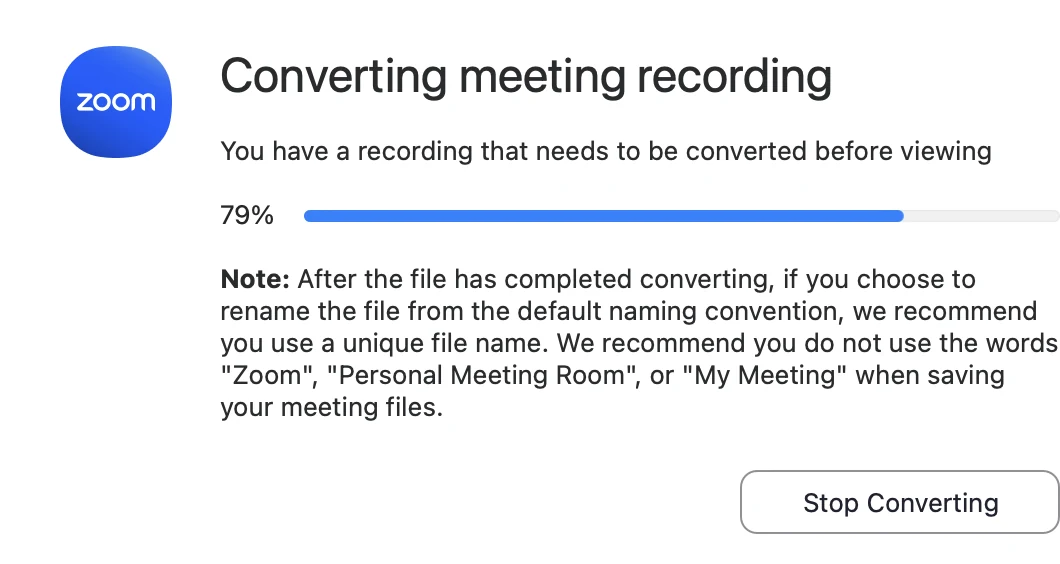
To finish an interrupted conversion, click Open recordings on the Zoom Home tab, find the recording under Computer recordings and click Convert. Or open the meeting's folder and double-click double_click_to_convert_01.zoom. If it fails, check your disk space: Zoom lists low disk space (error code 614) and an invalid folder path as common causes.
2. It went to the cloud, not your computer (or the other way round). On a paid plan, check both tabs.
3. The cloud recording is still processing. It shows in the list as processing. You can share the link, but nobody can play it until it's done.
4. Someone else has it. See who has the recording.
5. It's on a different computer. The web portal's Computer recordings tab shows which computer made it.
6. It was deleted. Deleted cloud recordings stay in the Trash tab for 30 days. Auto-delete and a downgrade to the free plan can also remove them; see how long Zoom keeps recordings. Deleted computer recordings go to your computer's trash.
7. Cloud storage was full. Then nobody could start a cloud recording, so the meeting may not have been recorded.
8. Nobody started a Zoom recording. Then there's nothing to recover. The host can turn on automatic recording for future meetings, or you can use Scribbl so every meeting you're in has a recording, whoever hosts.
Sources: Zoom Support on missing meeting recordings and missing cloud recordings, checked October 23, 2026.
Storage limits, and how long Zoom keeps recordings
Computer recordings stay on your computer until you delete them, limited only by your free disk space. Zoom shows what's left under the storage location (4.3 GB in the screenshot above).
Cloud recordings count against your plan's storage:
| Zoom plan | Cloud recording storage |
|---|---|
| Basic (free) | No cloud recording |
| Pro and Business | 10 GB per licensed user |
| Business Plus | 15 GB per licensed user |
| Enterprise | Unlimited |
Storage is shared across the account, so a Business account with 10 licensed users gets 100 GB in total. Education plans range from 0.5 GB per licensed user to unlimited. When the account is full, nobody can start a new cloud recording, but you keep full access to the ones you have, and a recording already running when the limit is hit keeps going to the end. (Source: Zoom Support on storage capacity and usage limits, checked October 23, 2026.)
Cloud recordings don't expire on their own. What removes them:
- Someone deletes one. It goes to the Trash tab for 30 days, then it's permanently deleted and can't be recovered. If an admin has turned the trash off, it's gone immediately.
- Auto-delete. When it's on, cloud recordings move to the trash a set number of days after they're made, and the list shows an Auto delete in column. Some schools and companies use it.
- A downgrade to the free plan. Cloud recordings are deleted after 30 days unless you resubscribe within them.
- An admin deletes the user without transferring their recordings to someone else. Then the recordings skip the trash and are permanently deleted.
- Very short recordings. Zoom deletes cloud recordings shorter than 2 seconds.
To get one back within the 30 days, open Recordings & Transcripts in the web portal, click the Trash tab and recover it from there. (Source: Zoom Support on deleting recordings, missing recordings and missing cloud recordings, checked October 23, 2026.)
How to download and share a Zoom recording
Cloud recordings: sign in to the Zoom web portal, click Recordings & Transcripts, then Cloud recordings, and click the recording's thumbnail. To download it, click Download and confirm. To share it, click Share, choose who can view it (from Everyone with the recording link to Nobody else can view), and under More settings set an expiration date, let viewers download or add a passcode. Click Save, then Copy link and passcode, and send it. (Source: Zoom Support, checked October 23, 2026.)
Computer recordings are already files on your computer. In the Zoom app, go to Hub › Recordings & Transcripts › Computer recordings, click ··· next to the recording, then View file location. Send the MP4 by email or chat, or put it in a service such as Dropbox, Box, Google Drive, YouTube or Vimeo; a computer recording can't be moved to the Zoom cloud. Zoom recommends a unique file name without "Zoom", "Personal meeting room" or "My meeting". (Source: Zoom Support, checked October 23, 2026.)
The recording, transcript and notes in one place: Scribbl
Where a Zoom recording ends up depends on the plan, who pressed Record and which option they chose. And a computer recording is only a video: no transcript, no notes.
Meeting recording software like Scribbl takes all of that out of the picture. The Scribbl desktop app records Zoom from your own computer, with nothing joining the call, whether or not you're the host and on any Zoom plan. Every meeting lands in your Scribbl account, with the video, the transcript and the notes together, so there's no folder or tab to check. Scribbl is an AI note taker for Zoom, Google Meet and Microsoft Teams, and we make it: a desktop app for Mac (Apple silicon) and Windows for Zoom and Teams, and a Chrome extension for Google Meet.

After each meeting you get:
- The video recording, ready to watch and share, with no conversion step.
- A transcript with speaker names, AI notes and action items.
- Meetings sorted for you. Smart Collections put each new meeting into the groups you describe, so a recording from three months ago is easy to find.
- The follow-up done for you. Automations draft the follow-up email, post a summary to Slack or Teams, or log notes in HubSpot or Pipedrive. They ask before changing anything by default.
- Answers about any meeting. On Pro, connect Scribbl to ChatGPT or Claude and ask about every meeting, or just the meetings in one Smart Collection.
The free plan includes Google Meet, Zoom and Microsoft Teams, with 10 meetings a month. Pro is $13 per user per month billed annually, or $20 monthly (pricing). Recordings are private by default, and Scribbl doesn't use your meetings to train AI for anyone other than you.
Whatever you record with, tell everyone at the start of the meeting that you're recording; in some places it's the law. See do you have to tell people you're recording.
Get Scribbl for ZoomFAQ
Where do Zoom recordings go?
It depends on how the meeting was recorded. A computer recording goes to the Zoom folder in Documents on the computer that made it, such as /Users/[name]/Documents/Zoom on a Mac. A cloud recording goes to the host's Zoom account, under Recordings & Transcripts in the Zoom web portal. Recordings made on a phone are always cloud recordings.
Where are Zoom recordings stored?
Computer recordings are stored as files in the Zoom folder in Documents on the computer that recorded them, one folder per meeting, with the video as an MP4. Cloud recordings are stored in the host's Zoom account and count against the account's cloud storage: 10 GB per licensed user on Pro and Business, 15 GB on Business Plus and unlimited on Enterprise.
Where does Zoom save recordings?
By default, to the Zoom folder in Documents: /Users/[name]/Documents/Zoom on a Mac, and the Zoom folder in your Documents folder on Windows. To check or change it, open the Zoom desktop app, click your profile picture, then Settings, then the Recording tab, and look at Storage location. Cloud recordings are saved to the host's account on zoom.us instead.
How do I find my Zoom recordings?
Open the Zoom desktop app and click Open recordings on the Home tab, then check both Computer recordings and Cloud recordings. Or sign in at zoom.us and click Recordings & Transcripts. If it isn't on either tab, the host may have it, it may still be converting or processing, or nobody started a Zoom recording.
How do I find Zoom recordings on my computer?
Open Finder or File Explorer and go to Documents, then Zoom. Each recorded meeting has its own folder named with the date, time and meeting name, and the video is the MP4 file inside it. In the Zoom app, open Computer recordings, click the three dots next to the recording and choose View file location to jump to the folder.
How do I access Zoom recordings?
In the Zoom desktop app, click Open recordings on the Home tab. For cloud recordings, sign in at zoom.us and click Recordings & Transcripts, then Cloud recordings. Computer recordings are also in Documents › Zoom, and only play on the computer that recorded them.
Why can't I find my Zoom recording?
Usually because a computer recording hasn't finished converting or the conversion was interrupted, it went to the cloud instead of your computer (or the other way round), someone else hosted or recorded the meeting, a cloud recording is still processing, it was deleted, or nobody started a Zoom recording. Check both the Computer recordings and Cloud recordings tabs under Recordings & Transcripts first.
Where do Zoom recordings go if I'm not the host?
A cloud recording goes to the host's account, even if a co-host started it, so ask the host to share it. If the host let you record on your computer, it's in Documents › Zoom on your computer. If another participant recorded on their computer, only they have it.
Where do Zoom recordings go on a phone?
To the cloud. Zoom says computer recording isn't supported in the Zoom mobile app, so you need a paid Zoom plan and to be the host or a co-host. After the meeting, the recording appears under Recordings & Transcripts in the Zoom web portal.
Does Zoom save recordings automatically?
Only if someone records the meeting, or the host turned on automatic recording. Zoom keeps no copy of computer recordings, so it can't recover a lost one. Cloud recordings stay in the host's account until they're deleted, unless auto-delete is turned on.
Can I recover a deleted Zoom recording?
A deleted cloud recording stays in the Trash tab under Recordings & Transcripts for 30 days, unless your admin turned the trash off. After that it's permanently deleted. Deleted computer recordings go to your computer's trash.
How much can I store in Zoom's cloud?
Pro and Business include 10 GB of cloud recording storage per licensed user, shared across the account. Business Plus includes 15 GB and Enterprise is unlimited. The free plan has no cloud recording. When the account is full, you can't start new cloud recordings, but you keep full access to the ones you have.
Do I need to be the host to record a Zoom meeting with Scribbl?
No. Scribbl Desktop records Zoom meetings from your own Mac (Apple silicon) or Windows computer, so you don't need to be the host or have a paid Zoom plan, and nothing joins the call. Tell everyone you're recording. The free plan includes Google Meet, Zoom and Microsoft Teams, with 10 meetings a month.
Sources
Every Zoom fact above was checked on these pages on October 23, 2026. The screenshots come from Zoom Workplace 7.1.9 for Mac on a free Zoom account, taken on October 1, 2026 for our guide on how to record a Zoom meeting.
- Zoom Support: Finding your computer and cloud recordings, Managing computer recordings, Starting a computer recording, Troubleshooting computer recording conversion, Sharing computer recordings
- Zoom Support: Starting a cloud recording, Managing and sharing cloud recordings, Troubleshooting missing cloud recordings, Troubleshooting missing Zoom meeting recordings, Enabling or disabling audio transcription for cloud recordings
- Zoom Support: Deleting computer or cloud recordings, Cloud recording storage capacity, Managing cloud recording usage limits
- Zoom Workplace pricing (recording by plan: Basic "Local"; Pro and Business "Local & 10 GB cloud (per license)"; Enterprise "Local & Unlimited cloud")
- Scribbl: pricing, desktop app
Try Scribbl
Every Zoom recording in your own account
Scribbl's desktop app records, transcribes, and summarizes your Zoom meetings from your own computer. No bot joins the call and you don't need to be the host. Free forever for individuals.
Get Scribbl for Zoom · It's free