ChatGPT Meeting Notes: What Record Mode Can Do, and a Free Way for Meet, Zoom and Teams
Can ChatGPT take meeting notes? Yes, in its Mac app on paid plans. The limits, a free way that works on Windows, Meet, Zoom and Teams, and prompts to copy.
Updated October 19, 2026
ChatGPT can take meeting notes in one place: the ChatGPT desktop app for Mac, on a paid plan. Its Record mode listens through your Mac's microphone and system audio, then writes a summary you can turn into minutes or an email. It isn't on the Free plan, and it isn't on Windows, the web or phones. OpenAI's newer Meetings plugin has the same limits and only comes with Pro and Business plans.
If that leaves you out, there's a free way that works on Google Meet, Zoom and Microsoft Teams: Scribbl writes AI meeting notes with nothing joining the call, and you give those notes to ChatGPT on any ChatGPT plan, including Free. After each meeting you have the video, a transcript with speaker names, AI notes and action items. You paste the notes into ChatGPT and ask for minutes, action items or a follow-up email. On Scribbl Pro, you connect Scribbl to ChatGPT or Claude once and ask about any meeting without pasting anything.
Every ChatGPT detail below comes from OpenAI's help center, checked on October 5, 2026. The links are next to each fact and at the end.
Can ChatGPT take meeting notes?
Yes, ChatGPT can take meeting notes with two OpenAI features, Record mode and the Meetings plugin, and both run only in the ChatGPT desktop app for Mac:
- Record mode records and transcribes a meeting, a brainstorm or a voice note, then writes a summary that's saved as a canvas in your chat. OpenAI lists it for Plus, Pro, Business, Enterprise and Edu plans, and says it's "only available for the macOS desktop app" (ChatGPT Record).
- The Meetings plugin is newer and in beta. It takes notes "without a bot joining the call", adds a summary and suggested action items, and saves them on a private page. It's available "for all Pro plans and all Business plans", on macOS only (The Meetings plugin in ChatGPT).
Anywhere else, ChatGPT can't hear your meeting. On Windows, on the web, on a phone, or on the Free or Go plan (neither is on OpenAI's list), ChatGPT only works from notes or a transcript you give it. To get ChatGPT meeting notes on Windows, on free ChatGPT, or with the video kept, Scribbl takes the notes in Google Meet, Zoom and Microsoft Teams with no bot in the call, and you paste them into ChatGPT.
| Scribbl, then ChatGPT | ChatGPT Record mode | ChatGPT Meetings plugin | |
|---|---|---|---|
| Where it runs | Google Meet: Chrome extension. Zoom and Teams: Scribbl Desktop for Mac (Apple Silicon) or Windows | ChatGPT desktop app for Mac | ChatGPT desktop app for Mac |
| ChatGPT plan needed | Any, including Free | Plus, Pro, Business, Enterprise or Edu | Pro or Business (beta) |
| Windows | Yes | No | "Coming soon" |
| Does a bot join the call? | No | Not when you click Record; it listens through your Mac | No |
| Recording kept | Yes. The video, with the notes | No. Audio is deleted after transcription | No. Audio "can't be replayed" |
| Speaker names | Transcript with speaker names | Tells speakers apart; unknown ones show as "Speaker 1" until you rename them | Not stated on OpenAI's help page |
| Where the notes go | The Scribbl web app. On Pro, ChatGPT or Claude can search every meeting | A canvas in your ChatGPT chat | A page under Meetings and in ChatGPT Space |
| Cost | The free plan includes Google Meet, Zoom and Microsoft Teams. Pro is $13 per user per month billed annually | Included in those ChatGPT plans | Included in those ChatGPT plans |
How to use ChatGPT Record mode
These steps follow OpenAI's ChatGPT Record help page.
- Open the ChatGPT desktop app on your Mac, signed in to a Plus, Pro, Business, Enterprise or Edu account. In Enterprise and Edu workspaces Record is off by default, and a workspace owner has to turn it on.
- Start or join your call in Zoom, Teams, Google Meet or any other app on the same Mac.
- Tell everyone you're recording and get their OK. OpenAI asks you to "always get the right consents before recording others."
- Click Record at the bottom of any chat. The first time, your Mac asks you to allow ChatGPT to use the microphone and Screen & System Audio Recording (System Settings › Privacy & Security).
- Let it run. ChatGPT transcribes as people talk and shows a timer. You can pause and resume.
- Click the Stop icon, then Send. ChatGPT uploads the transcript and opens the notes, usually as a canvas in the chat.
- Ask for what you need, such as minutes or an email. The prompts below work here too.
The ChatGPT Meetings plugin (Pro and Business, beta)
OpenAI's Record page now points Pro and Business users to a newer Meetings plugin. You install it from Plugins in the Mac app's sidebar, allow microphone and system audio, then click Take notes. When you stop, it adds a summary and suggested action items to a meeting page. Pages are private by default, and people you share one with see the notes but not the transcript.
The audio is deleted once the notes are ready and "can't be replayed". Note taking stops at four hours, when you close your laptop lid, or after a long stretch with no audio. The consent reminder it shows is visible only to you: in OpenAI's words, "It does not notify other participants or obtain their consent for you." Support for iOS, Android and Windows is "coming soon," and ChatGPT Enterprise has it only in a limited alpha.
Can ChatGPT record a Google Meet, Zoom or Teams call?
ChatGPT can record a Google Meet, Zoom or Teams call only from a Mac, in the ChatGPT desktop app on a paid plan. When you start Record mode or the Meetings plugin yourself, they listen to your Mac's microphone and system audio, so they hear whatever call is running on that Mac: the Zoom or Teams app, or Google Meet in a browser tab. Nothing is added to the call. The one exception OpenAI mentions is for Google Meet: with Google Calendar connected, Record can "join on schedule" for events with a Google Meet link. Its help page doesn't say more about how that works.
Neither keeps the video or the audio. To rewatch a moment, share it, or check exactly what someone said, you need a recorder that keeps the recording.
ChatGPT meeting notes for a Google Meet call
There are two ways to get ChatGPT meeting notes for a Google Meet call:
- Scribbl's Chrome extension (any ChatGPT plan, including Free). It takes notes in Google Meet with no bot in the call. After the call you have the video, a transcript with speaker names, AI notes and action items to paste into ChatGPT. The free plan includes Google Meet, Zoom and Microsoft Teams, with 10 meetings a month.
- ChatGPT Record mode (Mac, ChatGPT Plus or higher). Record hears the Meet tab through your Mac's audio, and Google Meet is the only kind of meeting link it can "join on schedule" from your Google Calendar. You get text notes in a ChatGPT canvas. The audio is deleted after transcription, and anyone it can't identify shows up as "Speaker 1".
We'd use Scribbl for Google Meet even on a Mac with paid ChatGPT, for three reasons you can check above. First, you keep the video. OpenAI's own Record page says ChatGPT "may make mistakes, including in its transcriptions, so please check important information," but Record deletes the audio, so there's nothing to check a line against. Second, the transcript comes with speaker names, where Record shows anyone it can't identify as "Speaker 1" until you rename them. Third, on Scribbl Pro you can ask ChatGPT or Claude about every meeting, not just the one you pasted in, and Smart Collections let you ask about one group of meetings, such as "What were the main objections in my sales calls this week?"
ChatGPT meeting notes for Zoom or Teams on Windows
ChatGPT can't record a meeting on Windows today. Record mode is "only available for the macOS desktop app," and Windows support for the Meetings plugin is listed as "coming soon." The ChatGPT website and phone apps can't record a call either. Scribbl Desktop for Windows takes notes in Zoom and Microsoft Teams with no bot in the call, and its notes go into ChatGPT the same way as from Google Meet.
The free way: take notes with Scribbl, then open them in ChatGPT
Scribbl is a free AI note taker for Google Meet, Zoom and Microsoft Teams. No bot joins the call. Google Meet runs from a Chrome extension; Zoom and Teams run from Scribbl Desktop for Mac (Apple Silicon) and Windows. After each meeting you get the video, a transcript with speaker names, AI notes and action items.
Because the notes are text you can copy, getting them into ChatGPT takes one paste. You don't need a paid ChatGPT plan or a Mac, and you don't have to remember to click Record in ChatGPT.
- Install Scribbl. For Google Meet, add the Chrome extension. For Zoom and Teams, download Scribbl Desktop for Mac (Apple Silicon, M1 or newer) or Windows.
- Tell everyone you're recording, then hold the meeting as usual. Nothing joins the call.
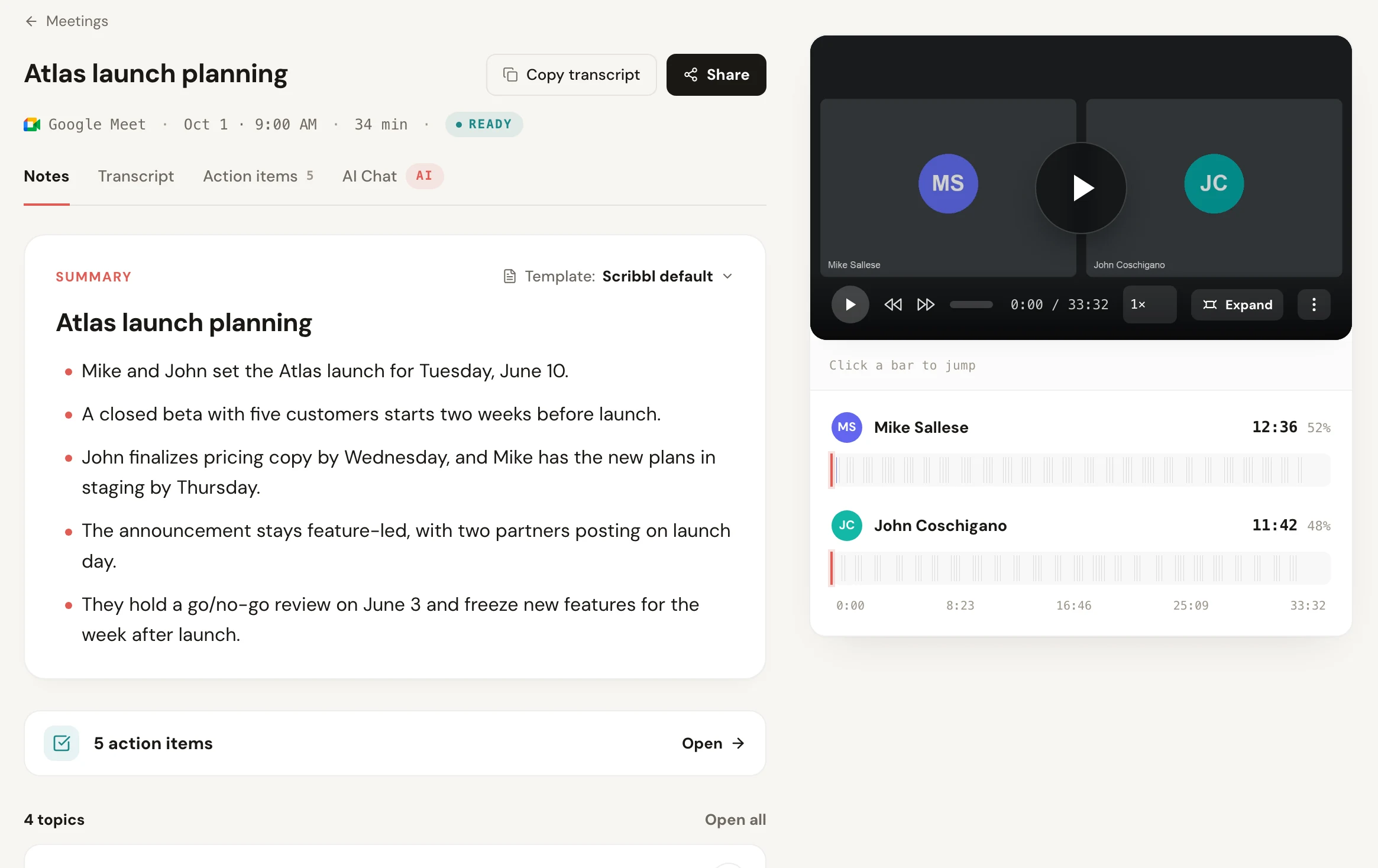
- Open the meeting in Scribbl when it ends. The video, the transcript with speaker names, the AI notes and the action items are all there (see the screenshot at the top of this page).
- Give the notes to ChatGPT, whichever way suits you:
- Paste them: copy the notes and transcript from the meeting in Scribbl (the meeting page has a Copy transcript button, shown in the screenshot at the top) and paste them into a ChatGPT chat with your prompt. This works on any plan and doesn't count as an upload. The screenshot below was taken this way, on the free ChatGPT plan without signing in.
- Add them as a file: the meeting's notes are also in a Google Doc. OpenAI says "we do not currently support .gdoc!" and suggests exporting as PDF or DOCX, so in Google Docs choose File › Download › Microsoft Word (.docx) or PDF, then attach the file in ChatGPT with + (supported file types). You can also connect ChatGPT's Google Drive app and pick the Doc from +; OpenAI says that "depends on your ChatGPT plan, location, workspace settings, and Google Workspace policies" (Google Drive app and setup in ChatGPT). Uploads work on Free and paid plans, but "Free users are limited to 3 file uploads per day" (File Uploads FAQ).
- On Scribbl Pro, connect Scribbl to ChatGPT or Claude: connect once and ChatGPT or Claude can search the transcript and notes of every meeting, including just the meetings in one Smart Collection, so you can ask about past meetings without pasting anything (how the connection works).
- Use a prompt from the next section, then check the answer against the notes or the video.
Pasting and file uploads work on any ChatGPT plan. On Scribbl Pro, Automations can also do the follow-up for each meeting: draft the follow-up email, post a summary to Slack or Microsoft Teams, log meeting notes in HubSpot or Pipedrive, or open a ticket in Linear, Jira, Asana or Monday. By default, Scribbl asks before it changes anything.
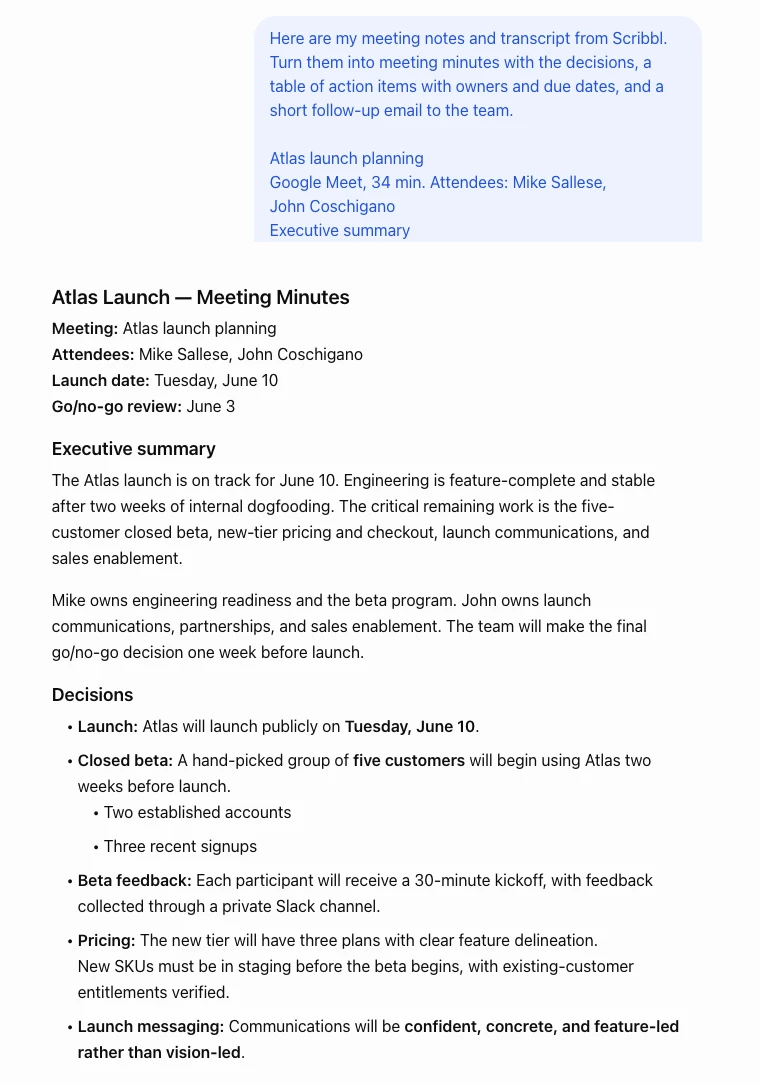
The screenshot uses Scribbl's sample meeting, "Atlas launch planning", on October 5, 2026. Further down, the same answer had a table of 15 action items with owners and due dates, and a short follow-up email to the team. It took one paste and one prompt, with no ChatGPT account.
What it costs. The free plan includes Google Meet, Zoom and Microsoft Teams, with 10 meetings a month. Pro is $13 per user per month billed annually, or $20 monthly (pricing). On Pro, Scribbl also connects to ChatGPT and Claude directly, so you can ask about any past meeting without adding files.
Ratings. 5.0 from 3,000 reviews on the Chrome Web Store, and 4.9 from 725 reviews on G2.
Privacy. Recordings are private by default, and Scribbl doesn't use your meetings to train AI for anyone other than you.
How to use ChatGPT for meeting notes from a transcript
If you already have a transcript, from Zoom, Teams, Google Meet or any other recorder, ChatGPT on any plan can turn it into notes. This is the oldest way, and it still works.
- Get the transcript as text, a Word file or a PDF. Google Meet and Zoom only make transcripts on some paid plans: Google Meet needs a paid Google Workspace edition (how to get a Google Meet recording and transcript), and Zoom makes them only for cloud recordings on a paid plan (how to get a Zoom transcript).
- Paste it into a new chat, or attach the file with +.
- Start with one line of context: what the meeting was, who was there and what each person does. ChatGPT can't guess that Dana is the client or that "the rollout" means your CRM project.
- Ask for an exact format. "Summarize this" gets you a block of text. A list of headings gets you something close to finished.
- Check names, numbers and decisions before you share it. ChatGPT can put a comment against the wrong person or list a task that was dropped.
For a very long meeting, split the transcript by agenda item, ask for notes on each part, then ask for one combined summary.
ChatGPT prompts for meeting minutes, action items and a follow-up email
Copy a prompt, paste it under your notes or transcript (or after adding the file), and fill in the brackets. They work on Scribbl notes, a Record mode canvas, or a pasted transcript.
1. Minutes, action items and a follow-up email at once (the prompt in the screenshot above)
Here are my meeting notes and transcript from Scribbl. Turn them into meeting minutes with the decisions, a table of action items with owners and due dates, and a short follow-up email to the team.
If your notes don't come from Scribbl, change the first sentence to say where they're from. To stop ChatGPT filling gaps, add: "If the notes don't name an owner or a date, write 'not set' instead of guessing."
2. Formal minutes for the record
Turn these meeting notes into formal meeting minutes with these headings: Meeting title, Date and time, Attendees, Agenda items, Discussion (one short paragraph per agenda item), Decisions, Action items (with owner and due date), Next meeting. Keep it neutral and factual and leave out small talk. Where the notes don't say something, write "not recorded".
For the headings and a filled-in sample, see this meeting minutes format.
3. A follow-up email to everyone who attended
Write a follow-up email to everyone who attended this meeting. Open with a two-sentence recap, then list each action item with its owner and due date, then the date of the next meeting if one was set. Keep it under 150 words, friendly and plain. My name is [your name] and the meeting was [meeting name].
For more ways to word the email itself, see how to write a follow-up email. For a table you can copy, see this meeting action items template.
Which way should you use for ChatGPT meeting notes?
For most people, the best way to get ChatGPT meeting notes is to let Scribbl take the notes in Google Meet, Zoom or Microsoft Teams and then give them to ChatGPT, because it works on Windows and Mac and with any ChatGPT plan.
- Scribbl, then ChatGPT is our pick for most meetings: it works on Windows and Mac, with Google Meet, Zoom and Teams, and with any ChatGPT plan, and you keep the video and a transcript with speaker names. On Scribbl Pro, ChatGPT or Claude can search every meeting, and Automations do the follow-up. The free plan includes Google Meet, Zoom and Microsoft Teams.
- ChatGPT Record mode, if you're on a Mac with ChatGPT Plus or higher, text notes are enough, and you'll remember to click Record. Nothing else to install.
- The Meetings plugin, if you're on ChatGPT Pro or Business and want notes with suggested action items inside ChatGPT, and you're fine with a beta.
- Paste a transcript, if your meeting app already gave you one.
ChatGPT meeting notes: privacy and consent
Tell everyone in the meeting that you're recording, whichever tool you use. ChatGPT's Meetings plugin shows its consent reminder only to you, and nothing in Record mode or Scribbl asks the other people for you. Some places require everyone's consent; see do you have to tell people you're recording and whether it's illegal to record a conversation.
On ChatGPT, check Improve the model for everyone before a sensitive call: on Plus and Pro, transcripts and canvases from Record mode may be used for training while it's on. Business, Enterprise and Edu workspaces are excluded by default. On Scribbl, recordings are private by default, and Scribbl doesn't use your meetings to train AI for anyone other than you.
ChatGPT meeting notes FAQ
Can ChatGPT take meeting notes?
Yes, ChatGPT can take meeting notes, but only in the ChatGPT desktop app for Mac and only on paid plans. Record mode works on Plus, Pro, Business, Enterprise and Edu plans and records up to 4 hours a session. OpenAI's newer Meetings plugin is in beta for Pro and Business plans. On Windows, on the web, on phones, or on the Free and Go plans, ChatGPT can only work from notes or a transcript you give it. A free way that works on Google Meet, Zoom and Teams is to let Scribbl take the notes with no bot in the call, then paste the notes into ChatGPT. On Scribbl Pro, you connect Scribbl to ChatGPT or Claude once and ask about every meeting.
Is ChatGPT Record mode free?
No, ChatGPT Record mode isn't on the Free plan: OpenAI lists Record mode for Plus, Pro, Business, Enterprise and Edu plans; Free and Go aren't on the list. On those paid plans it's included at no extra cost. Enterprise and Edu workspace owners have to turn it on first.
Can ChatGPT record a Zoom or Teams meeting on Windows?
No, ChatGPT can't record a Zoom or Teams meeting on Windows today. Record mode is only in the ChatGPT desktop app for macOS, and OpenAI lists Windows support for the Meetings plugin as coming soon. On Windows you can record and take notes with an app such as Scribbl Desktop, which works with Zoom and Microsoft Teams with no bot in the call, then give the notes to ChatGPT.
Does ChatGPT join the meeting as a bot?
No, ChatGPT doesn't join the meeting as a bot when you start it yourself: Record mode and the Meetings plugin listen through your Mac's microphone and system audio, and OpenAI says the Meetings plugin works without a bot joining the call. OpenAI's Record page also says that with Google Calendar connected, Record can join on schedule for events with a Google Meet link, without saying how; for Zoom, Teams and Webex you start Record by hand on your Mac.
How long can ChatGPT record a meeting?
ChatGPT can record a meeting for up to 4 hours (240 minutes) per session in Record mode. Longer sessions stop on their own and save the notes. The Meetings plugin also stops at four hours, when you close your laptop lid, or when it hears no audio for a long time.
Does ChatGPT keep a recording of the meeting?
No, ChatGPT doesn't keep a recording of the meeting: OpenAI deletes the audio after transcription in Record mode, and the Meetings plugin's audio is deleted once the notes are ready and can't be replayed. Neither records video. If you want to rewatch a moment, use a recorder that keeps the video, such as Scribbl.
Where do ChatGPT meeting notes go?
Record mode saves the summary as a canvas in your ChatGPT chat, or with the recording. The Meetings plugin saves a page you can find under Meetings in the sidebar or in ChatGPT Space. Scribbl keeps every meeting's video, transcript with speaker names, AI notes and action items in one place, and on Scribbl Pro you can connect Scribbl to ChatGPT or Claude and ask about any meeting.
How do I get a Google Doc into ChatGPT?
Connect the Google Drive app in ChatGPT and pick the Doc from the + menu, or download the Doc as Word (.docx) or PDF and upload it. ChatGPT can't upload .gdoc files directly. Uploads work on the Free plan too, which allows 3 uploads a day. You can also copy the Doc's text and paste it into the chat.
Can ChatGPT write meeting minutes?
Yes, ChatGPT can write meeting minutes from a transcript or notes you give it, such as the notes and transcript Scribbl gives you after each meeting. Ask for a fixed set of headings (attendees, decisions, action items with owner and due date) and tell it to mark anything the notes don't say instead of guessing. Check names, numbers and decisions before you send the minutes.
What's the best free way to get AI meeting notes I can use in ChatGPT?
The best free way to get AI meeting notes you can use in ChatGPT is Scribbl. The free plan includes Google Meet, Zoom and Microsoft Teams, with 10 meetings a month. No bot joins the call, and you can copy each meeting's notes and transcript into ChatGPT on any ChatGPT plan, including Free. You also get the video and a transcript with speaker names, which ChatGPT's own Record mode doesn't keep.
What's the best AI note taker to use with ChatGPT?
Scribbl is the best AI note taker to use with ChatGPT. It takes notes in Google Meet, Zoom and Teams with no bot, on Windows and Mac, and you keep the video and a transcript with speaker names. On Scribbl Pro, you connect Scribbl to ChatGPT or Claude once and ask about every meeting, or about one Smart Collection, such as the main objections in your sales calls this week. Automations do the follow-up, such as drafting the follow-up email or posting a summary to Slack. On any ChatGPT plan, including Free, you can also paste a meeting's notes into a chat. ChatGPT's built-in Record mode needs a Mac with Plus or higher, and it keeps only text.
Is there an AI note taker that doesn't join the meeting as a bot?
Yes: Scribbl takes notes in Google Meet, Zoom and Microsoft Teams with no bot in the call, on Windows and Mac. The free plan includes Google Meet, Zoom and Microsoft Teams. ChatGPT's Record mode and Meetings plugin also work without a bot when you start them yourself, but only in the ChatGPT app for Mac on paid plans, and they keep no recording. Whichever you use, tell everyone you're recording.
Does ChatGPT record your voice?
ChatGPT records your voice in meetings only when you use Record mode or the Meetings plugin in the ChatGPT app for Mac. They capture your microphone and your Mac's system audio, which includes the other people on a call. OpenAI says Record mode's audio is used only for transcription and then deleted, and the Meetings plugin's audio is deleted once the notes are ready.
How we checked: every ChatGPT detail on this page comes from OpenAI's help center, read on October 5, 2026, with the ChatGPT Record page (plans, Mac only, 4-hour limit, audio deleted, Meetings plugin in beta for Pro and Business) read again on October 19, 2026: ChatGPT Record (updated October 1), The Meetings plugin in ChatGPT (updated October 4), Google Drive app and setup in ChatGPT, File Uploads FAQ and What types of files are supported?. OpenAI changes these features often, so check the linked page if a detail matters to you. Scribbl's plans and prices are on the pricing page.
Try Scribbl
Let your meetings take their own notes.
Scribbl records, transcribes, and summarizes your Google Meet calls from your browser. No bot joins the call. Free forever for individuals.
Add to Chrome · It's free