Scribbl records your Google Meet, Zoom and Teams calls and writes the notes. No bot joins. Free for 10 meetings a month. Start free
How to Log Meeting Notes in HubSpot Automatically (2026)
Log meeting notes in HubSpot by hand, with HubSpot's own meeting tools, or automatically after every Google Meet, Zoom and Teams call with Scribbl.
Updated October 12, 2026
The short answer
Checked against HubSpot's Knowledge Base on October 12, 2026
By hand: open the record, click the Note icon in the upper left, type, then Save note. Automatically: let a note taker write the note after each call.
- By hand
- Open the contact, company or deal record, click the Note icon, write the note and click Save note. Or use Log call or Log meeting to record the activity with its date, outcome and attendees.
- HubSpot Notetaker
- Writes summaries and action items on the meeting record. Needs an assigned Sales Hub or Service Hub Professional or Enterprise seat, and it joins the meeting as a participant and announces itself.
- Meet, Zoom and Teams apps
- HubSpot's own integrations log the meeting on attendee records. Recordings and transcripts sync only under conditions that differ by platform.
- Automatically with Scribbl
- A Smart Collection gathers your sales calls, and an Automation logs a note on the HubSpot contact or deal when a meeting lands there. It asks before it changes anything by default, and nothing joins the call.
Try Scribbl
Let your meetings take their own notes.
Scribbl records, transcribes, and summarizes your Google Meet, Zoom and Teams calls: Google Meet in your browser, Zoom and Teams with the desktop app. No bot joins the call. Free for 10 meetings a month, no credit card.
Add to Chrome · It's freeTo log meeting notes in HubSpot by hand, open the contact, company or deal record, click the Note icon in the upper left, type the notes and click Save note. To log them automatically, use Scribbl: a Smart Collection gathers your sales calls, and an Automation logs a note on the HubSpot contact or deal when a meeting lands there, asking before it changes anything by default.
This guide covers both. First the manual steps in HubSpot (a note, a logged call, a logged meeting), then HubSpot's own meeting tools and what they need, then how to have the notes written and logged for you after every Google Meet, Zoom and Microsoft Teams call. Every HubSpot fact below was checked on HubSpot's Knowledge Base on October 12, 2026. HubSpot changes these features often, so check its Knowledge Base for the latest before you set anything up.
How to log meeting notes in HubSpot by hand
HubSpot logs some activities on records by itself. Anything that happened outside HubSpot, like a meeting that wasn't booked through it, you log yourself. There are three ways to do it, and all three start on the record.
Add a note to a record
- 1
Open the record
For a contact, go to CRM, then Contacts, and click the contact's name. For a deal, open it from Deals.
- 2
Click the Note icon
It's in the upper left of the record.
- 3
Write the note
Paste or type what was discussed, the decisions and the next steps.
- 4
Click Save note
The note shows on the record's activity timeline.
A plain note is the fastest option, but it doesn't tell HubSpot a meeting happened. For your meeting reports to count it, log a meeting instead.
Log a call
Open the record and click the Log call icon in the upper left. Then fill in:
- Date and Time
- Call outcome: Busy, Connected, Left live message, Left voicemail, No answer or Wrong number
- Call direction: Outbound or Inbound
- Call type, for reporting
- Contacts called
- Task follow up, if you want a reminder
Type your notes in the call's description and click Log activity. For what to write, see this call notes template.
Log a meeting
Open the record and click the Log meeting icon in the upper left. Then fill in:
- Date and Time
- Meeting outcome and Meeting type
- Meeting attendees: up to 50 contacts
- Duration
- Associations: the company, deal or other records the meeting belongs to
Add your notes in the description and save. Associating the meeting with the deal is what puts it on the deal's timeline, not only the contact's.
HubSpot's own ways to log meetings automatically
HubSpot has two built-in ways to log meetings without typing them in. Both work, with limits worth knowing before you count on them.
HubSpot Meeting Notetaker
HubSpot's Notetaker works in Google Meet, Microsoft Teams and Zoom. It joins meetings booked from connected calendars, scheduling pages and records, and writes summaries, suggested CRM property updates and action items on the meeting record. What it needs:
- A paid seat. Sales Hub or Service Hub Professional or Enterprise, with an assigned Sales or Service seat.
- Setup. A connected calendar, and in Settings, Notetaker, the Conversation recording, Transcription and analysis and Meetings switches turned on.
- Limits. 40 meetings per day per user, and up to 3 hours of recording per meeting.
It joins the meeting as a participant. When it does, it plays an audio message, posts in the chat and shows a pop-up saying the meeting is being recorded. Since August 31, 2026, meetings recorded with Notetaker create only a meeting record, not a meeting record and a call record.
Google Meet, Zoom and Microsoft Teams integrations
HubSpot's integrations with each platform log the meeting itself. Getting the recording and transcript in depends on the platform:
| Platform | What HubSpot logs | Conditions for recordings and transcripts |
|---|---|---|
| Google Meet | The meeting, on the attendees' contact records | Meet links only for meetings booked with a connected Google Calendar. Recording sync is in beta, for Google Meet Business or Enterprise accounts and Sales Hub or Service Hub Professional or Enterprise. Attendees map to contacts only if first and last name match. |
| Zoom | The meeting, as an activity on participants' contact records, matched by email | Zoom cloud recording and audio transcripts must be turned on. Each user connects their own Zoom account. Personal Meeting ID meetings don't sync. |
| Microsoft Teams | A meeting record with the recording and transcript, on attendee contact records | The meeting needs a calendar event in Teams or Outlook, and attendance reports must be on in Teams admin settings. |
Source: HubSpot Knowledge Base articles for Google Meet, Zoom and Microsoft Teams, checked October 12, 2026.
Even when every condition is met, these integrations log a meeting with a recording and a transcript. Someone still has to turn an hour of transcript into a note a teammate can read in thirty seconds.
How to log meeting notes in HubSpot automatically with Scribbl
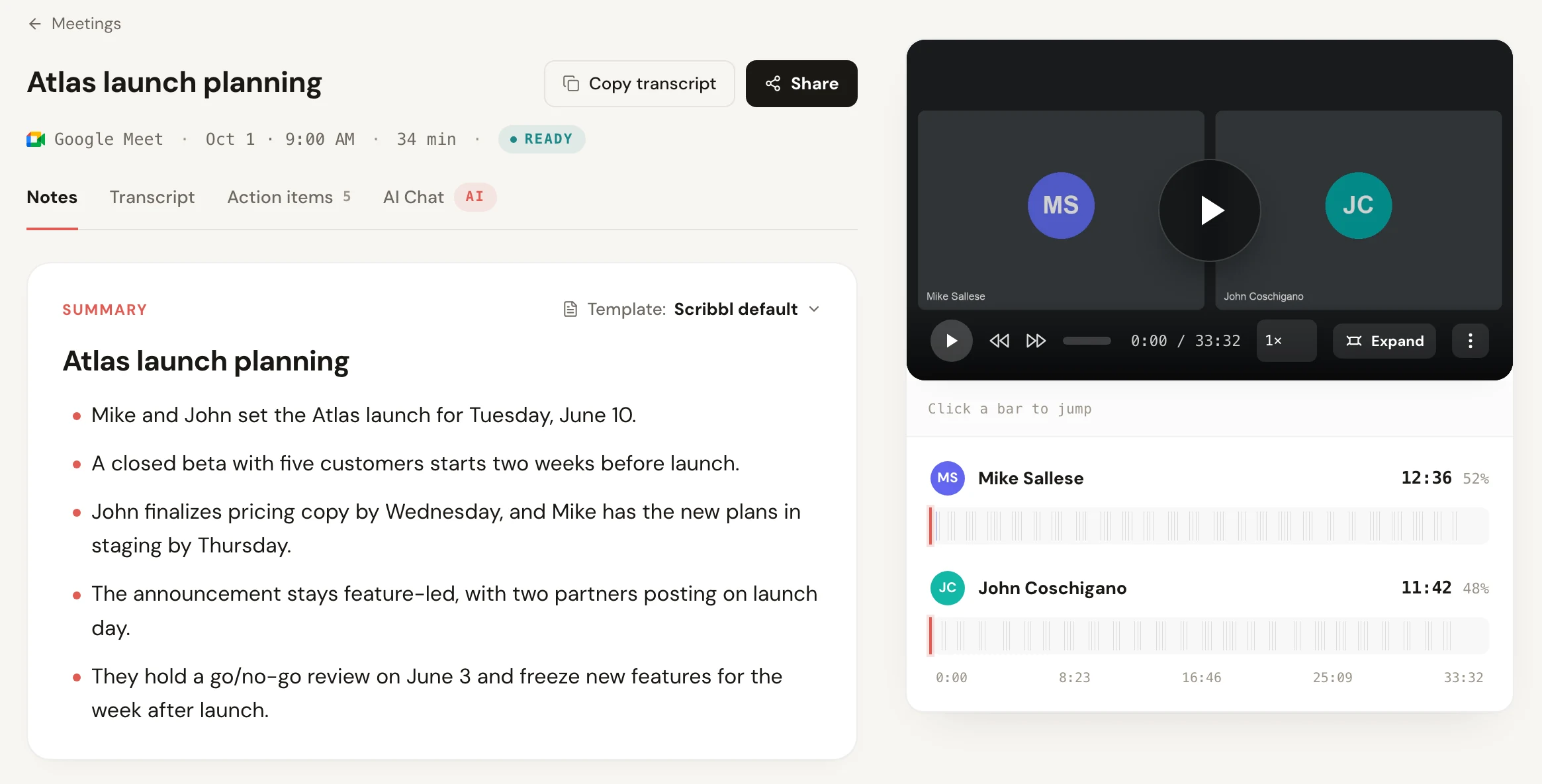
Scribbl is an AI note taker for Google Meet, Zoom and Microsoft Teams, and nothing joins the call. After each meeting you get the video recording, a transcript with speaker names, AI notes and action items. Two features turn that into notes in HubSpot without you typing them:
- Smart Collections sort your meetings by themselves. Set one up for your sales calls, and they gather there.
- Automations do the follow-up when a meeting lands in a collection. One of the things they do is log a note in HubSpot, on the contact or the deal.
- 1
Add Scribbl
Install the Chrome extension for Google Meet, or Scribbl Desktop for Mac (Apple silicon) or Windows for Zoom and Teams. Create your account.
- 2
Make a Smart Collection for your sales calls
Scribbl sorts your sales calls into it by itself, so you don't tag meetings one by one.
- 3
Add an Automation to the collection
Choose to log a note in HubSpot. When a sales call lands in the collection, the Automation writes the note from the meeting for the HubSpot contact or deal.
- 4
Approve it
By default the Automation asks before it changes anything, so you see the note before it goes on the record.
- 5
Take your calls as usual
Nothing joins the call. Tell everyone you're recording.
The same Automation can do more of the follow-up from that call. Automations can draft the follow-up email after a sales call (you copy it or open it in Gmail; it never sends by itself), post to Slack or Microsoft Teams, save to Google Drive, Notion or Confluence, open an Asana, Monday, Linear or Jira ticket, or add a row to a Google Sheet. On Pro you can also connect Scribbl to ChatGPT or Claude and ask about past meetings, like what a prospect said about budget three calls ago.
The free plan includes Google Meet, Zoom and Microsoft Teams, for 10 meetings a month. Pro is $13 per user per month billed annually, or $20 monthly. Recordings are private by default, and Scribbl doesn't use your meetings to train AI for anyone other than you. See every app Scribbl connects to on the integrations page.
Which way to log meeting notes in HubSpot
| Feature | Scribbl | HubSpot Meeting Notetaker | HubSpot's Meet, Zoom and Teams apps | Note by hand |
|---|---|---|---|---|
| Writes the note for you | Yes | Summary and action items on the meeting record | No | No |
| Nothing joins the call | Yes | Joins and announces itself | Uses each platform's own recording | Yes |
| Google Meet, Zoom and Teams | Yes | Yes | A separate app for each | Yes |
| Asks before it changes your CRM | Yes, by default | Suggests property updates | Logs as it syncs | You type it |
| Video, transcript with speaker names, AI notes and action items | Yes | Recording, transcript, summary and action items | Recording and transcript, under conditions | No |
| Also drafts the follow-up email and posts to Slack | Yes | No | No | No |
Scribbl is the pick when you want a readable note on the contact or deal after every sales call, on any of the three platforms, without a bot in the meeting and without retyping. For how meeting notes fit with the rest of your HubSpot setup, see the best HubSpot integrations, picked by the job they do, and for the basics of syncing tools with a CRM, what CRM integration is.
What a good HubSpot meeting note includes
Whether you write it or Scribbl does, a note your team will actually read covers:
- Who was there and their role on the deal
- What they need: the problem, in their words
- Decisions made on the call
- Objections or risks raised
- Next steps, each with an owner and a date
Keep it short enough to read before the next call. The full transcript and video are there when someone needs the detail.
Tell people you're recording
HubSpot's Notetaker announces itself when it joins. With Scribbl nothing joins the call, so say at the start that you're recording. In some places it's the law. See is it legal to record a meeting.
FAQ
Can HubSpot log meeting notes automatically?
Partly. HubSpot's Google Meet, Zoom and Microsoft Teams integrations log the meeting itself on attendee records, and HubSpot's Meeting Notetaker writes summaries and action items on the meeting record if you have an assigned Sales Hub or Service Hub Professional or Enterprise seat. To have the notes written and logged after every call with nothing joining the meeting, use Scribbl: an Automation logs a note on the HubSpot contact or deal when a sales call lands in your Smart Collection.
How do I add a note to a contact in HubSpot?
Go to CRM, then Contacts, and click the contact's name. In the upper left, click the Note icon, type your note and click Save note. The same steps work on company and deal records.
What is the difference between a note, a logged call and a logged meeting in HubSpot?
A note is free text on a record. A logged call records a call that already happened, with its date, time, outcome, direction and the contacts called. A logged meeting records a meeting with its date, time, outcome, type, duration, up to 50 attendees and the records it belongs to. You can write notes inside a logged call or meeting too.
Is HubSpot's Meeting Notetaker free?
No. It needs a Sales Hub or Service Hub Professional or Enterprise subscription and an assigned Sales or Service seat. It also joins the meeting as a participant and announces that the meeting is being recorded. Scribbl logs notes to HubSpot with nothing joining the call, and the free plan includes Google Meet, Zoom and Microsoft Teams.
Does Scribbl change my HubSpot records without asking?
Not by default. Scribbl's Automations ask before they change anything, so you see the note before it is logged on the HubSpot contact or deal.
Does Scribbl log notes to HubSpot for Zoom and Microsoft Teams calls?
Yes. Scribbl works on Google Meet with its Chrome extension and on Zoom and Microsoft Teams with Scribbl Desktop for Mac (Apple silicon) and Windows. The same Smart Collection and Automation log notes in HubSpot whichever platform the call was on.
Sources
All checked October 12, 2026.
- HubSpot Knowledge Base, Manually log activities on records (activities logged automatically, Note, Log call and Log meeting steps and fields, up to 50 meeting attendees)
- HubSpot Knowledge Base, Record and take notes in meetings with Meeting Notetaker (subscriptions and seats, platforms, joins and announces itself, settings switches, 40 meetings a day, 3 hours per meeting, August 31, 2026 change to meeting records only)
- HubSpot Knowledge Base, Use HubSpot's integration with Google Meet (meeting logging, connected Google Calendar, recording sync beta and plans, name matching)
- HubSpot Knowledge Base, Use HubSpot's integration with Zoom (logging on contact records by email, cloud recording and transcripts, per-user connection, Personal Meeting ID)
- HubSpot Knowledge Base, Sync Microsoft Teams meeting recordings and transcripts to HubSpot (meeting record, calendar event needed, attendance reports)
- Scribbl, Pricing (free plan and Pro)
Try Scribbl
Let your meetings take their own notes.
Scribbl records, transcribes, and summarizes your Google Meet, Zoom and Teams calls: Google Meet in your browser, Zoom and Teams with the desktop app. No bot joins the call. Free for 10 meetings a month, no credit card.
Add to Chrome · It's freeTry Scribbl
Let your meetings take their own notes.
Scribbl records, transcribes, and summarizes your Google Meet, Zoom and Teams calls: Google Meet in your browser, Zoom and Teams with the desktop app. No bot joins the call. Free for 10 meetings a month, no credit card.
 Add to Chrome · It's free