Scribbl records your Google Meet, Zoom and Teams calls and writes the notes. No bot joins. Free for 10 meetings a month. Start free
How to Log Meeting Notes in Pipedrive Automatically (2026)
Log meeting notes in Pipedrive automatically: Pipedrive's own notes, activities and Nova, and how Scribbl logs a note after every sales call with no bot.
Updated October 12, 2026
The short answer
Pipedrive facts checked against the Pipedrive Knowledge Base on October 12, 2026
To log meeting notes in Pipedrive automatically, have a note taker write the notes and send them to the deal for you. Typing them in by hand works, but it's the step reps skip.
- By hand in Pipedrive
- Open the deal, person or organization, click the Notes tab, type, save. Up to 100 notes per item, 100 KB each.
- On a meeting activity
- A meeting activity holds one private note. Good for a line or two, not a full call write-up.
- Pipedrive Nova
- Pipedrive's own meeting tool. Its notetaker joins the call as a visible participant, and you save its debrief as a note.
- Automatically with Scribbl
- A Smart Collection gathers your sales calls, and an Automation logs a Pipedrive note when a call lands there. Nothing joins the call, and it asks before it changes anything by default.
Try Scribbl
Let your meetings take their own notes.
Scribbl records, transcribes, and summarizes your Google Meet, Zoom and Teams calls: Google Meet in your browser, Zoom and Teams with the desktop app. No bot joins the call. Free for 10 meetings a month, no credit card.
Add to Chrome · It's freeTo log meeting notes in Pipedrive automatically, use a note taker that writes the notes from the call and logs them in Pipedrive for you, so nobody has to type them in after the meeting. With Scribbl, a Smart Collection gathers your sales calls by itself, and an Automation logs a note in Pipedrive when a call lands there, with nothing joining the call.
This guide covers Pipedrive's own ways to keep meeting notes (notes on deals and people, notes on activities, workflow automations and Pipedrive Nova) and then the steps to do it automatically with Scribbl. Every Pipedrive fact below was checked in the Pipedrive Knowledge Base on October 12, 2026. Pipedrive changes often, so check its knowledge base for the current steps.
Where meeting notes go in Pipedrive
Pipedrive has two places for what happened in a meeting:
| Place | What it holds | Best for |
|---|---|---|
| A note on a deal, person or organization | Up to 100 notes per item, up to 100 KB each, with bold, lists, links and @mentions | The full write-up of a call: what the buyer said, next steps, who owns them |
| The note on a meeting activity | One note per activity, up to 100 KB, private to your Pipedrive account | A line or two about the meeting itself |
Notes can also go on leads, projects, tasks, subtasks and milestones. Source: How can I add notes to a deal or contact?, Pipedrive Knowledge Base.
For sales calls, the deal is usually the right home. It's where your team looks before the next call, and pinned notes stay at the top of the deal's history. To structure the note, use a sales call notes template.
How to add meeting notes in Pipedrive by hand
- 1
Open the deal
Go to the deal's detail view.
- 2
Click the Notes tab
In the deal's detail view, click Notes.
- 3
Type the note
Use the toolbar for bold, lists and links. Type @ and a teammate's name to mention them; they get notified and can comment on the note.
- 4
Save it
The note shows in the deal's history. Click the three dots next to it to edit, pin or delete it.
A few limits to know:
- 100 notes per item, 100 KB per note. Pipedrive splits a note that is too big into several notes.
- No images on leads or activities. You can add an image to a note on a deal, person or organization, but not on a lead or an activity.
- Search works on notes. You can search notes by keyword to find the deal you talked about.
The hard part isn't the button. It's writing a good note from memory after a 40 minute call, then doing it again after the next call. That's the step a note taker removes. Skip ahead to doing it automatically with Scribbl.
Meeting notes on a Pipedrive activity
In Pipedrive, a meeting is an activity. You can add one from a deal card in your pipeline, from the Activity tab on a deal, person or organization, from the + Activity button in your calendar or activities list, or from the mobile app. Link it to a deal, person or organization so it shows up on that record.
Each activity has two text fields, and they aren't the same:
- Note: private, visible only inside your Pipedrive account. Use this for meeting notes.
- Description: syncs to your external calendar and is visible to any guests on the invite. Don't put internal notes here.
An activity holds only one note, so it's fine for "Demo went well, sending pricing Friday," but a full call write-up belongs on the deal. When the meeting is over, mark the activity as done from the activities list, the calendar view, the deal page or the contact's timeline. Source: Activities, Pipedrive Knowledge Base.
Pipedrive Nova meeting notes
Pipedrive Nova is Pipedrive's built-in meeting tool, included in all Pipedrive plans. It has two ways to capture a call:
- The AI Notetaker joins your Google Meet, Zoom or Microsoft Teams meeting as a visible participant to transcribe it. You can set it to join about two minutes before each meeting, or invite it yourself.
- The Nova Companion desktop app (Mac with Apple silicon, or 64-bit Windows) transcribes your computer's audio instead, so no bot joins.
After the call, Nova writes a debrief with a summary, key takeaways and recommended next steps, and suggests updates to deal, person and organization fields. Pipedrive says nothing Nova suggests is applied automatically: you review it, and you can save the debrief as a note on the linked deal, person or organization. Nova also needs its own setup: you accept its terms and connect your calendar, and it asks for its own Gmail connection to write meeting briefings. Sources: Pipedrive Nova, Nova: meetings, Nova Companion and Setting up Nova, Pipedrive Knowledge Base.
So with Nova, you choose between a visible notetaker in front of your buyer and a desktop app that captures audio. Either way, getting the notes onto the deal is a step you take after each call.
How to log meeting notes in Pipedrive automatically with Scribbl
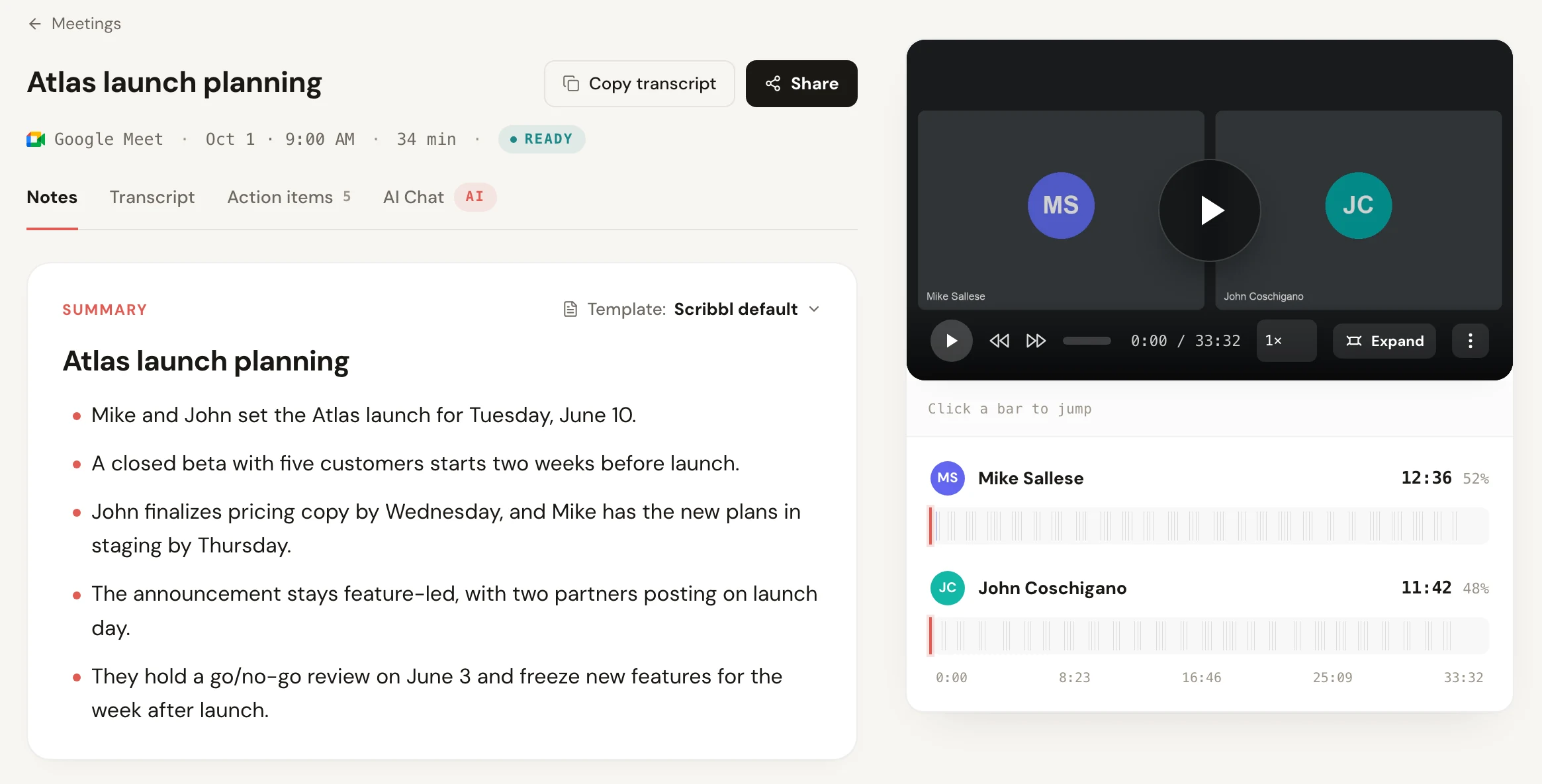
Scribbl is an AI note taker for Google Meet, Zoom and Microsoft Teams, and nothing joins the call. On Google Meet it's a Chrome extension. For Zoom and Teams it's Scribbl Desktop, for Mac (Apple silicon) and Windows. After every meeting you get:
- The video recording of the call
- A transcript with speaker names
- AI notes and action items
Then two things do the Pipedrive work for you. Smart Collections sort meetings by themselves, so your sales calls gather in one place without you filing them. Automations do the follow-up when a meeting lands in a collection, and one of the things they do is log a note in Pipedrive.
- 1
Add Scribbl
Install the Chrome extension for Google Meet, or Scribbl Desktop for Zoom and Teams, and create a free account.
- 2
Make a Smart Collection for your sales calls
It gathers your sales calls by itself, so internal meetings stay out of your CRM.
- 3
Add an Automation that logs a note in Pipedrive
Connect your Pipedrive account. When a sales call lands in the collection, the Automation logs a note in Pipedrive.
- 4
Take your calls as usual
Nothing joins the call. Tell people at the start that you're recording.
- 5
Approve the note
By default the Automation asks before it changes anything, so you see the note before it goes into Pipedrive.
The same call can do more than the CRM note. Automations can also draft the sales follow-up email (you copy it or open it in Gmail; it never sends by itself), post the recap to Slack or Microsoft Teams, open an Asana, Monday, Linear or Jira ticket, save the notes to Notion, Google Drive or Confluence, or add a row to a Google Sheet. And on Pro you can connect Scribbl to ChatGPT or Claude and ask about past calls, such as "what did Acme say about pricing?"
The free plan includes Google Meet, Zoom and Microsoft Teams, for 10 meetings a month. The Pipedrive integration is on Pro, at $13 per user per month billed annually, or $20 monthly. Recordings are private by default, and Scribbl doesn't use your meetings to train AI for anyone other than you.
Pipedrive meeting notes: the options side by side
| Feature | Scribbl | Pipedrive Nova notetaker | Nova Companion app | Typing notes by hand |
|---|---|---|---|---|
| Anything joins the call | Nothing joins | Visible participant | No bot | No |
| What you keep from the call | Video, transcript with speaker names, AI notes, action items | Transcript, summary, takeaways, next steps | Transcript of your computer's audio, summary | What you remember |
| How the note gets into Pipedrive | An Automation logs it when the call lands in the collection with your sales calls | You review the debrief and save it | You review the debrief and save it | You type it |
| Google Meet, Zoom and Microsoft Teams | Yes | Yes | Yes | Yes |
Scribbl is the pick when you want every sales call written up and logged in Pipedrive without a bot in front of your buyer and without a step after each call. If your team also runs on HubSpot, see how to log meeting notes in HubSpot. For the bigger picture on connecting tools to your CRM, see what is CRM integration.
Tell people when you record
Whatever tool you use, say at the start of the call that you're recording. Nova can notify participants and ask for consent before the meeting. In some places telling people is the law. See is it legal to record a meeting.
Log meeting notes in Pipedrive FAQ
How do I log meeting notes in Pipedrive automatically?
Use a note taker that writes the notes and logs them in Pipedrive for you. With Scribbl, a Smart Collection gathers your sales calls by itself, and an Automation logs a note in Pipedrive when a meeting lands in that collection. Nothing joins the call, and by default the Automation asks before it changes anything in Pipedrive.
How do I add a note to a deal in Pipedrive?
Open the deal's detail view, click the Notes tab, type your note and save it. The note shows up in the deal's history, where the three-dot menu lets you edit, pin or delete it. The same steps work on a person, an organization, a lead or a project.
Is there a limit on notes in Pipedrive?
Yes. Pipedrive allows up to 100 notes per deal, lead, project, person or organization, and each note can be up to 100 KB. An activity can hold only one note. Pipedrive splits a note that is too big into several notes.
Can I put meeting notes on a Pipedrive activity?
Yes. When you add or edit a meeting activity, type in its Note field. That note is private to your Pipedrive account. The Description field is different: it syncs to your calendar and guests on the invite can see it. An activity holds only one note, so a full call write-up fits better as a note on the deal.
Does Pipedrive have its own AI note taker?
Yes. Pipedrive Nova is included in all Pipedrive plans. Its AI Notetaker joins Google Meet, Zoom or Microsoft Teams meetings as a visible participant, and the Nova Companion desktop app transcribes your computer's audio instead. After the call you review Nova's debrief and can save it as a note on the linked deal, person or organization.
Can Pipedrive automations create notes?
Yes. Pipedrive's workflow automations can add a note as an action, on the Growth plan and higher. The triggers are changes to deals, people, activities, leads, organizations and projects, or dates, so an automation can't write what was said on a call. The notes still have to come from somewhere.
Does Scribbl change my Pipedrive records without asking?
Not by default. Scribbl's Automations ask before they change anything, so you see the note before it's logged in Pipedrive.
Which Scribbl plan do I need for Pipedrive?
The Pipedrive integration is on Scribbl Pro, which is $13 per user per month billed annually, or $20 monthly. The free plan includes Google Meet, Zoom and Microsoft Teams, for 10 meetings a month, so you can try the notes first.
Sources
All checked October 12, 2026.
- Pipedrive Knowledge Base, How can I add notes to a deal or contact? (where notes go, Notes tab, 100 notes and 100 KB limits, one note per activity, splitting, toolbar, @mentions, no images on leads or activities, edit, pin, delete, search)
- Pipedrive Knowledge Base, Activities (ways to add a meeting activity, activity types, Note vs Description, linking to a deal, person or organization, marking as done)
- Pipedrive Knowledge Base, Workflow automation (triggers, notes as an action, Growth plan and higher)
- Pipedrive Knowledge Base, Pipedrive Nova (included in all plans, nothing applied automatically, consent notifications)
- Pipedrive Knowledge Base, Nova: meetings (AI Notetaker joins as a visible participant, joins about two minutes early or by invite, debrief, save as a note, suggested field updates)
- Pipedrive Knowledge Base, Nova Companion (transcribes computer audio, macOS 13 on Apple silicon, 64-bit Windows 10 and later)
- Pipedrive Knowledge Base, Setting up Nova (setup wizard, calendar and Gmail connections)
- Scribbl, Pricing (free plan, Pro, Pipedrive integration on Pro)
Try Scribbl
Let your meetings take their own notes.
Scribbl records, transcribes, and summarizes your Google Meet, Zoom and Teams calls: Google Meet in your browser, Zoom and Teams with the desktop app. No bot joins the call. Free for 10 meetings a month, no credit card.
Add to Chrome · It's freeTry Scribbl
Let your meetings take their own notes.
Scribbl records, transcribes, and summarizes your Google Meet, Zoom and Teams calls: Google Meet in your browser, Zoom and Teams with the desktop app. No bot joins the call. Free for 10 meetings a month, no credit card.
 Add to Chrome · It's free