Zoom AI (Formerly Zoom AI Companion): What It Is, Is It Free, How to Use It (2026)
Zoom AI is the new name for Zoom AI Companion. What it is, what's free (3 meetings a month), ZoomMate and My Notes prices, and how to turn it on.
Updated October 29, 2026
The short answer
Checked against Zoom's pricing pages, help center, blog and community on October 7, 2026
Zoom AI is the new name for Zoom AI Companion: the AI built into Zoom Workplace
- Is it free?
- On a free Zoom account, meeting summaries for 3 hosted meetings a month, My Notes 3 times a month and 20 AI queries. On Pro ($14.16 per user per month billed annually) and higher, no monthly cap.
- Zoom's AI assistant
- ZoomMate. A limited version comes with a free Zoom account; the full version is $20 per user per month, or $16.67 billed annually.
- Zoom's note taker
- My Notes. Free 3 times a month, included with paid Zoom plans, or $8.33 per user per month billed annually on its own.
- Use it
- Turn on Meeting summary with AI in the Zoom web portal (Settings Zoom AI). In a meeting you host, hover over the Zoom AI icon, tick Meeting summary and click Start Zoom AI.
- Google Meet or Teams
- Only through My Notes on your computer, or by letting Zoom AI join the call as a participant.
- Not the host, or past 3 a month?
- Scribbl records Zoom from your own Mac or Windows computer with nothing joining the call, and works on Google Meet and Teams too: the video, a transcript with speaker names, AI notes and action items, free for 10 meetings a month.
Zoom AI is the AI built into Zoom Workplace and the new name for Zoom AI Companion, which Zoom retired in June 2026: it writes meeting summaries, answers questions during a meeting, takes notes with My Notes and turns cloud recordings into chapters and highlights. It's partly free: a free Zoom account gets meeting summaries for 3 meetings you host each month, My Notes 3 times a month and 20 AI queries, and paid Zoom Workplace plans (from $14.16 per user per month billed annually) include it with no monthly cap at no extra cost.
Zoom's AI assistant is now a separate product, ZoomMate, with a limited free version and a full version at $20 per user per month. In the Zoom app and settings, each built-in feature goes by what it does: Meeting summary, Meeting questions, Smart recording and My Notes. Only the host or a co-host can start a summary, and it works inside Zoom unless you use My Notes on your computer or let Zoom AI join a Google Meet or Teams call as a participant.
We make Scribbl, an AI note taker for Google Meet, Zoom and Microsoft Teams. If you're not the host, you're on Zoom's free plan, or your calls are on Google Meet and Teams too, Scribbl gives you the video, a transcript with speaker names, AI notes and action items for every meeting, free for 10 meetings a month: see how. Every Zoom detail below comes from Zoom's own pricing pages, help center, blog and community, checked on October 7, 2026. The links are next to each fact and at the end.
What is the Zoom AI?
Zoom AI is the AI built into Zoom Workplace, Zoom's set of apps for meetings, chat, mail, phone and more. It's the name Zoom has used since June 2026 for the features it used to call Zoom AI Companion. Zoom's own community guide describes Zoom AI as the technology layer behind the smart features across Zoom (Zoom Community, June 22, 2026), and Zoom's About page now calls Zoom "The AI-first work platform for human connection."
When people say "Zoom AI," they can mean one of three things:
- Zoom AI features. Meeting summaries, meeting questions, smart recording, My Notes and writing help, built into Zoom Workplace. Until June 2026 these carried the AI Companion name. Their settings are on the Zoom AI tab of the Zoom web portal. This is what most people mean, and what most of this page covers.
- ZoomMate. Zoom's AI assistant, a separate product Zoom launched on June 1, 2026. It has a limited free version and a paid version (is it free?).
- Zoom AI Services. Developer APIs at zoom.ai that give developers "the same speech, language, and other intelligence APIs that power Zoom's own products." You don't use these in a meeting.
What happened to the AI Companion name?
Zoom dropped the AI Companion brand in June 2026 and split its AI into two things (Zoom Blog, June 24, 2026; Zoom Community):
- Zoom AI is the set of features that used to carry the AI Companion name. They're still built into Zoom Workplace and still included with eligible paid plans. Each one is now named for what it does, such as Meeting summary or Chat compose. The sparkle icon still marks them, and in the Zoom web portal their settings are on a tab called Zoom AI.
- ZoomMate is Zoom's AI assistant, launched on June 1, 2026. Zoom says it builds on the old Custom AI Companion add-on. It searches across your meetings, chats and connected apps, and does follow-up work such as scheduling meetings, updating records and drafting slides.
Zoom says you don't need to do anything to keep using the AI features you already had. Many guides, university help pages and videos still use the old name. Zoom's help pages now tell hosts to click Start Zoom AI in a meeting.
What Zoom AI does in meetings
Zoom AI also works in Chat, Mail, Phone, Whiteboard and other Zoom products (Getting started with Zoom AI features). For meetings, these are the features that matter.
Meeting summary
The host turns it on during the meeting. Zoom AI summarizes the discussion from that point on and lists next steps. When the meeting ends, the summary is sent by email and, if the meeting has continuous chat, posted to the meeting's group chat in Zoom Chat. It doesn't need a recording; it works from Zoom's speech-to-text of the meeting. The host can also tick Generate transcript to keep a transcript. (Source: Using Meeting Summary with AI, Zoom Support, as of October 2026.)
Meeting questions
Participants can ask questions about the meeting in a side panel while it's going on. Zoom offers preset questions such as Catch me up, Was my name mentioned? and What are the action items?, and you can type your own. The host chooses who can ask, and whether people can ask about the whole meeting or only from when they joined. Questions can only be asked in the Zoom desktop app. From an answer you can Send via Chat, Create Task or Create Doc. (Asking in-meeting questions with AI)
Smart recording
For cloud recordings, Zoom AI splits the video into chapters, highlights the important parts, adds next steps and gives the host analytics such as talk speed and talk-listen ratio. It needs a cloud recording with an audio transcript, so it's for paid plans only, and the highlights are in English only. (Using smart recording with AI; supported languages)
My Notes
Your own notes with a transcript, private to you unless you share them. It runs in the Zoom Workplace desktop app, mobile app, web app and Zoom Rooms, and works in Zoom meetings, in-person meetings and meetings on other platforms (Using My Notes). More on the other platforms below, and on what it costs here.
Tasks, docs and follow-ups
- Tasks: Zoom can turn the next steps in a meeting summary into suggested tasks in Zoom Tasks.
- Docs: Zoom Docs was renamed Zoom Canvas on May 18, 2026 (Zoom developer changelog). Canvas can create meeting summary docs from templates using a meeting's transcript.
- Follow-up emails, decks and documents drafted from a meeting are part of ZoomMate, which costs extra.
Is Zoom AI free?
Partly. On Zoom's free Basic plan you get meeting summaries for 3 meetings you host each month, in-meeting questions for 3 hosted meetings, AI note-taking with My Notes 3 times a month and 20 AI queries. Free meetings also end at 40 minutes. On paid Zoom Workplace plans, meeting summaries, in-meeting questions and My Notes are unlimited at no extra cost. (Source: Zoom pricing and the free plan card on Zoom's ZoomMate page, as of October 7, 2026.)
| Zoom plan | Price per user | Meeting summaries | In-meeting questions | My Notes |
|---|---|---|---|---|
| Basic | Free | 3 hosted meetings a month | 3 hosted meetings a month | 3 uses a month |
| Pro | $16.99 a month, or $14.16 a month billed annually | Unlimited | Unlimited | Unlimited |
| Business | $21.99 a month, or $18.33 a month billed annually | Unlimited | Unlimited | Unlimited |
| Enterprise | Contact Zoom | Unlimited | Unlimited | Unlimited |
Two things to know before you count on the free allowance:
- Zoom's help articles list only paid plans. The requirements on Zoom's help pages for Meeting summary and Meeting questions still list only paid Zoom Workplace plans (Pro and up). The free allowance is on the pricing pages.
- Unlicensed seats on company accounts don't get it. Zoom's pricing page says AI features don't apply to users with Basic permissions on paid accounts.
Is Zoom AI assistant free?
Partly. Zoom's AI assistant is now called ZoomMate, and it comes in two versions. ZoomMate Basic is free and comes with a free Zoom account: it includes meeting summaries and in-meeting questions for 3 hosted meetings a month, AI note-taking 3 times a month and 20 AI queries a month. The full ZoomMate costs $20 per user per month, or $16.67 per user per month billed annually. (Source: ZoomMate, as of October 7, 2026.)
| ZoomMate Basic | ZoomMate | |
|---|---|---|
| Price per user | Free, with a free Zoom account | $20 a month, or $16.67 a month billed annually |
| AI note-taking (My Notes) | 3 uses a month | Unlimited |
| AI credits | None listed | 2,200 a month |
| Workflows | 10 runs a month, in Zoom apps only | Zoom and other apps |
| Search | 10 files and 3 meetings | The web, Zoom and connected apps, plus deep research |
| Documents | AI writing help in Canvas, 3 docs a month | Slides, Sheets, Paper and Canvas |
ZoomMate also adds unlimited custom meeting summary templates and live audio translation in meetings. Zoom sells it as an add-on to Zoom Workplace or as its own subscription (Zoom Community). You don't need it for meeting summaries: those come with paid Zoom Workplace plans.
Custom AI Companion, the older paid add-on, still has a help page that lists it for Pro or higher, with pricing through Zoom's sales team (Getting started with Custom AI Companion features). Zoom says Custom AI Companion customers will continue to be supported.
How much is a Zoom AI note taker?
Zoom's AI note taker is My Notes. It's free 3 times a month on a free Zoom account, and there are three ways to use it with no monthly cap. (Sources: Zoom's My Notes page, Zoom pricing and ZoomMate, as of October 7, 2026.)
| How you get My Notes | Price per user per month | My Notes |
|---|---|---|
| Free Zoom account | Free | 3 uses a month |
| My Notes plan, on its own | $8.33 billed annually, or $10 billed monthly | Unlimited |
| Zoom Workplace Pro | $14.16 billed annually, or $16.99 billed monthly | Unlimited |
| ZoomMate | $16.67 billed annually, or $20 billed monthly | Unlimited |
- The My Notes plan adds My Notes to a free Zoom account, along with meeting summaries and in-meeting questions in all the Zoom meetings you host.
- Zoom Workplace Pro also lifts the 40-minute limit and adds cloud recording.
- What you get: notes and a transcript. Zoom's help page doesn't say My Notes keeps a video of the meeting.
How to turn on meeting summary
For your own account
These steps follow Zoom's help page Enabling or disabling meeting summary with AI.
- Sign in to the Zoom web portal at zoom.us.
- Click your profile picture at the top right, then Settings.
- Click the Zoom AI tab.
- Under Meeting, turn on Meeting summary with AI. If a dialog appears, click Enable.
- Optional: tick Auto-start when meeting starts. Every meeting you host then gets a summary without you clicking anything. Zoom notes it starts as soon as someone starts your meeting, even if you aren't there.
- Under Automatically share summary with, choose who gets the summary (see who gets the summary).
- Click Save.
If the toggle is grayed out, your admin has locked it at the account or group level, and only they can change it.
Settings › Zoom AI › Meeting
- Meeting summary with AI toggle
- Auto-start when meeting starts check box
- Automatically share summary with choice
The same page has more options for your own meetings: a reminder to turn on AI when you host, Catch up with AI when joining late, a default summary language, meeting summary templates, auto-delete for old summaries, and whether summaries can use the meeting chat and text from shared screens.
For everyone in your company (admins)
Account owners and admins use the same setting at a higher level:
- Sign in to the Zoom web portal as an admin.
- Click your profile picture, then Admin Center, then Settings.
- Click Zoom AI, and under Meeting turn on Meeting summary with AI.
- Set the sub-settings, then click Save. Click the lock icon to stop users from changing it.
For one group of users, go to Admin Center › Users › Groups, choose the group, click Edit product settings, then Zoom AI. Admins get a few extra choices: block sharing summaries outside the company, send summaries only by email, and show a custom message when someone turns on AI in a meeting. If an admin turns meeting summary off and locks it, they also choose whether the option still shows in meetings, so people can ask for it.
How to use Zoom AI in a meeting
Start a meeting summary as the host
- 1
Start the meeting as the host in the Zoom desktop app
Meeting summary has to be on in your Zoom settings first (steps above).
- 2
Hover over the Zoom AI icon at the top right of the meeting window
On Zoom versions older than 6.7.5, the AI options may be on the toolbar at the bottom of the meeting instead.
- 3
Tick Meeting summary
Also tick Meeting questions if you want people to ask questions, and Generate transcript if you want to keep a transcript.
- 4
Click Start Zoom AI and tell people
Participants see Zoom's diamond-shaped AI icon change color, which shows AI is on. Say it out loud too.
- 5
Pause it if you need to
Untick Meeting summary, or click Stop Zoom AI to stop all AI features. You can also tick Delete meeting assets to delete what was captured.
- 6
End the meeting
Zoom finishes the summary and sends it to the people you chose.
If you stop and start again, the summary still covers the parts of the meeting when it was on. With Auto-start when meeting starts on, the summary starts on its own.
Ask a question during the meeting
- Hover over the Zoom AI icon at the top right. The AI Chat panel opens.
- Click a preset question, such as Catch me up, or type your own, such as "Was a date agreed on?"
- Use Copy, Send via Chat, Create Task or Create Doc on the answer if you need it.
This only works if the host started Meeting questions and lets participants ask. Zoom says it may also answer general questions from its broader knowledge when they aren't about the meeting, so check where an answer came from.
If you're not the host
Only the host and co-hosts can start or stop a meeting summary. As a participant, hover over the Zoom AI icon and click Ask host to start Zoom AI. If the host doesn't have AI turned on for their account, the request goes to an admin in the meeting or, if there isn't one, to the account's admins by email.
My Notes doesn't fully solve this either: in a Zoom meeting, participants can only transcribe with My Notes if the host allows it, and the host can turn it off for any participant. If you need notes from meetings you don't host, you need a note taker that runs on your own computer, such as Scribbl.
On your phone
In the Zoom mobile app, the host taps the Zoom AI icon at the top right, turns on Meeting summary, and taps Start Zoom AI. Hosts can start or stop Zoom AI from the phone app, but questions can only be asked in the desktop app.
Who gets the meeting summary?
The host always gets it. Who else does depends on the Automatically share summary with setting:
- Only meeting host
- Only meeting host, co-hosts, and alternative hosts
- Only meeting host and meeting invitees in our organization
- All meeting invitees including those outside of our organization
Some people don't get it even when sharing is on (Using Meeting Summary with AI):
- Anyone not on the original invite. People who joined from a forwarded link or an in-meeting invite aren't sent the summary.
- Anyone not signed in to Zoom. Zoom has no email address for them.
- People outside your company, if your admin blocks sharing summaries outside the organization.
Where to find a summary:
- Email, with the meeting topic as the subject. The host's copy has Edit Summary Here.
- Zoom Chat, in the meeting's group chat, if continuous meeting chat was on.
- The Zoom web portal: profile picture › My account › Summaries. My Summaries has the meetings you hosted, where you can share, edit or delete them. Shared with me has summaries others sent you.
- Zoom Hub, next to your recordings, docs and whiteboards.
Anyone who receives a summary can save it and share it with others, so treat it like any meeting notes you send around.
Does Zoom AI work on Google Meet or Microsoft Teams?
Not the way it works in Zoom. There are two ways to use Zoom AI with a Meet or Teams call.
1. My Notes on your computer, with no bot. In the Zoom Workplace desktop app, open My Notes, create a new note, allow access to your system audio, then join the call in Teams or in your browser. My Notes transcribes your computer's microphone and system audio, and you can type your own notes alongside. Zoom lists My Notes for Pro, Business and Enterprise accounts or a My Notes standalone account, and the pricing page gives free accounts 3 uses a month. (Using My Notes)
Its limits for other platforms:
- It doesn't work for other platforms from the Zoom mobile app.
- Muting yourself in Teams or Meet doesn't stop My Notes from hearing your microphone. Use the Pause button in My Notes instead.
- Full functionality needs macOS 14.2 or Windows 21H1 or later. In the Zoom Web App, only Chrome and Edge can capture system audio; other browsers capture your microphone only.
- Zoom's pricing page lists speaker identification for AI note-taking in Zoom Meetings only.
- Zoom's help page describes notes and a transcript. It doesn't say My Notes keeps a video of a Meet or Teams call.
- Zoom reminds you to follow the law when you transcribe other people, which may include telling them. Tell everyone you're recording.
2. Zoom AI joins the call as a participant. With Allow Zoom AI to join third-party meetings turned on and your calendar synced, Zoom AI joins Microsoft Teams and Google Meet meetings as a participant to make a transcript and a meeting summary. It can join every meeting on your calendar automatically and email invitees 10 minutes before the meeting. Zoom lists this setting for Pro, Business, Enterprise and Education accounts (Enabling or disabling Zoom AI to join third-party meetings), and its Custom AI Companion help page lists the same setting as part of that paid add-on. Because it joins as a participant, everyone in the call can see it, and Microsoft Teams now holds bots it detects in the lobby by default until the organizer lets them in (more in our Teams guide).
Does Zoom train AI on your meetings?
Zoom says it doesn't use customer audio, video, chat, screen sharing, attachments, or other communications content such as polls, whiteboards and reactions to train its own or third-party AI models. When a feature uses a third-party AI model, Zoom shares the data the feature needs with that provider; for a meeting summary, the meeting transcript is sent to the model. Data may be processed in US data centers. (Enabling or disabling meeting summary with AI)
Zoom's blog describes its approach as a mix of its own models and models from OpenAI, Anthropic, Meta and NVIDIA. In meetings, participants see Zoom's diamond-shaped AI icon change color while AI is on, and admins can add a custom message that shows when someone turns AI on. Admins can also move summaries to the trash after a set number of days and stop people sharing them outside the company.
Limits, and where it falls short
Zoom AI is a reasonable choice if you host your meetings on a paid Zoom plan: it costs nothing extra, there's nothing to install, admins control it, summaries work in 33 languages, and Zoom says it doesn't train on your content. The limits show up when your meetings don't fit that picture.
- The host controls it. Only the host or a co-host can start a summary. Participants can only ask.
- The free plan is small. 3 hosted meetings a month, and free meetings end at 40 minutes.
- No video. A meeting summary is text, plus a transcript if the host keeps one. Recording is separate: computer recording on the free plan, cloud recording on paid plans (how to record a Zoom meeting). Smart recording needs a cloud recording.
- Only from when it's on. The summary covers the meeting from the moment AI started.
- Not in breakout rooms. Meeting summary and Meeting questions don't work there.
- Language settings matter. For languages other than English, Zoom says to set the caption language; if captions were never used, it assumes English. Smart recording highlights are English only.
- Pronouns. If you haven't set your pronouns in your Zoom profile, the AI model picks them.
- Unlicensed seats. Users with Basic permissions on a paid company account don't get AI features.
A free way for Google Meet, Zoom and Teams: Scribbl
Zoom AI needs the host to switch it on, gives a free account 3 meetings a month, and reaches Google Meet and Teams only through My Notes or a Zoom AI participant in the call. Scribbl gets you more with less hassle: you start it yourself in any meeting, host or not, on Google Meet, Zoom and Microsoft Teams, and you get the video too. Scribbl is an AI note taker for Zoom, Google Meet and Teams, and we make it. Nothing joins the call: Google Meet runs from a Chrome extension, and Zoom and Teams run from Scribbl's desktop app for Mac (Apple silicon) and Windows. Step by step: how to record a Google Meet and how to record a Zoom meeting.
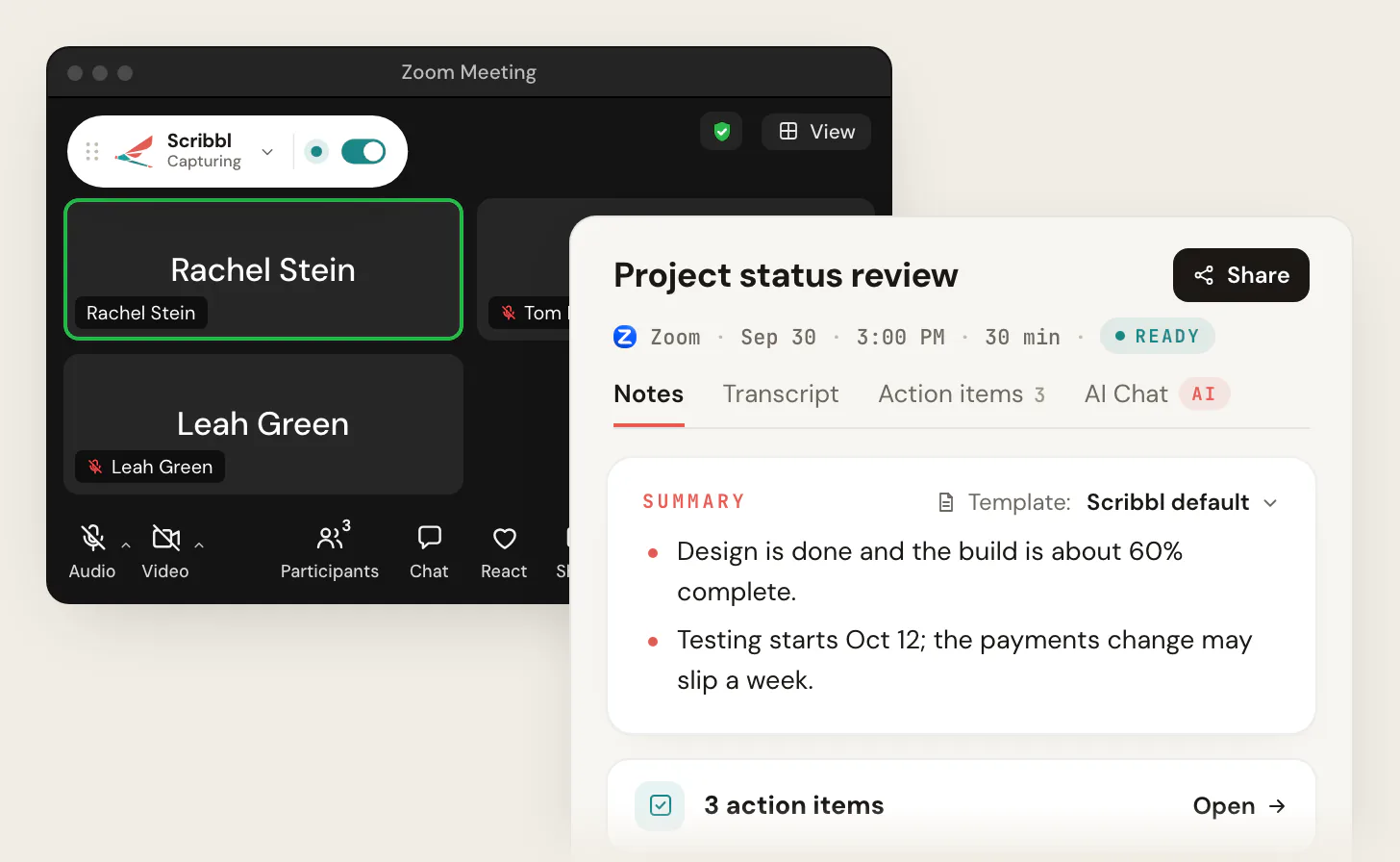
After each meeting you get:
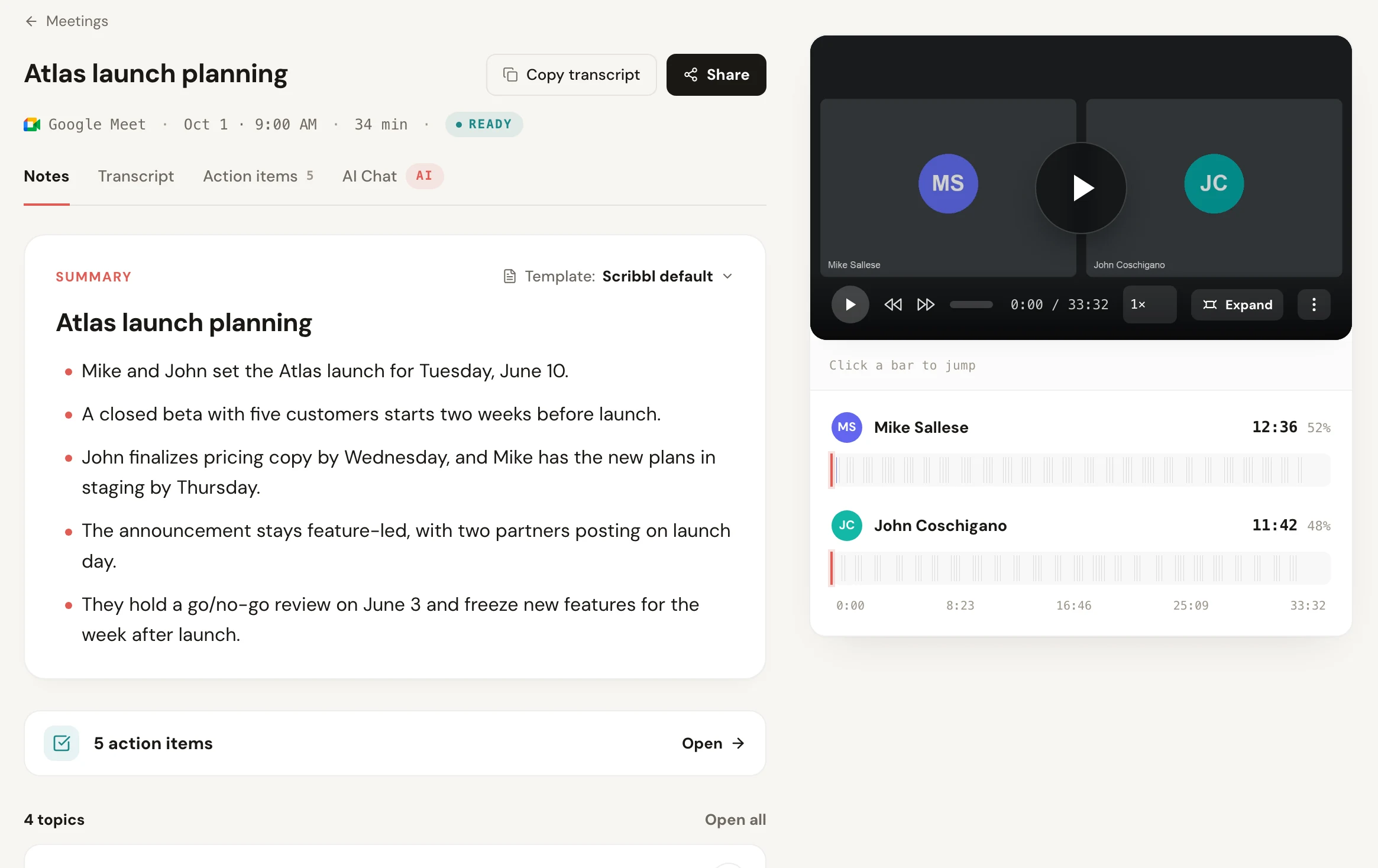
- The video recording of the meeting.
- A transcript with speaker names.
- AI notes and action items.
Then it does the work Zoom saves for ZoomMate:
- Automations do the follow-up: draft the follow-up email, post a summary to Slack or Teams, log notes in HubSpot or Pipedrive, save them to Notion or Confluence, or open Linear, Jira, Asana or Monday tickets. They ask before changing anything by default.
- Smart Collections sort each new meeting into the groups you describe, across all three platforms.
- Ask Claude or ChatGPT about every meeting once you connect Scribbl (ChatGPT meeting notes shows how).
| Scribbl (our pick) | Zoom AI (meeting summary) | |
|---|---|---|
| Meetings | Google Meet, Zoom and Microsoft Teams, in one account | Zoom. Google Meet and Teams through My Notes or a Zoom AI participant |
| Who starts it | You, in any meeting, host or not | The host or a co-host |
| Does a bot join the call? | No | Not in Zoom. In Meet and Teams, only if you let Zoom AI join as a participant |
| Video recording | Yes, every meeting | Not part of the summary; Zoom recording is separate |
| Transcript | Yes, with speaker names | Optional, if the host ticks Generate transcript |
| Where the notes go | Scribbl, plus wherever Automations send them: the follow-up email, Slack or Teams, Notion, HubSpot or Pipedrive | Email, Zoom Chat, the Zoom web portal and Hub |
| Ask ChatGPT or Claude about meetings | Yes, on Pro: every meeting, or just one Smart Collection | Yes, on paid Zoom plans (Workplace Pro or higher) through Zoom's ChatGPT app and Claude connector |
| Free plan | 10 meetings a month on Google Meet, Zoom and Microsoft Teams, with the video | Summaries for 3 hosted Zoom meetings a month |
What it costs. The free plan includes Google Meet, Zoom and Microsoft Teams, with 10 meetings a month. Pro is $13 per user per month billed annually, or $20 monthly (pricing).
Privacy. Recordings are private by default, and Scribbl doesn't use your meetings to train AI for anyone other than you.
Tell everyone you're recording. A recorder on your own computer doesn't show anything inside Zoom, so say so at the start of the meeting. Some places require everyone's consent; see do you have to tell people you're recording.
Get Scribbl for ZoomFor other Zoom note takers side by side, see the best Zoom AI notetakers and AI notetakers for Zoom without a bot.
Which should you use?
- Scribbl, for most people: your meetings are on Google Meet, Zoom or Teams, you want the video and a transcript with speaker names, you often aren't the host, or you're on the free Zoom plan. Free for 10 meetings a month, and Automations do the follow-up.
- Zoom AI meeting summary, if you host every meeting on a paid Zoom plan and a text summary by email is all you need.
- My Notes, if you're on a paid Zoom plan and a private transcript of Teams or Meet calls, without the video, is enough.
FAQ
What is the Zoom AI?
Zoom AI is the AI built into Zoom Workplace. It's the name Zoom has used since June 2026 for the features it used to call Zoom AI Companion: meeting summaries with next steps, answers to questions during a meeting, AI notes with My Notes, and chapters and highlights for cloud recordings. Zoom also sells a separate AI assistant called ZoomMate, and offers developer APIs called Zoom AI Services at zoom.ai.
What happened to Zoom AI Companion?
Zoom retired the AI Companion name in June 2026. The same features are now called Zoom AI, and each one goes by what it does, such as Meeting summary or Meeting questions. In a meeting the button says Start Zoom AI. The features are still included with eligible paid Zoom Workplace plans, and you don't need to do anything to keep using them.
Is Zoom AI free?
Partly. A free Zoom account gets meeting summaries and in-meeting questions for 3 meetings you host each month, AI note-taking with My Notes 3 times a month and 20 AI queries a month, and free meetings end at 40 minutes. Paid Zoom Workplace plans include these features with no monthly cap at no extra cost. Pro is $14.16 per user per month billed annually, or $16.99 monthly.
Is Zoom AI assistant free?
Partly. Zoom's AI assistant is now called ZoomMate. ZoomMate Basic comes free with a free Zoom account and includes meeting summaries and in-meeting questions for 3 hosted meetings a month, AI note-taking 3 times a month, 20 AI queries and 10 workflow runs a month. The full ZoomMate costs $20 per user per month, or $16.67 per user per month billed annually, with 2,200 AI credits per user each month.
How much is a Zoom AI note taker?
Zoom's AI note taker, My Notes, is free 3 times a month on a free Zoom account. With no monthly cap, it comes with the My Notes plan from $8.33 per user per month billed annually ($10 monthly), with paid Zoom Workplace plans from $14.16 per user per month billed annually ($16.99 monthly), and with ZoomMate at $16.67 per user per month billed annually ($20 monthly).
How do I use Zoom AI in a meeting?
Start the meeting as the host in the Zoom desktop app, hover over the Zoom AI icon at the top right of the meeting window, tick Meeting summary (and Meeting questions if you want people to ask questions), then click Start Zoom AI. The summary is sent after the meeting ends. Meeting summary has to be turned on in your Zoom settings first.
How do I turn on Zoom AI meeting summaries?
Sign in to the Zoom web portal, click your profile picture, then Settings, then the Zoom AI tab. Under Meeting, turn on Meeting summary with AI, choose who gets the summary under Automatically share summary with, and click Save. Tick Auto-start when meeting starts to summarize every meeting you host. If the toggle is grayed out, your admin has locked it.
Who receives the Zoom meeting summary?
The host always gets it. The host's sharing setting decides who else does: only the host, the host and co-hosts, the host and invitees in the same organization, or all invitees. People who joined from a forwarded link or an in-meeting invite, and people who weren't signed in to Zoom, don't get it by email. Summaries are also in the Zoom web portal under Summaries.
Can I use Zoom AI if I'm not the host?
Only the host and co-hosts can start or stop a meeting summary. As a participant you can click Ask host to start Zoom AI, and you can ask questions about the meeting if the host lets participants ask. For your own notes in meetings you don't host, use My Notes if the host allows it, or a note taker on your own computer such as Scribbl.
Does Zoom AI work with Google Meet and Microsoft Teams?
In two ways. My Notes in the Zoom desktop app can transcribe a Meet or Teams call from your computer's audio, with no bot. Or, on paid plans, Zoom AI can join Meet and Teams meetings from your synced calendar as a participant to transcribe and summarize them. Zoom also lists that second option under its paid Custom AI Companion add-on.
Does Zoom use my meetings to train its AI?
Zoom says no: it doesn't use customer audio, video, chat, screen sharing, attachments or similar communications content to train its own or third-party AI models. When a feature uses a third-party model, Zoom sends that provider the data it needs, such as the meeting transcript for a summary, and data may be processed in US data centers.
Does Zoom AI record the meeting?
No. Meeting summary works from Zoom's speech-to-text and gives you a text summary, plus a transcript if the host ticks Generate transcript. Recording is a separate Zoom feature: computer recording on the free plan, cloud recording on paid plans. Smart recording only works on cloud recordings.
How much does ZoomMate cost?
ZoomMate costs $20 per user per month billed monthly, or $16.67 per user per month billed annually, with 2,200 AI credits per user each month. A limited version, ZoomMate Basic, comes free with a free Zoom account. Zoom launched ZoomMate on June 1, 2026, and says it builds on the old Custom AI Companion add-on. You don't need it for meeting summaries, which come with paid Zoom Workplace plans.
What's a free alternative to Zoom AI that works on Google Meet, Zoom and Teams?
Scribbl, which we make. The free plan includes Google Meet, Zoom and Microsoft Teams, with 10 meetings a month, and you don't need to be the host. Nothing joins the call: Google Meet uses a Chrome extension, and Zoom and Teams use the desktop app for Mac (Apple silicon) and Windows. After each meeting you get the video recording, a transcript with speaker names, AI notes and action items.
Sources
All checked on October 7, 2026. Zoom changes these features and prices often, so check the linked page if a detail matters to you.
- Zoom Blog: Meet ZoomMate: Zoom's next chapter in AI (published June 24, 2026)
- Zoom Community: ZoomMate vs. Zoom AI Features (June 22, 2026)
- Zoom: Zoom Workplace pricing, ZoomMate (plans and pricing), My Notes, AI note taker (plans and pricing), About Zoom and Zoom AI Services
- Zoom Support: Getting started with Zoom AI features
- Zoom Support: Enabling or disabling meeting summary with AI
- Zoom Support: Using Meeting Summary with AI
- Zoom Support: Asking in-meeting questions with AI
- Zoom Support: Using smart recording with AI
- Zoom Support: Supported languages for Zoom AI features
- Zoom Support: Using My Notes
- Zoom Support: Enabling or disabling Zoom AI to join third-party meetings for meeting summaries
- Zoom Support: Getting started with Custom AI Companion features
- Zoom Developer changelog: Renaming of Zoom Docs (May 18, 2026)
- Zoom Developer docs: Claude connector (Zoom for Claude and Zoom for ChatGPT)
- Scribbl: pricing
Try Scribbl
AI notes on any Zoom call, host or not
Scribbl's desktop app records, transcribes, and summarizes your Zoom meetings from your own computer. No bot joins the call and you don't need to be the host. Free forever for individuals.
Get Scribbl for Zoom · It's free