Teams Transcription: How to Transcribe a Teams Meeting and Download the Transcript
How to transcribe a Teams meeting, with or without recording: who can start it, where the transcript goes, how to download it, and what to do if you can't.
Updated October 29, 2026
The short answer
Checked against Microsoft's help pages and a test meeting on October 6, 2026
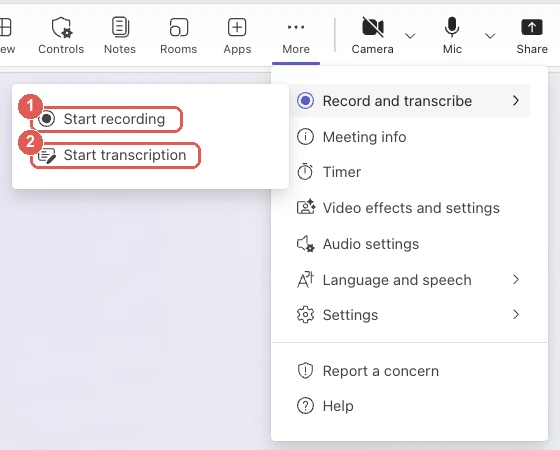
Click More Record and transcribe Start transcription, then confirm the spoken language
- Read along
- More Record and transcribe Show transcript.
- After the meeting
- Open the meeting chat, then Recap › Transcript.
- Download it
- Click the arrow next to Download and pick .docx or .vtt (organizer and co-organizers, by default).
- Who can start it
- People signed in from the organizer's organization, on a work or school account where the admin allows transcription. Guests and people from other companies can't.
- Guest, or it's turned off?
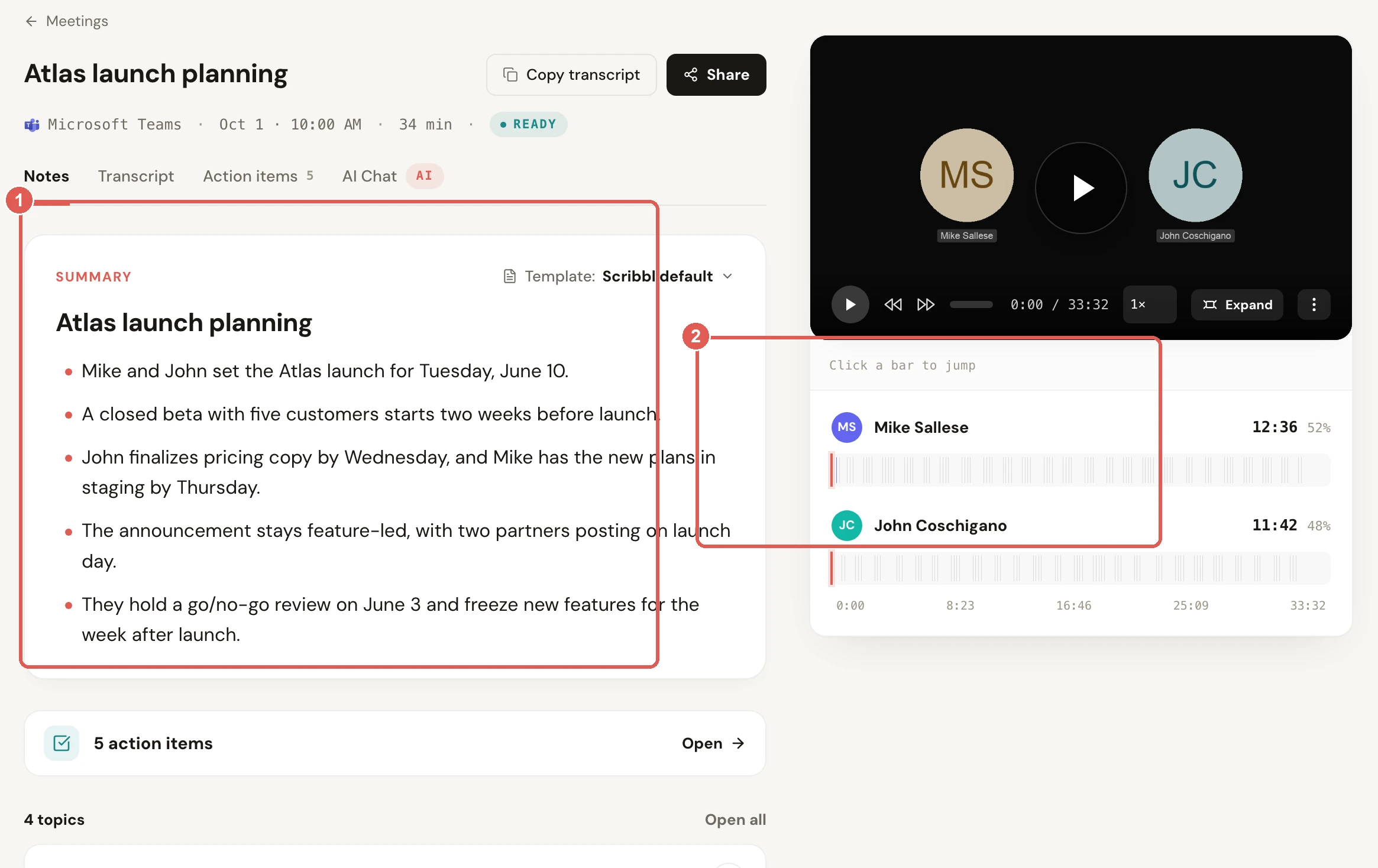
- Scribbl transcribes any Teams meeting you're in from your own Mac or Windows computer, with speaker names, the video and AI notes. Nothing joins the call, and no admin or license is needed.
To transcribe a Teams meeting, click More in the meeting controls, then Record and transcribe, then Start transcription, confirm the language everyone is speaking and click Confirm. Teams writes the transcript live, with each speaker's name and a time stamp, and after the meeting you'll find it in the meeting chat under Recap › Transcript, where the organizer can download it as a Word (.docx) or .vtt file.
Starting a recording starts transcription too, so you only need Start transcription when you want the transcript without a video. It works on work and school accounts when your admin allows transcription and you're signed in with an account from the organizer's organization. Guests and people from other companies can't start it, and Microsoft's help for free Teams for personal use doesn't describe it at all. For those cases, and for anyone who'd rather not depend on the organizer's settings, Scribbl transcribes Teams meetings from your own computer, with the video and AI notes too.
Every Teams detail below comes from Microsoft's own help pages, checked on October 6, 2026. The screenshots come from a test meeting the same day in Microsoft Teams for Mac, on a Microsoft 365 Business Premium account.
How to transcribe a Teams meeting
Step 1: Click More, then Record and transcribe
Transcription isn't a button on the toolbar. Click More, the ··· button in the meeting controls (Microsoft's help pages call it More actions), and hover over Record and transcribe.

Step 2: Choose Start transcription, or Start recording
- Start transcription gives you the transcript and no video.
- Start recording records the video and starts the transcript automatically.
Step 3: Confirm the spoken language
Teams asks for the language everyone is speaking, so the transcript comes out right. Pick it and click Confirm. In our test we chose Start recording, and the dialog was titled Start recording and transcription, with Spoken language set to English (US).
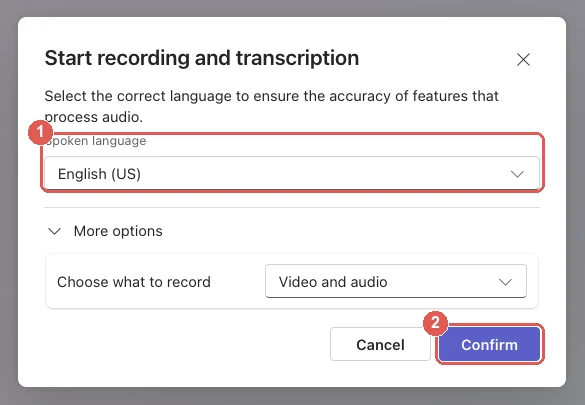
Microsoft says everyone in the meeting sees a notification that it's being transcribed.
Step 4: Read the transcript during the meeting
Click More › Record and transcribe › Show transcript. Each line shows who said it and when. Hide transcript closes the pane; transcription keeps running. Microsoft notes that obscenities show up as asterisks.
Step 5: Stop transcription
Click More › Record and transcribe, then Stop transcription or Stop recording; both stop the transcript. Stop transcription on its own leaves a recording running. The organizer, co-organizers and presenters can stop and restart it, and it stops by itself when everyone leaves.
(Source: Microsoft Support, as of October 2026.)
Transcribe every meeting automatically
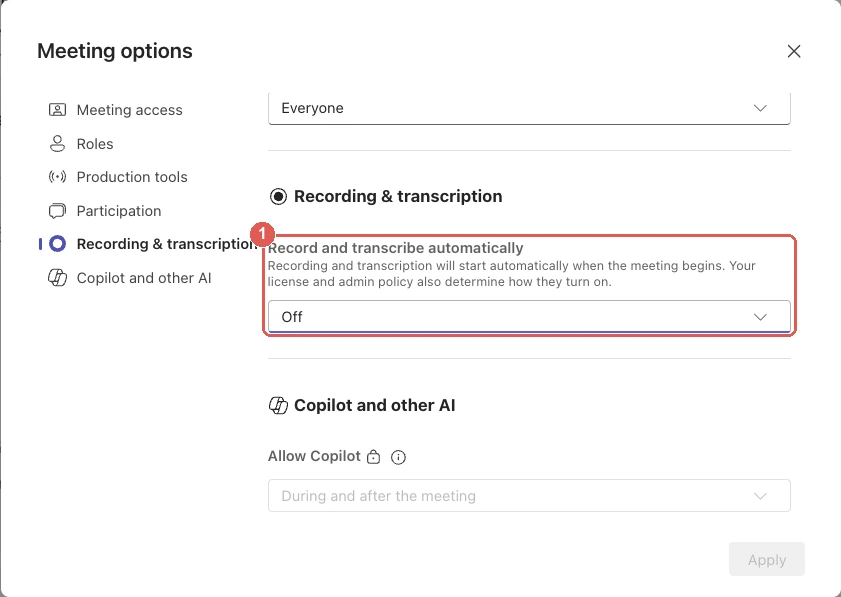
To have a meeting transcribed from the start, open it in your Teams calendar, select Meeting options, then Recording & transcription, and turn on Record and transcribe automatically. It records too: on our Business Premium account it was the only setting in that section, so there was no switch for transcription alone. Microsoft says it's off by default for meetings and on by default for webinars and town halls.
Spoken language and supported languages
The spoken language you pick is the language Teams transcribes. If people speak something else, Microsoft says Teams notices the mismatch and asks the organizer, co-organizers or the person who started transcription to change it. To change it yourself: More › Record and transcribe › Show transcript, then Language settings in the transcript pane, pick a language under Spoken language in this meeting, and click Update. The change applies to everyone's transcript and captions.
Microsoft lists 57 language and region choices across 44 languages: English (US, Canada, India, UK, Australia, New Zealand), Arabic (Saudi Arabia, United Arab Emirates), Albanian, Bulgarian, Catalan, Chinese (Simplified; Traditional, Hong Kong SAR; Traditional, Taiwan), Croatian, Czech, Danish, Dutch (Belgium, Netherlands), Estonian, Filipino, Finnish, French (Canada, France), German (Germany, Switzerland), Greek, Hebrew, Hindi, Hungarian, Icelandic, Indonesian, Italian, Japanese, Kazakh, Korean, Latvian, Lithuanian, Malay, Maltese, Norwegian, Polish, Portuguese (Brazil, Portugal), Romanian, Russian, Serbian (Cyrillic), Slovak, Slovenian, Spanish (Mexico, Spain), Swedish, Thai, Turkish, Ukrainian, Vietnamese and Welsh.
Two features for meetings in more than one language need extra licenses:
- Live translated transcription shows the transcript in your own language. It needs Teams Premium or a Microsoft Copilot license; if the organizer has one, everyone in the meeting can use it. Only the original transcript is saved, not the translation.
- Multilingual speech recognition lets each person set their own spoken language. It also needs a Microsoft Copilot license or Teams Premium, and Microsoft lists English, Spanish, French, German, Italian, Portuguese, Chinese, Japanese and Korean.
Live captions vs. transcription
People mix these up because both turn speech into text on screen. Only one of them is still there after the meeting.
- More › Language and speech › Show live captions
- Subtitles in your own meeting window
- Each person turns them on for themselves
- Not saved: Microsoft says caption data is deleted after the meeting
- Available on free Teams for personal use
- More › Record and transcribe › Start transcription
- A running transcript with speaker names and time stamps
- Everyone sees a notice that the meeting is being transcribed
- Saved in the meeting Recap, downloadable as .docx or .vtt
- Work and school accounts, if your admin allows it
Where to find a Teams meeting transcript
When the meeting ends, the transcript is ready right away. There are three ways to it:
- Meeting chat: open Chat, select the meeting's chat, then Recap and Transcript (see the screenshot below).
- Calendar: open the past meeting in your Teams calendar and select Recap.
- The recording's web player, if the meeting was recorded: click Watch in browser on the Recap tab, then the Transcript button at the top right of the video. You can search the transcript there and click any line to jump to that point in the video.
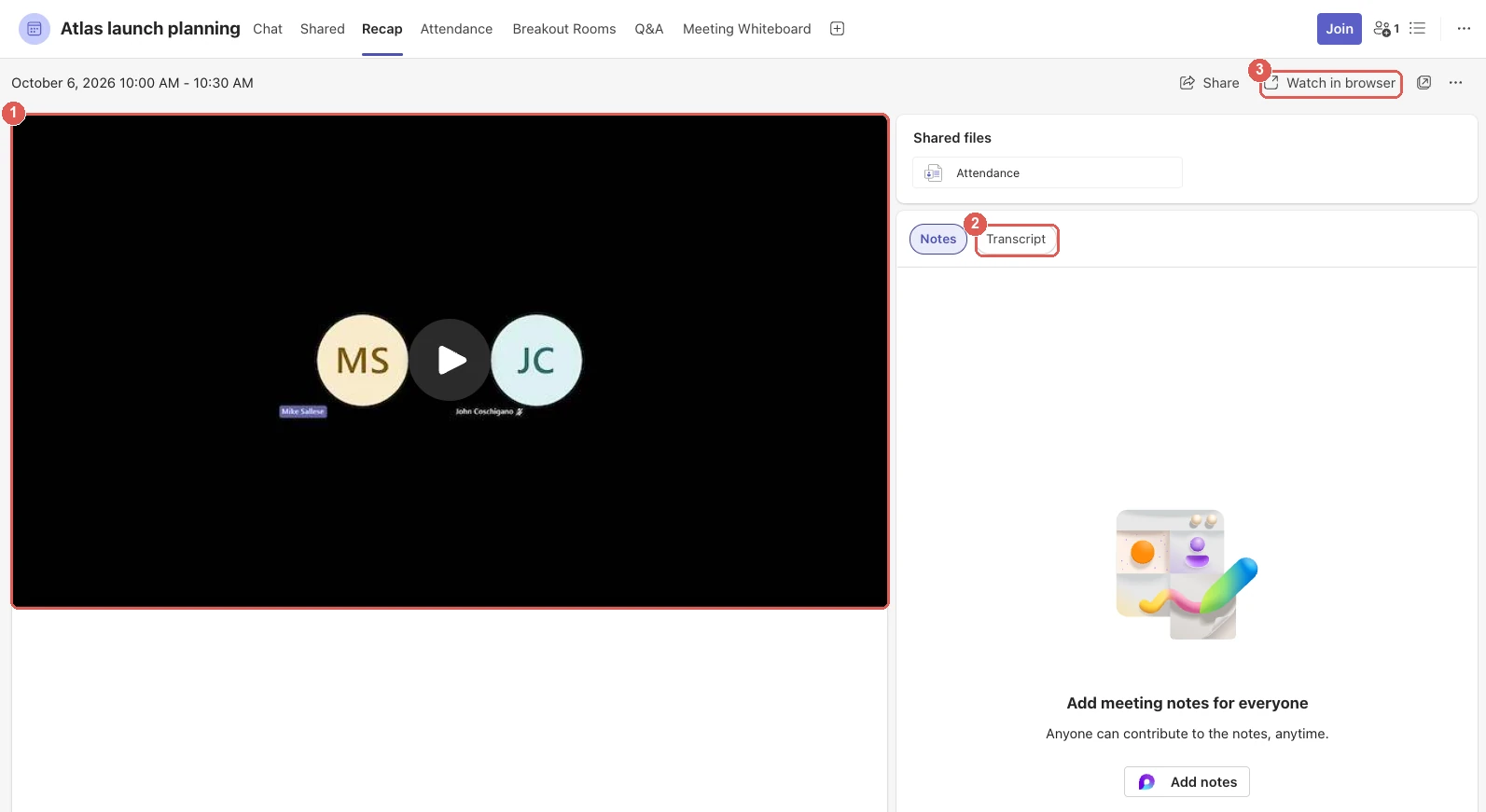
The transcript is stored with the recording in the organizer's OneDrive for work or school; for a channel meeting, it goes in the Recordings folder of the channel's SharePoint site. You won't see a separate transcript file in OneDrive: Microsoft says the copy stored with the video is managed only through the video player. More on where the video goes in how to record a Teams meeting.
How to download a Teams transcript
- Open Chat and select the past meeting's chat.
- Select Recap, then Transcript.
- Click the arrow next to Download and choose the file type.
You get two choices: .docx, a Word document that's easy to read and share, and .vtt, a WebVTT captions file with time codes for each line. By default only the organizer and co-organizers can download it; the organizer can give others permission, depending on your admin's settings.
Who can see and download the transcript
| Who you are in the meeting | Start or stop | Read it live | Read it after | Download it after |
|---|---|---|---|---|
| Organizer | Yes | Yes | Yes | Yes |
| Someone from the organizer's organization | Yes | Yes | Yes | No, unless the organizer allows it |
| Someone from another organization | No | Yes | No | No |
| Joined without signing in | No | No | No | No |
People who call in by phone can't view the transcript. With Teams Premium or a Copilot license, the organizer can also limit access to the recording and transcript with Who has access to the recording and transcript: Everyone (the default), Organizers and co-organizers, or Specific people.
Edit or delete a transcript
- Edit: the organizer opens Teams' OneDrive view, goes to My files › Recordings, opens the recording in the browser, selects Transcript, hovers over a line and clicks Edit, then Done.
- Delete: the organizer or a co-organizer opens Recap, selects Transcript, then Delete. Deleting it in Teams removes both stored copies. If you want Teams' AI notes, generate them first: Microsoft says the notes won't be available once the transcript is gone.
(Source: Microsoft Support, as of October 2026.)
Who can use Teams transcription
On a work or school account, you can start transcription when all of these are true:
- Your admin allows it. In the Teams admin center, under Meetings › Meeting policies, the Transcription setting is on by default for new policies. Both the organizer and the person starting transcription need it on.
- You're in the organizer's organization. Guests, people from other organizations and people who joined without signing in can't start it.
- The organizer hasn't limited it. With Teams Premium, the organizer can choose who can record and transcribe, including No one. If the organizer sets Copilot to Off in the meeting options, recording and transcription are off too.
Microsoft's transcription help pages don't list a separate license for work and school accounts; what they point to is your admin's policy.
Free Teams for personal use is different. Microsoft's help for personal accounts covers live captions, which aren't saved, and its plan comparison lists meeting recordings as not included in free Teams. It doesn't describe meeting transcripts. If you're on free Teams, use a transcription tool outside Teams, such as Scribbl.
When Start transcription is grayed out
Microsoft says to hover over the lock icon on Start transcription to see why. What the message means:
| What Teams says | Why | What to do |
|---|---|---|
| Guests can't start the transcription | You joined as a guest | Ask someone from the organizer's organization to transcribe and share it, or use Scribbl on your own computer |
| Unavailable to people in a different org from the organizer | You're from another organization | Same as above |
| Only people in this org can start transcription. Sign in to Teams to continue. | You joined without signing in | Sign in with your work account |
| Unavailable for this meeting due to organization policy | Your admin hasn't allowed transcription for you, or just changed it | Ask your admin to turn it on, then give it time |
| Transcription is turned off for the meeting organizer by org policy | The organizer isn't allowed to transcribe, so no one can | Ask your admin to allow it for the organizer |
| Only meeting organizers and presenters can start transcription | You're an attendee | Ask the organizer to make you a presenter |
| Only meeting organizer and co-organizer can start transcription for this meeting | The organizer limited who can record and transcribe | Ask to be made a co-organizer |
| Unavailable because the meeting organizer has disabled transcription for this meeting | The organizer chose No one | Only the organizer can change it |
| Unavailable because Copilot is turned off for this meeting | The organizer set Allow Copilot to Off | Ask the organizer to allow Copilot and restart the meeting |
(Source: Microsoft Support, as of October 2026.)
Teams transcription on iPhone and Android
- Start: tap More options › Transcription › Confirm.
- Stop: tap More options › Transcription › Stop transcription.
- Read it: the phone app shows the transcript only after the meeting; Microsoft says the live transcript is only on Teams for desktop. Tap Chat, open the past meeting's chat, find the Meeting ended message and tap Transcript. You can also open the meeting chat and tap Apps › Recap.
To make it easy for people who joined on their phones, Microsoft suggests downloading the transcript and attaching it to the meeting chat.
How to transcribe a Teams recording after the meeting
If transcription was on while the meeting was recorded, you're done: the transcript is in Recap. If the meeting was recorded with transcription off, Microsoft says the recording has no transcript next to it. Two ways to get one:
- Generate it in the web player. The recording's owner, or anyone who can edit it, opens the video in the browser (Watch in browser on the Recap tab, or the MP4 in OneDrive), opens Video settings and selects Generate under transcripts and captions. Microsoft supports 28 languages here, for videos under 4 GB and under 4 hours.
- Upload it to Word. Download the MP4, then in Word for Microsoft 365 on Windows or Word for the web go to Home › Dictate › Transcribe › Upload audio. Word takes .wav, .mp4, .m4a and .mp3 files and labels people as Speaker 1, Speaker 2 and so on, which you can rename. A Microsoft 365 subscription includes 300 minutes of uploads a month; a Microsoft Copilot license raises it to 30,000.
By default only the organizer and co-organizers can download a recording, so ask them if you can't. If the meeting was neither recorded nor transcribed, there's nothing to transcribe afterwards: captions aren't saved.
AI notes from the transcript: intelligent recap and Copilot
A plain Teams transcript is just text. The AI features that summarize it need more licenses, and all of them need a transcript to work from.
- Intelligent recap adds an AI summary with notes and follow-up tasks, a timeline of speakers, chapters and name mentions to the Recap tab. It needs Teams Premium or a Microsoft Copilot license. For the AI summary, the meeting has to be transcribed in a supported language (Microsoft lists 25) and last at least five minutes. People in your organization who were invited can see it.
- Copilot in Teams meetings answers questions about the meeting while it runs and afterwards. It needs an add-on Microsoft Copilot license. To ask about the meeting after it ends, it needs a transcript. It doesn't work in meetings hosted outside your organization.
Scribbl writes AI notes and action items from every Teams meeting without either license, and works in meetings hosted outside your organization. For a closer look at Microsoft's options, see Microsoft Teams AI meeting notes.
How long Teams transcripts are kept
On work and school accounts, recordings and transcripts expire after 120 days by default. Admins can change that in the meeting policy, but the change only applies to new recordings and transcripts, and A1 education accounts are limited to 30 days. Expired files go to the recycle bin of the OneDrive or SharePoint site they were saved in, where work accounts keep them for 93 days unless an admin changed it.
The organizer can change the date for one recording or transcript: open it in the web player, switch to Editing if it says Viewing, select the expiration countdown under the video, and extend it or remove the expiration. To keep a transcript for good, download the .docx.
(Source: Microsoft Learn, as of October 2026.)
Privacy: what attendees see
- A notice for everyone. When someone starts transcription, everyone in the meeting is told it's being transcribed.
- You can hide your name. Before the meeting, open Teams Settings, then Accessibility › Captions and transcripts, and turn off Automatically identify me in live captions and live transcripts.
- Admins can require agreement. With that policy on, everyone but the person who started transcription is muted, with cameras and screen sharing off, until they answer Yes to being included. Anyone who answers No can only watch. It's off by default.
Transcribe any Teams meeting, with no admin or license: Scribbl
Teams' own transcription comes with conditions: the right account, the right organization, an admin who allows it, someone remembering to click Start transcription, and a file in someone else's OneDrive that expires. Scribbl's meeting transcription skips all of them.
Scribbl is an AI note taker for Microsoft Teams, Zoom and Google Meet, and we make it. The Scribbl desktop app, for Mac (Apple silicon) and Windows, transcribes your Teams meetings with speaker names from your own computer. Nothing joins the call, so it works the same whether you organize the meeting, join as a guest, or Teams' own transcription is turned off. Teams doesn't show its notice for it, so tell everyone you're recording.

After each meeting you get:
- The video recording.
- A transcript with speaker names.
- AI notes and action items.
- Answers about past meetings: connect Scribbl to ChatGPT or Claude and ask.
- The follow-up done for you: Automations draft the follow-up email, post a summary to a Teams or Slack channel, log notes in HubSpot or Pipedrive, or open Jira, Asana or Linear tickets. They ask before changing anything by default.
- Meetings sorted by themselves: Smart Collections put each new meeting into the groups you describe.
The free plan includes Google Meet, Zoom and Microsoft Teams, with 10 meetings a month. Pro is $13 per user per month billed annually, or $20 monthly (pricing).
Get Scribbl for TeamsFAQ
Can you transcribe a Teams meeting without recording it?
Yes. Click More, then Record and transcribe, then Start transcription, confirm the language everyone is speaking and click Confirm. Teams writes the transcript without making a video. If you start a recording instead, transcription starts automatically along with it.
Can everyone see the transcription in Teams?
Everyone sees a notice that the meeting is being transcribed. During the meeting, people from the organizer's organization and people from other organizations can open the live transcript; people who joined without signing in can't. After the meeting, only people from the organizer's organization can open it, and by default only the organizer and co-organizers can download it. People who called in by phone can't view it.
How do I turn on automatic transcription in Teams?
Open the meeting in your Teams calendar, select Meeting options, then Recording & transcription, and turn on Record and transcribe automatically. It records and transcribes as soon as the meeting begins. On our Microsoft 365 Business Premium account it was the only setting in that section, so there was no switch for transcription alone.
Can I transcribe a Teams meeting if I'm not the organizer?
Yes, if you're signed in with an account from the organizer's organization, your admin allows transcription for you and the organizer, and the organizer hasn't limited who can record and transcribe. Guests, people from other organizations and people who joined without signing in can't start it. They can ask someone from the organizer's organization to transcribe and share the transcript, or use a desktop app such as Scribbl that transcribes from their own computer. Either way, tell people you're recording.
Where is the transcript of a Teams meeting?
In Teams, open Chat, select the meeting's chat, then Recap and Transcript. It's also on the meeting event in your Teams calendar, and in the recording's web player if the meeting was recorded. The file itself is stored in the organizer's OneDrive for work or school, or in the channel's SharePoint site for a channel meeting.
How do I download a Teams meeting transcript?
Open the meeting chat, select Recap, then Transcript, click the arrow next to Download and choose .docx or .vtt. By default only the organizer and co-organizers can download it. Other people from the organization can read it but need the organizer to give them download permission.
Is Teams transcription free?
On work and school accounts it's part of Teams, controlled by your admin, and Microsoft's transcription pages don't list an extra license. Microsoft's help for free Teams for personal use covers live captions, which aren't saved, but not meeting transcripts. AI notes from the transcript, called intelligent recap, need Teams Premium or a Microsoft Copilot license. Scribbl, which makes this page, transcribes Teams meetings with speaker names and writes AI notes and action items on its free plan, with no Microsoft license.
What languages does Teams transcription support?
Microsoft lists 57 language and region choices across 44 languages, including six kinds of English, Spanish, French, German, Portuguese, Chinese, Japanese, Korean, Arabic and Hindi. Pick the language everyone is speaking when you start transcription; changing it later changes it for everyone.
Can I get a transcript of a Teams recording after the meeting?
If transcription was on, the transcript is already in Recap. If the meeting was recorded with transcription off, the recording's owner can open it in the web player and select Generate under Video settings, for videos under 4 hours. You can also download the MP4 and upload it to Transcribe in Word, which allows 300 minutes a month with a Microsoft 365 subscription.
Do Teams transcripts expire?
On work and school accounts, recordings and transcripts expire after 120 days by default, unless your admin chose something else; A1 education accounts are limited to 30 days. Expired files go to the recycle bin of the OneDrive or SharePoint site they were saved in. Download the .docx if you want to keep it.
What's the difference between live captions and transcription in Teams?
Live captions are subtitles you turn on for yourself during the meeting, and Teams doesn't save them. Transcription writes a record with speaker names and time stamps that everyone is told about and that stays in the meeting's Recap after it ends.
Sources
Checked on October 6, 2026. Screenshots are from a test meeting in Microsoft Teams for Mac on a Microsoft 365 Business Premium account, the same day.
- Microsoft Support: Start, stop, and download live transcripts in Microsoft Teams meetings
- Microsoft Support: I can't transcribe a meeting in Microsoft Teams
- Microsoft Support: Edit or delete a meeting transcript in Microsoft Teams
- Microsoft Support: Customize who can access a recording or transcript
- Microsoft Support: Hide your identity in meeting captions and transcripts
- Microsoft Support: Use live captions in Microsoft Teams meetings
- Microsoft Support: Multilingual speech recognition in Microsoft Teams
- Microsoft Support: Recap in Microsoft Teams
- Microsoft Support: How to use Copilot in a meeting
- Microsoft Support: View, edit, and manage video transcripts and captions
- Microsoft Support: Transcribe your recordings (Word)
- Microsoft Support: Live captions in Microsoft Teams for personal use
- Microsoft Support: Learn more about subscriptions for Microsoft Teams for personal use
- Microsoft Learn: Manage transcription and captions for Teams meetings
- Microsoft Learn: Overview: Recording and transcription for Teams meetings, events, and calls
- Microsoft Learn: Manage Teams recording policies for meetings and events
- Microsoft Learn: Manage Teams recording expiration policy
- Microsoft Learn: Manage Microsoft Copilot in Teams meetings and events
- Microsoft Learn: Participant agreement for recording and transcription
Teams moves buttons between versions. If yours looks different, look for the same names under More.
Try Scribbl
Transcribe any Teams meeting you're in
Scribbl's desktop app records, transcribes, and summarizes your Teams meetings from your own computer. No bot joins the call and you don't need to be the host. Free forever for individuals.
Get Scribbl for Teams · It's free