Does Microsoft Teams Have AI Meeting Notes? Copilot, Recap and Free Options (2026)
Yes, but Teams' AI meeting notes need a Teams Premium or Copilot license for each person. How to turn them on, what the free recap shows, and a free option.
Updated October 19, 2026
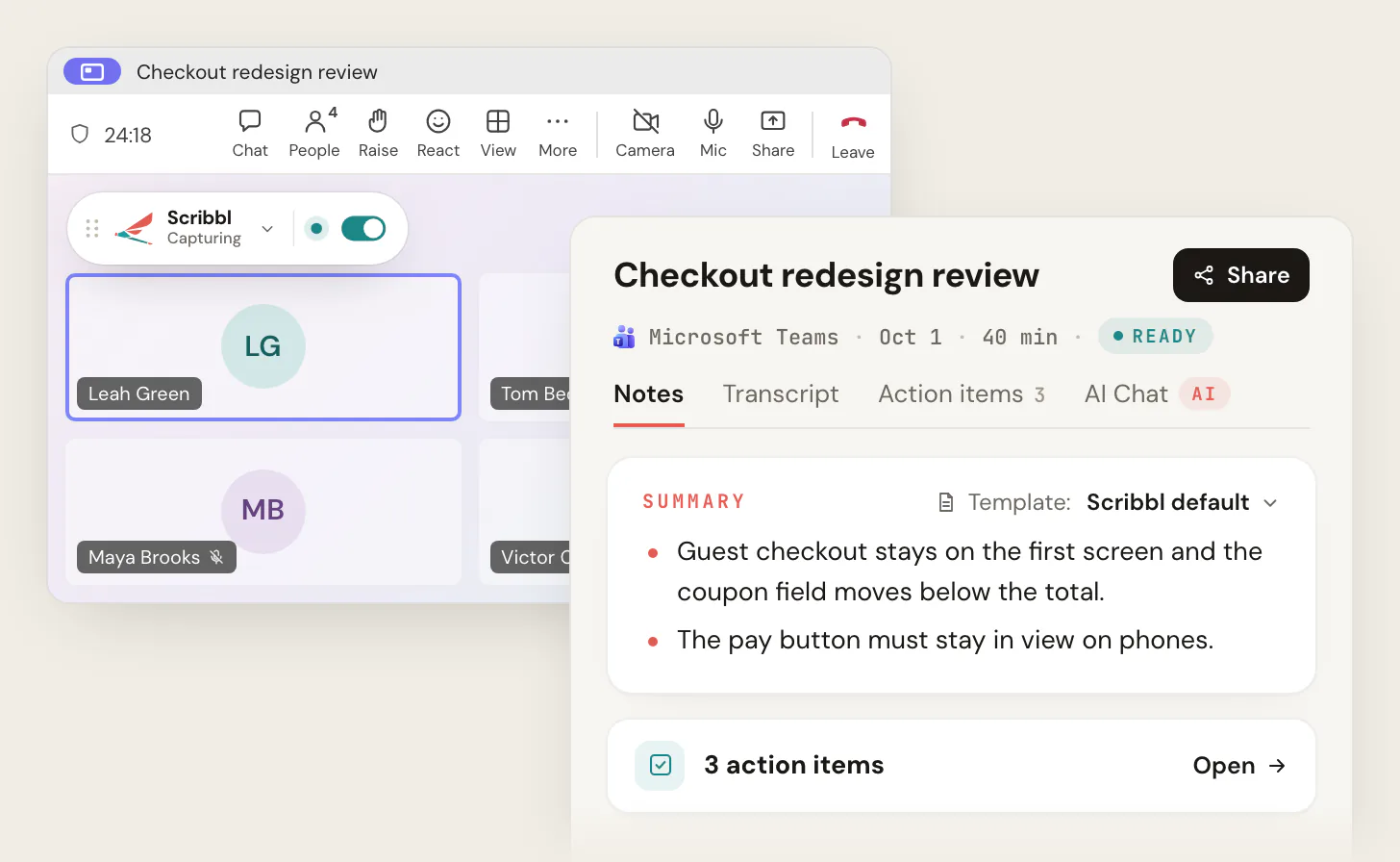
Yes, Microsoft Teams has AI meeting notes, but not in standard Teams: they're part of intelligent recap, which needs a Teams Premium or Microsoft Copilot license for each person who wants them. Without one, the Teams recap gives you the recording, the transcript and a Notes tab people type into by hand, with no AI summary. To get AI notes without a Copilot license, use Scribbl's Microsoft Teams AI note taker: it takes notes in any Teams meeting you join, with nothing joining the call, and gives you the video, a transcript with speaker names, AI notes and action items.
Microsoft licenses the AI notes person by person, and people from outside the organizer's company don't get them at all unless someone shares the recap. Scribbl makes this page, and Scribbl Desktop works around both limits, because only you need it, whoever organized the meeting. Get Scribbl Desktop. Everything about Teams below comes from Microsoft's own help, admin and pricing pages, checked on October 12, 2026, with links next to each fact and at the end.
Does Microsoft Teams have AI meeting notes?
Yes, Microsoft Teams has AI meeting notes: Microsoft calls them AI meeting notes, and they're part of intelligent recap, along with AI-suggested tasks, speaker markers, chapters and topics, and markers for when your name came up. Microsoft's admin page says it plainly: "You must assign a Teams Premium license or Microsoft Copilot license to your users" (Microsoft Learn). That license is per person. A colleague's license doesn't give you the AI notes. So if you're asking whether Microsoft Teams has an AI note taker built in, this is it: intelligent recap writes the notes after the meeting, and with a Copilot license, Facilitator writes them live in scheduled meetings. Scribbl Desktop gives you AI meeting notes in Microsoft Teams with no Microsoft license at all.
Here is what each option gives you in a Teams meeting:
| Scribbl (our pick) | Teams, no add-on | Teams Premium | Microsoft Copilot | |
|---|---|---|---|---|
| Price per user per month | Free plan, or Pro at $13 billed annually ($20 monthly) | Part of your Teams plan | $10, paid yearly, on top of Teams | $21 (Business) or $30 (enterprise), paid yearly, on top of Microsoft 365 |
| AI notes and action items | Yes, every meeting | No | Yes, intelligent recap | Yes, intelligent recap, plus Copilot and Facilitator |
| Who needs a license | Only you | Nobody | Each person who wants the AI notes | Each person who wants the AI notes |
| Meetings another company organizes | Yes, from your own computer | Not your own recap | No AI recap unless someone there shares it | No. Copilot isn't available there |
| Video recording | Yes, every meeting | Only if someone in the organizer's organization records | Same | Same |
| Transcript with speaker names | Yes | If someone transcribes | If someone transcribes | If someone transcribes |
| Ask AI about past meetings | Claude or ChatGPT, across every meeting (Pro) | No | No | Copilot |
| Other platforms | Google Meet, Zoom and Microsoft Teams | Teams only | Teams only | Teams only |
(Microsoft prices from Teams Premium, Microsoft 365 Copilot for business pricing and Copilot for enterprise, as listed in our Teams Premium features guide on October 7, 2026. Copilot Business is $18 the first year for purchases from July 1 to December 31, 2026.)
How do I turn on AI notes in Microsoft Teams?
To turn on AI notes in Microsoft Teams, you need a Teams Premium or Microsoft Copilot license and a transcribed meeting; there's no single switch. Intelligent recap turns on by itself after the meeting, as long as three things are true: you have the license, the meeting was transcribed, and you're in the organizer's organization. Here's the order.
- 1
Get the license
Your admin assigns you a Teams Premium or Microsoft Copilot license, on top of a Microsoft 365 plan with Teams. Without it, you only see the basic recap.
- 2
Make sure transcription is allowed
Microsoft says admins must turn on transcription for intelligent recap. To get speakers, topics and chapters as well, the recording policy has to allow recording.
- 3
Start transcription in the meeting
Click More, then Record and transcribe, then Start transcription. Starting a recording starts transcription too. The meeting needs to run at least five minutes.
- 4
Open the Recap tab afterward
Open the meeting in your Teams calendar or chat and select Recap. The AI notes and suggested tasks appear there.
Facilitator (Copilot license). Facilitator writes AI notes live during the meeting. To turn it on when scheduling, select Options › Copilot and other AI, set Allow Copilot and Facilitator to "Only during the meeting" or "During and after the meeting", and turn on Facilitator. During a meeting, select More actions › Turn on Facilitator. Microsoft says "A Microsoft Copilot license is required to add Facilitator to a meeting or turn it on during a meeting," and it only works in scheduled meetings, not channel meetings, instant meetings or Teams calls (Facilitator in Microsoft Teams meetings). If your admin hasn't turned on Copilot in your meeting policy, the toggle shows but won't switch on (Microsoft Q&A).
Without a license, turn on Scribbl instead. Install Scribbl Desktop on your Mac (Apple silicon) or Windows PC, sign in, and join your Teams meeting as usual. It records from your own computer, nothing joins the call, and after the meeting you get the video, a transcript with speaker names, AI notes and action items. It works the same whether you organized the meeting or a client did. Tell everyone at the start that you're recording.
For the transcription steps in detail, see how to transcribe a Teams meeting. For recording, see how to record a meeting in Teams.
Can Microsoft Copilot take notes in a Teams meeting?
Yes, Microsoft Copilot can take notes in a Teams meeting if you have a Microsoft Copilot license and the meeting was organized inside your company. Microsoft says you need "a Microsoft 365 and a Microsoft Copilot license" to use Copilot in Teams (Welcome to Copilot in Microsoft Teams). Copilot summarizes the discussion and suggests action items from the transcript, and Facilitator writes live notes that "Any meeting participant (excluding external participants)" can see.
| Your situation | Can Copilot take notes for you? |
|---|---|
| You have a Copilot license, in a meeting organized inside your company | Yes, during and after the meeting, and Facilitator in scheduled meetings |
| Your company has Teams Premium, but you have no Copilot license | You get intelligent recap's AI notes after the meeting, but not Copilot or Facilitator |
| You're in your own company's meeting with no license | You can read Facilitator's notes if someone licensed turned it on, but you can't prompt Copilot |
| You're a guest in another company's Teams meeting | No. Copilot isn't available in a meeting organized outside your organization |
| You use Scribbl Desktop | AI notes in every one of these, with no Microsoft license |
What to know before you count on Copilot:
- Transcription. To ask Copilot about the meeting afterward, transcription has to be on. If the organizer sets Copilot to "Only during the meeting", its answers are gone when the meeting ends.
- The organizer decides. Allow Copilot and Facilitator is a meeting option, and setting it to Off also turns off recording and transcription for that meeting.
- Scheduled meetings only, for Facilitator. Not channel meetings, instant meetings or calls.
What the Teams meeting recap includes
Every Teams meeting that was recorded or transcribed gets a Recap tab. Microsoft's help page lists what the basic recap includes: the recording, the transcript, shared files, notes, the agenda and follow-up tasks (Recap in Microsoft Teams). The notes and tasks there are the ones people typed. There's no AI summary.
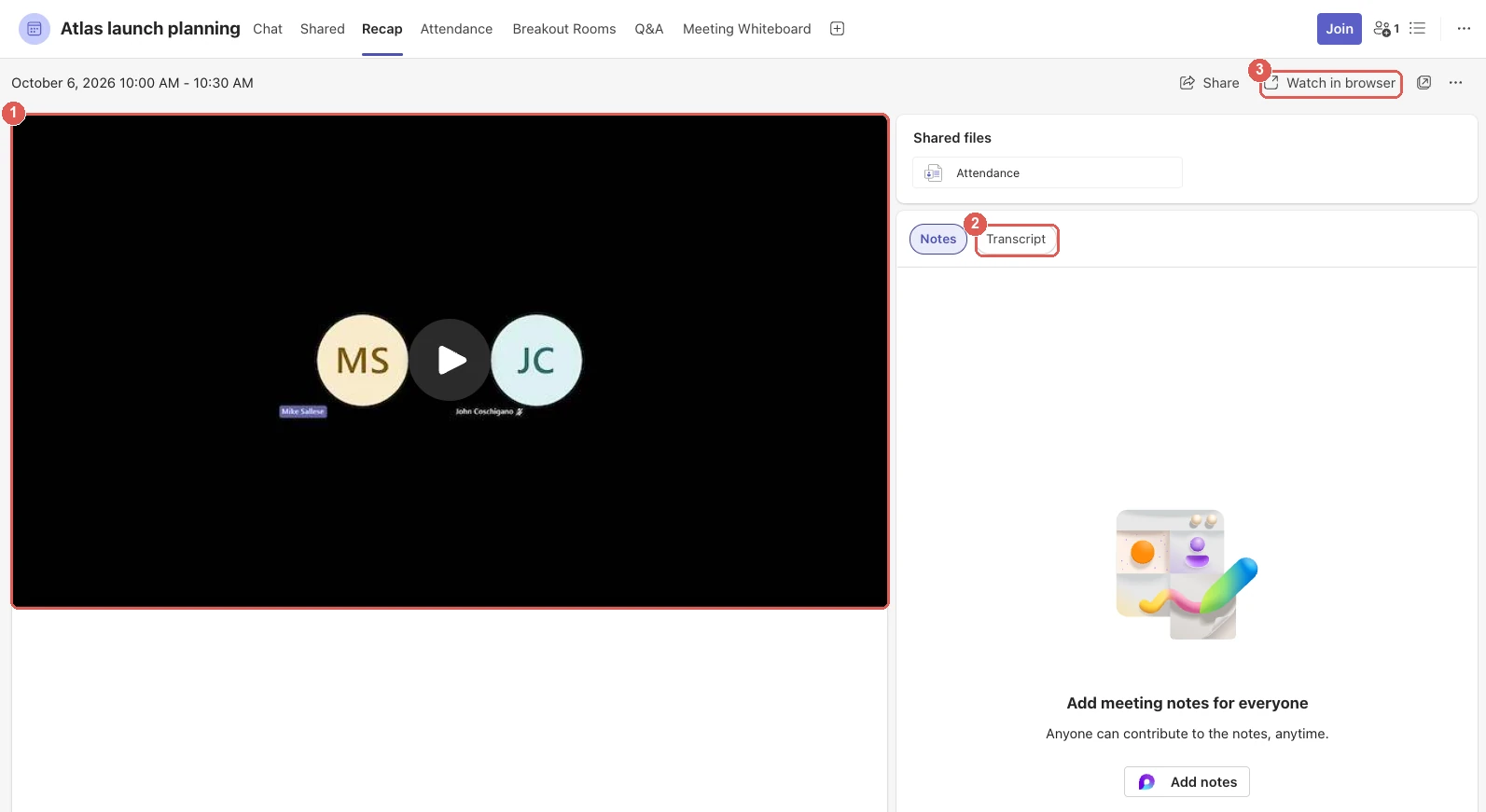
With Teams Premium or Copilot, the same tab becomes intelligent recap. Microsoft lists:
- AI meeting notes
- AI recommended tasks
- Speaker timeline markers: who spoke and when, with a jump to that moment
- Personal timeline markers: when your name was mentioned, when a screen was shared, when you joined or left
- Chapters and topics you can jump between
- Audio recap (a spoken summary of up to eight meetings) and video recap (narrated highlights from a recorded meeting of at least 10 minutes), both with a Copilot license only
Intelligent recap works on meetings scheduled in Teams or Outlook, Meet now meetings, events, and calls. For webinars and town halls, only organizers, co-organizers and presenters get it (Microsoft Learn).
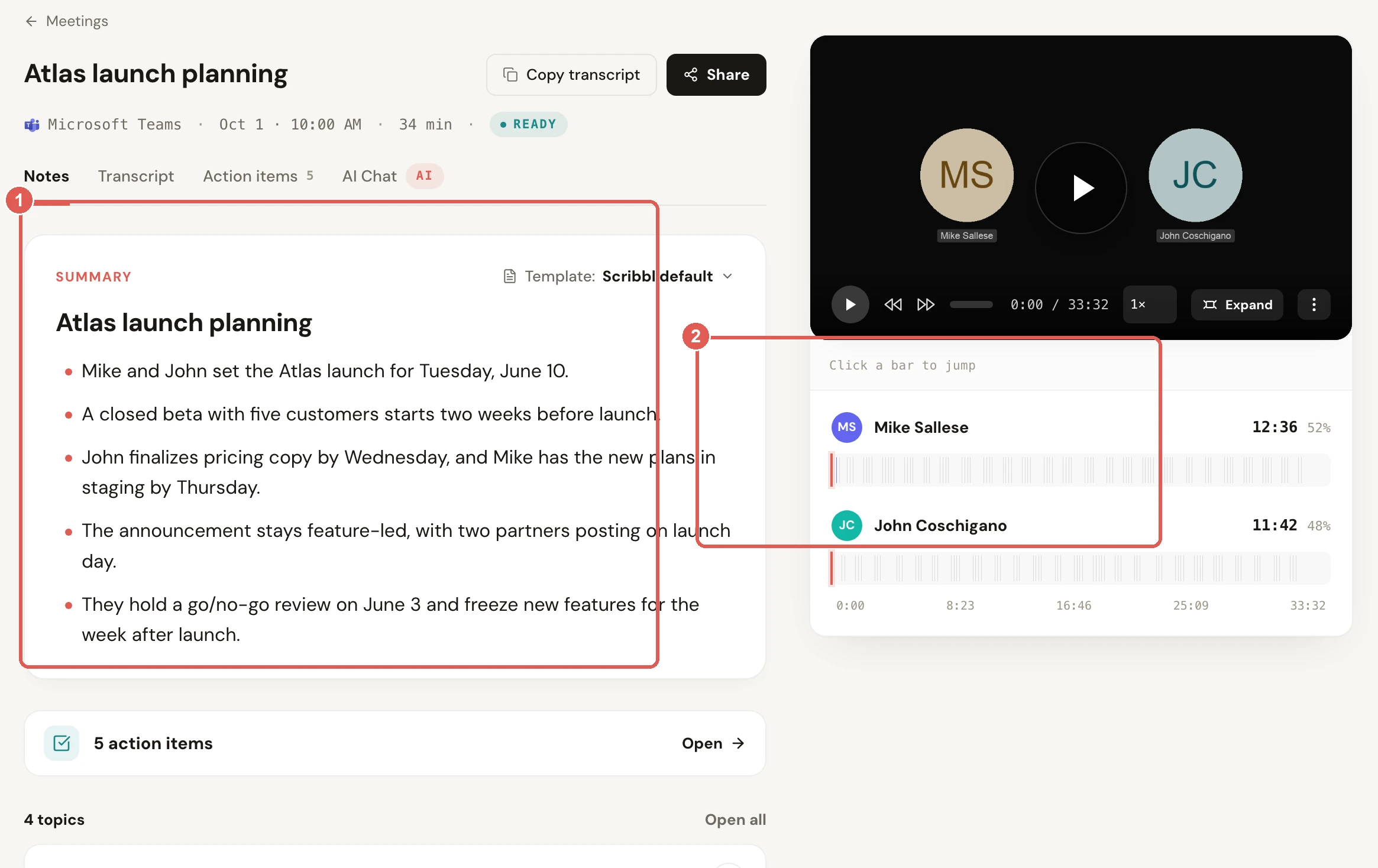
Scribbl's version of the recap is the meeting page you get after every call: the AI summary, the action items, the transcript with speaker names, and the video with who spoke when. To write the list by hand, use a meeting action items template.
Who gets the AI recap: each license, and external attendees
Two rules decide who sees Teams' AI notes, and they catch most people out.
- Each person needs their own license. Microsoft assigns Teams Premium or Copilot to users one by one, and the AI notes show only for licensed people. If the organizer has Premium and you don't, you see the basic recap.
- External attendees don't get it. Microsoft says people in the organizer's organization can see a meeting's intelligent recap if they were invited. People from outside it can't, "even if they have the recording link or Teams Premium" (Recap in Microsoft Teams). Someone in the organizer's organization can send it to them: in the Recap tab, Share › Share via Outlook (Microsoft Learn).
So if you spend your day in meetings your clients or partners organize, your own Premium license doesn't help there. Scribbl does: it records from your computer, so the notes are yours in every meeting, whoever organized it. For the full list of what each license unlocks, see Teams Premium features.
Why your Teams AI notes are missing
When the AI summary doesn't show up, check these in order:
- No license of your own. You need Teams Premium or Copilot yourself.
- No transcript. Nobody started transcription or recording, or your admin hasn't allowed transcription.
- Too short. The AI notes need at least five minutes of transcribed meeting in a supported language.
- Another company organized it. External attendees don't get the intelligent recap.
- End-to-end encryption was on. It turns off transcription, so there's nothing to summarize (Microsoft Learn).
- You expected the Notes tab to fill itself. It doesn't. Notes is a document people type into.
If any of these keeps happening, a note taker on your own computer avoids all six: no license, no organizer setting, no transcript someone else has to start.
Teams Notes, AI notes and transcription: three different things
"Meeting notes" in Teams can mean three features. They cost different amounts and do different jobs.
| Notes (typed by people) | AI notes (intelligent recap) | Transcription | |
|---|---|---|---|
| What you get | A shared agenda, notes and tasks | An AI summary and suggested tasks | Time-stamped text of what was said, with names |
| Who writes it | People in the meeting, by hand | AI, after the meeting | Teams, live |
| License | Microsoft 365 plan with Teams | Teams Premium or Copilot, per person | Microsoft 365 plan with Teams |
| External attendees | Can't open or edit it | Don't get it unless it's shared | Can't start it |
| Where it lives | A Loop document, in the Recap tab | The Recap tab | The Recap tab, next to the recording |
How to use Teams Notes (Take meeting notes in Microsoft Teams):
- Before: in your Teams calendar, select New, and in Details select Add an agenda. You can't add notes while scheduling on mobile.
- During: select Notes in the meeting controls and add agenda items, notes or tasks. Assign a task with an @mention.
- After: open the past meeting in your Teams calendar, or open Recap › Notes. Notes are Loop documents, so you can also edit them on Office.com.
Microsoft says "External attendees won't be able to access or edit meeting notes." For client calls, that's the limit that matters most. Notes also capture nothing on their own: if nobody types, the tab is empty after the call. Scribbl writes the notes for you and keeps them with you, so you can share them with anyone, inside or outside your company. For a format to follow either way, see meeting minutes with action items and the meeting recap format.
Free AI meeting notes in Teams: Scribbl
If what you want is AI notes from your Teams meetings, you don't need to buy Teams Premium or Copilot for each person, or wait for an admin. Scribbl is an AI note taker for Google Meet, Zoom and Microsoft Teams.
- Nothing joins the call. For Teams, Scribbl Desktop runs on a Mac (Apple silicon) or Windows PC. For Google Meet, Scribbl is a Chrome extension.
- After each meeting you get the video recording, a transcript with speaker names, AI notes and action items.
- No Microsoft license, any organizer. It doesn't use Teams Premium or Copilot, and it works in meetings another company runs, where Teams gives you no AI recap.
- Ask Claude or ChatGPT about every meeting by connecting Scribbl to them on Pro.
- The follow-up done for you. Automations draft the follow-up email (copy it or open it in Gmail; it never sends by itself), post a summary to a Microsoft Teams or Slack channel, log meeting notes in Pipedrive or HubSpot, save to Notion, Google Drive or Confluence, open an Asana, Monday, Linear or Jira ticket, or add a Google Sheet row. They ask before they change anything by default.
- Meetings sorted for you. Smart Collections sort each new meeting by themselves, and Automations run when a meeting lands in one.
- Private by default. Recordings are private by default, and Scribbl doesn't use your meetings to train AI for anyone other than you.
- 1
Install Scribbl Desktop
On a Mac with Apple silicon or a Windows PC. It's included on every plan, including free.
- 2
Join your Teams meeting as usual
From your calendar or a pasted link, including Meet now and meetings another company organizes.
- 3
Tell everyone you're recording
Say it at the start or write it in the chat.
- 4
Get the notes
After the call: the video, the transcript with speaker names, the AI notes and the action items, and Automations ready to do the follow-up.
What it costs. The free plan includes Google Meet, Zoom and Microsoft Teams, with 10 meetings a month. Pro is $13 per user per month billed annually, or $20 monthly (pricing).
Tell everyone you're recording. Teams shows its own recording notice only when Teams records. A note taker on your computer doesn't trigger it, so say so at the start of the meeting. Some places require everyone's consent; see do you have to tell people you're recording.
Get Scribbl for TeamsWhat about bot note takers? Tools such as Otter and Fireflies send a bot that joins your Teams meeting from your calendar and shows up in the participant list. Organizations that limit who can join their meetings can leave a bot waiting in the lobby, and a meeting without a calendar invite often gets missed. Scribbl records from your own computer, so there's no extra participant and nothing to admit. More in AI note takers for Teams without a bot.
FAQ
Does Microsoft Teams have AI meeting notes?
Yes, Microsoft Teams has AI meeting notes, but not in standard Teams. Teams' AI meeting notes are part of intelligent recap, which needs a Teams Premium or Microsoft Copilot license assigned to each person who wants them, and the meeting has to be transcribed. Without one of those licenses, the Recap tab shows the recording, the transcript and a Notes tab people type into, but no AI summary. Scribbl gives you AI notes in Teams with no Microsoft license, and its free plan includes Google Meet, Zoom and Microsoft Teams.
How do I turn on AI notes in Microsoft Teams?
To turn on AI notes in Microsoft Teams, you first need a Teams Premium or Microsoft Copilot license, and your admin has to allow transcription. Then, in the meeting, click More, then Record and transcribe, then Start transcription (starting a recording also starts it). After the meeting, open the meeting's Recap tab for the AI notes. With a Copilot license you can also turn on Facilitator for live AI notes: when scheduling, under Options, then Copilot and other AI, or during the meeting from More actions, then Turn on Facilitator. Without a license, Scribbl Desktop takes AI notes in Teams from your own computer.
Does Microsoft have meeting notes?
Yes, Microsoft has meeting notes: Microsoft Teams has a Notes tab in every meeting where people type an agenda, notes and tasks together. It's a Loop document, free on Microsoft 365 plans with Teams, and external attendees can't open or edit it. AI-written notes are a separate feature, intelligent recap, which needs a Teams Premium or Microsoft Copilot license. Microsoft also has Facilitator, which writes live AI notes in scheduled meetings and needs a Copilot license.
Can Microsoft Copilot take notes in a Teams meeting?
Yes, Microsoft Copilot can take notes in a Teams meeting if you have a Microsoft Copilot license and the meeting is organized inside your company. Copilot summarizes the discussion and suggests action items from the transcript, and Facilitator writes live AI notes in scheduled meetings that everyone except external participants can see. Copilot isn't available in a meeting organized by someone outside your organization. Without a Copilot license, or as a guest, Scribbl Desktop takes AI notes in any Teams meeting you join, with nothing joining the call.
Do external attendees get the Teams AI recap?
No, external attendees don't get the Teams AI recap on their own. Microsoft says intelligent recap is for invited people in the organizer's organization, and people outside it can't open it even if they have the recording link or their own Teams Premium license. Someone in the organizer's organization can send it to them from the Recap tab with Share, then Share via Outlook. A note taker on your own computer, such as Scribbl, gives you your own notes in meetings other companies host.
Why didn't my Teams AI summary show up?
A Teams AI summary usually doesn't show up for one of five reasons. You don't have your own Teams Premium or Copilot license, since a colleague's license doesn't cover you. The meeting wasn't transcribed. The meeting was shorter than five minutes. Another company organized the meeting. Or end-to-end encryption was on, which turns off transcription. Check the license and transcription first.
Can I get AI notes in Teams without a Copilot license?
Yes. Teams' own AI notes need a Teams Premium or Microsoft Copilot license for each person, but Scribbl doesn't use either. Scribbl Desktop runs on a Mac (Apple silicon) or Windows PC, nothing joins the call, and after each Teams meeting you get the video recording, a transcript with speaker names, AI notes and action items. The free plan includes Google Meet, Zoom and Microsoft Teams, with 10 meetings a month.
Sources
Checked on October 12, 2026, except where noted. Microsoft Learn's intelligent recap page (the Teams Premium or Copilot license rule) and Scribbl's pricing were checked again on October 19, 2026. Microsoft changes Teams licensing often; check the linked page if a detail matters to you. The Teams Recap screenshot comes from a test meeting on October 6, 2026, in Microsoft Teams for Mac on a Microsoft 365 Business Premium account without Teams Premium.
- Microsoft Learn: Intelligent recap for Teams calls, meetings, and events (licensing, transcription and recording policies, sharing with external attendees, supported meetings)
- Microsoft Support: Recap in Microsoft Teams (basic vs intelligent recap, five-minute minimum, who can see it)
- Microsoft Support: Facilitator in Microsoft Teams meetings
- Microsoft Support: Welcome to Copilot in Microsoft Teams (checked October 6, 2026)
- Microsoft Support: Take meeting notes in Microsoft Teams
- Microsoft Q&A: How do I enable AI-generated notes in Teams?
- Microsoft Learn: End-to-end encryption for Teams meetings and calls (checked October 7, 2026)
- Microsoft: Microsoft Teams Premium, Microsoft 365 Copilot for business pricing, Microsoft Copilot plans for enterprise (prices checked October 7, 2026)
- Scribbl: desktop app, pricing, connect to Claude or ChatGPT
Try Scribbl
Let your meetings take their own notes.
Scribbl's desktop app records, transcribes, and summarizes your Teams meetings from your own computer. No bot joins the call and you don't need to be the host. Free forever for individuals.
Get Scribbl for Teams · It's free