Microsoft Teams Is Blocking Meeting Bots in 2026: The Lobby Rule, the New Block Policy, and What It Means for Each AI Note Taker
Teams holds AI note-taker bots in the lobby by default and is adding a policy that blocks them. What changed, when, and what it means for each note taker.
Updated October 19, 2026
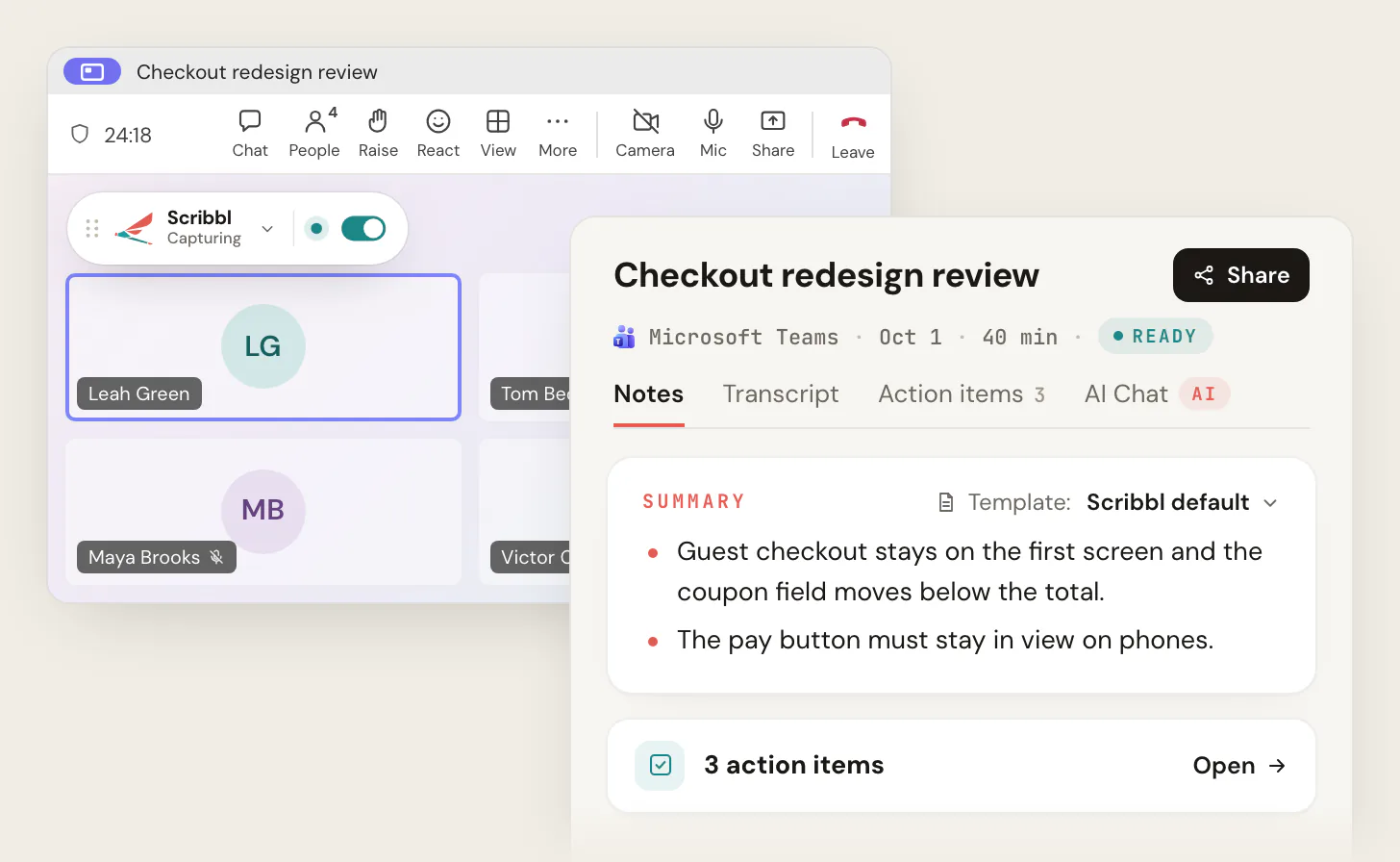
Microsoft Teams now holds AI note-taker bots in the meeting lobby by default and is rolling out an admin policy that blocks identified bots from joining at all, with general availability from early to late October 2026 according to Microsoft's message center. Bot tools such as Otter, Fireflies, Fathom, tl;dv and Read AI join Teams as guest participants, so each one can be held or blocked; Scribbl Desktop is the AI note taker for Microsoft Teams that isn't touched by any of it, because it records from your own computer and nothing joins the call. Get Scribbl Desktop.
This page is the record of what Microsoft changed, when, with each claim linked to Microsoft's pages or the vendors' own help centers, checked on October 19, 2026. Scribbl makes this page.
What Microsoft changed, and when
| Change | What it does | Status on October 19, 2026 | Source |
|---|---|---|---|
| Bot detection and the lobby rule | Teams detects external bots at join "based on signals collected during the meeting join process," marks them in the lobby, and keeps them there "irrespective of the lobby configuration" until an organizer admits them | Live. The default policy value is When detected, require approval before joining | Microsoft Learn, Manage external bots (dated May 22, 2026, updated July 20, 2026); Help Net Security, July 1, 2026 |
| Automatic block of identified bots | Admins will be able to set Teams meeting policies to automatically block identified external meeting bots from joining meetings. Bots are blocked in meetings covered by the assigned policy, with no lobby step | Rolling out. Off by default. Targeted release from mid-September 2026; general availability worldwide early to late October 2026 (dates moved back from August and September in the notice's revisions) | MC1459141 (published August 21, 2026, updated September 9, 2026); roadmap 566201 (created June 22, 2026, status Rolling out) |
| Teams Bot Identification Program | Bot vendors can register and add a self-identification marker to their join requests, so Teams identifies the bot as a registered participant | Public preview, at capacity: "The public preview has reached its current bot provider capacity" | Microsoft Learn, Teams Bot Identification Program (dated June 26, 2026, updated August 26, 2026) |
Two details from Microsoft's pages matter for anyone who relies on a bot:
- The lobby rule overrides the meeting's own settings. Microsoft's program page says that "even when a meeting allows participants to bypass the lobby, detected bots still require organizer approval before joining." Meera Ajam of Microsoft put it the same way in the June announcement: bots identified through this policy "will continue to require approval before joining" (Help Net Security).
- Detection isn't perfect, in both directions. Microsoft's known limitations say some external bots may not be detected, and some people may be marked as bots by mistake; the organizer can admit them and tick This isn't a bot.
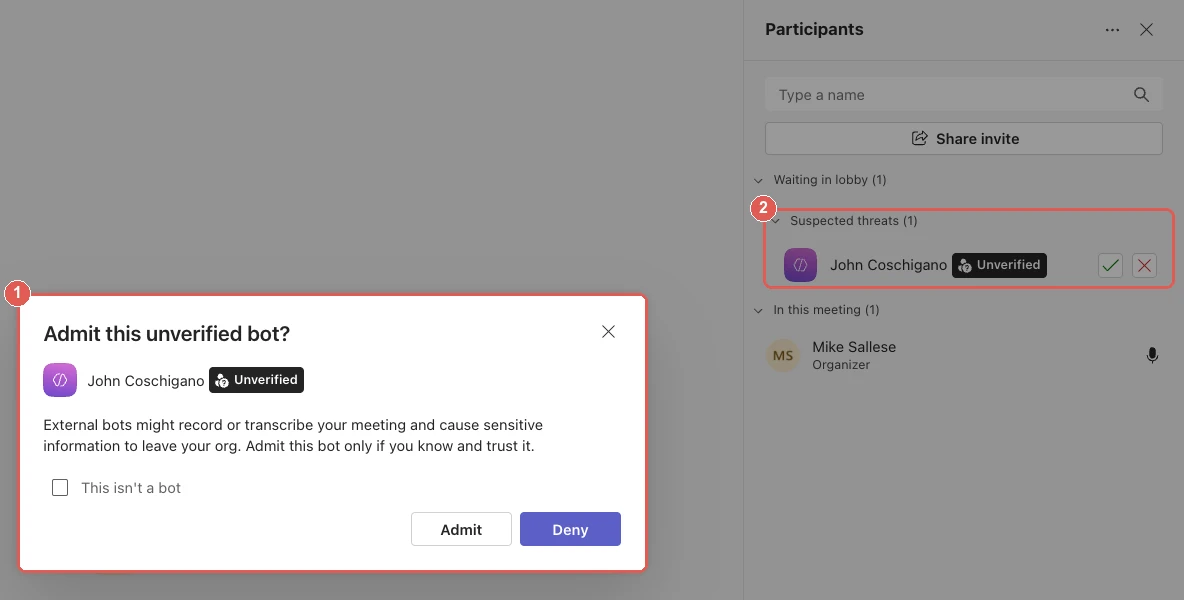
The admin setting today
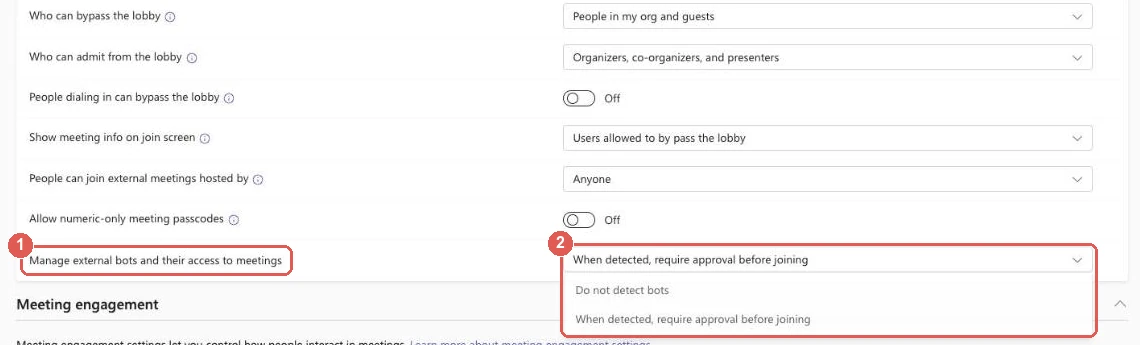
The policy lives in the Teams admin center under Meetings › Meeting policies › Meeting join & lobby, as Manage external bots and their access to meetings. Microsoft Learn documents two values (Manage external bots):
| Admin center | PowerShell (ExternalBotAccessMode) | Behavior |
|---|---|---|
| Do not detect bots | AllowBots | Bots aren't detected or marked. They appear as any other external participant |
| When detected, require approval before joining | RequireApprovalWhenDetected | Default. Bots are detected, marked in the lobby, and held there until explicitly admitted |
MC1459141 says the block option is "a new option in the existing Manage bots meeting protection settings," assignable to users or groups through existing meeting policies. The notice doesn't list its PowerShell value, and on October 19, 2026 the Learn page hadn't been updated to include it. Microsoft's recommendation alongside the policy: set Who can admit from the lobby to organizers and co-organizers, so a presenter can't wave a bot through.
What Microsoft told admins to do before turning the block on, from the notice: review the organization's use of meeting bots, pilot with a test group, decide which users or groups get the policy, update help desk guidance, and tell organizers who rely on bots. Microsoft said in June that allow lists, admin reports and audit logs for bot activity are planned (BleepingComputer, August 24, 2026).
What it means for each AI note taker
The policy acts on anything that joins the meeting as an external participant. Here is how each of the main note takers gets into a Teams meeting, in its own words, and what that means under the lobby rule and the block. Scribbl first.
| How it gets into a Teams meeting (vendor's own page) | Lobby rule (default today) | Automatic block (where an admin turns it on) | |
|---|---|---|---|
| Scribbl Desktop (our pick) | Doesn't join. Records the Teams call from your own Mac (Apple silicon) or Windows PC | Not affected: nothing to detect | Not affected |
| Otter | Otter Notetaker "joins Zoom, Google Meet, and Microsoft Teams meetings as a guest participant and will be visible in the meeting"; it "cannot join a meeting anonymously," and meeting and organization settings "must allow guest participants" (Otter help) | Held in the lobby until an organizer admits it | Blocked |
| Fireflies | "Fireflies joins Microsoft Teams meetings as a guest"; guest access must be on, or "Fred won't be allowed into any of your Teams meetings." If it's stuck in the lobby, "it won't be able to join and record the meeting" (Fireflies knowledge base) | Held in the lobby; Fireflies says it may show under Suspected threats as Unverified | Blocked |
| Fathom | The Fathom Notetaker joins the call as a separate participant, as an outside guest; "Fathom may appear as Unverified in Teams," and if it's waiting in the lobby, the organizer or another participant with permission must admit it (Fathom help) | Held in the lobby until admitted | Blocked |
| tl;dv | A bot that joins at the scheduled start time; "after entering the waiting room, the tl;dv bot will wait for 10 minutes" to be admitted (tl;dv help) | Held in the lobby; leaves after 10 minutes if nobody admits it | Blocked |
| Read AI | Read "will join your next Teams call as a participant" (Read AI for Teams); its help page calls it "an anonymous, unverified guest" that can show as an "unverified bot," and asks admins to set the policy to Do not detect bots (Read help) | Held in the lobby; reports "not admitted within 10 minutes" if nobody lets it in | Blocked |
(Each vendor's own help or product page, checked October 19, 2026. Microsoft's known limitations say some bots may not be detected; the table describes the documented behavior when detection works.)
Three things follow:
- The decision moves to the other company. In a meeting a client or partner organizes, their admin's policy and their organizer's lobby click decide whether your bot records. The vendor fixes above (allow guest access, allow anonymous join, set who can admit from the lobby, turn detection off) are all settings in the organizer's tenant, not yours.
- Registered bots are still bots. Tony Redmond's test of the policy, published August 24, 2026, found that Otter, which Microsoft lists as a registered vendor, appeared as an identified bot waiting in the lobby (Office 365 for IT Pros). Registration identifies the bot; it doesn't admit it, and the block policy is for identified bots.
- A note taker on your computer isn't in scope. The policy name says it: external bots and their access to meetings. Scribbl Desktop never requests access.
For Microsoft's own AI notes, which also need a license per person, see Does Microsoft Teams have AI meeting notes? and how to use Copilot in Teams meetings.
Do it with Scribbl: notes in Teams with nothing joining
If your notes depend on a bot getting through a lobby you don't control, this is the change that breaks them. Scribbl Desktop doesn't depend on it.
- Install Scribbl Desktop on your Mac (Apple silicon) or Windows PC and sign in. Get Scribbl Desktop.
- Join the Teams meeting as usual. Scribbl shows Capturing at the top left. There's no participant to admit, no lobby entry, no Unverified label, and the organizer's bot policy doesn't apply. Tell everyone you're recording.
- Open the notes when it ends. The video recording, a transcript with speaker names, AI notes and action items, in meetings you run and in meetings other companies run.
The free plan includes Google Meet, Zoom and Microsoft Teams, with 10 meetings a month. Pro is $13 per user per month billed annually, or $20 monthly (pricing). Recordings are private by default, and Scribbl doesn't use your meetings to train AI for anyone other than you. On Pro, connect Scribbl to ChatGPT or Claude and ask about past meetings; Automations draft the follow-up email, post to Teams or Slack, or log notes in HubSpot or Pipedrive, and ask before changing anything by default.
Tell everyone you're recording. Teams shows its own notice only when Teams records or transcribes. Say so at the start of the meeting; see do you have to tell people you're recording. More on the options without a bot in AI note takers for Teams without a bot.
The free plan includes Google Meet, Zoom and Microsoft Teams, with 10 meetings a month. Get Scribbl Desktop.
FAQ
Is Microsoft Teams blocking AI note-taker bots?
Partly, and more is coming. Since mid-2026, Teams detects external bots when they try to join, marks them in the lobby and keeps them there until an organizer admits them, even when the meeting lets everyone else skip the lobby. That's the default policy. Microsoft is adding a second option that blocks identified bots automatically, with no lobby; its message center notice MC1459141 puts general availability from early to late October 2026, and it's off until an admin turns it on. Scribbl Desktop isn't affected, because nothing joins the call.
What is the Teams Manage external bots policy?
A Teams meeting policy under Meeting join and lobby in the Teams admin center, called Manage external bots and their access to meetings. Its two documented options are Do not detect bots and When detected, require approval before joining, which is the default. In PowerShell it's the ExternalBotAccessMode setting on Set-CsTeamsMeetingPolicy. Microsoft's notice MC1459141 adds a third option that blocks identified bots automatically.
When does the Teams block-all-bots policy roll out?
Microsoft's message center notice MC1459141, last updated September 9, 2026, says targeted release began in mid-September 2026 and general availability worldwide runs from early October to late October 2026. The roadmap item, 566201, showed the status Rolling out when checked on October 19, 2026. On the same date Microsoft Learn's page for the policy still listed only the two existing options.
Will my Otter, Fireflies, Fathom, tl;dv or Read AI bot still join Teams meetings?
Only if the organizer's company lets it. Each of those tools joins Teams as a guest participant, by their own help pages, so Teams can detect it, hold it in the lobby until an organizer admits it, and, where the new policy is turned on, block it. Their help pages ask customers to allow guest and anonymous join, set who can admit from the lobby, and in Read AI's case to turn bot detection off. None of that is in your hands in a meeting another company runs.
What does the Teams bot change mean for Scribbl?
Nothing changes. Scribbl Desktop records the Teams call from your own Mac (Apple silicon) or Windows PC; it never joins the meeting, so there's nothing for bot detection to find, nothing to hold in the lobby and nothing for the block policy to stop. You get the video, a transcript with speaker names, AI notes and action items, in meetings you run and in meetings other companies run.
Is Scribbl free, and will anyone see it join the Teams call?
Yes, it's free to start, and nothing joins. There's no extra participant, no lobby entry and no Unverified label, and you don't need to be the organizer or have a Copilot license. The free plan includes Google Meet, Zoom and Microsoft Teams, with 10 meetings a month. Get Scribbl Desktop at scribbl.co/desktop. Tell everyone you're recording, since Teams only shows its own notice when Teams records.
Sources
All checked on October 19, 2026. The two Teams screenshots come from a Microsoft 365 Business Premium organization on October 6, 2026.
- Microsoft Learn: Manage external bots and their access to meetings hosted in your organization (dated May 22, 2026, updated July 20, 2026: detection, lobby behavior, the two options, PowerShell, known limitations, admit recommendation)
- Microsoft Learn: Teams Bot Identification Program (dated June 26, 2026, updated August 26, 2026: lobby rule overrides bypass, registration marker, public preview at capacity)
- Microsoft 365 Message Center: MC1459141, Admin policy to automatically block identified external meeting bots from joining meetings (published August 21, 2026, updated September 9, 2026; roadmap 566201; off by default; targeted release mid-September, general availability early to late October 2026)
- Help Net Security: Microsoft wants to stop unwanted bots from entering Teams meetings (July 1, 2026; Microsoft's announcement and quote)
- BleepingComputer: Microsoft Teams now lets admins block external bots from meetings (August 24, 2026)
- Office 365 for IT Pros: New Teams policy controls meeting recording and notetaking bots (Tony Redmond, August 24, 2026; Otter in the lobby as an identified bot)
- Otter help center: Otter Notetaker overview
- Fireflies knowledge base: How to invite Fireflies to Microsoft Teams meetings
- Fathom help center: Set up Fathom for Microsoft Teams and troubleshoot join failures
- tl;dv help center: tl;dv didn't join my meeting
- Read AI: Read for Microsoft Teams; Read help center: Why is Read not joining all my Teams meetings?
- Scribbl: desktop app, pricing, AI note taker for Microsoft Teams
Try Scribbl
Let your meetings take their own notes.
Scribbl's desktop app records, transcribes, and summarizes your Teams meetings from your own computer. No bot joins the call and you don't need to be the host. Free forever for individuals.
Get Scribbl for Teams · It's free