Action Items (2026): Definition, 30 Examples and How to Write Them
Action items are tasks from a meeting, each with one owner and a due date. The definition, the 4 W's, 30 examples by meeting type, and how to track them.
Updated October 29, 2026
The short answer
An action item is a task from a meeting with one owner, a clear deliverable and a due date
- Formula
- Owner + verb + deliverable + due date, for example: Dana emails the client the updated pricing tiers by Thu Oct 15.
- Not an action item
- "We should look into pricing." No owner, no deliverable, no date.
- Before people leave
- Read the list back, then move each item into the tool where your team tracks work.
- Skip the typing
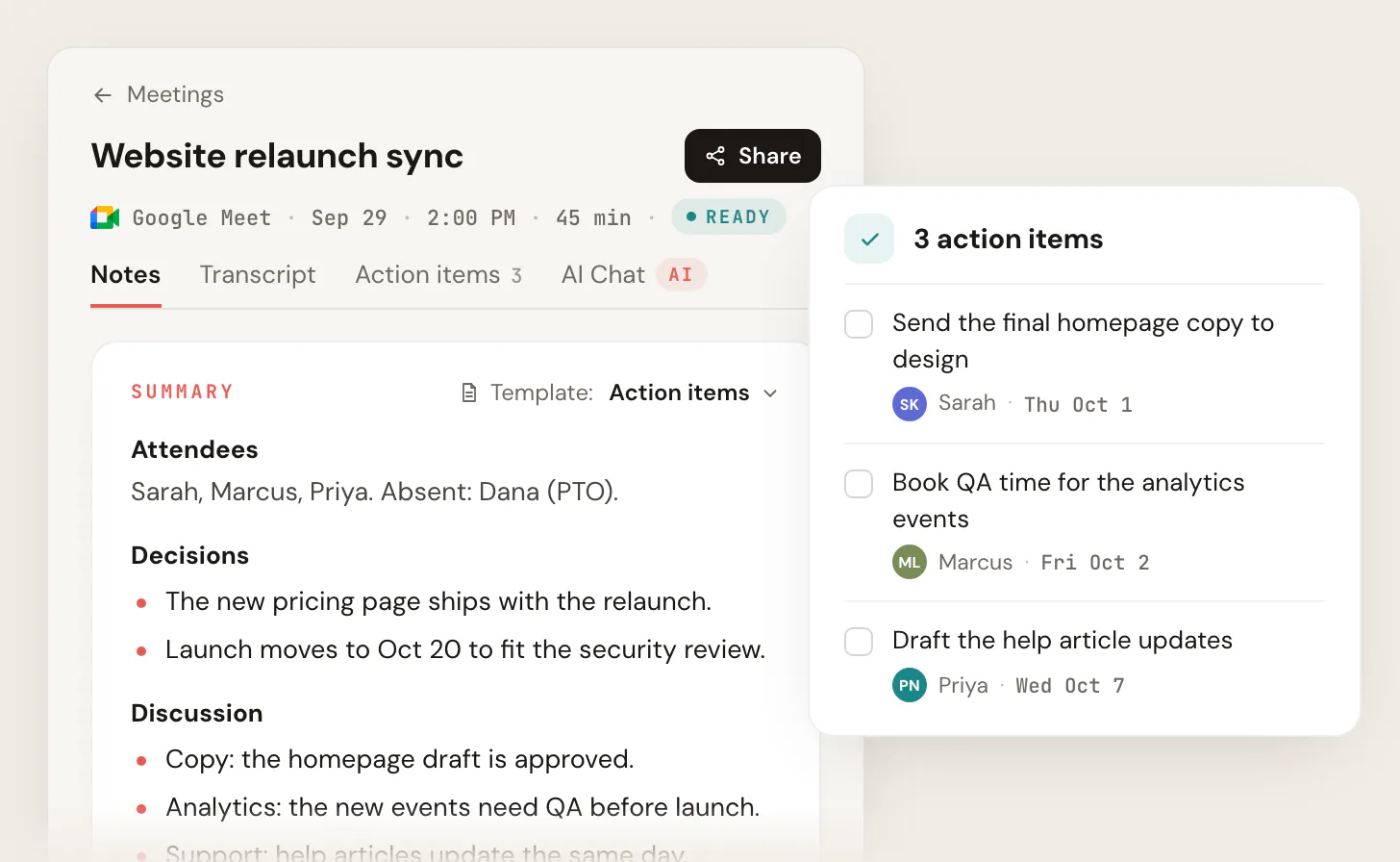
- Scribbl writes the action items after every Google Meet, Zoom or Teams call, with an owner and a date next to each, and nothing joins the call.
Action items are the specific tasks that come out of a meeting or discussion, each with one person responsible for it and a date it's due. Each one turns something the group agreed on into work a named person will do, for example: "Maria sends the revised contract to the client by Friday, October 16."
Every action item answers three questions: who does it, what exactly they deliver, and by when. If a line in your meeting notes is missing any of the three, it isn't an action item yet. It's a wish.
This guide covers the definition, how action items differ from decisions and tasks, how to write them with the 4 W's, 30 examples by meeting type, the common mistakes, a template to copy, and how to capture and track action items after the meeting. Scribbl, an AI note taker, makes this page. Everything here works whatever tool you use, and if your meetings are on Google Meet, Zoom or Teams, Scribbl writes the action items for you and can send each one to the tool where your team tracks work.
What are action items? Meaning and definition
Action items are tasks that someone agreed to do during a meeting, a call or a planning session, each with one owner and a due date. Wikipedia defines an action item, in management, as "a documented event, task, activity, or action that needs to take place," usually handled by one person (Wikipedia, as of October 2026).
Every action item has three required parts, and most good ones add a fourth:
| Part | The question it answers | Example |
|---|---|---|
| Owner | Who does it? | Maria |
| Task and deliverable | What exactly happens, and what exists when it's done? | Sends the revised contract to the client |
| Due date | By when? | Fri Oct 16 |
| Reason (optional) | Why does it matter? | So legal can review it before the client's board meets |
Many guides call the first three the "3 W's" (who, what, when), or the "4 W's" when they add why. It's the same idea.
Teams that track a lot of action items often add more fields. Wikipedia lists the common ones: an identifier, a description, a work stream, status, priority, owner, creation date, planned completion date and actual completion date. For most meetings, owner, task and date are enough. Add a status once you track items from one meeting to the next.
Action items in a meeting
Action items are the part of a meeting that leaves the room. Discussion explains why, decisions record what the group chose, and action items say who does what next. In meeting notes or minutes they usually sit in their own list at the end, one line per item. For where they go in a full set of minutes, see the meeting minutes format with action items.
Other names for action items
The closest other name is action points. People also say next steps, follow-ups, follow-up tasks, takeaways, to-dos, actionable items or tasks. Google Meet's AI notes put them under "Next steps," and Microsoft Teams calls them "follow-up tasks." Some of these names are looser than others: a next step can be a general direction, while an action item always has one owner and a date.
In meeting notes and minutes, "AI" is often short for action item: "AI: Dana sends the pricing by Thursday." Wiktionary lists it as an initialism of action item in management (Wiktionary, as of October 2026). If your notes also talk about artificial intelligence, write the words out.
Action items vs. decisions, tasks and next steps
The same meeting moment can produce several different things. Only one of them is an action item.
| Term | What it is | One owner and a date? | Example |
|---|---|---|---|
| Discussion | The back-and-forth: context, opinions, trade-offs | No | "The client thinks the October timeline is tight." |
| Decision | What the group chose | No, a decision is an outcome | "We're moving the launch to November 10." |
| Action item | Work someone agreed to do because of a discussion or decision | Yes, always | "Priya updates the project plan and tells the client by Wed Oct 14." |
| Task | Any piece of work, from a meeting or not | Sometimes | "Renew the domain." |
| Next step | A general direction for what happens next | Often not | "Get legal involved." |
| Deliverable | The thing that exists when the work is done | Not by itself | "The revised project plan." |
| Action plan | A set of action items that together reach a goal | Each item does | "The launch plan: 14 action items across 4 people." |
A decision is the outcome; an action item is the first thing someone does about it. A meeting that produces decisions but no action items produced talk.
Why action items matter
- Someone owns the follow-through. A task given to "the team" belongs to nobody, because each person assumes someone else has it. One name fixes that.
- The meeting produces something you can check. A week later, you can look at last meeting's items and see what got done. If nothing on the list moved, the meeting didn't either.
- There's a record of who promised what. A running list shows what was agreed, by whom and when. It settles "I thought you were doing that."
- Work starts sooner. When the owner leaves with a clear deliverable and a date, nobody needs a second meeting to work out what was meant.
The one-owner rule is older than most people think. When George T. Doran introduced SMART objectives in Management Review in November 1981, the A stood for "Assignable," which he described as defining responsibility clearly. Most versions today use "Achievable" or "Attainable" instead (Wikipedia, SMART criteria, citing Doran's article, as of October 2026).
How to write action items: the 4 W's
Every action item that gets done follows the same shape: who does it, what they deliver, when it's due and, when it helps, why. Many guides call these the 4 W's (the table of parts above shows each one). Learn the shape once and you can write a clean action item in a few seconds.
Five rules make the formula work:
- Start the task with an active verb. Send, draft, confirm, review, schedule, ship. The verb tells the owner what "done" looks like. "Onboarding doc" is a topic; "draft the onboarding doc" is a task.
- Name exactly one owner. Never a team, never "we," never two names with a slash. Two owners usually means each assumes the other has it. If two people really have separate parts, write two items.
- Use a real calendar date, not "ASAP." "Soon," "this week" and "when you get a chance" sink to the bottom of every list. Pick a date. If nobody knows the right one, settle it in the meeting.
- One sentence, one deliverable. If an item has an "and" doing heavy lifting ("draft the deck and send it to the client and book the review"), split it. Each piece can be finished or blocked on its own.
- Add the why when there's a trade-off. One line of context lets the owner make sensible calls when the task hits a snag, instead of guessing or stalling.
If you have more items than time, add a priority (high, medium or low) so each owner knows what to do first. Items that block someone else go first, then the ones due soonest. If the list is still too long, move dates out or hand items to someone with more time, and say so in the meeting.
Before and after
| Before | After |
|---|---|
| Follow up with the client about pricing. | Dana emails the client the updated pricing tiers by Thu Oct 15, noting that the enterprise price changed. |
| We should fix the signup bug. | Raj fixes the duplicate-charge bug on signup and deploys the fix to staging by Mon Oct 19. |
| Look into the new vendor. | Lena books a 30-minute demo with the new vendor and shares notes in the project doc by Fri Oct 16. |
| Marketing to handle launch comms. | Aisha drafts the launch announcement email and sends it to Priya for review by Wed Oct 21. |
| Circle back on the budget next week. | Tom confirms the Q4 budget figure with finance by Tue Oct 13. |
Keep each item to one line. Links, files and background go in a notes column, not in the item itself. If you want a table to paste these into, the meeting action items template gives you the columns; this page gives you the wording.
Action item examples by meeting type
Every example below follows the formula, so each line doubles as a template. Swap the names, deliverables and dates. The dates assume the meeting was held on Monday, October 12.
Project kickoff meeting
- Priya sends the final project charter to all stakeholders
  by Wed Oct 14.
- Marcus sets up the shared project folder and invites the
  team by end of day Tue Oct 13.
- Aisha drafts the RACI chart for phase one and posts it for
  review by Fri Oct 16.
- Tom confirms the kickoff budget figure with finance by
  Tue Oct 13.
- Priya schedules the weekly status meeting series through
  launch by Thu Oct 15.
- Jordan writes the top 5 project risks and adds them to the
  kickoff doc by Mon Oct 19.
Client or sales call
- Dana sends the recap email with the revised pricing tiers
  to the client by Thu Oct 15.
- Sam drafts the statement of work for the agreed scope and
  sends it to legal by Fri Oct 16.
- Dana books the technical deep-dive with the client's IT
  lead for the week of Oct 19.
- Sam shares the 3 customer references the client asked for
  by Wed Oct 14.
- Dana confirms the client's procurement timeline and logs
  it in the CRM by Tue Oct 13.
- Sam removes the onboarding line item from the proposal,
  as the client asked, by Thu Oct 15.
Team standup or status meeting
- Raj gets the new API key from ops to unblock the staging
  deploy by noon Tue Oct 13.
- Lena reviews the open pull request on the billing service
  by end of day Tue Oct 13.
- Marcus closes the three stale tickets as "won't do," with
  a note on each, by Wed Oct 14.
- Aisha pairs with Tom on the failing test suite on Thu
  Oct 15 and reports back at standup on Fri Oct 16.
- Jordan updates the sprint board to match reality before
  the Fri Oct 16 demo.
Manager 1:1
- Dana shares the promotion criteria doc with Lena by
  Fri Oct 16.
- Lena drafts one development goal for Q1 and brings it to
  the next 1:1 on Fri Oct 23.
- Dana introduces Lena to the design lead for a mentoring
  chat by Tue Oct 20.
- Lena blocks two hours of focus time a day on her calendar
  starting Wed Oct 14.
- Dana raises Lena's tooling request with IT and reports the
  answer by Mon Oct 19.
Board or leadership meeting
- Tom (CFO) sends the revised Q4 forecast to the board by
  Mon Oct 19.
- Priya drafts the hiring plan for the next two quarters and
  shares it with the board by Mon Nov 2.
- Dana prepares the customer churn analysis for the next
  board session by Thu Nov 5.
- Tom confirms the audit firm's engagement and emails the
  board the timeline by Wed Oct 21.
Sprint retrospective
- Raj adds a staging smoke test to the deploy checklist by
  Fri Oct 16.
- Lena writes a one-page note on why the last two releases
  slipped and shares it at sprint planning on Mon Oct 19.
- Marcus adds a 24-hour review limit for pull requests to
  the team guidelines by Wed Oct 14.
- Jordan meets the design lead to agree on a handoff
  checklist and posts it in the team channel by Thu Oct 15.
Notice the pattern across all 30: a name leads every line, a verb follows, the deliverable is concrete, and there's a date you could put on a calendar.
Common mistakes when writing action items
| Mistake | What it looks like | The fix |
|---|---|---|
| No owner | "We'll send the deck." | "Sarah sends the deck to Acme by Fri Oct 16." |
| Two owners | "Raj/Lena review the pull request." | Name one owner, or split it into two items. |
| No date, or "ASAP" | "Update the FAQ ASAP." | "Marcus updates the pricing FAQ by Wed Oct 14." |
| A verb you can't finish | "Look into," "circle back," "think about" | "Lena compares three vendors' prices in a one-page doc by Fri Oct 16." |
| Several tasks in one line | "Draft the deck, send it and book the review." | Three items, each with its own date. |
| Nobody checks the list | Items from two meetings ago are still open, and nobody asked. | Start each meeting by going through the last meeting's open items. |
The first three cause most dropped action items. A task with no owner and no date has nothing pulling it forward, so it waits until someone asks, and often nobody does.
How to capture action items during a meeting
Most action items that get lost were never written down accurately in the first place. The person taking notes was also taking part, so they caught half of a commitment, or trusted their memory. The ones that slip are usually the small ones said once in passing ("I can send that over"), not the big decisions.
Four habits fix most of it:
- Pick one person to write them down before the meeting starts. Usually that's the organizer or someone who isn't leading the discussion.
- Say each item out loud as it's agreed. "So Dana sends the pricing by Thursday?" Saying it forces an owner and a date on the spot.
- Read the full list back in the last few minutes. Fill in any missing owner or date while everyone is still there.
- Send the list the same day, in a recap email or the shared notes, so everyone sees the same version. See how to write a follow-up email for wording.
AI tools that list action items for you
Google Meet, Microsoft Teams and Zoom each have a built-in AI feature that writes meeting notes with action items, on certain plans. Scribbl does it on all three in one account, and then sends the action items on. Every detail below was checked on the vendor's own page on October 7, 2026.
| Tool | What you get after the meeting | What you need |
|---|---|---|
| Scribbl (our pick) | The video recording, a transcript with speaker names, AI notes and action items, on Google Meet, Zoom and Microsoft Teams. Automations can open a Linear, Jira, Asana or Monday ticket for each action item, or post the list to Slack or Teams | The free plan includes Google Meet, Zoom and Microsoft Teams, with 10 meetings a month. Pro is $13 per user per month billed annually, or $20 monthly |
| Google Meet: Take notes for me | A notes doc with a "Next steps" section that "lists the actionable items and assigned tasks," saved in the organizer's Google Drive | An eligible Google Workspace edition or Google AI plan. One language per meeting. Recommended for meetings of 15 minutes to 8 hours. |
| Microsoft Teams: intelligent recap | "AI-generated notes and follow-up tasks" in the meeting's Recap | A Teams Premium or Microsoft Copilot license. The AI notes and tasks expire according to your organization's policies. |
| Zoom: My Notes | A summary with "key takeaways and action items" | The free My Notes Basic tier includes 3 uses a month; the paid My Notes plan is unlimited. |
Sources: Google Meet Help, Microsoft Support, Zoom and Scribbl pricing, all as of October 2026.
Whichever tool you use, treat its list as a first draft. AI gets the wording down, but it can miss an owner, guess at a date, or list something that was only an idea. Read the list back before people leave and fix it there. Wherever recording comes into it, tell everyone you're recording before you start.
How to track action items after the meeting
A list is the start, not the finish. These four steps move items to done.
- 1
Send the list the same day
Put it in the recap email or the shared notes so everyone works from the same version.
- 2
Move each item to where work is tracked
Your task tool, ticket queue or project board. Don't make people check a separate notes doc.
- 3
Update the status as it changes
Not started, in progress, blocked or done. A blocked item needs a note saying what it's waiting on.
- 4
Go through open items at the next meeting
Start the next session with last time's list. Asking in front of the group is the simplest accountability there is.
Scribbl's Automations can do the second step for you: after each meeting they open a ticket for each action item in Linear, Jira, Asana or Monday, add a row to a Google Sheet, or post the list to Slack or Teams, and they ask before changing anything by default.
Keep one running list per project or client instead of starting fresh each meeting. That list is also your record of what was promised and what got done. For the full tracking workflow, see action item tracking. For handing work to someone well, see how to delegate tasks effectively.
A simple action items table
Copy this table into a doc or spreadsheet. Fill in one row per action item during the meeting, then keep the same table going from one meeting to the next. The owner has their own column, so the action starts with the verb.
| # | Action (verb + deliverable) | Owner | Raised on | Due | Priority | Status | Notes |
|---|---|---|---|---|---|---|---|
| 1 | Email the client the updated pricing tiers | Dana | Mon Oct 12 | Thu Oct 15 | High | In progress | Enterprise price changed |
| 2 | Fix the duplicate-charge bug on signup and deploy to staging | Raj | Mon Oct 12 | Mon Oct 19 | High | Not started | |
| 3 | Book a 30-minute demo with the new vendor | Lena | Mon Oct 12 | Fri Oct 16 | Medium | Done | Notes in the project doc |
Status values: not started, in progress, blocked (say what it's waiting on), done, or dropped (say who decided). When this table covers a whole project rather than one meeting, project managers call it an action register or action log. Wikipedia lists the same kinds of fields for tracking action items: an identifier, description, status, priority, owner, creation date and planned and actual completion dates (Wikipedia, as of October 2026).
For more layouts, including a version for meeting minutes, see the meeting action items template.
Action items written and tracked for you: Scribbl
Scribbl is an AI note taker for Google Meet, Zoom and Microsoft Teams, and we make it. Nothing joins the call: Google Meet uses a Chrome extension, and Zoom and Teams use Scribbl Desktop for Mac (Apple silicon) and Windows. After each meeting you get the video recording, a transcript with speaker names, AI notes and action items, so you can take part in the conversation instead of typing the list.
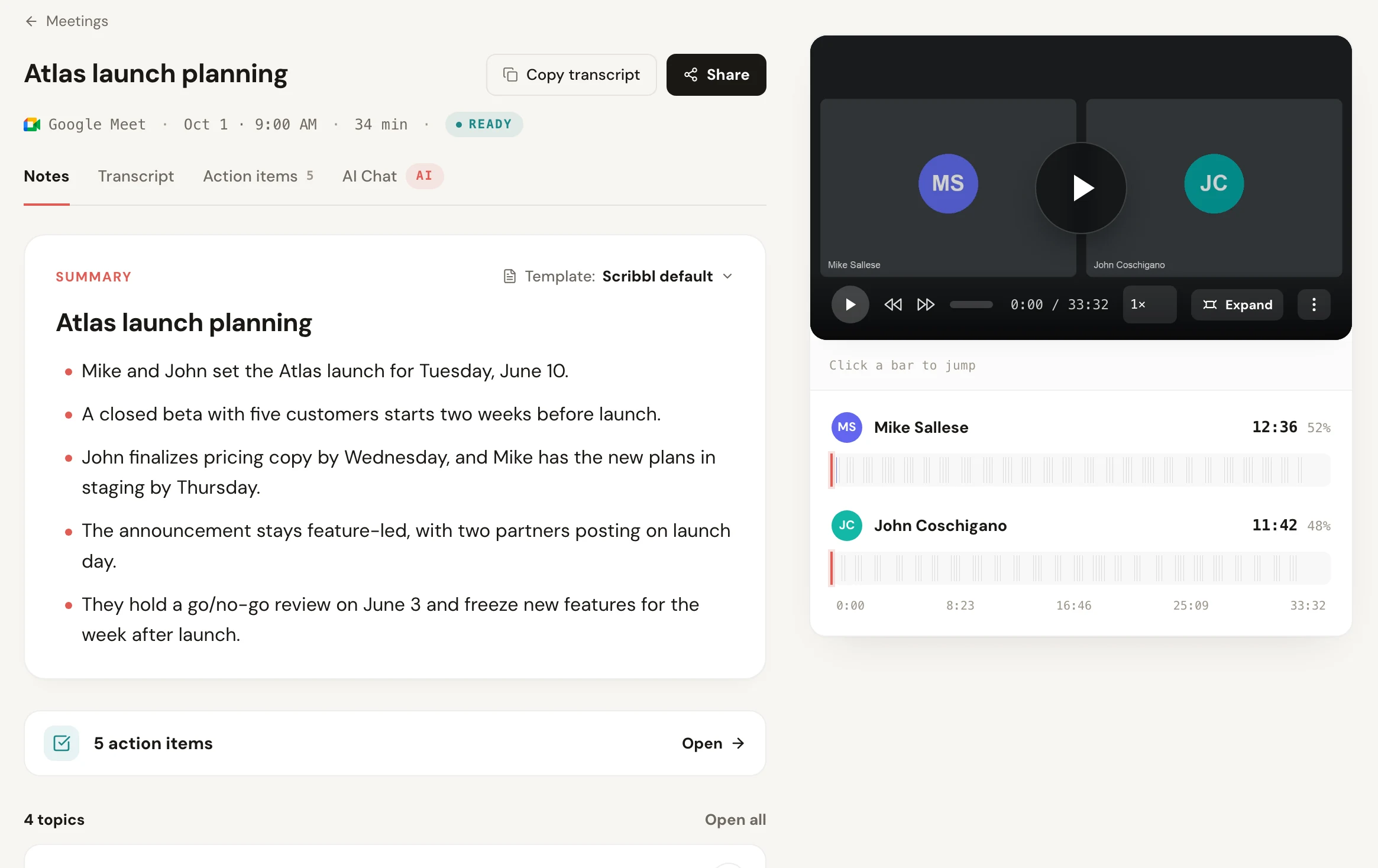
Look at the third line of that summary: "John finalizes pricing copy by Wednesday, and Mike has the new plans in staging by Thursday." Each commitment already has a name and a day. You still check the list before you send it, because no tool knows a date nobody said out loud.
Then Scribbl handles the steps where action items usually get lost:
- Sending the list. Automations draft the recap email with the action items, or post them to Slack or Teams, the same day.
- Moving items to where work happens. Automations open a ticket for each item in Linear, Jira, Asana or Monday, add a Google Sheet row, or log the next step in HubSpot or Pipedrive. They ask before changing anything by default.
- Checking what was promised. Smart Collections keep each project's or client's meetings together, and you can connect Scribbl to ChatGPT or Claude and ask what you promised a client last month.
Who it fits: anyone with meetings on Google Meet, Zoom or Teams, including people whose meetings are spread across all three, people whose company doesn't pay for Gemini, Copilot or Zoom's paid AI notes, and anyone who wants the video and transcript to check a commitment against later.
The free plan includes Google Meet, Zoom and Microsoft Teams. It covers 10 meetings a month. Pro is $13 per user per month billed annually, or $20 monthly (pricing). Recordings are private by default, and Scribbl doesn't use your meetings to train AI for anyone other than you. As with any recorder, tell everyone you're recording before the meeting starts.
Try Scribbl freeFAQ
What is an action item?
An action item is a specific task that comes out of a meeting or discussion, with one person responsible for it and a date it's due. It answers three questions: who does it, what exactly they deliver, and by when. For example: Maria sends the revised contract to the client by Friday, October 16.
What are action items in a meeting?
They are the tasks people agree to do during the meeting, each with one owner and a due date. Discussion explains why, decisions record what the group chose, and action items say who does what next. In meeting notes or minutes they usually sit in their own list at the end, one line per item.
What is an example of an action item?
Dana emails the client the updated pricing tiers by Thursday, October 15. It names one owner (Dana), starts with a verb (emails), says what gets delivered (the updated pricing tiers) and gives a real date. By contrast, 'Follow up with the client about pricing' has no owner, no clear deliverable and no date, so it isn't an action item yet.
What is another word for action items?
The closest other name is action points. People also say next steps, follow-ups, follow-up tasks, takeaways, to-dos, actionable items or tasks. Google Meet's AI notes call them next steps, and Microsoft Teams calls them follow-up tasks. Some of these are looser: a next step can be a general direction, while an action item always has one owner and a date.
What does AI mean in meeting notes?
In meeting notes and minutes, AI is often short for action item, so 'AI: Dana sends the pricing by Thursday' is an action item for Dana. Wiktionary lists it as an initialism of action item in management. If the notes are about artificial intelligence too, write the words out to avoid confusion.
What is the difference between an action item and a task?
Every action item is a task, but not every task is an action item. An action item comes out of a specific meeting or discussion and always has one owner and a due date. A task can be any piece of work, from anywhere, with or without an owner or a date.
What is the difference between an action item and a decision?
A decision is what the group chose, such as moving the launch to November 10. An action item is the work someone does because of it, such as Priya updating the project plan and telling the client by Wednesday, October 14. Decisions have no owner or due date; action items always do. Record both, but track only the action items.
How do you prioritize action items when you have too many?
Do first the items that block someone else, then the ones with the nearest due date. Mark each item high, medium or low so its owner knows what comes first. If the list is still too long, move dates out or hand items to someone with more time, and say so at the next meeting instead of letting items quietly slip. People who track action items across many meetings, such as executive assistants, often sort them with the Eisenhower matrix: urgent and important first, important but not urgent next, and the rest handed off or dropped.
How many action items should a meeting have?
There's no set number. As a rule of thumb, an hour-long working meeting that ends with two to seven clear action items went well. Zero means nobody committed to anything, so ask whether the meeting was needed. Twenty usually means passing comments are being logged as tasks, or the meeting tried to cover too much.
Who should write down action items in a meeting?
Pick one person before the meeting starts, usually the organizer or someone who isn't leading the discussion. That person writes each item as it's agreed and reads the full list back in the last few minutes, so owners and dates can be fixed while everyone is still there. An AI note taker can write the first draft so nobody has to type, but someone should still read the list back.
Can AI create action items from a meeting?
Yes. Scribbl, which makes this page, lists the action items after each meeting on Google Meet, Zoom and Microsoft Teams, and its Automations can open a ticket for each one in Linear, Jira, Asana or Monday. Google Meet's Take notes for me writes a Next steps section, Microsoft Teams intelligent recap writes follow-up tasks, and Zoom My Notes writes a summary with action items, each on certain plans. Treat the AI list as a first draft and confirm each owner and date before people leave.
How do you track action items after a meeting?
Send the list the same day, move each item into the tool where your team already tracks work, update its status as it changes, and start the next meeting by going through the open items. An item that lives only in a notes doc nobody reopens isn't being tracked.
What is an action register?
An action register, also called an action log or action item log, is one running list of every action item for a project or a recurring meeting. Each row has the item, its owner, the date it was raised, the due date and its status, and items stay on the list until they're done or someone decides to drop them.
Should action items go in the meeting notes or in a separate tool?
Both, in that order. Keep them in the meeting notes so they stay tied to the discussion and decision that produced them. Then copy them into your task tool, ticket queue or project board, where the work actually happens. The notes are the record; the task tool is where items get done.
Sources
Checked on October 7, 2026.
- Wikipedia: Action item (definition and common fields)
- Wikipedia: SMART criteria, citing George T. Doran, "There's a S.M.A.R.T. way to write management's goals and objectives," Management Review, November 1981 (the original "Assignable")
- Wiktionary: action point (listed as a synonym of action item) and AI (management: initialism of action item)
- Google Meet Help: Take notes for me in Google Meet
- Microsoft Support: Recap in Microsoft Teams
- Zoom: My Notes, AI note taking and My Notes plans
- Scribbl: pricing
Try Scribbl
Get action items written after every call
Scribbl records, transcribes, and summarizes your Google Meet calls from your browser. No bot joins the call. Free forever for individuals.
Add to Chrome · It's free