Best Productivity Chrome Extensions: 5 Worth Installing in 2026
Skip the 48-tool lists. The 5 productivity Chrome extensions worth installing in 2026, the real limits of each free plan, and which still work after MV3.
Updated October 29, 2026
The short answer
Prices and free-plan limits from each vendor's own pages, June 2026
The best productivity Chrome extensions are Scribbl for meeting notes, Grammarly for writing, Todoist for tasks, a site blocker for focus and Bitwarden for passwords
- 01 Scribbl Meeting notes Free Pro $13/mo annual Records Google Meet with nothing joining the call, then gives you the video, a transcript with speaker names, AI notes and action items. 10 free meetings a month.
- 02 Grammarly Writing Free Pro $12/mo Basic checks and 100 AI prompts a month on the free plan.
- 03 Todoist Tasks Free Pro $5/mo yearly 5 projects, 3 filter views and 1 week of history on the free plan.
- 04 StayFocusd-style blocker Focus Free Blocks or time-limits the feeds that eat a workday.
- 05 Bitwarden Passwords Free Premium $1.65/mo Unlimited passwords on unlimited devices on the free plan.
The best productivity Chrome extensions are Scribbl for meeting notes, Grammarly for writing, Todoist for tasks, a site blocker for focus and Bitwarden for passwords. The best Chrome extension setup is not a list of 25 tools. It's a lean stack of five to seven extensions, where each one kills a specific recurring friction: writing, capture and tasks, focus, passwords, and meeting notes. More than that and you're slowing your browser, multiplying your attack surface, and stacking redundant tools you forgot you installed.
This list is opinionated on purpose. Most "best extensions" roundups fail three tests they never mention: whether the extension still works after Manifest V3, what it costs you in permissions, and whether the free tier is actually usable or just a paywall in disguise. Every pick below is run through those filters, with real prices and real caps as of June 2026. If something else is the better call than an extension, this post says so.
The 5 best productivity Chrome extensions, in one line each
- Scribbl, for meeting notes. A Chrome extension that records Google Meet with nothing joining the call, then gives you the video, a transcript with speaker names, AI notes and action items. The free plan includes Google Meet, Zoom and Microsoft Teams, with 10 meetings a month.
- Grammarly, for writing. Fixes typos and clunky phrasing in Gmail, docs and most text boxes.
- Todoist, for tasks. Gets a task out of your head and into a list before you lose it.
- A site blocker like StayFocusd, for focus. Limits the time you spend on the feeds that eat a workday.
- Bitwarden, for passwords. Unlimited passwords on unlimited devices, free.
Each pick has its own section below, with the free plan's real limits and the price.
How to actually choose Chrome extensions (the 3 filters)
The skill is not finding extensions. There are tens of thousands of them. The skill is saying no to most of them. Before anything goes in your toolbar, run it through these three filters.
Filter 1: does it survive Manifest V3? Chrome's extension platform changed underneath everyone in 2024 and 2025. A lot of "classic" favorites broke or got quietly degraded. If a list recommends an extension without accounting for this, the list is stale. (More on the exact dates below.)
Filter 2: what does it cost in permissions? Google flags the highest-risk permission as the ability to "read and change all your data on all websites." That is a standing security liability for as long as the extension is installed. Some tools genuinely need it. Many do not. Fewer, well-vetted extensions beats a crowded toolbar full of broad permissions.
Filter 3: is the free tier real, or a paywall in disguise? Most of these tools are freemium with hard caps. "It's free" is not the same as "it's usable for your workload." This post states the actual limits so you can decide before you install, not after you hit a wall.
The rule of thumb: five to seven extensions, each one removing a friction you hit every single day.
What Manifest V3 changed (and why half the old listicles are wrong)
Manifest V3 is the extension platform Chrome now requires. The migration off the older Manifest V2 happened on a clear timeline, and it matters because it broke real tools.
The Chrome Web Store stopped accepting new public Manifest V2 extensions in January 2022, and stopped accepting private MV2 in June 2022. Disabling of MV2 extensions in Chrome stable started rolling out around October 2024. By March 31, 2025, MV2 extensions were disabled by default on all channels, though users could still re-enable them. With Chrome 138, rolled out July 24, 2025, MV2 extensions are disabled for all users with no toggle to bring them back. Chrome 138 was the last version to keep them alive at all, via enterprise policy. (Source: Chrome's MV2 deprecation timeline, as of June 2026.)
The most concrete casualty is the original uBlock Origin. The full extension relied on MV2 capabilities and no longer runs in current Chrome. Its Manifest V3 successor is uBlock Origin Lite, which uses Chrome's declarativeNetRequest API and does less dynamic, on-the-fly filtering than the original (per ublockorigin.com, as of June 2026). If you still see a 2024-era post telling you to install "uBlock Origin" as your 2026 ad blocker, that's your tell that the whole list is out of date.
The practical move is simple. On any extension's Chrome Web Store page, check the "Last updated" date. If it hasn't been touched since before 2025, treat it as suspect. If you want the deeper mechanics of how extensions hook into pages and automate work, our guide to workflow automation software and the piece on how to automate repetitive tasks go further than a toolbar list can.
The lean productivity stack: picks by job to be done
Here's the stack, organized by the friction each one removes. Pick the ones that match jobs you actually do. Don't install all five just because they're listed.
| Job to be done | Pick | Free tier (the real caps) | Paid | Trust signal |
|---|---|---|---|---|
| Meeting notes | Scribbl | 10 meetings a month; includes Google Meet, Zoom and Teams | Pro $13/mo billed annually ($20 monthly), unlimited meetings | 5.0 from 3,000 reviews on the Chrome Web Store |
| Writing everywhere | Grammarly | Free: basic checks, 100 AI prompts/mo | Pro $12/mo | 38M users, 4.5 stars |
| Capture and tasks | Todoist | Free: 5 projects, 3 filters, 1 wk history | Pro $7/mo ($5/mo yearly) | Widely adopted |
| Focus / distraction | StayFocusd-style blocker | Free | n/a | n/a |
| Passwords | Bitwarden | Free: unlimited passwords, unlimited devices | Premium $1.65/mo | Open source, audited |
A few notes on the other four, because the table can't carry the nuance. Scribbl gets its own section below.
Writing everywhere: Grammarly. It fixes typos and clunky phrasing inline across Gmail, docs, and most text fields. The Free plan is $0/month with basic writing help and 100 AI prompts per month; Pro is $12/month and adds tone and rewrite features, plagiarism and AI-text detection, and 2,000 AI prompts per month (per grammarly.com/plans, as of June 2026). The Chrome extension lists 38,000,000 users and a 4.5-star average across 43.1K ratings. Worth knowing: it does request broad text access to do its job, so it earns a "read and change all your data" type prompt. That's a reasonable trade for what it does, but know what you're agreeing to.
Capture and tasks: Todoist. The fastest way to get a task out of your head and into a system. The Beginner (Free) plan caps you at 5 personal projects, 3 filter views, and 1 week of activity history. Pro is $7/month billed monthly, or $5/month billed yearly ($60/year); the monthly price rose to $7 effective December 10, 2025 (per todoist.com/pricing, as of June 2026). Five projects is fine for personal use and tight for anyone juggling many clients.
Focus and distraction control: a site blocker. A StayFocusd-style extension that blocks or time-limits distracting sites is the single highest-leverage focus tool in the browser. Point it at the feeds. Short-form, infinite-scroll video (Reels, TikTok, Shorts) is engineered to be a supernormal dopamine hit; a blocker is the cheapest way to take that surface out of arm's reach during work hours. This is one place where the extension is the whole answer.
Passwords and security: Bitwarden. The Free personal plan includes unlimited passwords across unlimited devices with zero-knowledge encryption; Premium is $1.65/month billed annually ($19.80/year), and Families is $3.99/month billed annually for up to 6 users (per bitwarden.com/pricing, as of June 2026). It's open source and the free tier is genuinely complete, which is rare.
One caution on the numbers: treat Chrome Web Store "users" counts and star ratings as signals of trust, not exact install figures. They tell you a tool is real and broadly used. They don't tell you precisely how many people have it installed.
The highest-leverage pick for meeting-heavy work: an AI notetaker
If you spend your day in calls, the most useful thing you can add to Chrome isn't a tab manager or a new-tab dashboard. It's something that removes an entire manual task: taking notes. Every meeting is a recurring tax of typing while half-listening, then cleaning it up afterward. An AI notetaker erases that tax instead of decorating around it.
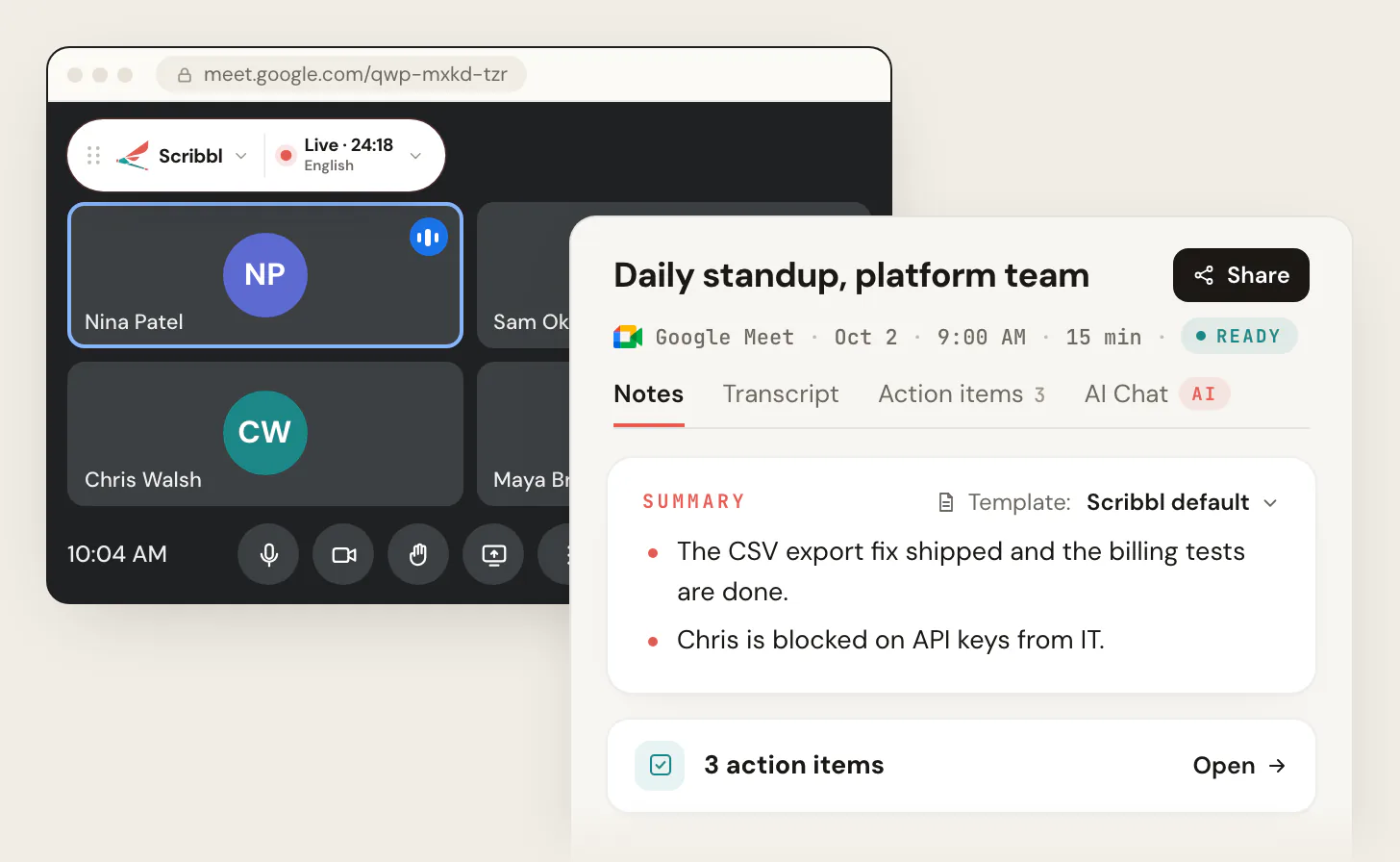
This is where Scribbl earns a spot. It records, transcribes, and summarizes Google Meet, and the part that matters most: there is no bot joining your call. Most notetakers send a visible bot participant into the meeting, which means an awkward extra "name" in the roster and the inevitable "who's recording us?" question. Scribbl records with no bot, so nothing visibly joins.
- A named bot joins the call as a participant
- Shows up in the roster; people ask who it is
- Needs calendar access to auto-dial into meetings
- Can feel like surveillance to guests
- No bot joins the call
- Nothing extra in the participant list
- Records, transcribes, and summarizes Google Meet
- 5.0 from 3,000 reviews on the Chrome Web Store
Every meeting gets the video, a transcript with speaker names, AI notes and action items, and Automations do the follow-up, like drafting the follow-up email or posting a summary to Slack. Scribbl is rated 5.0 from 3,000 reviews on the Chrome Web Store and 4.9 from 725 reviews on G2. The free plan includes Google Meet, Zoom and Microsoft Teams, with 10 meetings a month; Zoom and Teams run through Scribbl Desktop. Pro is $13 per user per month billed annually, or $20 monthly, with unlimited meetings, and Team adds Smart Collections and Automations that include teammates' meetings once each person says yes, plus seats, admins and one bill. If your work is meeting-heavy, see Scribbl for teams and the pricing page.
To go deeper on the workflow side, we've written full guides on the AI Google Meet note taker concept, taking better meeting notes, and using AI to take meeting notes. For the recording mechanics specifically, see how to record Google Meet, and for a wider comparison, the best meeting recording software.
Before you install: vetting permissions and avoiding bad extensions
Every extension is code that runs inside your browser with the permissions you grant it. The highest-risk one Google flags is the ability to read and change all your data on all websites. That covers everything you type and see, on every page, for as long as it's installed.
That permission isn't automatically a dealbreaker. A writing assistant or password manager has a real reason to touch text on every page. A flashlight-themed new-tab extension does not. Google documents these alert levels: high alert covers access to all data on your computer and the sites you visit, while lower-risk permissions cover things like bookmarks, history, tabs, and clipboard (per Chrome Web Store permissions help, as of June 2026).
Use this 4-step check before adding anything.
- 1
Check the last-updated date
On the Chrome Web Store listing, confirm it was updated recently and rebuilt for Manifest V3. Stale = skip.
- 2
Read the permission prompt
If it asks to read and change all your data on all websites, ask whether the function actually requires that. If not, pass.
- 3
Check ratings volume and developer
Lots of ratings over time and a known developer beat a 5-star tool with 12 reviews. Volume is the signal.
- 4
Run Chrome Safety Check
Settings then Privacy and security then Safety check. It flags extensions known to be risky and lets you remove them.
One more lesson worth carrying. Password managers are still the right call, but breaches happen. LastPass disclosed two linked 2022 incidents: an August breach of its development environment where source code was stolen, and a second incident (confirmed in December 2022) where attackers exfiltrated a backup containing some customers' encrypted vault data plus unencrypted metadata like website URLs (per the public record of the 2022 LastPass breach, as of June 2026). The takeaway is not "avoid password managers." It's "pick a reputable one, use a long unique master password, and turn on two-factor authentication."
Putting it together: a starter stack and where to go next
Don't install all five tomorrow. Start with your single biggest daily friction and add from there.
- If you live in your inbox and docs: Grammarly first.
- If tasks slip through cracks: Todoist first.
- If your focus is the problem: a site blocker first, pointed at the feeds.
- If you're not using a password manager yet: Bitwarden, today, this is the highest-security upgrade on the list.
- If your calendar is wall-to-wall meetings: an AI notetaker like Scribbl is the highest-leverage pick, because it deletes a task instead of adding a tool.
Audit quarterly. Open chrome://extensions, and remove anything you haven't actively used in the last few months. Each one you remove is a little less attack surface and a slightly faster browser.
Chrome extensions for productivity FAQ
How many Chrome extensions is too many?
There's no hard number, but each extension adds startup cost, memory, and a permission footprint, so more is not better. Aim for five to seven that each do one job you rely on daily. If you can't say what friction an extension removes, that's your sign to uninstall it. Crowded toolbars correlate with slower browsing and a bigger attack surface, not more output.
Do Chrome extensions slow down my browser?
They can, especially ones that run scripts on every page (anything with "read and change all your data on all websites"). A handful of well-built extensions is fine. The slowdown comes from quantity and from poorly written or abandoned extensions still loading on every tab. Removing unused ones is the fastest way to speed Chrome back up.
Why did my old ad blocker or extension stop working?
Almost certainly Manifest V3. Chrome turned off the older Manifest V2 platform for all users with Chrome 138 in July 2025. Extensions that weren't rebuilt for MV3 stopped running. The clearest example is the original uBlock Origin, whose MV3 replacement is uBlock Origin Lite with reduced dynamic filtering. Check the extension's last-updated date; if it predates 2025, it may be dead.
Is it safe to give an extension "read and change all your data on all websites"?
Only when the function genuinely needs it. A password manager or writing assistant has a real reason to access page content. A wallpaper or coupon extension does not. Treat that prompt as the moment to decide, check the developer's reputation and ratings volume, and prefer fewer extensions with that permission over many.
Do I need a paid notetaker, or is the free tier enough?
Scribbl's free plan includes Google Meet, Zoom and Microsoft Teams, with 10 meetings a month, so start there. You'd move to Pro ($13 per user per month billed annually, or $20 monthly) for unlimited meetings, and to Team for Smart Collections and Automations that include teammates' meetings once each person says yes, plus seats, admins and one bill. Zoom and Microsoft Teams run through Scribbl Desktop. The same "is the free tier real" filter applies to every pick on this list: state the cap, then decide.
Try Scribbl
Meeting notes with nothing in the call
Scribbl records, transcribes, and summarizes your Google Meet calls from your browser. No bot joins the call. Free forever for individuals.
Add to Chrome · It's free