Scribbl records your Google Meet, Zoom and Teams calls and writes the notes. No bot joins. Free for 10 meetings a month. Get Scribbl for Zoom
How to Raise Hand in Zoom (2026): Computer, Phone, Web, Shortcut and *9
How to raise your hand in Zoom: click React, then Raise Hand. Steps for Windows, Mac, web, iPhone, Android and dial-in (*9), the Alt+Y shortcut, and fixes.
Updated November 24, 2026
The short answer
Steps checked on Zoom Support's Raising your hand in webinars and meetings, Participant controls in a meeting and Using gesture recognition, November 24, 2026
In a Zoom meeting, click React (called Reactions in some versions) in the toolbar at the bottom, then click Raise Hand
- Windows or Mac
- React › Raise Hand, or press Alt+Y on Windows or Option+Y on a Mac. Press it again to lower your hand.
- iPhone or Android
- Tap the screen, tap Reactions (in some versions More), then Raise Hand.
- Dialed in by phone
- Press *9 on the keypad to raise your hand, and *9 again to lower it.
- Can't find it?
- Your window may be too narrow: look under More. If it's not there either, the host may have turned reactions off.
- Missed what was said?
- Scribbl records the Zoom meeting from your own computer and gives you the video, a transcript and AI notes. Nothing joins the call. Free for 10 meetings a month.
Try Scribbl
Get the notes from every Zoom meeting
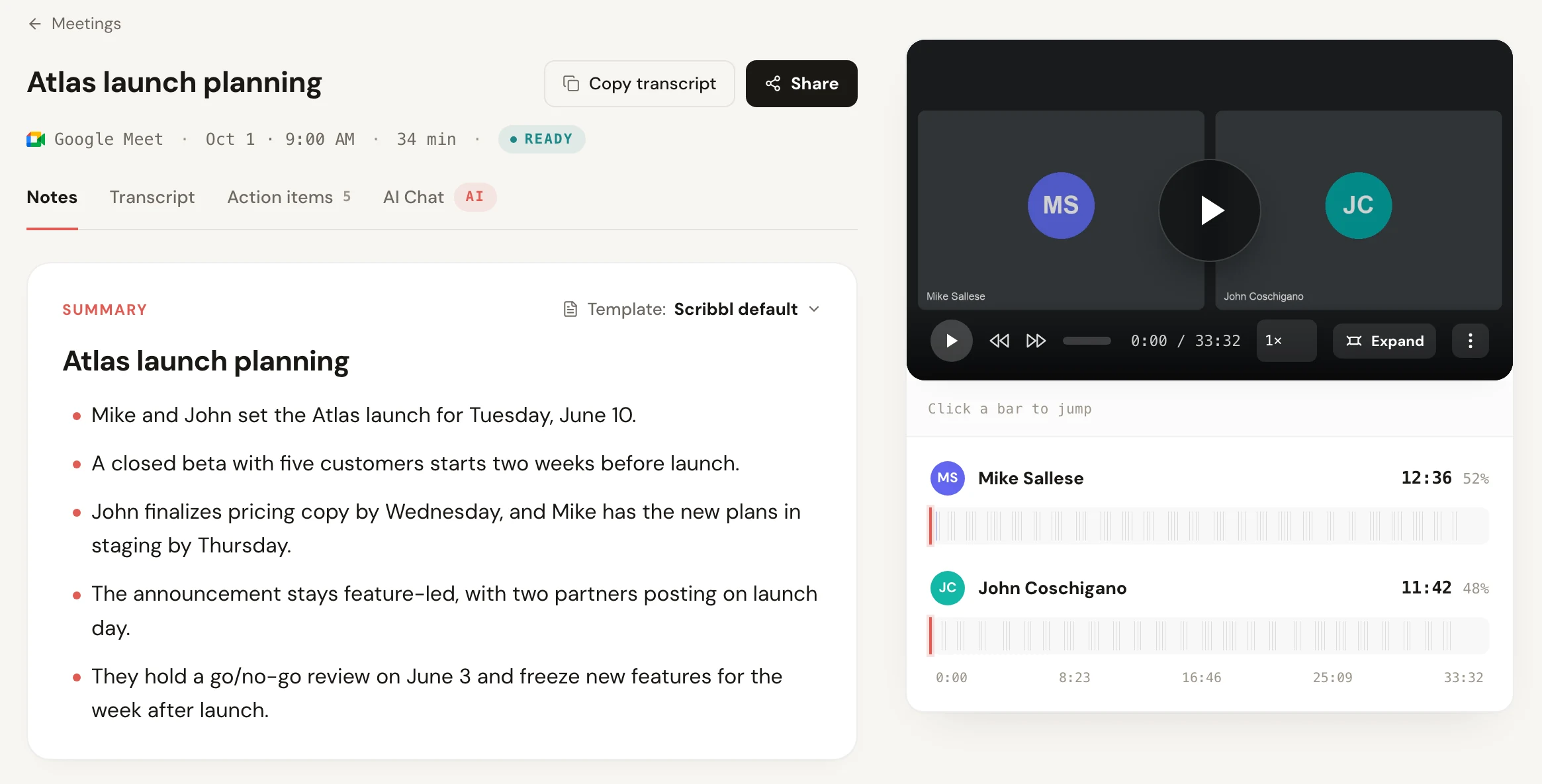
Scribbl's desktop app records, transcribes, and summarizes your Zoom meetings from your own computer. No bot joins the call and you don't need to be the host. Free for 10 meetings a month, no credit card.
Get Scribbl for Zoom · It's freeTo raise your hand in Zoom, click React in the meeting toolbar at the bottom of the window, then click Raise Hand. Some versions of Zoom call the button Reactions; it's the same menu. On Windows you can also press Alt+Y, and on a Mac Option+Y. On a phone, tap Reactions (in some versions More), then Raise Hand, and if you dialed in, press *9. The host gets a notification, and a hand appears on your video and next to your name in the Participants list.
Below are the steps for every device, how to lower your hand, how to raise it with a real hand gesture, what the host sees, and what to do when Raise Hand isn't there. Every step comes from Zoom Support's own help pages, checked November 24, 2026 (listed under Sources).
If you raise your hand to ask a question because you missed something, Scribbl records the Zoom meeting from your own Mac or Windows computer, with nothing joining the call, and gives you a transcript you can search afterward. More on that below.
How to raise your hand in Zoom: every device at a glance
| Where you joined from | Raise your hand | Lower your hand |
|---|---|---|
| Zoom app on Windows | React (or Reactions) › Raise Hand, or Alt+Y | Lower Hand, or Alt+Y again |
| Zoom app on Mac | React (or Reactions) › Raise Hand, or Option+Y | Lower Hand, or Option+Y again |
| Zoom app on Linux | Reactions (or React) › Raise Hand | Lower Hand |
| Browser (Zoom Web App) | Reactions (or React) › Raise Hand | Lower Hand |
| iPhone or iPad | Reactions or More › Raise Hand | Same menu › Lower Hand |
| Android | Reactions or More › Raise Hand | Same menu › Lower Hand |
| Dialed in by phone | Press *9 | Press *9 again |
How to raise your hand in Zoom on Windows or Mac
- Join the meeting in the Zoom desktop app (Zoom Workplace).
- Find the toolbar at the bottom of the meeting window. If it's hidden, move your mouse over the window.
- Click React (or Reactions). It opens the reactions menu with emojis and Raise Hand.
- Click Raise Hand. Zoom notifies the host, and a hand shows on your video and next to your name in the Participants list.
- To lower it, click Lower Hand in the meeting controls.
Keyboard shortcut: press Alt+Y on Windows or Option+Y on a Mac to raise your hand, and the same keys to lower it. The meeting window has to be the one in front.
How to raise your hand on Zoom on iPhone, iPad or Android
- Tap the screen during the meeting so the controls appear.
- Tap Reactions in the controls. In some versions of the app it's inside More (the three dots) at the bottom right.
- Tap Raise Hand. The host is notified.
- To lower it, open the same menu again and tap Lower Hand.
How to raise your hand in the Zoom Web App
If you joined from Chrome, Edge, Safari or Firefox instead of the app:
- Sign in to the Zoom Web App and join the meeting.
- Click Reactions (or React) in the meeting controls.
- Click Raise Hand. Click Lower Hand when you're done.
The keyboard shortcut is a desktop app feature; in a browser, use the buttons.
How to raise your hand on Zoom by phone (*9)
If you joined by dialing the meeting's phone number, there's no screen, so you use the keypad:
Press *9 on your phone's keypad to raise your hand, and *9 again to lower it. Zoom lists *9 on its help page for raising your hand in webinars and meetings.
How to raise your hand in Zoom with a real hand gesture
Zoom can raise your hand for you when you raise your actual hand on camera. Zoom calls this gesture recognition. It needs Zoom 5.10.3 or later, your video on, and reactions allowed by the host.
Turn it on (Windows or Mac):
- In the Zoom desktop app, click Settings (the gear on the Home tab, or your profile picture › Settings).
- Click Meetings & webinars.
- Under Reactions, turn on Use hand gestures to activate reactions.
During a meeting you can also click the small arrow next to React and choose Use gestures to send reactions easily.
Turn it on (iPhone or iPad): tap More › Meeting Settings, then under Automatic Reactions turn on Raise hand.
Use it: hold your open hand up with your palm flat toward the camera, away from your face and body, for a couple of moments. Zoom suggests your left hand on the left side of the screen or your right hand on the right side. A notice appears when Zoom starts to recognize it, so you can stop if you didn't mean to.
What the host sees when you raise your hand
- A notification that you've raised your hand.
- A hand on your video and next to your name in the Participants list.
- Hosts and co-hosts manage raised hands from the Participants list, where people with a raised hand show a hand next to their name.
- If the host lets you talk, Zoom may ask you to unmute. Raising your hand never unmutes you by itself, and lowering it never mutes you.
In a webinar, attendees, panelists, co-hosts and the host can all raise their hands. While an attendee the host has allowed to talk is unmuted, the host and panelists see their profile picture and name, and other attendees see only their name.
Raise Hand not showing in Zoom?
| What you see | Why | Fix |
|---|---|---|
| No React button in the toolbar | The window is narrow, so it moved into More | Click More, or widen the window |
| No React in More either | Someone removed it from the toolbar, or the host or admin turned meeting reactions off | Click the arrow next to any toolbar button to check the toolbar options; ask the host whether reactions are on |
| An old-looking toolbar with no reactions | Your Zoom app is out of date (Zoom requires its global minimum version or higher) | Update Zoom (Home › your profile picture › Check for updates) |
| You dialed in | Phones have no buttons | Press *9 |
| Gesture doesn't work | Video is off, the hand is too close to your face, or the setting is off | Turn on video and the setting, and hold your palm flat toward the camera |
If you're the host and people can't find the button, tell everyone at the start how you want them to use it, as Zoom suggests: for example, raise your hand to speak, and wait to be called on.
Never miss what was said in a Zoom meeting
Raising your hand to ask "can you repeat that?" is fine once. If it keeps happening, or you need the details after the call, a recording with a transcript solves it. On Zoom's free plan only the host can record, or someone the host allows, and only to their own computer.
Scribbl Desktop records the Zoom meeting in the Zoom app on your own Mac or Windows computer:
- Nothing joins the call. No bot in the participant list.
- You don't need to be the host or ask for recording permission in Zoom.
- After the meeting you get the video, a transcript with speaker names you can search, AI notes and action items.
- The free plan includes Google Meet, Zoom and Microsoft Teams, with 10 meetings a month.
Say at the start that you're recording; see do you have to tell people you're recording.
Get Scribbl for ZoomMore Zoom how-tos: how to record a Zoom meeting, Zoom meeting transcription and how to set up a Zoom meeting.
Want something sillier for your next call? We made 20 free funny Zoom backgrounds you can download and upload in a few seconds.
How to raise hand in Zoom FAQ
How do I raise my hand in Zoom?
In the meeting toolbar at the bottom of the Zoom window, click React (Reactions in some versions), then click Raise Hand. The host is notified, and a hand shows on your video and next to your name in the Participants list. On Windows you can also press Alt+Y, and on a Mac Option+Y.
What is the shortcut to raise your hand in Zoom?
Alt+Y on Windows and Option+Y on a Mac. The same shortcut lowers your hand again. It works in the Zoom desktop app while the meeting window is in front.
How do you raise your hand on Zoom on a phone?
In the Zoom app on iPhone, iPad or Android, tap the screen to show the controls, tap Reactions (in some versions More), then tap Raise Hand. To lower it, open the same menu and tap Lower Hand. If you joined by dialing a phone number instead, press *9.
How do I raise my hand in a Zoom webinar?
The same way as in a meeting: click Reactions or React, then Raise Hand, or press *9 if you dialed in. The host and panelists are notified. If they let you talk, Zoom may ask you to unmute. While you're unmuted, the host and panelists see your profile picture and name, and other attendees see only your name.
How do I lower my hand in Zoom?
Click Lower Hand in the meeting controls, press Alt+Y or Option+Y again, or on a phone open Reactions or More and tap Lower Hand. Dial-in callers press *9 again. Lowering your hand doesn't mute you if you're unmuted.
Why can't I raise my hand in Zoom?
Usually the button is hidden, not gone. If the Zoom window is narrow, React moves into the More menu, and React can also be removed from the toolbar from the arrow next to it. If it's in neither place, the host or your account admin may have turned meeting reactions off, or your Zoom app is out of date. Update Zoom and ask the host.
Can I raise my hand in Zoom by raising my real hand?
Yes, with gesture recognition, on Zoom 5.10.3 or later with your video on. In the Zoom desktop app go to Settings, then Meetings & webinars, and turn on Use hand gestures to activate reactions. Then raise your open palm toward the camera and hold it for a moment. On iPhone and iPad, turn on Raise hand under Automatic Reactions in the meeting settings.
Does raising your hand in Zoom unmute you?
No. Raising your hand only notifies the host. If the host lets you talk, Zoom may prompt you to unmute yourself, and you choose whether to. Lowering your hand doesn't mute you either.
Can everyone see when I raise my hand in Zoom?
In a meeting, yes: the raised hand shows on your video and next to your name in the Participants list, and the host gets a notification. In a webinar, the host and panelists are notified that you've raised your hand.
Sources
- Zoom Support, Raising your hand in webinars and meetings: steps for Windows, macOS, Linux, Android, iOS and the Web App, Alt+Y and Option+Y, *9 by phone, unmute and lower-hand behavior. Checked November 24, 2026.
- Zoom Support, Participant controls in a meeting: the React button, where reactions show, the More menu and moving toolbar options. Checked November 24, 2026.
- Zoom Support, Using gesture recognition: versions, settings paths, limitations and best practices. Checked November 24, 2026.
- Scribbl's plans: scribbl.co/pricing.
Try Scribbl
Get the notes from every Zoom meeting
Scribbl's desktop app records, transcribes, and summarizes your Zoom meetings from your own computer. No bot joins the call and you don't need to be the host. Free for 10 meetings a month, no credit card.
Get Scribbl for Zoom · It's freeTry Scribbl
Get the notes from every Zoom meeting
Scribbl's desktop app records, transcribes, and summarizes your Zoom meetings from your own computer. No bot joins the call and you don't need to be the host. Free for 10 meetings a month, no credit card.
 Get Scribbl for Zoom · It's free