Where Do Teams Recordings Go? Where They're Saved and How to Find Them
Teams saves recordings to the organizer's OneDrive, in My files › Recordings. Where channel meetings, calls and webinars go, and how to find any of them.
Updated October 29, 2026
The short answer
Checked against Microsoft's help pages and our own test meeting on October 6, 2026
In the organizer's OneDrive: My files Recordings
- Channel meeting
- The channel's SharePoint site, in Recordings (the channel's Files tab).
- 1:1 or group call
- The OneDrive of the person who clicked Record.
- Quickest way in
- Open the meeting chat in Teams and select Recap.
- Expires
- After 120 days by default on work and school accounts, unless the organizer removes the expiration.
- Not the organizer, or a guest?
- Keep your own copy: Scribbl records Teams from your own Mac or Windows computer, with the video, a transcript and AI notes in your own account. Nothing joins the call, and it's free for 10 meetings a month.
Teams saves a meeting recording to the organizer's OneDrive, in a folder called Recordings (My files › Recordings), even if the organizer didn't attend and even if someone else clicked Record. Channel meeting recordings go to the channel's SharePoint site instead, and 1:1 and group call recordings go to the OneDrive of whoever clicked Record.
You rarely need to open OneDrive to find it. Teams posts the recording in the meeting chat and on the meeting's Recap tab, where everyone invited from the organizer's organization can watch it. Guests and people from other companies can only open it if the organizer shares it with them, and on work accounts it expires after 120 days unless someone changes that.
This page is about where the file goes, who can get to it and how to get it back. To start a recording, see how to record a meeting in Teams. If you'd rather have every Teams meeting in your own account, whoever organizes it, with a transcript and AI notes next to the video, Scribbl does that. The screenshots come from a test meeting we recorded on October 6, 2026, in Microsoft Teams for Mac on a Microsoft 365 Business Premium account. Every rule comes from Microsoft's own help pages, checked the same day; the links are next to each fact and at the end.
Where Teams recordings are saved, by meeting type
Where the file lands depends on the kind of meeting, not on who pressed Record. (Source: Microsoft Learn, recording storage and permissions, as of October 2026.)
| Meeting type | Where the recording is saved | Who can watch it without asking |
|---|---|---|
| Scheduled meeting, recurring meeting, Meet now | The organizer's OneDrive, My files › Recordings | Everyone invited from the organizer's organization |
| Channel meeting | The channel's SharePoint site, Documents › Recordings | Everyone in the channel |
| 1:1 call | The OneDrive of the person who clicked Record | The other person, if they're in the same organization |
| Group call | The OneDrive of the person who clicked Record | Others in the call from the same organization |
| Webinar or town hall | The organizer's OneDrive | Attendees get a link when the organizer publishes it |
| Teams for personal use | In the cloud, shown in the meeting chat for 30 days | Everyone in the meeting chat |
Meetings and Meet now
Any meeting with an organizer saves to that organizer's OneDrive Recordings folder. Microsoft lists meetings scheduled in Teams or Outlook, recurring meetings, Meet now meetings and automatically recorded meetings. It doesn't matter who started the recording, or whether the organizer showed up. If you click Meet now, you're the organizer, so the recording goes to your own OneDrive.
A few cases trip people up:
- A delegate scheduled it for someone else. The recording goes to the person the meeting was scheduled for, not the delegate.
- It was scheduled from a shared mailbox. The shared mailbox counts as the organizer, but shared mailboxes usually have no OneDrive, so the recording goes to a co-organizer's OneDrive, or the OneDrive of the person who started the recording.
- It was started with Meet now on a Teams Room. The room becomes the organizer, and the recording goes to the room's OneDrive if it has one. If it doesn't, the recording goes to a co-organizer's OneDrive, or the OneDrive of the person who started the recording.
Channel meetings
A meeting held in a Teams channel saves to the channel's SharePoint site, in the site's Documents library, in a folder named Recordings. In Teams, the recording is posted in the channel conversation, and you'll find the file on the channel's Files tab in the Recordings folder. Permissions follow the channel: everyone in it can watch.
If your admin has blocked downloads of channel recordings, they go to a Recordings › View only folder instead, where channel owners have full access and members can only watch. (Source: Microsoft Learn, Teams meeting recording, as of October 2026.)
1:1 and group calls
For calls, the recording goes to the OneDrive of whoever clicked Record. On a 1:1 call with someone from your organization, the other person can watch it but can't share or download it. On a 1:1 call with someone outside your organization, they get no access until the person who recorded shares it. In a group call, others from the same organization can watch; people from other organizations can't.
Webinars and town halls
Webinars and town halls record automatically by default. The recording saves to the organizer's OneDrive, and the organizer manages it from the Teams calendar: select the event, then View event › Manage event › Recordings. You can also select the past event in your calendar and open the Recap tab.
Attendees get the recording when the organizer publishes it: under Recordings, the organizer selects Publish, and Teams emails attendees a link (for webinars, registered attendees). Microsoft notes that town hall attendees can't open the recording from the chat. Published recordings expire 30 days after publishing by default; the organizer can choose Extend for 60 days. (Sources: Microsoft Support pages on webinar recordings and town hall recordings, as of October 2026.)
Personal Microsoft accounts
On Teams for personal use, recording needs a Microsoft 365 Personal, Family or Premium subscription. Microsoft says the recording is saved in the cloud and shows up in the meeting chat, where everyone in the chat can open it. It lasts 30 days and then it's gone, so select Download below the recording's date and time to keep it. Only the person who started the recording can delete it. (Source: Microsoft Support, recordings in Teams for personal use, as of October 2026.)
If the organizer has no OneDrive, or it's full
Teams tries these in order:
- The first co-organizer's OneDrive, in the order the co-organizers are listed in the meeting options, then the next one. The organizer can still edit and share it.
- The OneDrive of the person who started the recording.
- If none of them works, or the OneDrive is full, Teams shows an error and keeps the recording in temporary storage. It doesn't retry. The organizer has 21 days to download it before it's deleted.
A one-hour recording is about 400 MB, and it counts against the OneDrive storage of whoever it's saved to.
How to find a Teams recording
Start in Teams. Go to OneDrive or SharePoint only if Teams doesn't show it, or if you want the file itself.
In the meeting chat
Open Chat and select the meeting's chat (for a channel meeting, open the channel's conversation). After the meeting, Teams posts a recap card with the recording, a Transcript chip and a View recap button. In our test the card showed Saving... for about a minute, then the recording appeared with Expires in 120 days under it, and a line below said the recording had been saved to the organizer's OneDrive. That line is the quickest way to see whose OneDrive it's in.
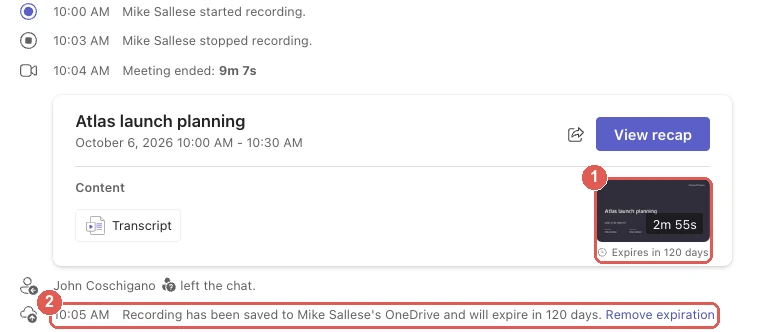
If the recording doesn't show up in a busy chat, Microsoft lists a known issue: scroll to the very top of the chat, then back to the bottom, and the link may come back. (Source: Microsoft Learn, troubleshoot meeting recording problems, as of October 2026.)
On the Recap tab
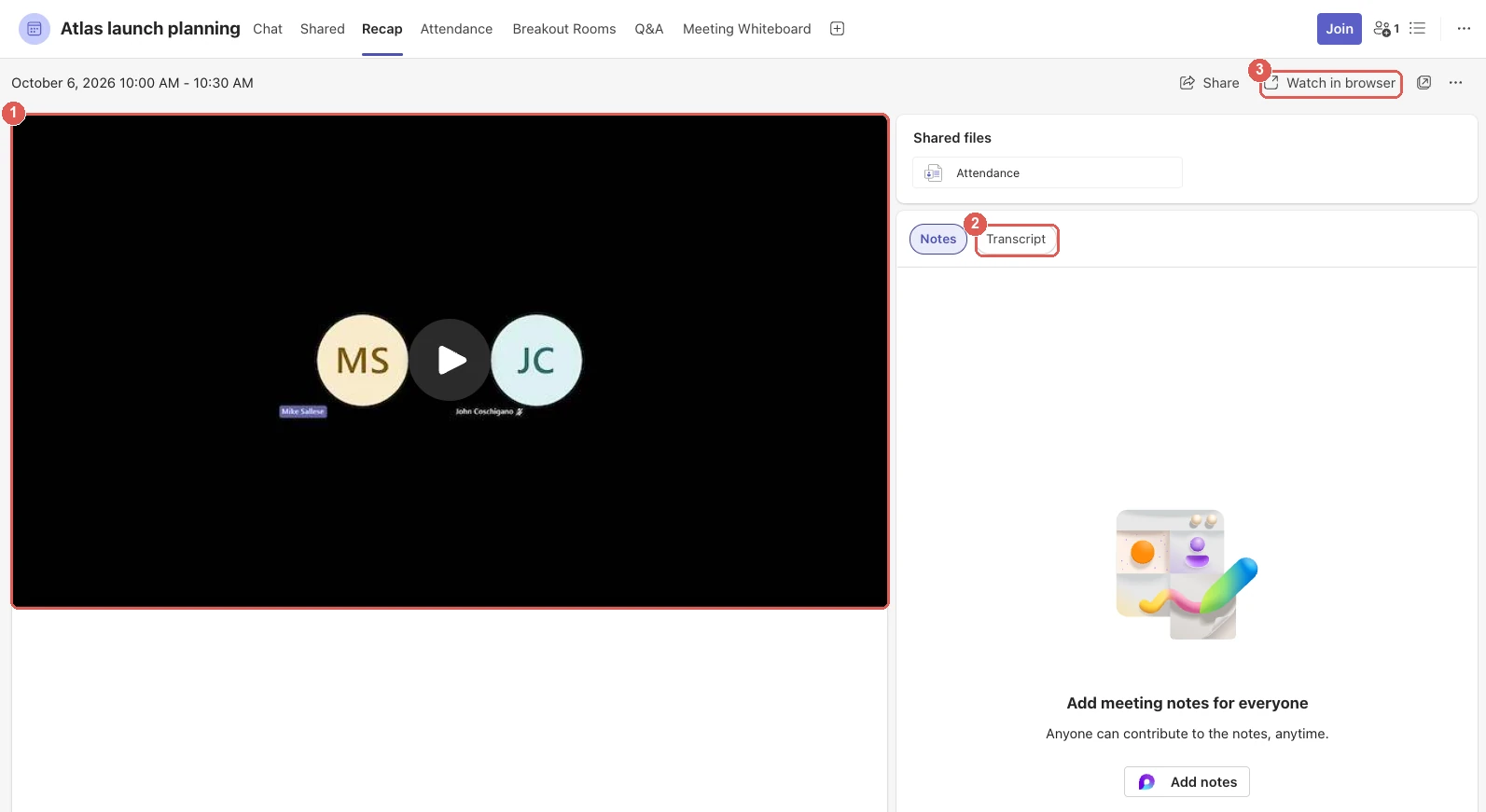
Select Recap at the top of the meeting chat, or click View recap on the card. You can also get there from Calendar: select the past meeting, then Recap. Recap plays the recording, has the Transcript next to Notes, and has Watch in browser, which opens the file in the web player. Microsoft's help page also points to the chat's Shared tab, but in our test it said "No content shared in this chat."
In OneDrive
If you organized the meeting: open OneDrive on the web and go to My files › Recordings. In our test, Teams named the file after the meeting, then the date and start time, then "Meeting Recording": Atlas launch planning-20261006_100044-Meeting Recording.mp4.
If you were invited: the file isn't in your My files. Microsoft says Teams gives every invitee from the organizer's organization a personal link to it, and adds it to Microsoft 365 file lists such as Shared with me, Recent and Recommended. Microsoft 365 search finds it too. (Source: Microsoft Learn, Teams meeting recording, as of October 2026.)

In SharePoint, for channel meetings
In Teams, open the channel, select Files, then the Recordings folder. To see it in SharePoint itself, select Open in SharePoint from the Files tab.
In Clipchamp, formerly Stream
Older guides send you to Microsoft Stream. Teams recordings are no longer stored in Stream: Microsoft calls the old Stream (Classic) deprecated, and has moved its video app under the Clipchamp name. The Clipchamp homepage in Microsoft 365 lists your videos and the ones shared with you, including Teams meeting recordings. It's a list, not a separate copy: the files are still in OneDrive and SharePoint. (Source: Microsoft Learn, Clipchamp overview, as of October 2026.)
Who owns a Teams recording, and who can see and download it
The organizer owns a meeting recording automatically, and co-organizers have the same editing rights. Pressing Record doesn't make it yours. (Sources: Microsoft Support, start, stop and find recordings, and Microsoft Learn, recording storage and permissions, as of October 2026.)
| Who you are | Can watch it? | Can download it? |
|---|---|---|
| Organizer or co-organizer | Yes | Yes |
| Invited, from the organizer's organization | Yes | No, by default |
| Guest, or from another organization | Only if the organizer shares it with you | No, by default |
| Channel member, in a channel meeting | Yes | Yes, unless the admin made it view only |
| The other person on a 1:1 call, same organization | Yes | No |
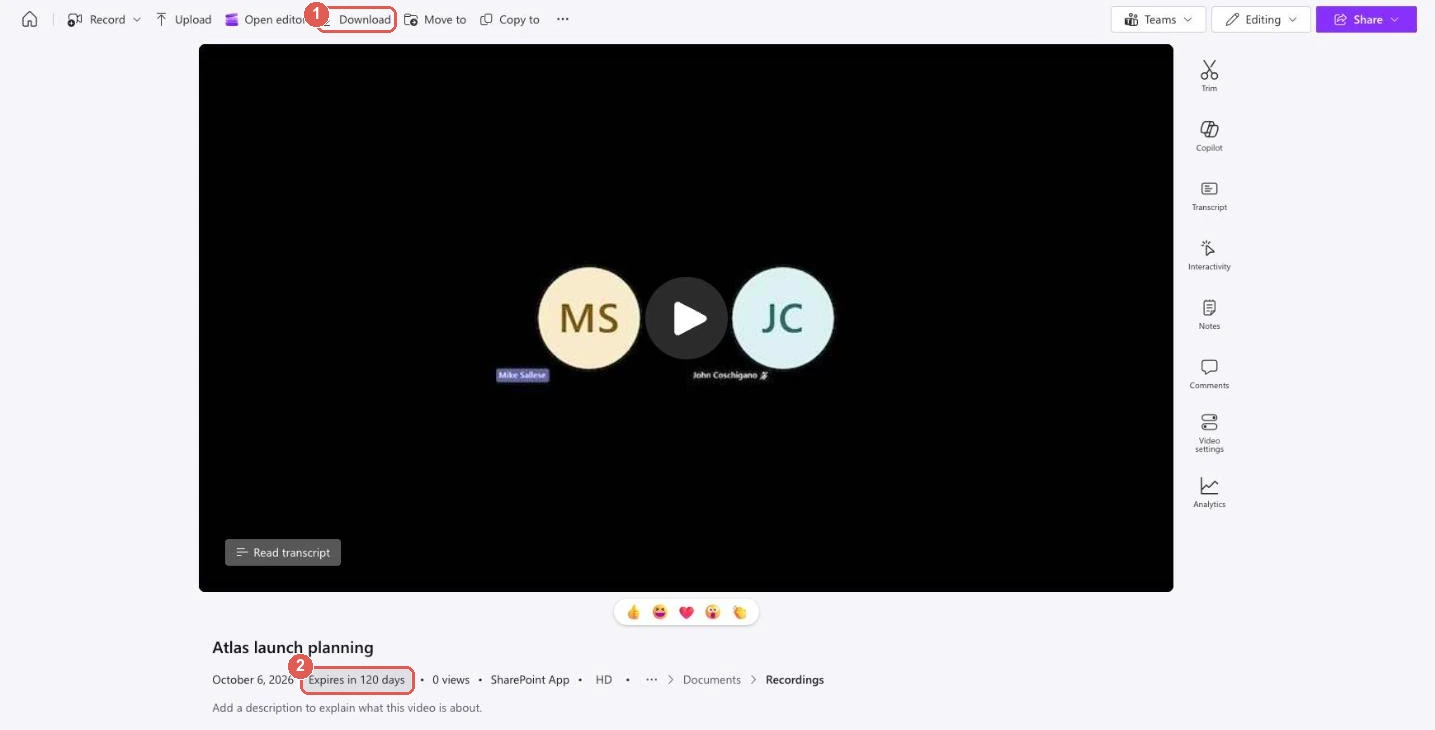
To download, open the recording in the web player (Recap › Watch in browser, or open the MP4 in OneDrive) and click Download in the toolbar. In our test, Recap itself had no Download button.
Other things that change who gets in:
- Big meetings. If a meeting has more than 250 participants, some don't get access automatically. They have to ask the recording's owner to add them.
- Forwarded invites. Only people who were added to the meeting chat get the recording link.
- Teams Premium or Copilot. With either license, the organizer can set Who has access to the recording or transcript in the meeting options to Everyone (the default), Organizers and co-organizers, or Specific people. It isn't available for channel meetings or ad hoc meetings. (Microsoft Support, as of October 2026.)
- An admin download block. Admins with Microsoft's SharePoint Advanced Management license can block downloads of new recordings across the organization, so people can only play them in a browser. (Microsoft Learn, as of October 2026.)
Guests and people outside your organization
Teams automatically gives every invitee from the organizer's organization a link to the recording. It doesn't do that for guests or external attendees: Microsoft says they can only watch a recording if the organizer shares it with them directly. The organizer shares it like any other OneDrive file, with Share in OneDrive or in the web player. Microsoft recommends sharing it with people who sign in, rather than an open link.
Guests also can't record a Teams meeting in the first place; Teams' recorder is only for people in the organizer's organization. If you're a guest and want your own copy, see keeping your own copy below.
How long Teams recordings last, and how to keep them
Teams recordings expire. (Source: Microsoft Learn, recording expiration policy, as of October 2026.)
- Work and school accounts: recordings and transcripts expire after 120 days by default. Admins can change that number, or turn expiration off, but a change only applies to new recordings. Education A1 accounts are limited to 30 days. Expiration applies to webinars and town halls too.
- Teams for personal use: 30 days. Download the file to keep it longer.
- Published webinar and town hall recordings: 30 days after publishing, which the organizer can extend by 60 days.
Watching a recording doesn't change its expiration date.
How to stop a recording from expiring
You need edit permission on the recording. Microsoft says the organizer and co-organizers usually get it automatically.
- Open the recording in the web player: in the meeting chat, select Recap › Watch in browser, or open the MP4 in OneDrive.
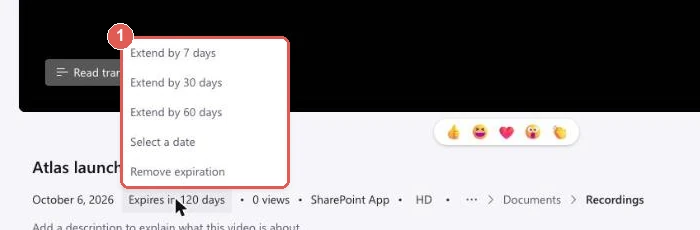
- Under the video, click Expires in 120 days.
- Choose Extend by 7 days, Extend by 30 days, Extend by 60 days, Select a date or Remove expiration.
The chat has a shortcut: the line saying the recording was saved to OneDrive ends with a Remove expiration link. Microsoft notes that the chat message keeps saying the recording will expire even after you remove the expiration; it won't.
How to restore an expired recording
When a recording expires, the owner gets an email and the file moves to the recycle bin of the OneDrive or SharePoint site it was saved in. Anyone who opens Recap afterwards sees a banner saying the recording is unavailable. The owner has up to 90 days to restore it, and once restored it no longer expires automatically. After it's removed from the recycle bin, it can't be recovered.
- Meeting and call recordings (OneDrive): the owner goes to the OneDrive website, selects Recycle bin in the left pane, selects the recording and clicks Restore.
- Channel meeting recordings (SharePoint): in Teams, open the channel's Files tab and select Open in SharePoint, then Recycle bin, select the file and click Restore. You need edit permissions on the site.
Why you can't find your Teams recording
Walk through these in order:
- It's still saving. Teams saves the file after the recording stops. Ours showed Saving... for about a minute. Give it a few minutes, then check the chat again.
- You're looking in your own OneDrive. Unless you organized the meeting, it's in the organizer's. Use the meeting chat's Recap tab or Shared with me instead.
- It was a channel meeting. Look on the channel's Files tab, in Recordings, not in OneDrive.
- The link is hidden in a long chat. Scroll to the top of the chat and back down, Microsoft's fix for a known issue.
- It expired. Recap shows a banner that the recording is unavailable. The owner can restore it from the recycle bin for up to 90 days.
- It never recorded. Both the organizer and the person recording need a license that includes recording (Office 365 E1, E3, E5 or F3, A1, A3 or A5, or Microsoft 365 Business, Business Premium or Business Essentials), and the admin has to allow it. Guests can't record. If Record was unavailable, see why you can't record a meeting in Teams.
- The organizer's OneDrive was full or missing. Teams shows an error and keeps the recording for 21 days for the organizer to download.
- It's a webinar or town hall that hasn't been published. Attendees only get it after the organizer publishes it.
- You're a guest. You only get it if the organizer shares it with you, unless you record your own copy with Scribbl.
- It was on a personal account more than 30 days ago. Those recordings are gone after 30 days.
If none of these fits, a Microsoft 365 admin can run Microsoft's Missing Recording Diagnostic with the meeting link and date. It checks whether the recording finished and was uploaded to OneDrive or SharePoint.
Keep your own copy of a Teams meeting: Scribbl
Everything above runs through the organizer's OneDrive: their license, their storage, their sharing settings. If you're a guest, from another company, or you just want every meeting in your own account instead of someone else's, the simplest way is to record it yourself with a meeting recorder of your own, since Teams won't let guests use its recorder.
Scribbl is an AI note taker for Microsoft Teams, Zoom and Google Meet, and we make it. For Teams, the Scribbl desktop app for Mac (Apple silicon) and Windows records the meeting from your own computer. Nothing joins the call, so there's no extra participant in the meeting, you don't need to be the organizer, and you don't need a Microsoft license that includes recording.
After each meeting you get:
- The video recording.
- A transcript with speaker names.
- AI notes and action items.
- Answers about past meetings in ChatGPT or Claude, once you connect Scribbl to them.
- Meetings sorted for you. Smart Collections put each new meeting into the groups you describe, so you're not searching OneDrive for a file name.
- The follow-up done for you. Automations draft the follow-up email, post a summary to a Teams or Slack channel, or log notes in HubSpot or Pipedrive. They ask before changing anything by default.
Teams only shows its recording notice when Teams itself is recording, so tell everyone at the start of the meeting that you're recording. Whether you need their agreement depends on where you all are; see do you have to tell people you're recording.
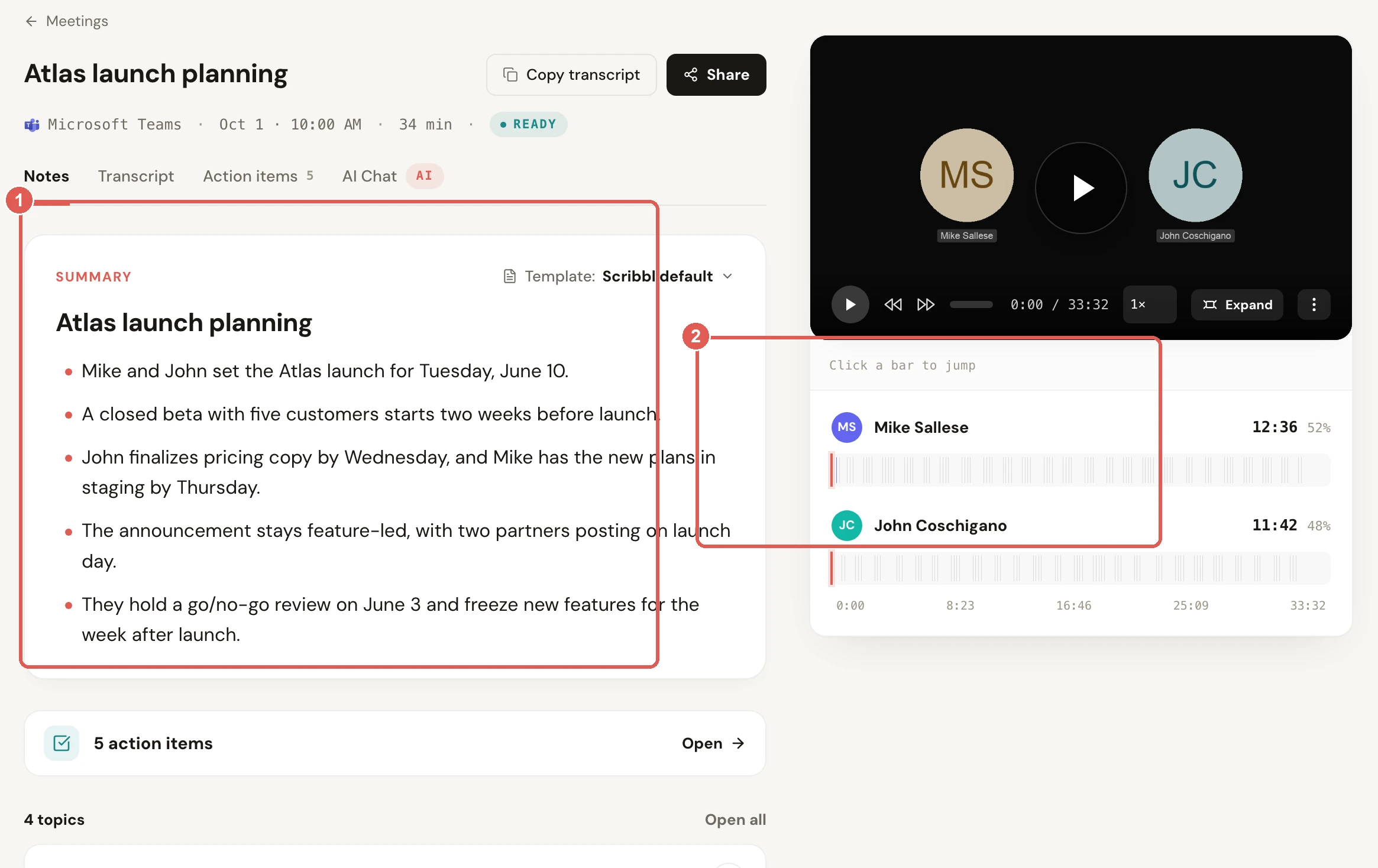
The free plan includes Google Meet, Zoom and Microsoft Teams, with 10 meetings a month. Pro is $13 per user per month billed annually, or $20 monthly. See pricing.
Get Scribbl for TeamsFAQ
Where do Teams recordings go?
For a regular or Meet now meeting, Teams saves the recording to the organizer's OneDrive, in My files › Recordings, even if the organizer didn't attend or someone else clicked Record. Channel meeting recordings go to the channel's SharePoint site, in a folder named Recordings. 1:1 and group call recordings go to the OneDrive of the person who clicked Record. In Teams, you can open any of them from the meeting chat or its Recap tab.
Where are Teams recordings saved on my computer?
They aren't. Teams saves recordings in the cloud, in OneDrive or SharePoint, not on your computer. To get a copy on your computer, open the recording in the web player with Recap › Watch in browser and click Download; the MP4 goes wherever your browser saves downloads, usually the Downloads folder. By default only the organizer and co-organizers can download it.
How do I find a Teams recording?
Open Chat, select the meeting's chat, then the Recap tab. Or open Calendar, select the past meeting and choose Recap. The organizer can also open OneDrive on the web and go to My files › Recordings. For a channel meeting, open the channel, select Files, then the Recordings folder. If the recording is missing from a long chat, Microsoft suggests scrolling to the top of the chat and back down.
Where do Teams recordings go if I'm not the organizer?
To the organizer's OneDrive, even if you clicked Record. If you were invited and you're in the organizer's organization, you can still watch it: open the meeting chat and select Recap, or look in Shared with me in OneDrive. To download it, ask the organizer. Calls work differently: a 1:1 or group call recording goes to whoever clicked Record.
Where are Teams channel meeting recordings saved?
In the channel's SharePoint site, in a folder named Recordings in the channel's document library. In Teams, open the channel, select Files, then Recordings; Open in SharePoint takes you to the same folder. Everyone in the channel can watch it, and channel members can download it unless an admin has made channel recordings view only.
Can guests or people from another company see a Teams recording?
Only if the organizer shares it with them. Teams gives everyone invited from the organizer's organization a link automatically, but not guests or external attendees; the organizer has to share the file with them directly. Guests can't record Teams meetings either. If you want your own copy of meetings you join as a guest, a desktop recorder such as Scribbl records from your own computer. Tell people you're recording.
Who can download a Teams meeting recording?
By default, only the organizer and co-organizers. Everyone else invited from the organizer's organization can watch it but not download it. In channel meetings, channel members can download it unless an admin blocks that. On a personal Microsoft account, everyone in the meeting chat has access, and Download is below the recording's date and time.
Do Teams recordings expire?
Yes. On work and school accounts, recordings and transcripts expire after 120 days by default, or whatever your admin set; education A1 accounts are limited to 30 days. On personal accounts they last 30 days. The organizer or a co-organizer can open the recording in the web player, click the expiration date under the video, and extend it or choose Remove expiration.
How do I recover an expired Teams recording?
When a recording expires, the owner gets an email and the file moves to the recycle bin of the OneDrive or SharePoint site it was saved in. The owner has up to 90 days to restore it: on the OneDrive website, select Recycle bin, select the file and click Restore. Once restored, it no longer expires automatically. After it's removed from the recycle bin, it can't be recovered.
Why can't I find my Teams recording?
The usual reasons: it's still saving; you're looking in your own OneDrive but someone else organized the meeting; it was a channel meeting, so it's in SharePoint; it expired; nobody's license or admin policy allowed recording, so it never started; or the organizer's OneDrive was full or missing, in which case Teams keeps it for 21 days for the organizer to download.
Do Teams recordings still go to Microsoft Stream?
No. Teams recordings are saved as files in OneDrive and SharePoint. Stream (Classic) is deprecated, and Microsoft has moved its video app under the Clipchamp name. The Clipchamp homepage in Microsoft 365 lists your videos, including Teams meeting recordings you own or that were shared with you.
Where do Teams webinar and town hall recordings go?
Webinars and town halls are recorded automatically by default, and the recording is saved to the organizer's OneDrive. The organizer finds it in the Teams calendar: select the event, then View event › Manage event › Recordings. Attendees get a link by email when the organizer selects Publish. Published recordings expire after 30 days unless the organizer extends them by 60 days.
Sources
The screenshots come from a test meeting recorded in Microsoft Teams for Mac on October 6, 2026, on a Microsoft 365 Business Premium account. Every rule above was checked on these Microsoft pages on October 6, 2026.
- Microsoft Support: Start, stop, and find meeting recordings in Microsoft Teams, Play, share, and download meeting recordings, Customize who can access a recording or transcript, Manage webinar recordings, Manage town hall recordings, Recordings in Teams for personal use, Clipchamp video capabilities in Microsoft 365
- Microsoft Learn: Recording and transcript storage and permissions in OneDrive and SharePoint, Teams meeting recording, Recording expiration policy, Block the download of meeting recordings, Troubleshoot meeting recording problems, Clipchamp overview
- Scribbl: desktop app, pricing
Try Scribbl
Every Teams recording in your own account
Scribbl's desktop app records, transcribes, and summarizes your Teams meetings from your own computer. No bot joins the call and you don't need to be the host. Free forever for individuals.
Get Scribbl for Teams · It's free