Scribbl records your Google Meet, Zoom and Teams calls and writes the notes. No bot joins. Free for 10 meetings a month. Get Scribbl for Zoom
Zoom Recording Not Converting? How to Convert It, and Fix Error 614
Zoom recording failed to convert? Convert double_click_to_convert files by hand on Windows or Mac, fix error 614, or record Zoom with Scribbl and skip it.
Updated November 19, 2026
The short answer
Steps from Zoom Support's page on computer recording conversion problems, checked November 19, 2026; folders and the Open recordings button checked against Zoom Support on October 23, 2026
In the Zoom desktop app, open the recording under Meetings Recorded and click Convert, or double-click double_click_to_convert_01.zoom in the meeting's folder
- Where the file is
- In the meeting's folder inside Documents › Zoom, unless someone changed the folder. The Zoom web portal shows the real path under Recordings › Computer Recordings.
- Double-click does nothing?
- Open it with Zoom's converter: zTscoder.exe in Zoom's bin folder on Windows, or Transcode copied out of the zoom.us app on a Mac.
- Why it failed
- Low disk space (error code 614), a recording folder that isn't valid, closing the laptop or shutting down mid-conversion, or renaming the .zoom files while they convert.
- So it never happens again
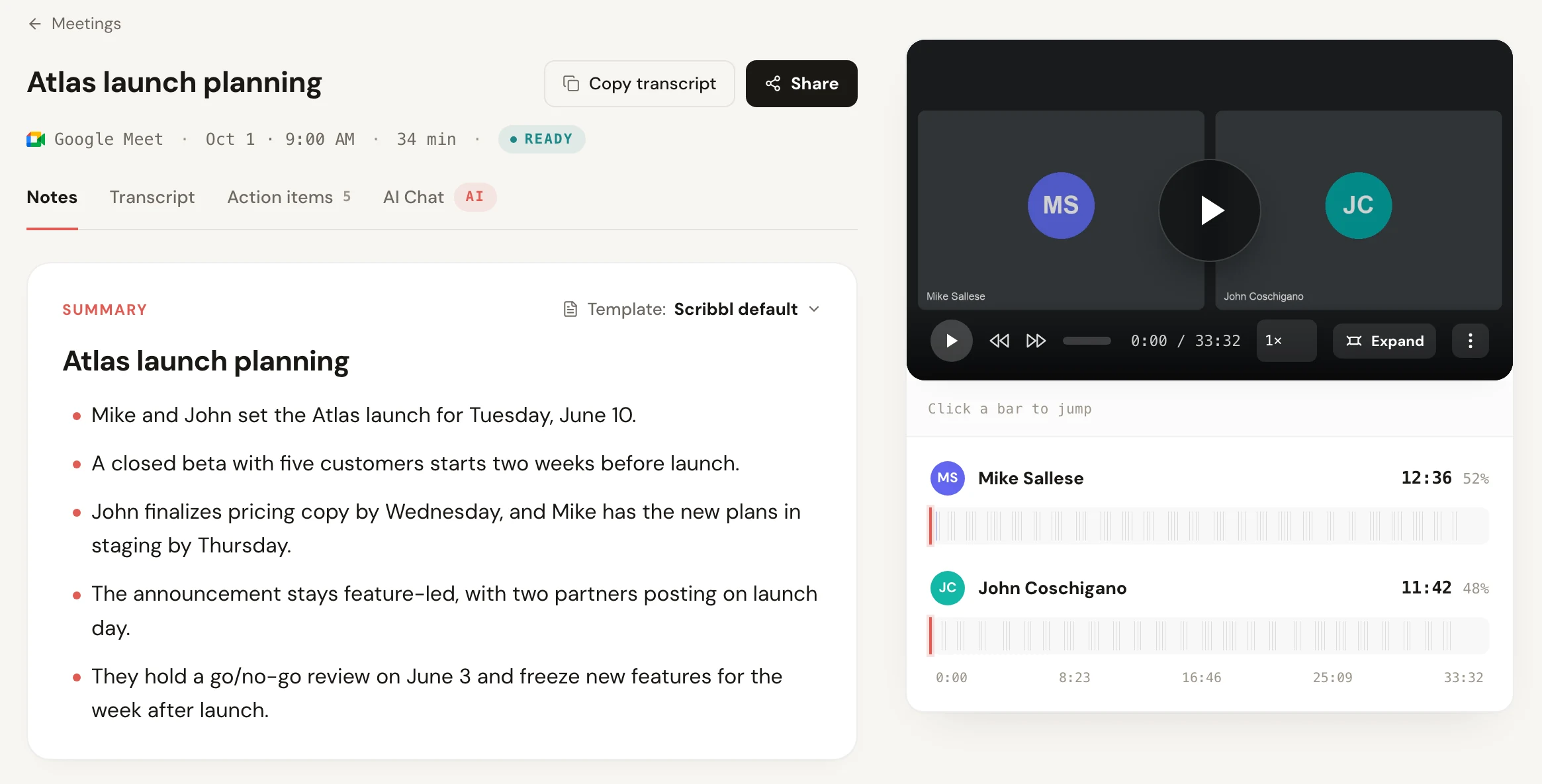
- Record Zoom with Scribbl Desktop on your Mac or Windows computer. Nothing joins the call and there's no file to convert: the video, a transcript with speaker names and AI notes are in your Scribbl account, free for 10 meetings a month.
Try Scribbl
Zoom recordings with no conversion step
Scribbl's desktop app records, transcribes, and summarizes your Zoom meetings from your own computer. No bot joins the call and you don't need to be the host. Free for 10 meetings a month, no credit card.
Get Scribbl for Zoom · It's freeA Zoom recording that didn't convert is usually still on your computer as a double_click_to_convert_01.zoom file. To convert it, open the Zoom desktop app, click Meetings, then Recorded, pick the meeting and click Convert, or double-click that file in the meeting's folder inside Documents › Zoom. If double-clicking does nothing, open it with Zoom's own converter, zTscoder.exe on Windows or Transcode on a Mac. The steps for each are below, from Zoom's own help page. To stop it happening again, record Zoom with Scribbl Desktop instead: nothing joins the call, there's no file to convert, and the video, a transcript with speaker names and AI notes are in your Scribbl account when the meeting ends, free for 10 meetings a month.
This only happens with Zoom's computer recording (also called local recording), the kind that saves to your computer and the only kind on the free Zoom plan. Zoom says the recording converts after you end the meeting; until it does, the meeting's folder holds .zoom files, not a video you can play. Cloud recordings don't convert on your computer, so if you recorded to the cloud and can't find it, see where do Zoom recordings go.
How to fix a Zoom recording that didn't convert
Try these in order. Each one is from Zoom Support's page on computer recording conversion problems, checked November 19, 2026, unless another source is named. Zoom's first tip: make sure you're running the latest version of the Zoom desktop app.
Convert it from the Zoom desktop app
- Sign in to the Zoom desktop app.
- Click the Meetings tab.
- Click the Recorded tab.
- Select the meeting with the computer recording.
- Click Convert.
In Zoom Workplace 7.1 we found the same list another way: on the Home tab, click Open recordings, and Zoom opens its Hub tab, where Computer recordings lists the recordings on this computer and one that hasn't been converted shows Convert. (Source: where do Zoom recordings go, checked against Zoom Support on October 23, 2026.)
When it finishes, Zoom opens the meeting's folder. The video…mp4 file is the recording, and audio…m4a is the sound on its own.
Find the recording folder
If there's no Convert button, or it fails, go to the files. Zoom creates a folder for each recording in the location set in your Zoom desktop app. By default that's:
| Computer | Default Zoom recording folder |
|---|---|
| Mac | /Users/[your name]/Documents/Zoom |
| Windows | C:\Users\[your name]\Documents\Zoom |
Source: how to record a Zoom meeting, tested October 1, 2026.
Each meeting gets its own folder, named with the date, the time and the meeting name. If the recording isn't on that path, Zoom says to:
- Sign in to the Zoom web portal at zoom.us.
- Click Recordings, then Computer Recordings.
- Find the meeting ID and read the path under Location.
Inside the meeting's folder you should see double_click_to_convert_01.zoom and double_click_to_convert_02.zoom. Double-click double_click_to_convert_01.zoom. If Zoom converts it, you're done. If your computer asks which app to open it with, or nothing happens, use the steps for Windows or Mac below.
Convert a Zoom recording by hand on Windows
Zoom's converter on Windows is a program called zTscoder.exe. Point the .zoom file at it:
- Double-click
double_click_to_convert_01.zoom. - If Windows asks How do you want to open this file?, click More apps, then Browse.
- Go to
C:\Users\[your name]\AppData\Roaming\Zoom\bin. - Select zTscoder.exe.
- If you like, tick Always use this app to open .zoom files, then click OK.
- Wait for the conversion to finish.
Convert a Zoom recording by hand on a Mac
On a Mac, Zoom's converter is called Transcode, and it's tucked inside the Zoom app. Zoom's steps copy it out and use it to open the file:
- In Finder, click Go, then Applications.
- Right-click zoom.us and choose Show Package Contents.
- Open Contents, then Frameworks.
- Copy Transcode and paste it into Applications.
- Go back to the meeting's folder, right-click
double_click_to_convert_01.zoomand choose Get Info. - Under Open with, choose Transcode.
- Double-click
double_click_to_convert_01.zoomto start the conversion.
| Windows | Mac | |
|---|---|---|
| Zoom's converter | zTscoder.exe | Transcode |
| Where it is | AppData\Roaming\Zoom\bin in your user folder | Inside zoom.us, in Contents › Frameworks |
| How you use it | Pick it in How do you want to open this file? | Copy it to Applications, then Get Info › Open with |
| File to open | double_click_to_convert_01.zoom | double_click_to_convert_01.zoom |
Source: Zoom Support, computer recording conversion problems, checked November 19, 2026.
Zoom error 614 and other reasons a recording fails to convert
Zoom's help page lists these causes. Fix the cause first, then convert again with the steps above.
| What happened | What Zoom says | The fix |
|---|---|---|
| Low disk space (error code 614) | Your computer was low on disk space when Zoom converted | Check your disk space, free some up, then convert again |
| Invalid path | The recording folder isn't a valid path; an invalid network connection can show this warning too | Change the recording location in your Zoom app to a valid folder on your computer |
| Laptop closed or computer shut down | Closing the laptop or turning off the computer during conversion stops it | Open the Zoom app and convert it again, or double-click the .zoom file |
| Files renamed while converting | Renaming the double_click_to_convert.zoom files while converting may corrupt them | Zoom gives no fix; you can try renaming them back to their original names |
| Other errors | Internal errors (bad data stream), invalid commands or logic issues | Update the Zoom desktop app, then try again |
Source: Zoom Support, computer recording conversion problems, checked November 19, 2026.
When you pick a valid folder, Zoom recommends one on your computer's own drive: a folder that syncs to Dropbox, Google Drive or OneDrive, an external drive or network storage can break saving and converting. To change it, open Zoom's Settings and search for "recording"; the storage location is at the top, with Open and Change. (Source: Zoom Support on computer recording, checked October 23, 2026.)
"There is another recording conversion in progress"
This message means Zoom thinks another recording is still converting, so it won't start this one. On the Zoom Community thread about failed conversions, a Zoom employee suggests:
- Sign out of Zoom on the web and in the desktop app.
- Restart the computer (restart, not shut down).
- Sign back in to the Zoom app and convert the recording again.
The University of Michigan's Zoom help article also says restarting the computer may help with this error.
Fixes that worked for people on the Zoom Community
These come from replies on the Zoom Community thread "Failed to convert recording" (Zoom Community, read November 19, 2026). They are what worked for other Zoom users, not steps from Zoom's help page, so try them after Zoom's own fixes.
- Convert from a new folder. Copy everything in the folder with
double_click_to_convert_01.zoominto a new folder, delete any video or audio files from the new folder so only the.zoomfiles and a few text files are left, then double-clickdouble_click_to_convert_01.zoomthere. - Delete the half-made video and audio files and retry. Another reply says to delete the video and audio files in the recording's folder and double-click the
.zoomfile again. - Quit Zoom completely (Windows). One reply on Windows 11: quit Zoom, open Task Manager and end any processes that belong to Zoom, restart Zoom, then double-click the
double_click_to_convertfile. - Approve the privacy prompt (Mac). One reply from someone on a company MacBook: quit Zoom, restart the computer, open Zoom and record to the computer, then approve the Privacy & Security prompt macOS shows. That needed admin rights on the Mac.
If it still won't convert
The University of Michigan's help article has one more workaround, which it credits to Zoom's developer forum: make Zoom convert the old files as part of a new recording.
- Start a new Zoom meeting and record it for about 30 seconds, then stop (don't pause) the recording. Don't end the meeting.
- Find the new recording's folder, usually in Documents › Zoom.
- Move the
double_click_to_convertfiles of the new recording out of that folder. - Put the files that still need converting from the old meeting into it.
- End the meeting. This may convert the old recording.
If none of these work, the recording may not be recoverable, which is the best reason to change how you record the next one.
So it doesn't happen next time: record Zoom with Scribbl
A computer recording only exists once Zoom converts it, on the computer that made it. Low disk space, a closed laptop or a moved folder at the wrong moment, and you're back here. Scribbl Desktop records Zoom a different way, so there's no conversion step to fail:
- No file to convert. When the meeting ends, the video, a transcript with speaker names, AI notes and action items are in your Scribbl account. No folder, no tab, no conversion.
- Nothing joins the call. Scribbl Desktop records the Zoom app on your own Mac (Apple silicon) or Windows computer, so there's no extra participant in the meeting.
- You don't need to be the host. Zoom's own recorder only works if you're the host or the host allows it. Scribbl doesn't need the host's permission, and it works on Zoom's free plan.
- Free for 10 meetings a month. The free plan includes Google Meet, Zoom and Teams. Pro is $13 per user per month, billed annually, for unlimited meetings. See pricing.
| Zoom computer recording | Scribbl Desktop (our pick) | |
|---|---|---|
| Conversion after the meeting | Yes, and it can fail | None |
| What you get | An MP4 and an M4A in a folder | The video, a transcript with speaker names, AI notes and action items |
| Where it goes | The computer that recorded it | Your Scribbl account |
| Who can record | The host, or a participant the host allows | You, with no host permission needed |
| Free Zoom plan | Yes, up to the 40-minute meeting limit | Yes, 10 meetings a month |
Sources: Zoom Support on computer recording, checked October 23, 2026; Zoom's free plan limit from how to record a Zoom meeting, tested October 1, 2026.
To set it up:
- Add Scribbl Desktop from scribbl.co/desktop on your Mac (Apple silicon) or Windows computer.
- Join the Zoom meeting as usual. Tell everyone at the start that you're recording; here's when you have to tell people you're recording.
- Open the notes when it ends. The video, the transcript and the AI notes are in your Scribbl account.
More on how it works: AI notetaker for Zoom without a bot, the free AI note taker for Zoom compared with the others, and how to record a meeting without a bot.
Zoom recording not converting FAQ
Why is my Zoom recording not converting?
Zoom lists four usual causes: low disk space on your computer (error code 614), a recording folder that isn't a valid path, closing your laptop or turning off your computer while the recording converts, and renaming the double_click_to_convert .zoom files while they convert, which may corrupt them. Zoom also says to make sure you're on the latest version of the Zoom desktop app.
How do I manually convert a Zoom recording?
Sign in to the Zoom desktop app, click the Meetings tab, then the Recorded tab, pick the meeting and click Convert. Or open the meeting's folder in Documents › Zoom and double-click double_click_to_convert_01.zoom. If Windows asks which app to use, choose zTscoder.exe in AppData › Roaming › Zoom › bin. On a Mac, open the file with Transcode, which you copy out of the zoom.us app.
What is Zoom error code 614?
Error code 614 means your computer was low on disk space when Zoom tried to convert the recording. Zoom's fix is to check your disk space, free some up, then convert the recording again from the Zoom app or by double-clicking double_click_to_convert_01.zoom.
Where are the double_click_to_convert files?
In the meeting's own folder inside the Zoom recording folder, which is Documents › Zoom by default on Mac and Windows. If someone changed it, sign in at zoom.us, open Recordings, then Computer Recordings, find the meeting ID and read the Location column.
What does another recording conversion in progress mean?
Zoom thinks another recording is still converting, so it won't start a second one. A Zoom employee on the Zoom Community suggests signing out of Zoom on the web and in the desktop app, restarting the computer, signing back in and converting again. The University of Michigan's Zoom help article also says a restart may help.
Can I still convert a Zoom recording after my computer shut down?
Often, yes. Zoom says shutting down or closing the laptop stops the conversion, but the double_click_to_convert .zoom files stay in the meeting's folder. Open the Zoom app and click Convert on the recording, or double-click double_click_to_convert_01.zoom. Don't rename those files first.
How do I record Zoom without the conversion step?
Record with Scribbl Desktop on your Mac or Windows computer instead of Zoom's computer recording. Nothing joins the call, you don't need to be the host, and when the meeting ends the video, a transcript with speaker names, AI notes and action items are in your Scribbl account, with no file to convert. The free plan includes 10 meetings a month.
How we checked: the conversion steps, causes and error code come from Zoom Support's page on troubleshooting computer recording issues, read on November 19, 2026. The "another recording conversion in progress" fixes and the fixes that worked for people come from replies on the Zoom Community thread "Failed to convert recording" and from the University of Michigan's help article "Zoom: Cannot Convert Locally Recorded Files", both read on November 19, 2026. Default folders and Zoom's Open recordings button come from our Zoom guides, tested on October 1, 2026 and checked against Zoom Support on October 23, 2026. To start a recording the right way, see how to record a Zoom meeting.
Try Scribbl
Zoom recordings with no conversion step
Scribbl's desktop app records, transcribes, and summarizes your Zoom meetings from your own computer. No bot joins the call and you don't need to be the host. Free for 10 meetings a month, no credit card.
Get Scribbl for Zoom · It's freeTry Scribbl
Zoom recordings with no conversion step
Scribbl's desktop app records, transcribes, and summarizes your Zoom meetings from your own computer. No bot joins the call and you don't need to be the host. Free for 10 meetings a month, no credit card.
 Get Scribbl for Zoom · It's free