AI Notes for Google Meet: The Complete 2026 Guide
Two ways to get AI notes for Google Meet: Google's native Gemini Take notes for me and free third-party tools. Step-by-step setup, a tool comparison table, bot vs bot-free, and what is genuinely free.
Updated October 7, 2026
On this page10 sections
- 01What "AI notes for Google Meet" actually means
- 02Path 1: Google's native Gemini notes
- 03Path 2: AI notes for Google Meet without Gemini
- 04Bot vs bot-free AI notes for Google Meet
- 05Are AI notes for Google Meet free? An honest answer
- 06Compare the leading AI notetakers for Google Meet
- 07Google Meet notes and recordings go together
- 08A note on consent and recording laws for Google Meet AI notes
- 09One AI notetaker across Google Meet, Zoom
- 10FAQ
There are two ways to get AI notes for Google Meet. The first is Google's own Take notes for me, a native Gemini feature built into Meet that creates a summary in a Google Doc, but it requires a paid Workspace add-on and works only on Meet. The second is a third-party AI notetaker, which can be free, works across Meet, Zoom, and Teams, and either sends a visible bot into your call or works with nothing joining it. This guide walks through both paths step by step, compares the leading tools in one table, and answers the questions the listicles skip.
What "AI notes for Google Meet" actually means
A modern AI notetaker does a lot more than a recording. From a single Google Meet call you should get:
- A live or post-call transcript of who said what.
- Speaker labels so the transcript reads like a conversation, not a wall of text.
- A summary that captures the decisions and key points in a few lines.
- Action items pulled out automatically, with the owner where possible.
- A searchable, centralized library so you can find any past call by keyword.
- Easy sharing, plus, on the best tools, the ability to turn the call into the actual follow-up work.
The two paths to all of that differ in cost, reach, and whether anything visibly joins your call. Here is how each one works.
Path 1: Google's native Gemini notes (Take notes for me)
Google Meet has a built-in option called Take notes for me, powered by Gemini. When it is enabled on your account, a Take notes with Gemini control appears near the top of the call. Turn it on, and when the meeting ends Gemini writes a summary with action items into a Google Doc and emails it to the meeting organizer.
- 1 Take notes with Gemini sits at the top of the Meet call window.
- 2 A small indicator shows note-taking is active to everyone in the call.
- 3 When the call ends, Gemini emails a Google Doc summary to the organizer.
Turning it on takes a few seconds:
- 1
Start or join the Meet call
Open the meeting from your calendar or a link, signed in to the eligible Workspace account.
- 2
Click Take notes with Gemini
The control appears near the top of the call window when your account is eligible.
- 3
Hold your meeting
Gemini listens through Meet and drafts notes as the conversation happens. An indicator shows it is active.
- 4
Get the Google Doc
When the call ends, Gemini creates a summary doc with action items and emails it to the organizer.
The catch is eligibility and cost. Native Gemini notes are not part of free Google accounts or basic Workspace. They require a Workspace plan with the Gemini or AI Meetings and Messaging add-on, commonly cited around $10 per user per month on top of your existing seat (confirm current pricing in your Google Admin console, as Google revises this regularly). A few more honest limits:
- Meet only. It does nothing for your Zoom or Microsoft Teams calls.
- Roughly 8 languages are supported at the time of writing, far fewer than several third-party tools.
- Notes scatter into Docs. Each call becomes a separate Google Doc rather than a searchable, action-item-tracked meeting library.
- Organizer-centric delivery. The summary goes to the organizer, which is awkward if you are an attendee or an external guest.
Path 2: AI notes for Google Meet without Gemini (free, and optionally bot-free)
The second path is a third-party AI notetaker. These work on any Google account (no Workspace add-on required), most have a free tier, and many also cover Zoom and Microsoft Teams. The one decision that matters most is whether a bot joins your call to do it.
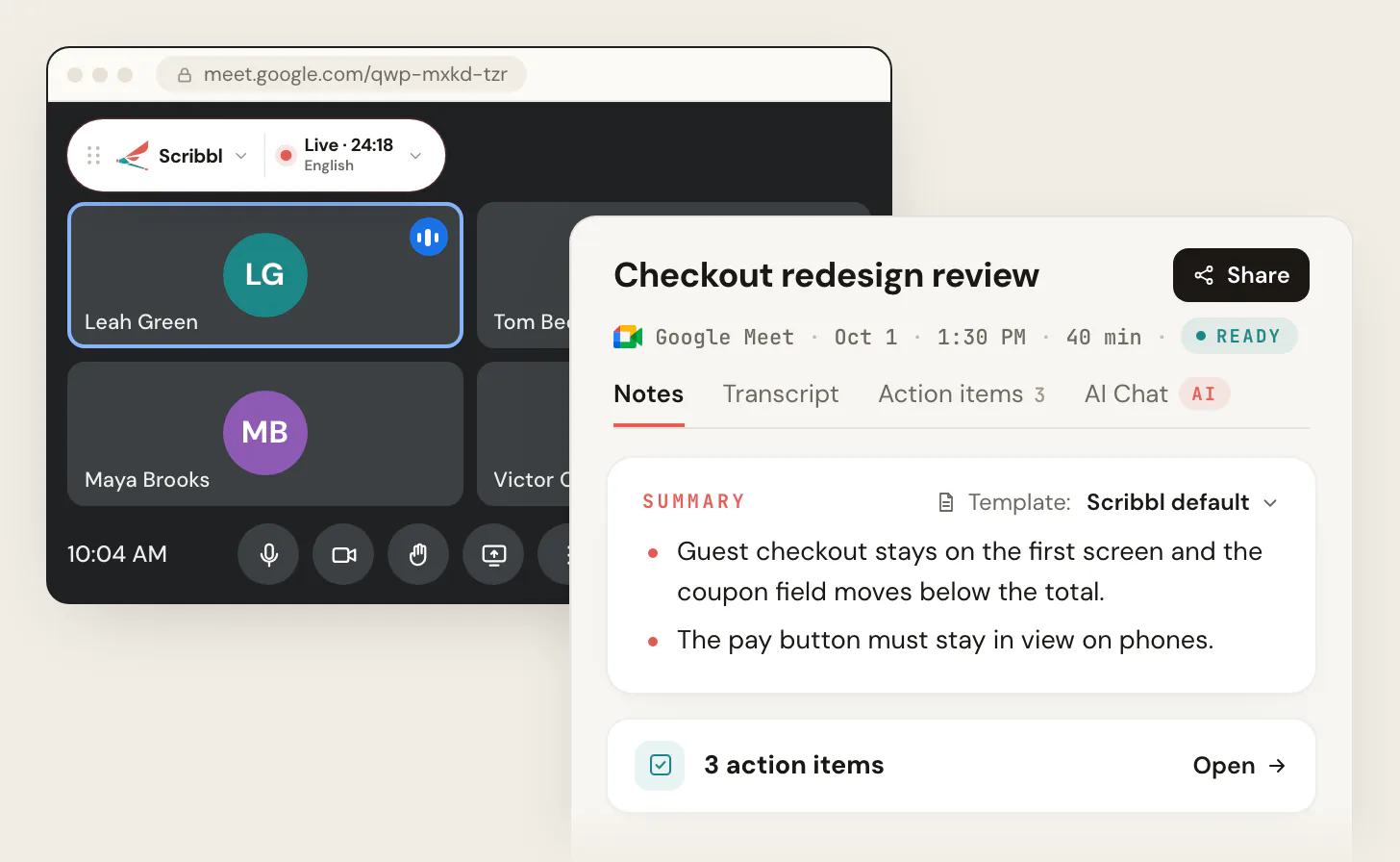
Scribbl is a botless AI notetaker: it works through a Chrome extension on Google Meet, so nothing joins the call, nothing is added to the participant list and nothing is announced. It is free to start with no credit card, and on Pro it connects your meetings to the AI you already use, ChatGPT or Claude, so the follow-up work gets done, not just filed. Here is the free, bot-free flow end to end:
- 1
Add the Scribbl Chrome extension and sign up free
No credit card to start. The extension installs in Chrome, not in the meeting.
- 2
Open or join your Google Meet call as usual
Nothing joins the grid and nothing is announced to the room.
- 3
Hold the meeting
Scribbl records the meeting, with speaker names, while nothing joins the call.
- 4
Get your transcript, summary, and action items
After the call they land in your searchable library, ready to review or share.
- 5
Turn the call into work
Connect ChatGPT or Claude to draft the recap email, pull decisions, or update your records straight from the transcript.
That last step is the real point. The best outcome is not a transcript sitting in a folder; it is the follow-up actually getting done. A faithful picture of what lands after a call:
Summary
Team aligned on the Q3 launch date and agreed to ship the pricing page first.
Action items
- Maria: finalize pricing copy by Friday
- Devon: book the launch review for next week
Transcript
Maria: Let's lock the date. Devon: Agreed, I'll set up the review.
Bot vs bot-free AI notes for Google Meet: the difference that matters most
Whether a bot joins the call is the single most important choice in the whole category, so it deserves a clear answer. Most third-party tools join your Google Meet as a participant. You see them: a tile appears in the grid with a name like "Notetaker," the participant count ticks up, and on calls with a host lobby someone has to admit it. That bot is a separate, visible attendee, and anyone can remove it (and lose the record with it).
With a botless tool, nothing joins the call. Nothing is announced, no attendee email goes out, and the participant count stays exactly what the humans expect.
- Joins the grid: a tile and a participant get added
- Announced: a join notice or attendee email appears
- Lobby friction: the host may have to admit it
- Removable: anyone can kick it and lose the record
- Nothing joins: no tile, no extra participant
- Nothing announced: no join notice, no attendee email
- No lobby step: nothing waits to be admitted
- Stays with you: capture is not a guest that can be kicked
Why it matters: on client calls, candidate interviews, sales conversations, and any sensitive meeting, a visible bot changes the room. People notice it, sometimes object to it, and the optics get complicated. Bot-free keeps the conversation human while you still get the full transcript and notes.
Are AI notes for Google Meet free? An honest answer
"Free" is the most searched modifier for this query, and it is worth being precise:
- Google's native Gemini notes are not free for most accounts. They require a paid Workspace add-on (commonly cited around $10/user/mo).
- Some third-party tools have a genuinely free plan with no credit card. Scribbl's free plan gives you 10 meetings a month on Google Meet, Zoom and Teams, each with a transcript, AI summary, and action items at no cost, with Pro adding unlimited meetings.
- Watch for "free trial" dressed up as "free." Several tools market themselves as free but expire after a limited number of meetings or days. Always read the free-plan limits before you rely on one.
Compare the leading AI notetakers for Google Meet
Here is how the native option and the most-searched third-party tools stack up. Capability and pricing details for other vendors change often, so treat third-party cells as a starting point and confirm specifics on each vendor's own site. Scribbl's row reflects its current product.
| Feature | Scribbl | Gemini (native) | tl;dv | Otter | Fathom | Fireflies |
|---|---|---|---|---|---|---|
| Bot-free (nothing joins the call) | Yes | Yes | Both modes | No | Mac beta only | No |
| Free plan (no credit card) | Yes | No | Free plan | Free plan | Free plan | Free plan |
| Works beyond Meet (Zoom, Teams) | Yes | No | Yes | Yes | Yes | Yes |
| Transcript + speaker labels | Yes | Yes | Yes | Yes | Yes | Yes |
| AI summary + action items | Yes | Yes | Yes | Yes | Yes | Yes |
| Connects to ChatGPT / Claude | Yes, on Pro | Not for Meet | Yes, on Pro | Yes | Yes | Yes |
| Best for | Bot-free notes that turn into work | All-Workspace, Meet-only orgs | Free-forever positioning | Long-running incumbent | Free + clean UI | Search-heavy CRM users |
A quick read of the table: native Gemini costs extra and stops at Meet, and most third-party tools send a bot into the call. If you want notes for free, across Meet, Zoom, and Teams, with nothing joining your calls, Scribbl is the pick.
Google Meet notes and recordings go together
You do not have to choose between notes and a recording. If you want the video saved alongside the transcript, Scribbl saves the Google Meet video too, with nothing joining the call either way. Two guides cover the recording side in detail:
Whether you want just notes or notes plus the recording, the mechanism is the same: nothing joins the call.
A note on consent and recording laws for Google Meet AI notes
Bot-free does not mean secret. The capture is for you, but everyone on the call has a stake. Recording and transcription laws vary by region; some places require all-party consent, others one party. The trustworthy habit, with any tool including native Gemini, is to tell people you are taking AI notes and get their agreement where it is required. With a botless tool you do that in plain language on your own terms, rather than a vendor bot announcing itself for you.
One AI notetaker across Google Meet, Zoom, and Teams
If your week spans Google Meet, Zoom, and Microsoft Teams, you do not want a separate tool per platform, and you certainly do not want a Meet-only native feature for two-thirds of it. Scribbl uses the same botless approach across all three, so your notes and transcripts live in one searchable place. See how it fits specific workflows:
AI notes for Google Meet FAQ
Does Google Meet have built-in AI notes?
Yes. Google Meet has a native Take notes for me feature powered by Gemini. A Take notes with Gemini button appears at the top of the call, and after the meeting a Google Doc with the summary and action items is created and emailed to the organizer. It requires a Google Workspace plan with the Gemini or AI Meetings add-on, so it is not free for most accounts.
Is AI notes for Google Meet free?
It depends on the path. Google's native Gemini notes require a paid add-on (commonly cited around 10 dollars per user per month, on top of Workspace). Several third-party tools have a genuinely free plan with no credit card, including Scribbl, which gives you a transcript, AI summary, and action items at no cost. Some tools advertised as free are actually time-limited trials, so check the free-plan limits before you commit.
Does a bot join my Google Meet call to take notes?
With many tools, yes. Bot notetakers join the call as a visible participant, appear in the grid, and may trigger a join notice or attendee email. With a botless tool like Scribbl, nothing joins the call, so nothing is added to the participant list and nothing is announced. Google's native Gemini does not add a bot because it runs server-side inside Meet.
How accurate are AI notes for Google Meet?
Accuracy depends on audio quality, accents, crosstalk, and the tool. Modern tools transcribe clear English speech well and label speakers, then generate a summary and action items from that transcript. No tool is perfect, so treat the summary as a strong first draft and skim the transcript for anything high-stakes.
Are AI notes for Google Meet private and secure?
Look at two things: whether anything outside your team enters the call, and where the transcript and notes are stored and who can open them. With a botless tool like Scribbl, no bot or outside account enters the call, so the only people in the meeting are the ones you invited. Read each vendor's privacy policy before you use it on sensitive calls.
Does it work on Zoom and Microsoft Teams too?
Google's native Gemini notes are Meet-only. Many third-party tools, including Scribbl, work across Google Meet, Zoom, and Microsoft Teams, so your notes and transcripts live in one place no matter which platform a call is on.
What do good AI notes for Google Meet include?
A real-time or post-call transcript, speaker labels, a concise summary, extracted action items, and a searchable library so you can find any past call. The best tools also let you turn the call into the actual follow-up work, like a recap email or updated records, not just a document.
Can I get AI notes for Google Meet without a bot?
Yes. With a botless notetaker, nothing joins the call, so no bot is added to the participant list, nothing is announced, and no email goes to attendees. You get the transcript and AI notes after the call. Scribbl works this way and has a free plan with no credit card.
Will Google Meet show that I am taking notes?
With native Gemini, a Take notes with Gemini indicator is visible in the call. With a bot tool, a participant appears in the grid. With a botless tool, nothing is added or announced. Recording and transcription laws vary by region, so tell people and get consent where it is required regardless of the tool.
Do I need to record the call to get notes?
No. You can get AI notes from the transcript without saving the video. If you also want the recording, most tools can capture it too. With a botless tool like Scribbl, nothing joins the call for the notes or the recording.
Try Scribbl
Let your meetings take their own notes.
Scribbl records, transcribes, and summarizes your Google Meet calls from your browser. No bot joins the call. Free forever for individuals.
Add to Chrome · It's free