Scribbl records your Google Meet, Zoom and Teams calls and writes the notes. No bot joins. Free for 10 meetings a month. Get Scribbl for Teams
Funny Teams Backgrounds: 20 Free, Work-Safe Ones for Microsoft Teams (2026)
20 funny Microsoft Teams backgrounds we made ourselves, free to download (1920x1080), plus how to upload one in Teams on a computer or phone, and fixes.
Updated November 25, 2026
The short answer
Teams steps checked on Microsoft Support and the Microsoft Teams blog, November 25, 2026
20 funny Microsoft Teams backgrounds we made ourselves, free to download for work or school, each a 1920 by 1080 JPG
- Get one
- Click any image in the gallery to download the full-size JPG. No sign-up, no credit needed.
- Add it in Teams
- Before you join: Effects and avatars › More video effects › Add new. During a call: More actions › Video effects and settings.
- Words look backwards?
- Only to you. Teams mirrors your own video; everyone else sees the words the right way round.
- Safe for work?
- Yes: the jokes are about meetings, not people. For client calls, use a blur.
- Notes while you laugh
- Scribbl records your Teams meetings with nothing joining the call and gives you the video, a transcript and AI notes. Free for 10 meetings a month.
Try Scribbl
Funny background, serious notes
Scribbl's desktop app records, transcribes, and summarizes your Teams meetings from your own computer. No bot joins the call and you don't need to be the host. Free for 10 meetings a month, no credit card.
Get Scribbl for Teams · It's freeHere are 20 funny Microsoft Teams backgrounds you can download for free: a neon "You're on mute" sign, meeting bingo, an unmute dialog box, a live studio audience, a ghost asking about the follow-up email and more. We made every one of them ourselves, so you can use them in any Teams meeting, for work or school, with no sign-up and no credit needed. Each one is a 1920 by 1080 JPG, and the jokes are about meetings, not people, so they're safe for work.
To use one in Teams, save the image, then on the pre-join screen select Effects and avatars › More video effects › Add new and pick the file. The steps for every device are below. Every Teams fact on this page was checked on Microsoft Support on November 25, 2026.
Scribbl, an AI note taker for Microsoft Teams, Zoom and Google Meet, makes this page. On Zoom? We made a different set of funny Zoom backgrounds.
20 free funny Teams backgrounds
Click an image to download the full-size JPG.
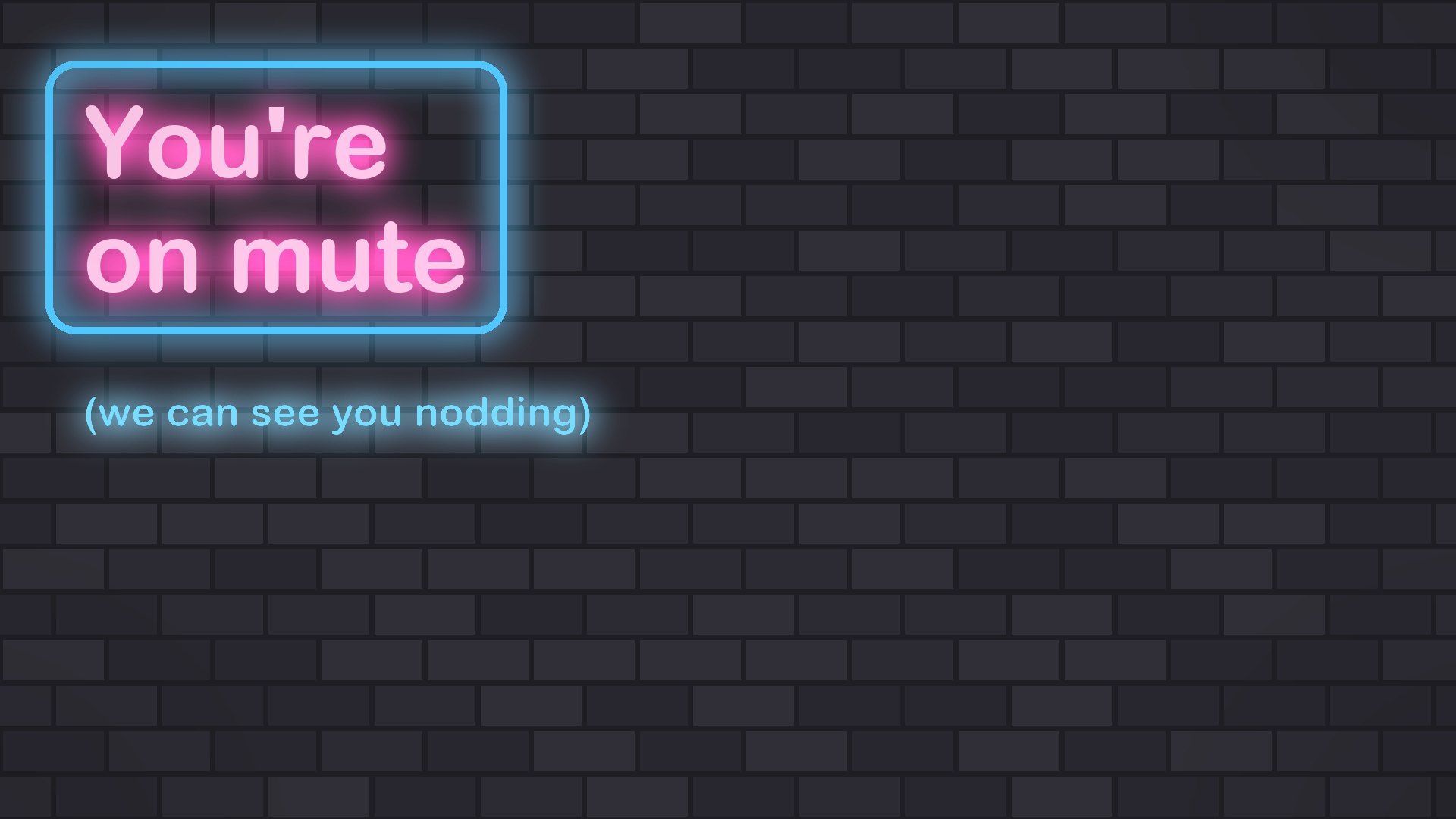 You're on mute. In neon, so nobody has to say it. (We can see you nodding.)
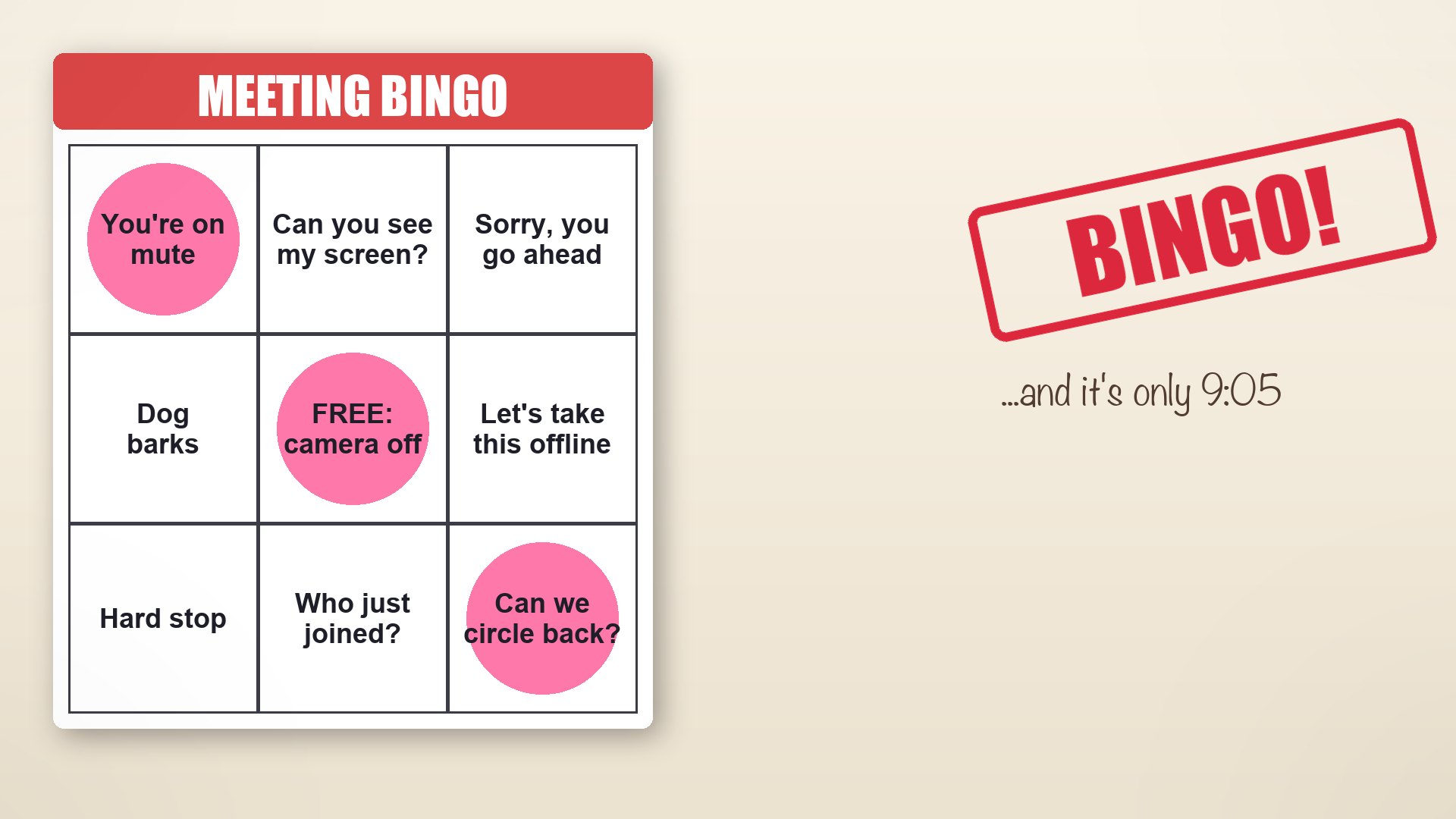 Meeting bingo. You're on mute, dog barks, can we circle back. Bingo, and it's only 9:05.
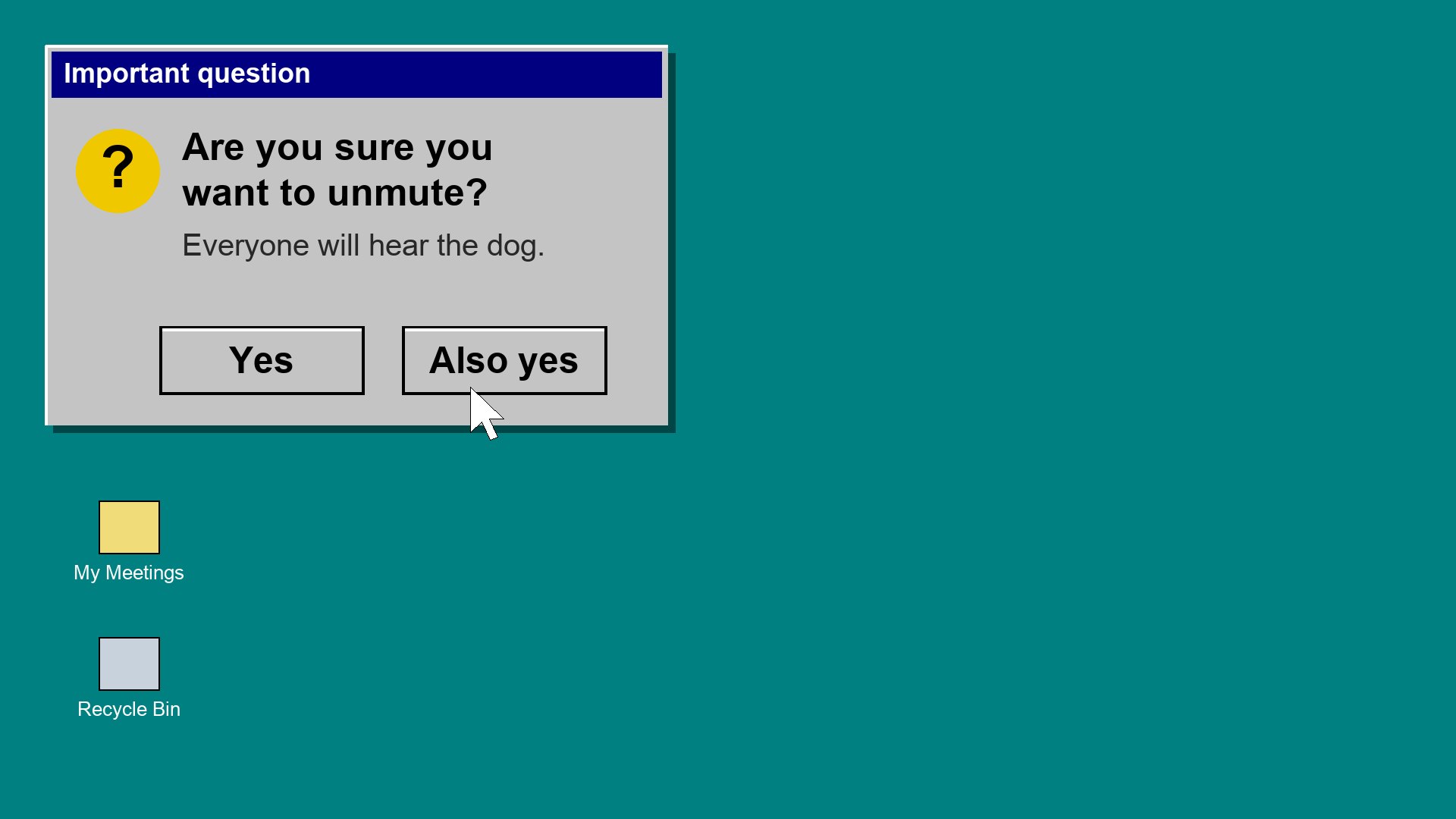 Are you sure you want to unmute? Everyone will hear the dog. Options: Yes, or Also yes.
 Live studio audience. Every status update gets applause. Great for demos and all-hands.
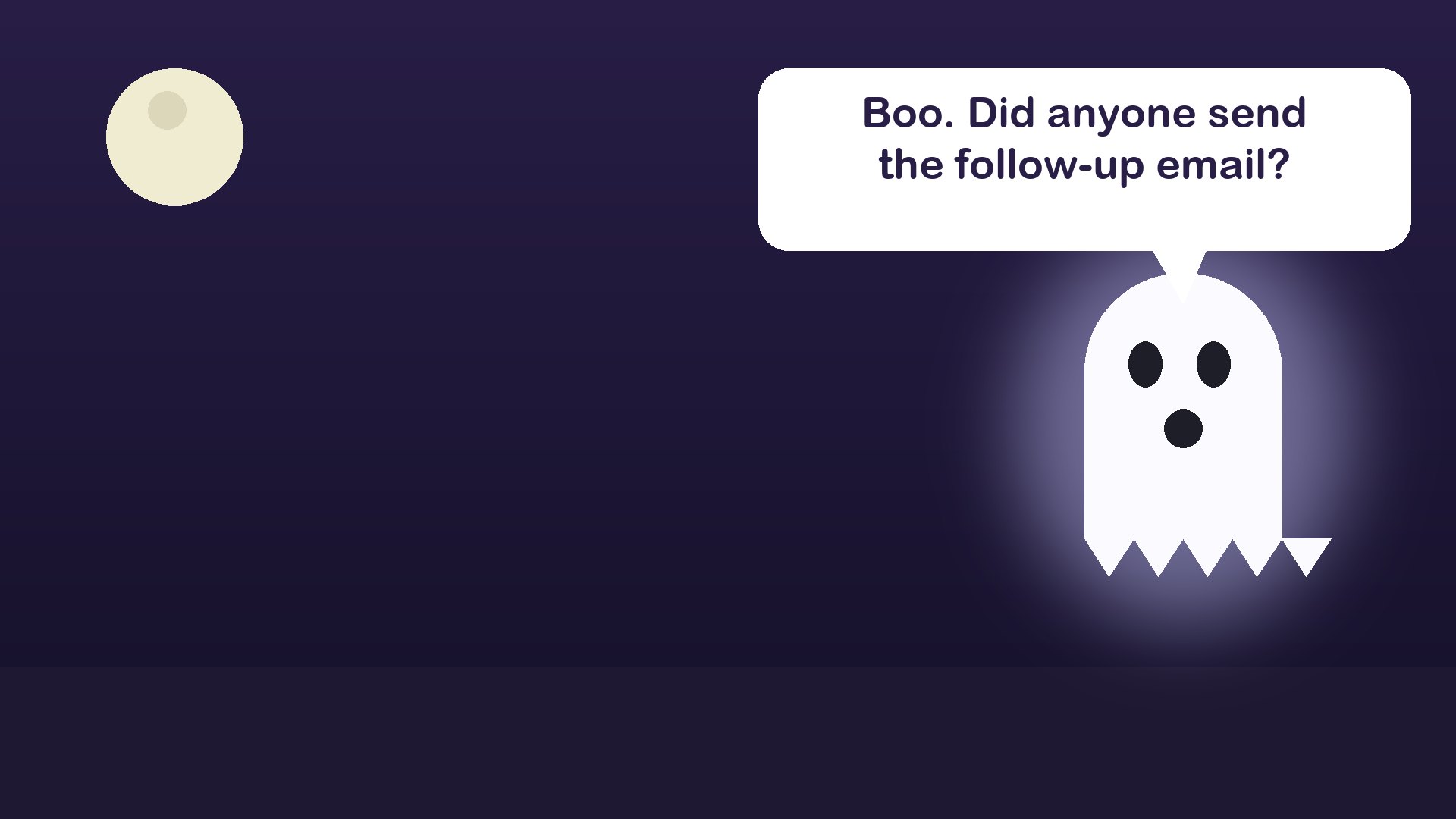 The ghost of meetings past. Boo. Did anyone send the follow-up email?
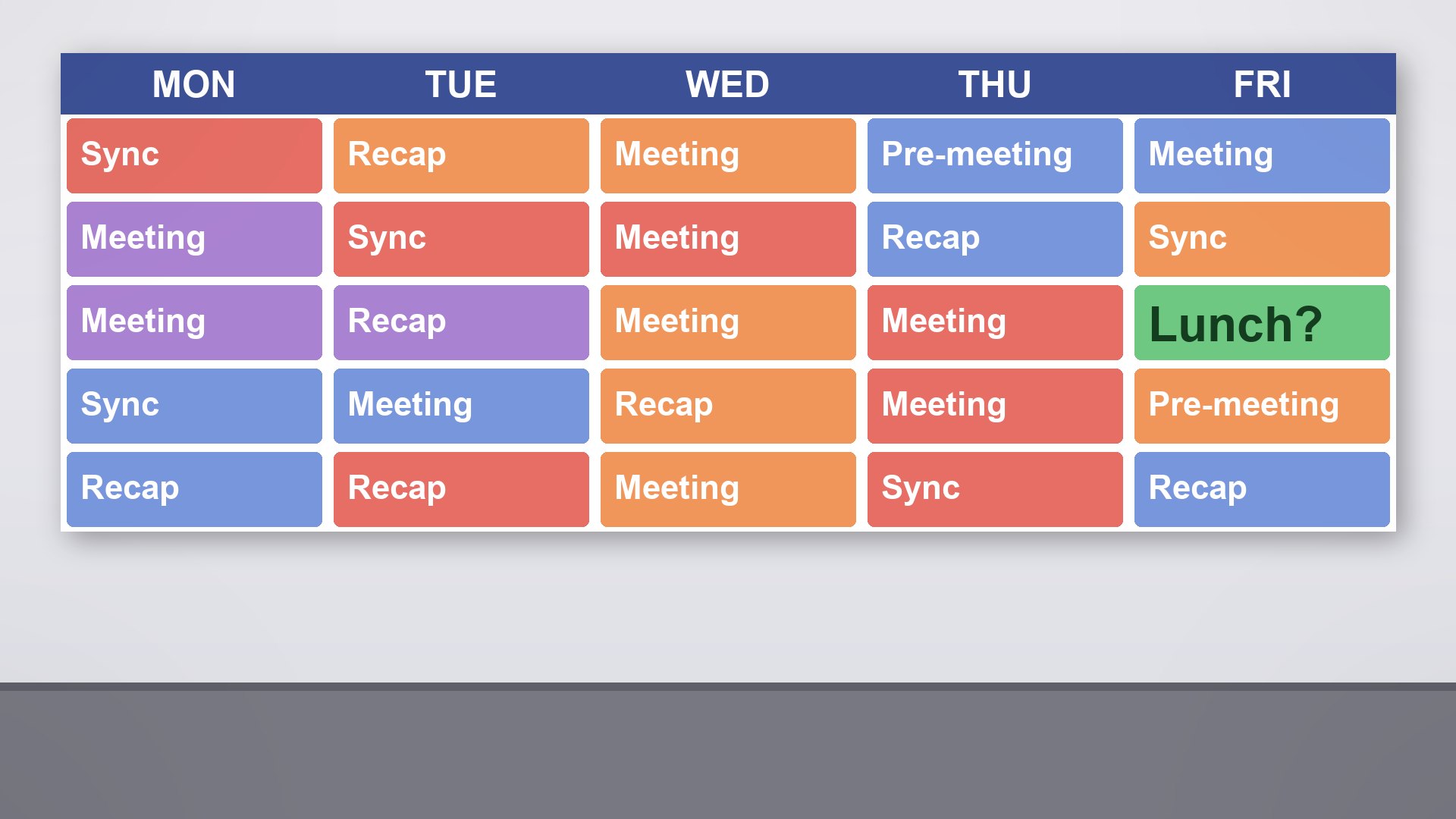 Fully booked. Meeting, sync, recap. One slot on Friday for lunch, with a question mark.
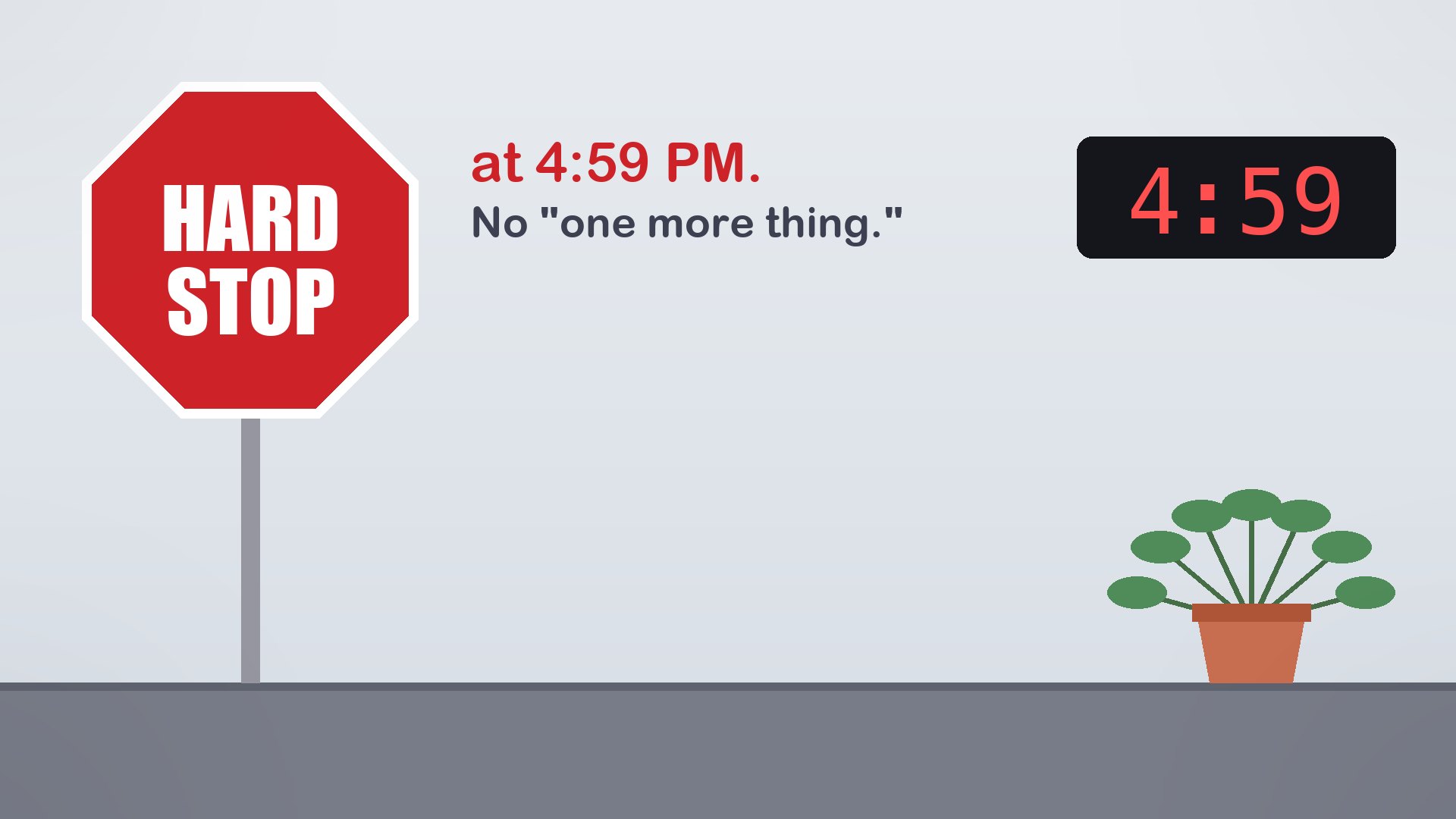 Hard stop at 4:59 PM. No "one more thing."
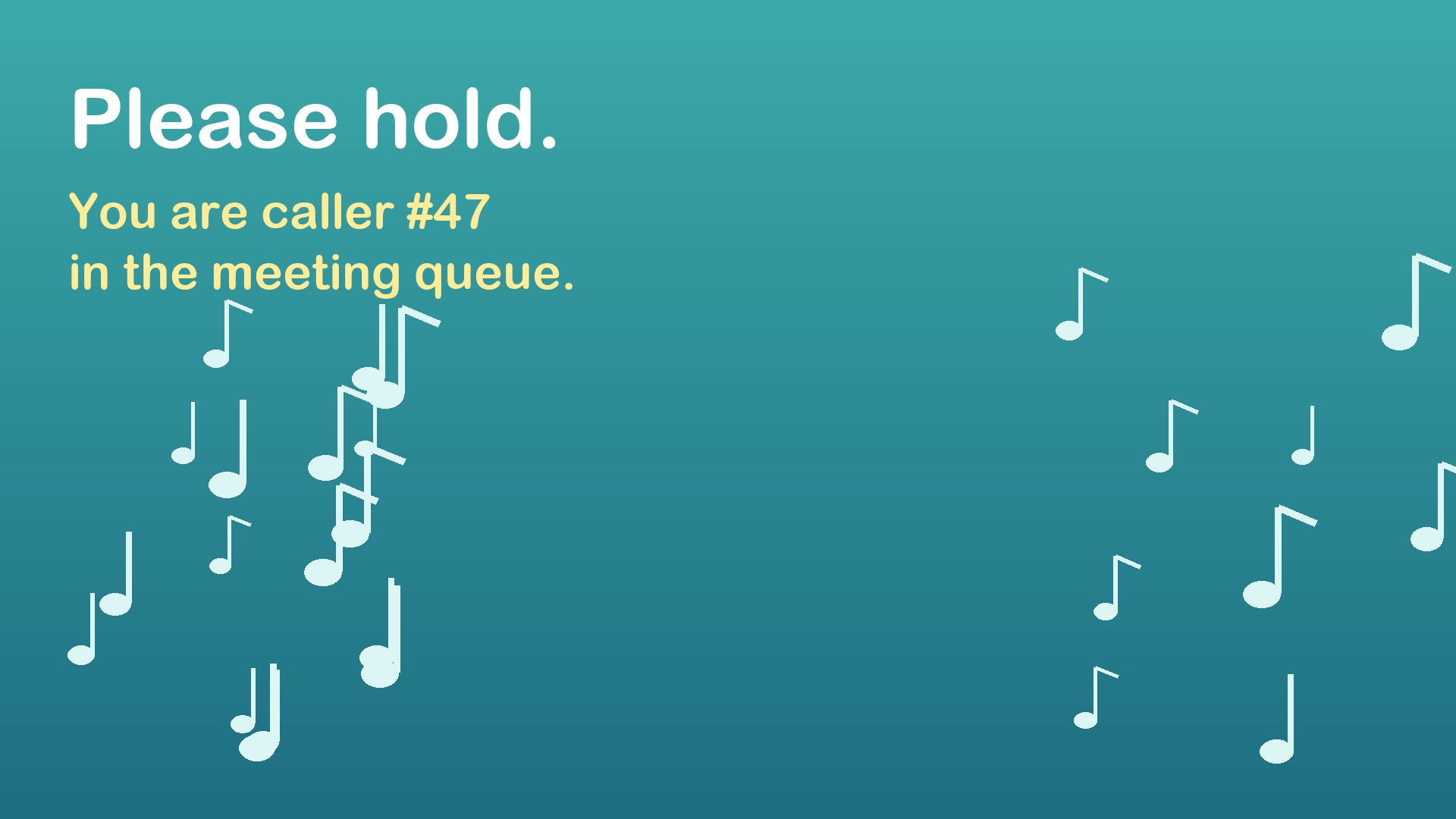 Please hold. You are caller #47 in the meeting queue.
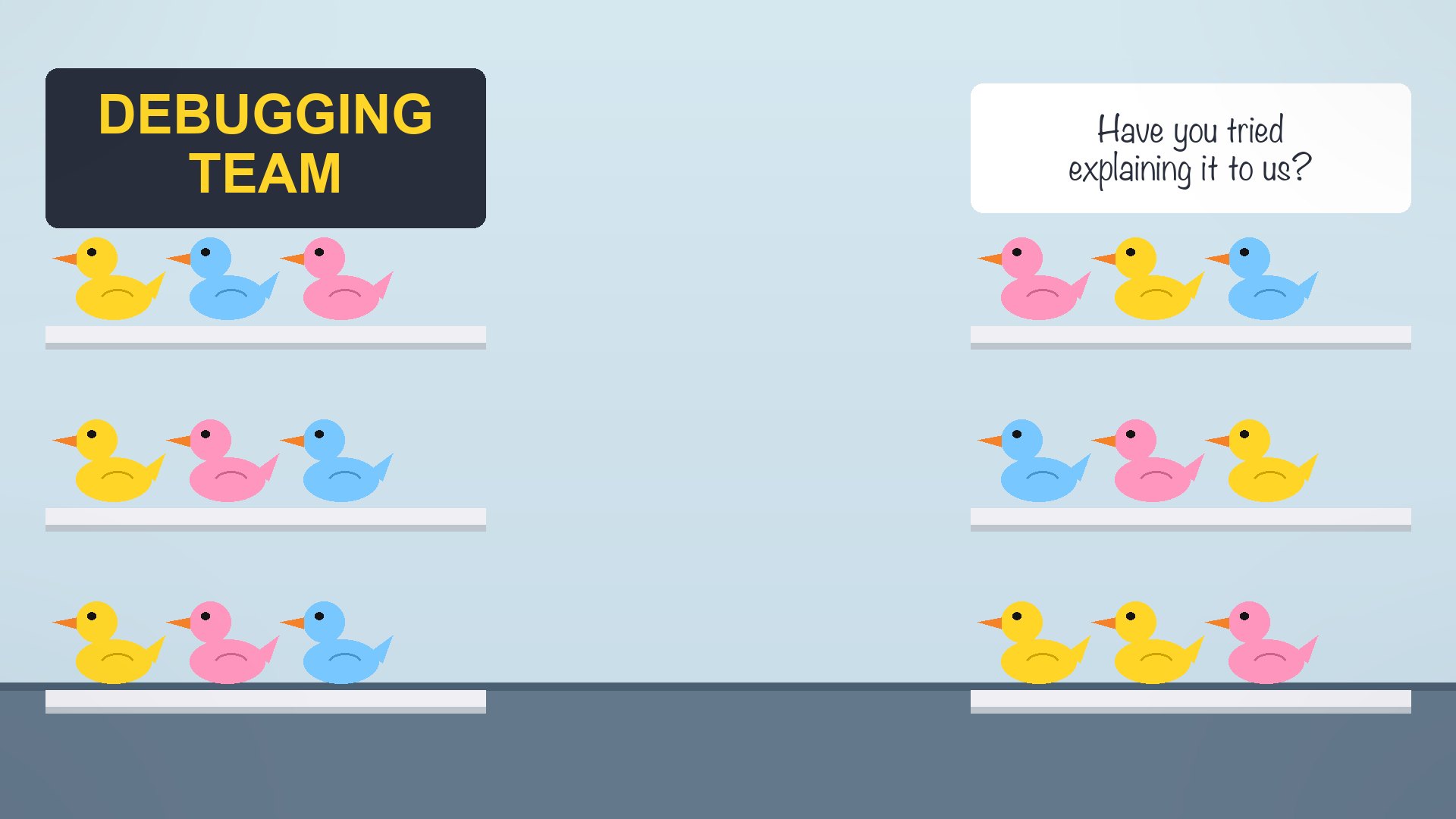 The debugging team. Rubber ducks, listening. Have you tried explaining it to us?
 404: motivation not found. Try again after coffee.
 My most reliable coworkers. They never miss a meeting. They never talk either.
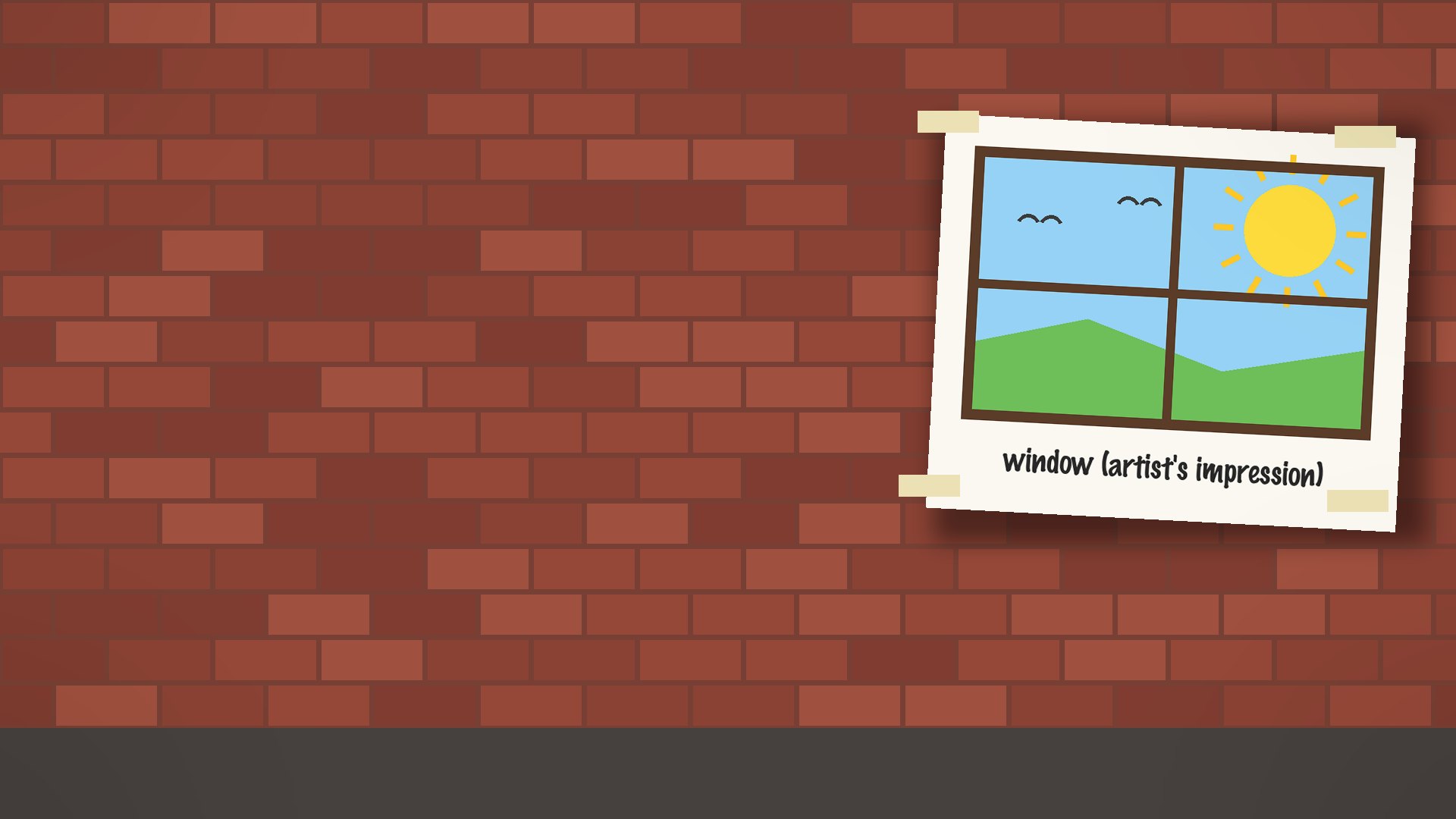 Window (artist's impression). For the basement office with no window. Sunny every day.
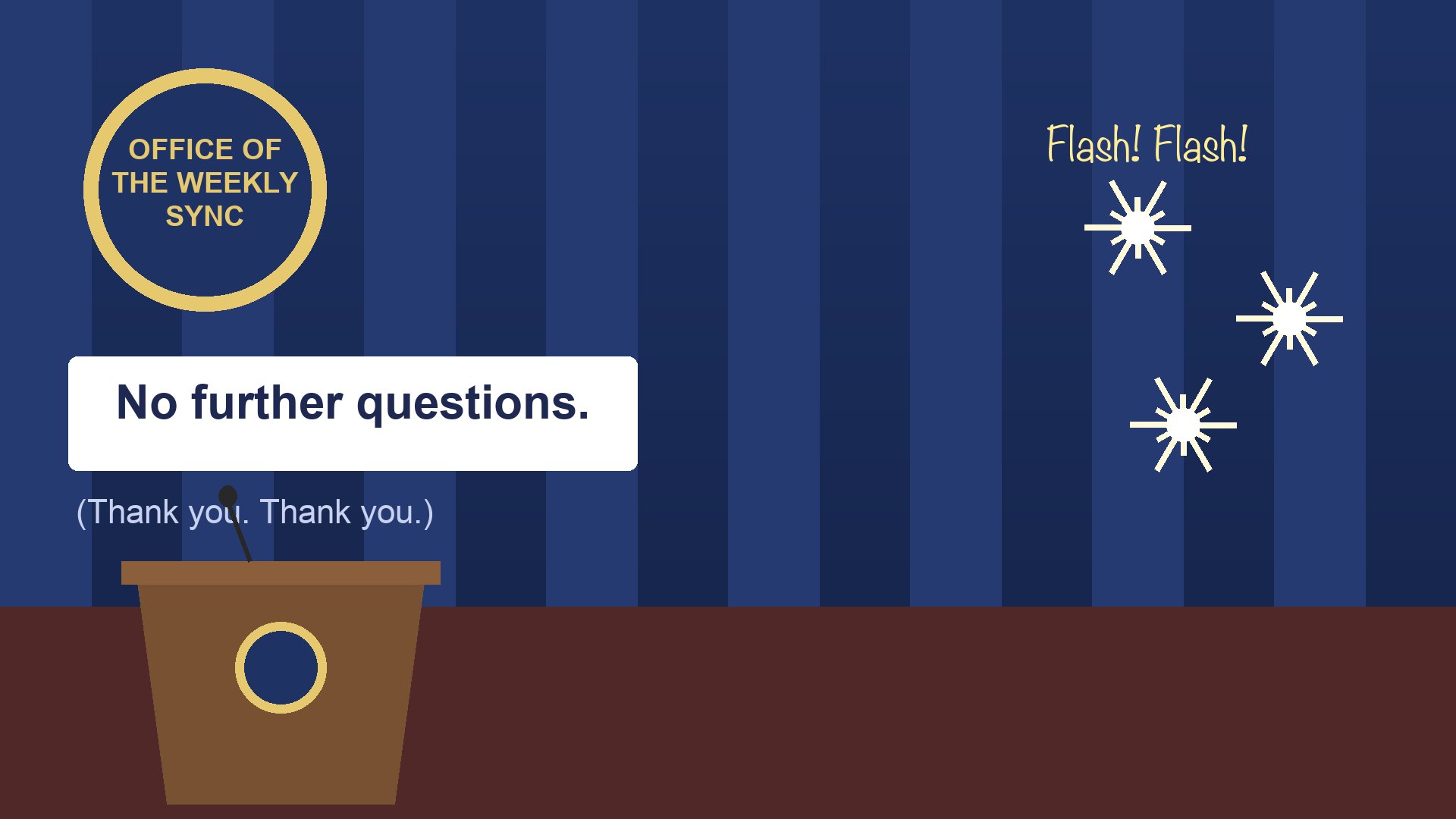 Press briefing. Office of the Weekly Sync. No further questions.
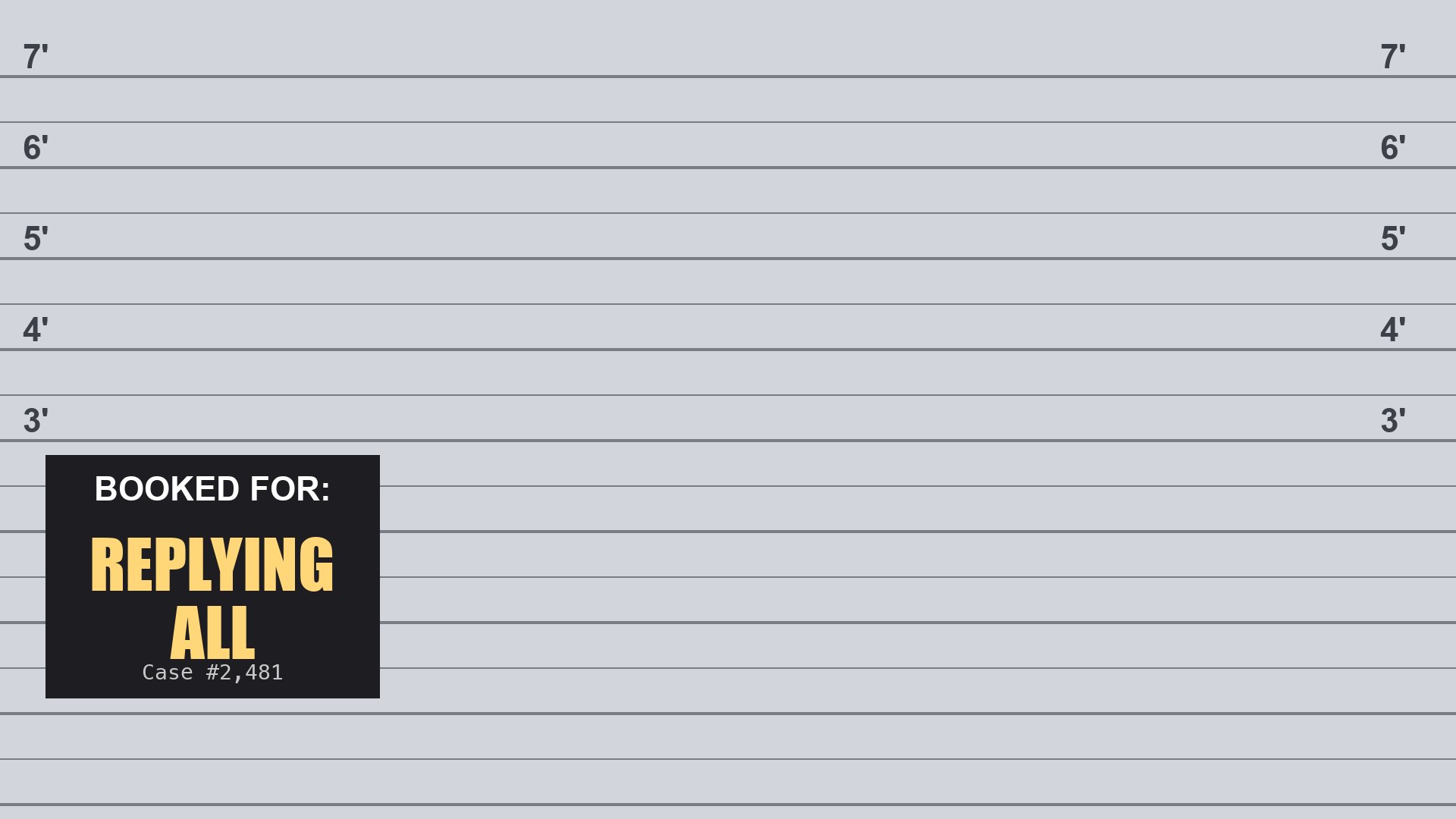 Mugshot. Booked for: replying all. Stand in front of the height chart.
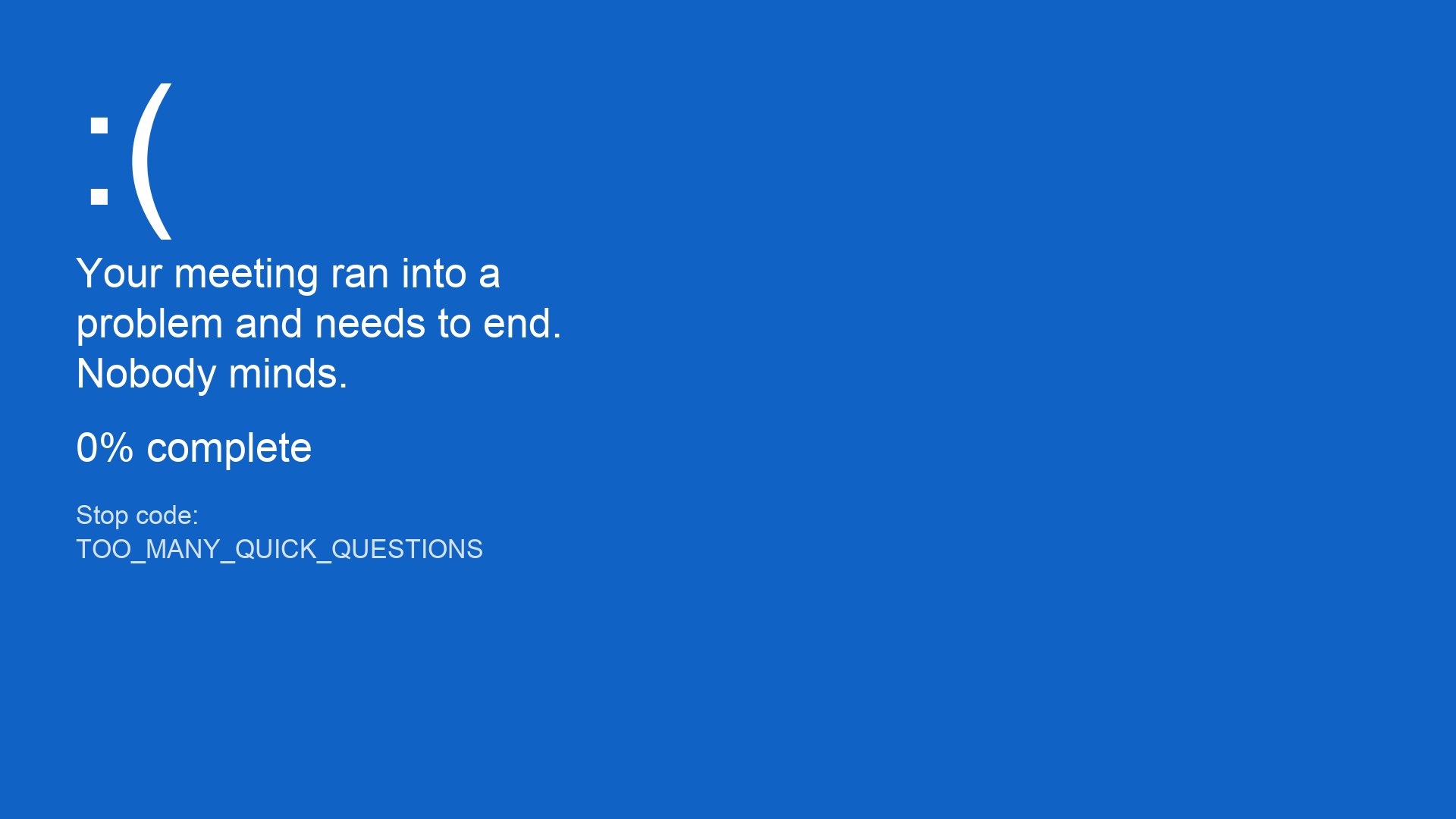 Blue screen. Your meeting ran into a problem and needs to end. Nobody minds.
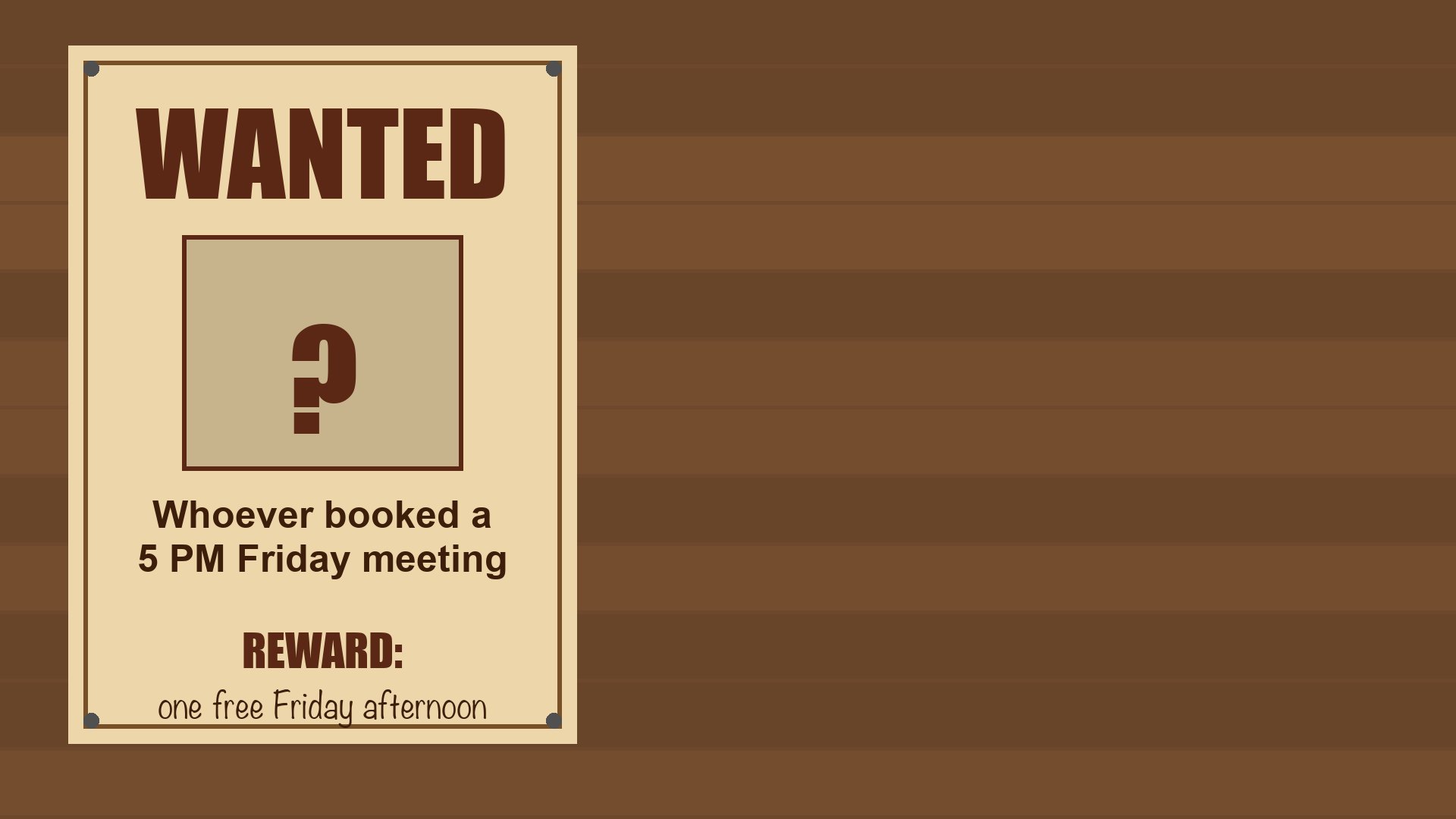 Wanted. Whoever booked a 5 PM Friday meeting. Reward: one free Friday afternoon.
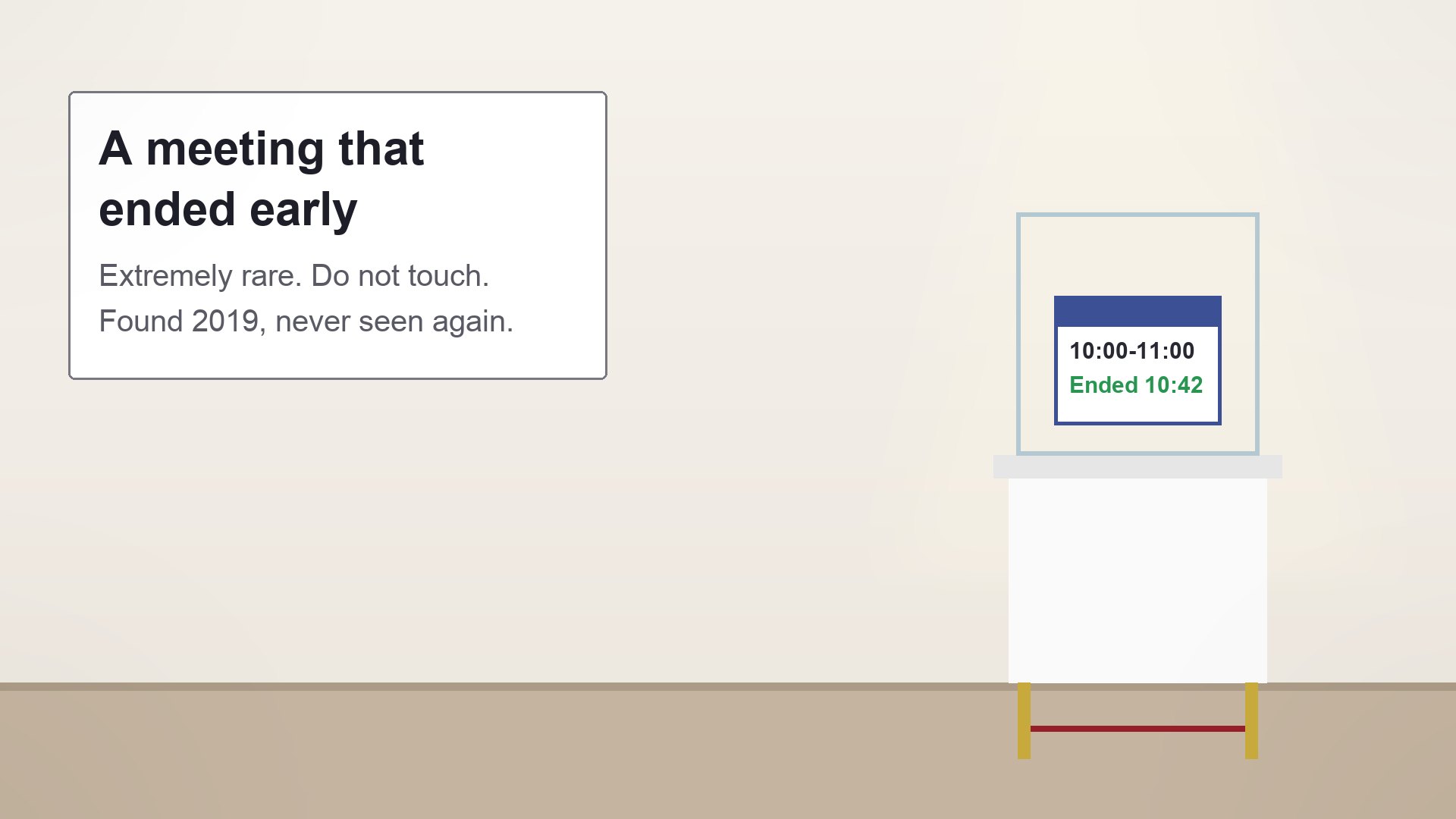 Museum piece. A meeting that ended early. Extremely rare. Do not touch.
 Inhale. Exhale. Unmute. Calm, with a reminder.
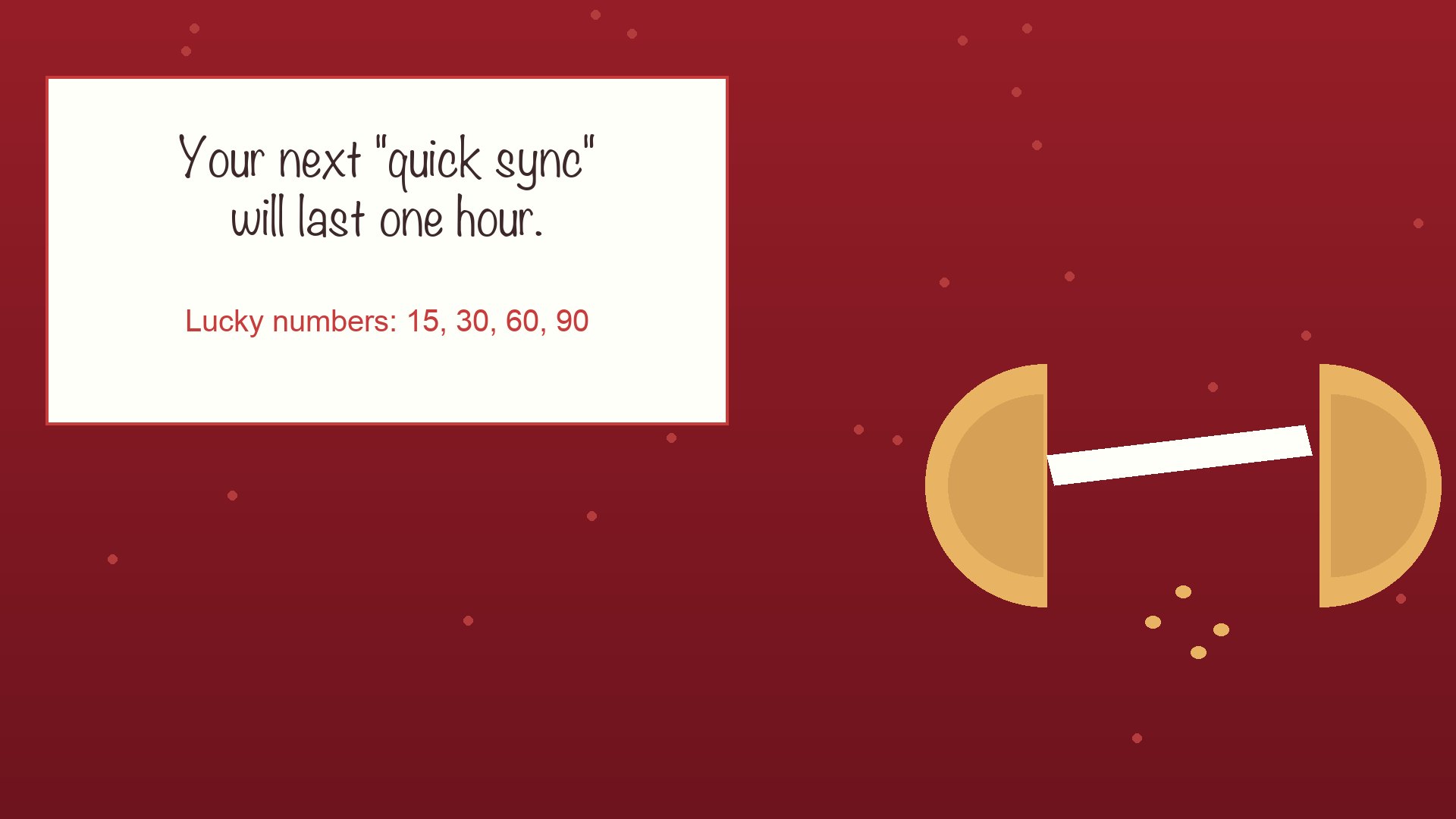 Fortune cookie. Your next "quick sync" will last one hour.
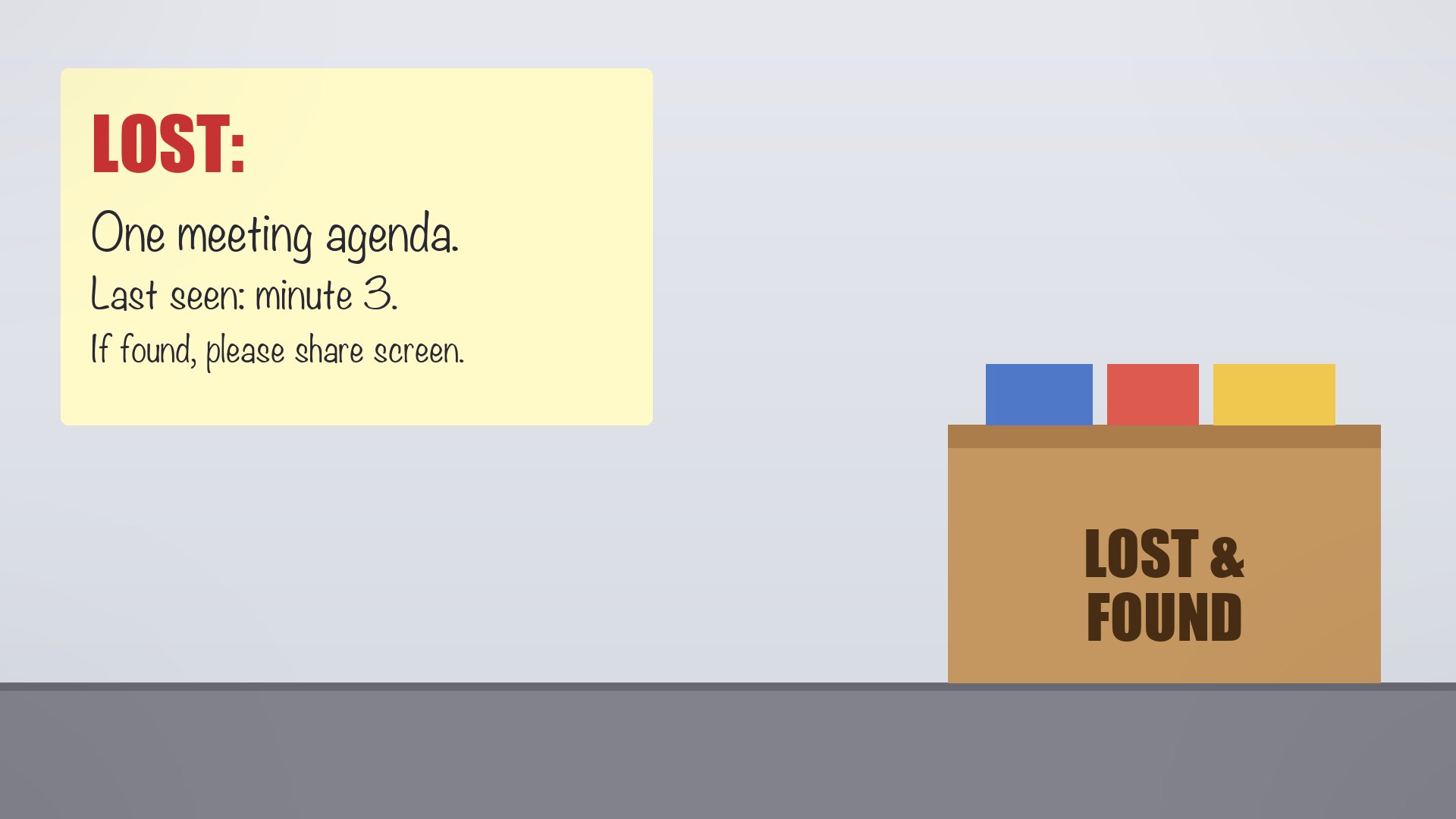 Lost and found. One meeting agenda. Last seen: minute 3.
Free to use. We made all 20 backgrounds, so you can use them in Teams, Zoom or Google Meet, for work, school or fun, without asking and without credit. Please don't sell them.
Which one for which meeting? The plants, the fake window, the ducks and the hold music are safe almost anywhere. "You're on mute", meeting bingo, the unmute dialog, the calendar and the hard stop are best with your own team. The studio audience is made for a demo or an all-hands. For a client call or an interview, use a blur or a plain background instead.
How to add a funny background in Microsoft Teams
Save the image on your computer or phone first. Microsoft says Teams background images must be JPG, PNG or BMP files.
Teams on a computer, before a meeting:
- Join the meeting from your calendar. On the pre-join screen, select Effects and avatars.
- Select More video effects, then Add new.
- Choose the image you saved, select it, and join.
During a meeting:
- Select More actions › Video effects and settings, then Video effects.
- Select Add new and choose the image.
- Select Preview to see how it looks to you, then Apply.
iPhone, iPad or Android: on the pre-join screen, tap Background effects, then Add new to pick an image from your photos, then Done. During a meeting, tap More › Background effects and do the same.
Microsoft says the background you choose stays on in all your meetings and calls until you change it, so remember to switch it before a serious call.
Why the words on your Teams background look backwards
Teams shows you your own video mirrored by default, like looking in a mirror, so any writing on your background reads backwards to you. Microsoft's Teams blog says other people in the meeting see your video unmirrored, so they read the words the right way round.
Don't flip the image. If you'd like to read it yourself, turn off Mirror my video in your device settings.
Tips so a funny background still looks good
- Mind your head. You sit in the middle of the picture, so check with Preview: if your head covers the joke, sit a little lower or move your camera. Most of ours put the words at the top left or to one side.
- Light your face. Teams has to work out where you end and the room starts. A light in front of you, not behind you, and a plain wall behind you give cleaner edges.
- Read the room. A funny background works best when everyone can see you're joking. Because Teams keeps the last background on, switch to a blur before an important call.
Teams background not working?
- On Linux or a virtual desktop. Microsoft says Linux users can't use background effects, and they aren't available in Teams through optimized virtual desktop infrastructure (VDI).
- On Android. Microsoft lists Android 10 or later, a recent Teams app and a supported graphics chip.
- On a work or school account. Microsoft's accessibility guide for Teams admins says an admin can set Participants can use video effects to only background blur, only blur and default images, or all video effects. The first two leave out your own images. Ask your IT team.
- The image looks stretched or cut off. Microsoft doesn't give a size; ours are 1920 by 1080 (16:9), the shape of most laptop cameras.
Funny background, serious notes: Scribbl
This section is about our own product. A funny background makes the meeting more fun. It doesn't help anyone remember what was decided. Scribbl records your Teams meetings from the Teams app on your own Mac or Windows computer, with Scribbl Desktop:
- Nothing joins the call. No bot appears in the participant list next to your rubber ducks.
- It works in any Teams meeting you join, including ones other companies host, because it records from your own computer.
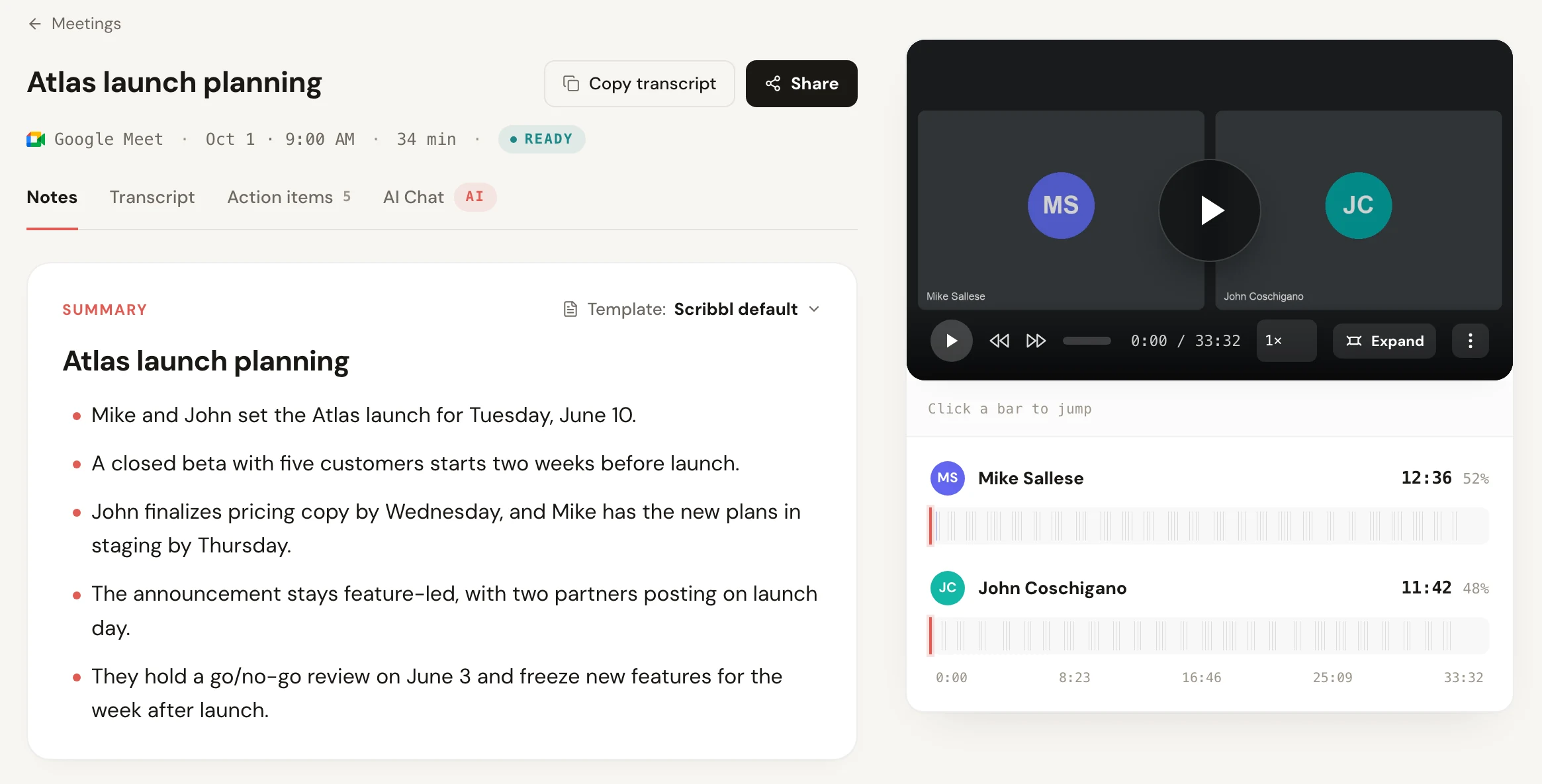
- After the meeting you get the video, a transcript with speaker names, AI notes and action items, so you can enjoy the studio audience and still know who's doing what.
- The free plan includes Microsoft Teams, Zoom and Google Meet, with 10 meetings a month. Pro is $13 per user per month billed annually (pricing).
Tell everyone you're recording before you start; see do you have to tell people you're recording.
Get Scribbl for TeamsMore backgrounds: funny Zoom backgrounds (20 different ones) and Google Meet backgrounds (8 calm ones for work). More Teams how-tos: how to record a meeting in Teams, how to record a Teams meeting on a Mac and Teams record button greyed out.
Funny Teams backgrounds FAQ
Where can I get funny Teams backgrounds for free?
This page has 20 funny Microsoft Teams backgrounds we made ourselves, free to download and use in any meeting, for work or school, with no sign-up and no credit needed. Each one is a 1920 by 1080 JPG. Teams also has its own built-in backgrounds under Video effects.
How do I add a funny background in Microsoft Teams?
Save the image first. Before a meeting, on the pre-join screen select Effects and avatars, then More video effects, then Add new, and choose the file. During a meeting, select More actions, then Video effects and settings, then Video effects, then Add new, Preview and Apply. On a phone, tap Background effects (or More, then Background effects), then Add new and Done.
What image types can I use as a Teams background?
Microsoft says Teams background images must be JPG, PNG or BMP files. The backgrounds on this page are 1920 by 1080 JPGs, which fit a widescreen camera.
Why is the writing on my Teams background backwards?
Teams shows your own video mirrored by default, so text on your background looks backwards to you. Other people in the meeting see it the right way round. You can turn off Mirror my video in your device settings if you want to read it yourself.
Why can't I change my background in Teams?
Microsoft says background effects don't work in Teams on Linux or through optimized virtual desktop infrastructure (VDI). On Android you need a recent Teams app, Android 10 or later and a supported graphics chip. On a work account, an admin can also allow only blur, or blur and Teams' built-in backgrounds.
Can I use a funny background in a work Teams meeting?
Usually, yes, in team meetings and casual calls. For client calls, interviews and anything formal, a blur or a plain background is safer. All 20 backgrounds on this page are work-safe: the jokes are about meetings, not about anyone.
Are these Teams backgrounds free to use?
Yes. We made them, and you can use them in any Teams, Zoom or Google Meet call, for work, school or fun, without asking and without credit. Please don't sell them.
Sources
- Microsoft Support, Change your background in Microsoft Teams meetings: steps before and during a meeting on desktop and mobile, JPG, PNG and BMP files, Linux, VDI and Android requirements, and that your background stays on until you change it. Checked November 25, 2026.
- Microsoft Teams blog, Turn off Mirror my video in Microsoft Teams meetings: your own video is mirrored for you; others see it unmirrored. Checked November 25, 2026.
- Microsoft Learn, Accessibility guide for Microsoft Teams admins: the meeting policy setting Participants can use video effects (only background blur, only background blur and default images, or all video effects). Checked November 25, 2026.
- Scribbl's plans: scribbl.co/pricing.
Try Scribbl
Funny background, serious notes
Scribbl's desktop app records, transcribes, and summarizes your Teams meetings from your own computer. No bot joins the call and you don't need to be the host. Free for 10 meetings a month, no credit card.
Get Scribbl for Teams · It's freeTry Scribbl
Funny background, serious notes
Scribbl's desktop app records, transcribes, and summarizes your Teams meetings from your own computer. No bot joins the call and you don't need to be the host. Free for 10 meetings a month, no credit card.
 Get Scribbl for Teams · It's free