Scribbl records your Google Meet, Zoom and Teams calls and writes the notes. No bot joins. Free for 10 meetings a month. Get Scribbl for Teams
How to Record a Teams Meeting on Mac (Even Without the Record Button)
How to record a Teams meeting on a Mac with Teams' Record button, what to do when it's greyed out, and how Scribbl records it free with notes.
Updated November 18, 2026
The short answer
Tested on October 6, 2026, in Microsoft Teams for Mac on a Microsoft 365 Business Premium work account; Microsoft's recording help page checked October 23, 2026
On a Mac, click More Record and transcribe Start recording, then Confirm, if your Teams account is allowed to record
- Who can press it
- People signed in from the organizer's organization, with a license that includes recording and an admin who allows it. Guests, people from other companies and free Teams can't.
- Where it goes
- Not to your Mac. The recording appears in the meeting chat and is saved to the organizer's OneDrive, in My files › Recordings.
- Mac screen recorder
- Cmd + Shift + 5 records the Teams window. Only on macOS 27 or later can it record the other people's voices, with Include System Audio. No transcript.
- Free, with notes
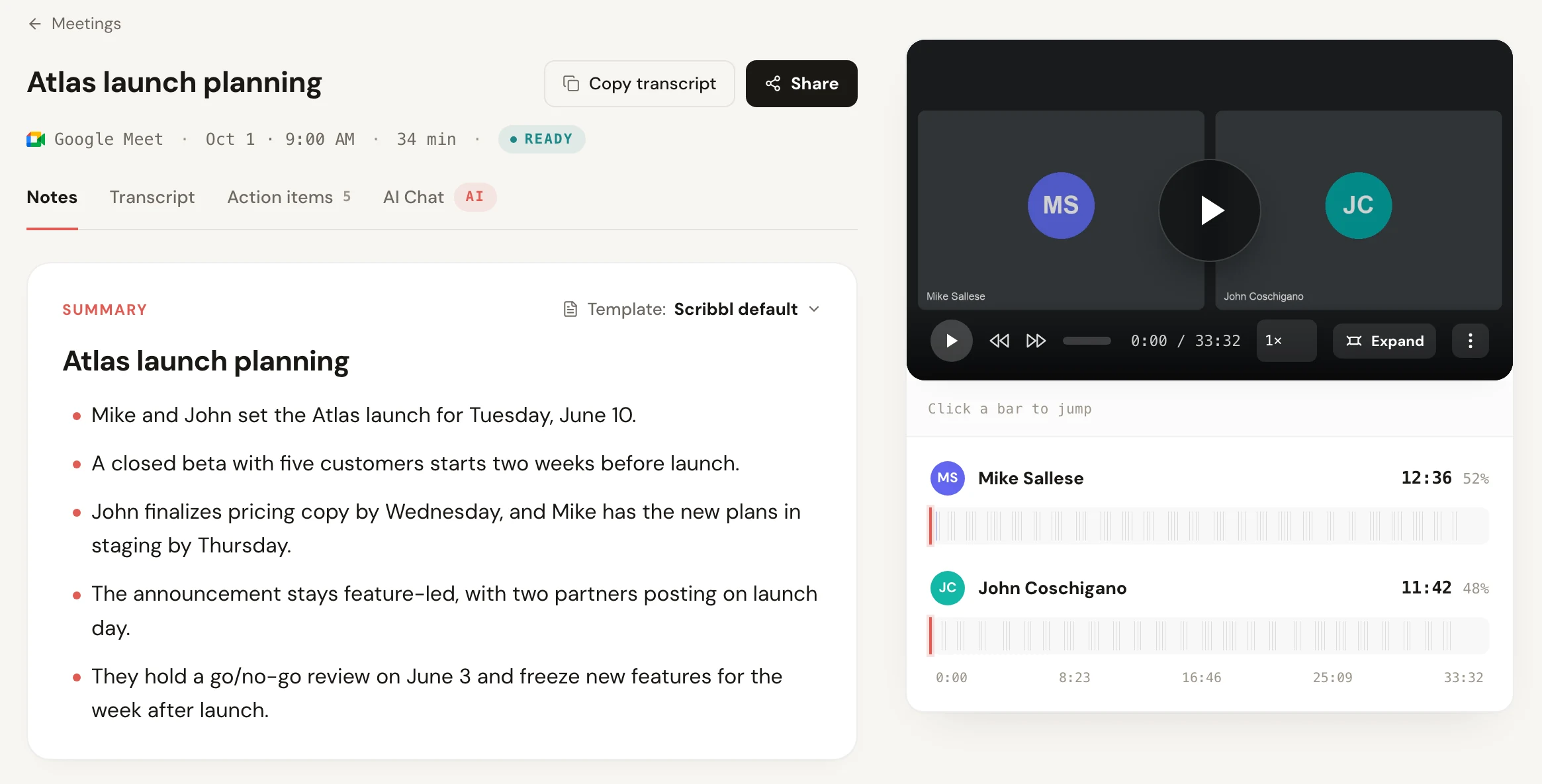
- Scribbl Desktop for Mac records the Teams call with nothing joining it: the video, a transcript with speaker names and AI notes, free for 10 meetings a month. No organizer or admin needed.
Try Scribbl
Record Teams on your Mac, free
Scribbl's desktop app records, transcribes, and summarizes your Teams meetings from your own computer. No bot joins the call and you don't need to be the host. Free for 10 meetings a month, no credit card.
Get Scribbl for Teams · It's freeTo record a Teams meeting on a Mac, click More in the meeting controls, then Record and transcribe, then Start recording, and click Confirm. That's Teams' own recorder, and it only works if you're signed in from the organizer's organization, your license includes recording and your admin allows it. If the button is greyed out, you're a guest, or you also want notes, Scribbl Desktop for Mac records the Teams call from your own Mac with nothing joining it, and gives you the video, a transcript with speaker names and AI notes, free for 10 meetings a month.
This guide is only about the Mac: Teams for Mac's menus, macOS permissions, and where the file ends up. For Windows, the web and phones, see how to record a meeting in Teams. The Teams steps below come from our test on October 6, 2026, in Microsoft Teams for Mac on a Microsoft 365 Business Premium work account.
Three ways to record a Teams meeting on a Mac
| Way to record | Cost | Who can use it | What you get | Where it's saved |
|---|---|---|---|---|
| Scribbl Desktop for Mac (our pick) | Free for 10 meetings a month; Pro $13 per user per month billed annually | Anyone in the call, organizer or not, guest or not | The video, a transcript with speaker names, AI notes and action items | Your Scribbl account |
| Teams' Record button | A Teams license that includes recording | People signed in from the organizer's organization, if the admin allows it | A video and a transcript | The organizer's OneDrive, shown in the meeting chat |
| Mac screen recorder (Cmd + Shift + 5) | Free, built into macOS | Anyone | A video file only; other people's voices only on macOS 27 or later | Your Mac |
Teams rules from Microsoft's recording help page, checked October 23, 2026. Mac screen recording from Apple's How to record the screen on Mac, September 14, 2026. Scribbl pricing as of October 2026.
How to record a Teams meeting on Mac with Teams' Record button
Teams for Mac records in Microsoft's cloud, not on your Mac, so this works the same whether you have a MacBook Air or an iMac. These are the steps from our test in Microsoft Teams for Mac:
- Join the meeting from your Teams Calendar (click the meeting, then Join) or from the invite. On the join screen, pick your microphone and speaker under Computer audio, then click Join now.
- Click More, the ··· button in the meeting controls, between Apps and Camera. Microsoft's help page calls it More actions.
- Hover over Record and transcribe and choose Start recording.
- Pick the language and confirm. Teams opens a dialog titled Start recording and transcription and asks for the Spoken language. Choose the language of the meeting, then click Confirm. Under More options, Microsoft says you can switch Video and audio to Audio only.
- Check it's recording. A red dot appears next to the meeting timer at the top left of the meeting window, and you see a notice: "Recording and transcription. Started by you. Let everyone know they're being included."
- To stop, click More › Record and transcribe › Stop recording, then Stop. To end the meeting for everyone, click the arrow next to Leave, then End meeting.
Starting a recording starts the transcript too. The recording keeps going if the person who started it leaves, and stops on its own once everyone leaves.
To have Teams start recording on its own, turn on Record and transcribe automatically under Options when you schedule the meeting in the Teams calendar. It was off by default on our Business Premium account.
Who can use the Record button on a Mac
Your Mac doesn't decide this. Your Teams account does. According to Microsoft, you can start or stop a recording if:
- You have one of these licenses: Office 365 Enterprise E1, E3, E5 or F3, A1, A3 or A5, or Microsoft 365 Business, Business Premium or Business Essentials.
- Your IT admin has turned recording on for you, and for the organizer.
- You're not a guest, and not from another organization.
| Who you are in the meeting | Can start recording? |
|---|---|
| Organizer | Yes |
| Someone from the organizer's organization | Yes, if the admin allows it |
| Someone from another organization | No |
| Guest | No |
| Joined without signing in | No |
| Free Teams for personal use | No |
The organizer doesn't need to be in the meeting. On a personal account, recording needs Microsoft 365 Personal, Family or Premium; free Teams can't record, and its meetings end at 60 minutes.
When Record is greyed out or you're a guest
On a Mac, the most common surprise is that Record and transcribe isn't in the More menu at all. In our test, the person who joined without signing in had only Meeting info, Devices, Video effects and settings, Captions, Don't show chat bubbles and Accessibility there. If you're in the organizer's organization, leave and join again signed in with your work account in Teams for Mac.
If Start recording is there but greyed out, hover over it. Microsoft says Teams shows the reason:
| What Teams says | What it means |
|---|---|
| Only people in this org can start recording | You're a guest or from another organization |
| Unavailable for this meeting due to organization policy | Your admin hasn't turned recording on for you |
| Unavailable in this meeting | The organizer isn't allowed to record, so nobody can |
| Only meeting organizer and co-organizer can start recording | The organizer limited recording with Teams Premium |
| Only meeting organizers and presenters can start recording | You're an attendee, not a presenter |
| Unavailable because the meeting organizer has disabled recording | The organizer set who can record to No one |
| Unavailable because Copilot is turned off for this meeting | Turning Copilot off also turns recording off |
None of these can be fixed from your Mac's settings. You can ask the organizer, or someone from their organization, to record and share the recording with you. Or record from your own Mac, below. That's what most people mean by recording a Teams meeting on a Mac without permission: Teams' permission isn't needed. For every case across Zoom, Google Meet and Teams, see how to record a meeting when you're not the host.
Record a Teams meeting on Mac free with Scribbl
Scribbl Desktop records your meetings in the Teams app on your own Mac. It doesn't use Teams' Record button, so it works when you're a guest, from another company, on free Teams, or when your admin has turned recording off. Nothing joins the call, so there's no extra participant for the lobby to hold; Teams has started holding external note taker bots in the lobby, as covered in does Microsoft Teams block AI note taker bots.
- Download Scribbl Desktop for Mac from scribbl.co/desktop, drag it to Applications, open it and sign in. The free plan needs no credit card.
- Allow the macOS permissions it asks for. In System Settings › Privacy & Security, allow Scribbl under Microphone (your voice) and Screen & System Audio Recording (the other people's voices). macOS may ask you to quit and reopen the app once.
- Join your Teams meeting in Teams for Mac as usual. In our test, Scribbl started on its own when the meeting began: its small window showed Starting, then Capturing, with nothing to click.
- Open the meeting in Scribbl when it ends. The video, a transcript with speaker names, AI notes and action items are there.
What you get after every Teams meeting:
- The full video, with a timeline of who spoke when.
- A searchable transcript with speaker names and timestamps.
- AI notes: a summary, decisions and action items.
- Your Zoom and Google Meet meetings in the same place. Scribbl Desktop records Zoom on your Mac too, and the Chrome extension records Google Meet.
What it needs: a Mac with Apple silicon (M1 or newer). The free plan includes Google Meet, Zoom and Microsoft Teams, with 10 meetings a month. Pro is $13 per user per month billed annually, or $20 monthly. Recordings are private by default. For other free options on a Mac, see the free AI note taker for Mac comparison, and for Teams in particular, our Microsoft Teams AI note taker page.
Get Scribbl for MacScreen record a Teams meeting with the Mac screen recorder
Every Mac has a screen recorder built in. It records whatever is on your screen, so Teams doesn't need to allow it. These are Apple's steps:
- Start or join the Teams meeting in Teams for Mac.
- Press Cmd + Shift + 5.
- Choose to record the entire screen or a selected window, and pick the Teams meeting window.
- Click Options. On macOS 27 or later, choose Include System Audio so the other people's voices are recorded.
- Click Record. Stop when the meeting ends.
| Your macOS | What gets recorded |
|---|---|
| macOS 27 or later | The Teams window with the other people's voices (Include System Audio) |
| Earlier macOS | Only your microphone; the other people come out faint or not at all |
On earlier versions, getting both sides means extra audio software, such as the free BlackHole virtual audio device or OBS Studio; our guide to recording Google Meet audio walks through the Mac setup, and it works the same way for Teams. Before a meeting that matters, make a short test call and listen back.
What you get is a screen video and nothing else: no transcript, no speaker names, no notes, and a large file on your Mac. If you only need the sound, open the video in QuickTime Player and choose File › Export As › Audio Only.
Where Teams recordings go when you record on a Mac
Teams' recording isn't saved on your Mac. It goes to Microsoft's cloud:
| Meeting type | Where the recording is saved |
|---|---|
| Scheduled or Meet now meeting | The organizer's OneDrive, in My files › Recordings |
| Channel meeting | The channel's SharePoint site |
| 1:1 or group call | The OneDrive of the person who clicked Record |
| Teams for personal use | The meeting chat, for 30 days |
In Teams for Mac, open Chat, select the meeting's chat, then Recap. In our test the chat showed Saving... for about a minute after the meeting ended. Our file in OneDrive was named Atlas launch planning-20261006_100044-Meeting Recording.mp4.
To get the file onto your Mac: in Recap, click Watch in browser, then Download in the web player's toolbar. Recap itself has no Download button. Microsoft says only the organizer can download a recording by default. On work and school accounts, recordings expire after 120 days by default; the organizer can click Expires in 120 days under the video and choose Remove expiration. More in where do Teams recordings go.
How to get a transcript of a Teams meeting on a Mac
Recording with Teams' button starts the transcript automatically, or click More › Record and transcribe › Start transcription for a transcript without video. Afterwards, open the meeting chat, then Recap › Transcript. Your admin has to allow transcription. Full steps in Teams transcription. The Mac screen recorder gives no transcript; Scribbl writes one with speaker names, plus AI notes, after every Teams meeting it records.
Do you need permission to record a Teams meeting on a Mac?
When Teams records, it tells everyone: Microsoft says every participant gets a notification in their Teams desktop, web or mobile app, and the red dot appears next to the meeting timer. Recorders on your own Mac, like the screen recorder or Scribbl, don't trigger that notice. Microsoft's own help page says that, depending on your region, you may need everyone's permission before you record them. In the US, most states require only one person on the call to agree, but some, including California, require everyone's agreement. See is it illegal to record a conversation. This isn't legal advice.
To record every Teams meeting you're in on your Mac, organizer or not, with the video, a transcript and AI notes waiting when it ends: get Scribbl Desktop, free for 10 meetings a month. Recording Zoom too? Here's how to record a Zoom meeting.
FAQ
How do I record a Teams meeting on a Mac?
In the meeting, click More (the ··· button between Apps and Camera), then Record and transcribe, then Start recording, and click Confirm. A red dot appears next to the meeting timer at the top left. This works only if you're signed in from the organizer's organization, your license includes recording and your admin allows it. Otherwise, use Scribbl Desktop for Mac, which records the Teams call with nothing joining it, free for 10 meetings a month.
Why is the Record button greyed out in Teams on my Mac?
The Mac isn't the reason. Teams' recording depends on your account: you may be a guest or from another organization, your admin may have turned recording off, the organizer may have limited who can record or turned Copilot off, or you may be on free Teams. Hover over Start recording and Teams shows the reason. If Record and transcribe is missing from the More menu altogether, you probably joined without signing in.
Where do Teams recordings go on a Mac?
Not to your Mac. Teams saves the recording to the organizer's OneDrive, in My files › Recordings, and posts it in the meeting chat. Channel meetings go to the channel's SharePoint site. To keep a copy on your Mac, open the recording in the web player with Watch in browser and click Download; Microsoft says only the organizer can download it by default.
Can I record a Teams meeting on a Mac without permission from the organizer?
Not with Teams' own Record button unless you're in the organizer's organization and your admin allows it. A recorder on your own Mac, such as Scribbl Desktop or the Mac screen recorder, doesn't need anyone's permission in Teams, and Teams shows no recording notice for it. Tell everyone you're recording, and check the consent rules where you and they are.
Does the Mac screen recorder record Teams audio?
Only on macOS 27 or later, where you press Cmd + Shift + 5, click Options and choose Include System Audio. On earlier versions it only records your microphone, so the other people's voices come out faint or not at all unless you add extra audio software. Either way you get a video file and no transcript.
What do I need to allow on my Mac to record a Teams meeting with Scribbl?
The first time you open Scribbl Desktop, macOS asks you to allow it under Microphone, and under Screen and System Audio Recording, in System Settings › Privacy & Security, so it can hear the other people as well as you. macOS may ask you to quit and reopen the app once. Scribbl Desktop needs a Mac with Apple silicon, M1 or newer.
Is there a free way to record a Teams meeting on a Mac?
Yes. Scribbl's free plan records 10 meetings a month across Google Meet, Zoom and Microsoft Teams, and gives you the video, a transcript with speaker names, AI notes and action items. Nothing joins the call and you don't need to be the organizer. Free Teams itself can't record meetings; that needs Microsoft 365 Personal, Family or Premium, or a work or school license.
How we checked
The Teams for Mac steps, menus and messages come from real meetings we recorded in Microsoft Teams for Mac on October 6, 2026, on a Microsoft 365 Business Premium account, with a second person who joined from a browser without signing in. Licenses, roles and the greyed-out messages come from Microsoft's own pages; the recording help page was checked October 23, 2026, and the others October 19, 2026. Mac screen recording comes from Apple's page, published September 14, 2026. The macOS permissions for a Mac note taker come from our Mac note taker guide, checked October 7, 2026.
- Microsoft Support: Start, stop, and find meeting recordings in Microsoft Teams
- Microsoft Support: I can't record a meeting in Microsoft Teams
- Microsoft Support: Play, share, and download meeting recordings in Microsoft Teams
- Microsoft Learn: Teams meeting recording and transcript storage and permissions in OneDrive and SharePoint
- Apple: How to record the screen on Mac
- Apple: Export movies in QuickTime Player on Mac
- Scribbl: pricing and Scribbl Desktop
Try Scribbl
Record Teams on your Mac, free
Scribbl's desktop app records, transcribes, and summarizes your Teams meetings from your own computer. No bot joins the call and you don't need to be the host. Free for 10 meetings a month, no credit card.
Get Scribbl for Teams · It's freeTry Scribbl
Record Teams on your Mac, free
Scribbl's desktop app records, transcribes, and summarizes your Teams meetings from your own computer. No bot joins the call and you don't need to be the host. Free for 10 meetings a month, no credit card.
 Get Scribbl for Teams · It's free