Why Companies Block AI Meeting Bots (2026): IT's Reasons, What Still Works, and How to Ask
Why IT teams block AI note-taker bots in Teams, Zoom and Meet, with Microsoft's and Zoom's own controls, what still works without a bot, and how to ask IT.
Updated October 19, 2026
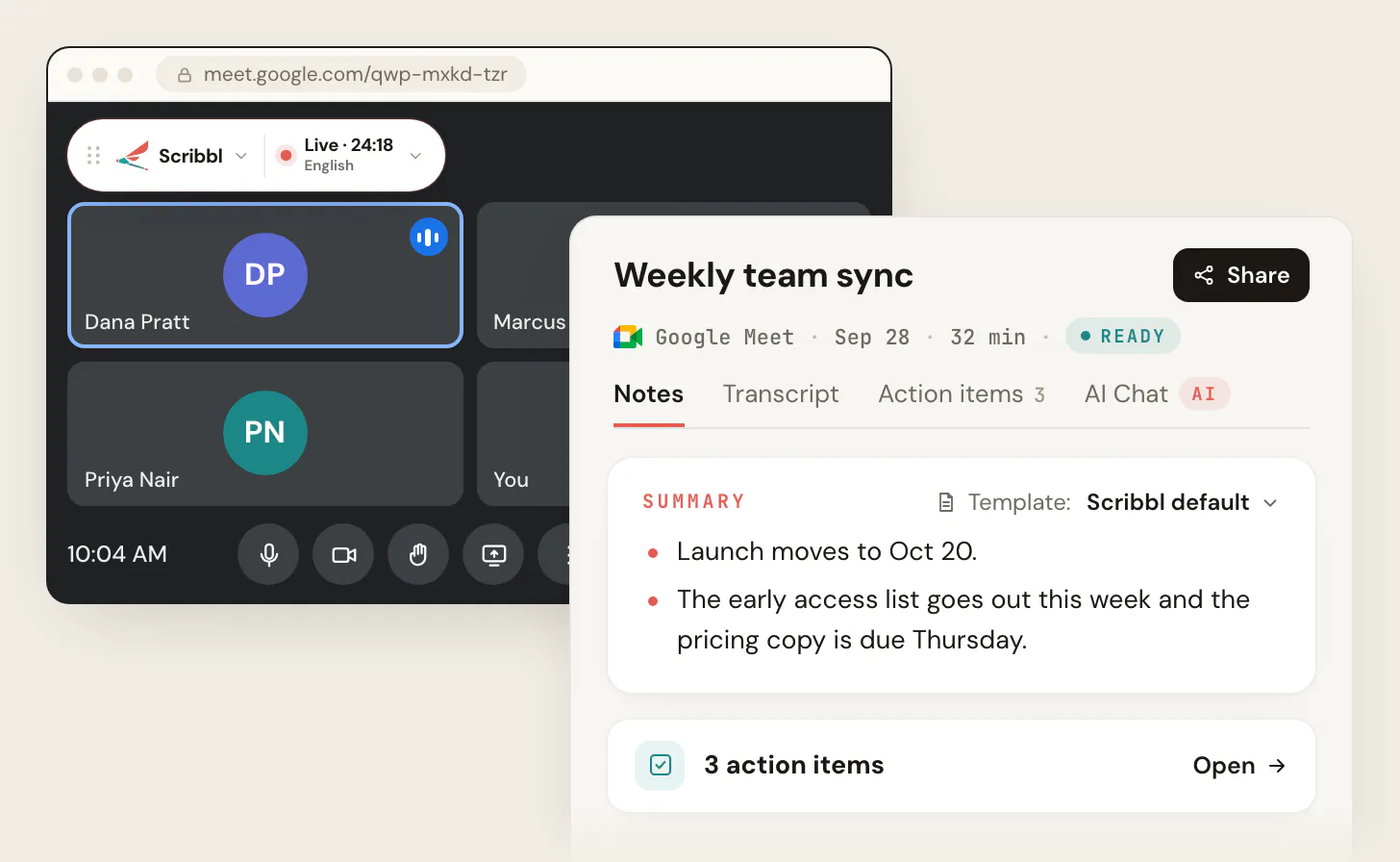
Companies block AI meeting bots because a bot is an outside participant that records the meeting and sends it to a system the company doesn't control, usually without the host deciding it should. If you need notes in meetings where bots are turned away, Scribbl works because nothing joins the call: it takes notes from your own computer on Google Meet, Zoom and Microsoft Teams, you don't need to be the host, and you still get the video, a transcript with speaker names, AI notes and action items. Start free.
This page gives IT's reasons in their own words, from Microsoft's and Zoom's admin pages and from reporting on the policies, then what still works and how to ask. We make Scribbl. Every claim is linked to its source, checked on October 19, 2026.
The reasons IT teams give
Microsoft's admin page for the Teams bot policy puts the case in three bullets. External meeting assistant tools "may also introduce security and compliance risks when they access meetings without the organizer's awareness or consent," and these bots may (Manage external bots and their access to meetings, Microsoft Learn, updated July 2026):
- "Record or transcribe meetings without participant awareness."
- "Store meeting data in third-party systems outside of the organization's compliance boundaries."
- "Introduce compliance, privacy, and data leakage risks."
Behind those bullets are four things IT sees in practice.
1. The host didn't choose the bot. Bot note takers join from an attendee's calendar. Otter's help center says its Notetaker joins Zoom, Google Meet and Teams meetings "as a guest participant and will be visible in the meeting," and that it can be set to join every calendar event with a meeting link (Otter Notetaker overview). Fathom's help page says its Notetaker joins the call as a separate participant, as an outside guest (Fathom for Microsoft Teams). Read's page says Read "will join your next Teams call as a participant" (Read AI for Teams). The host's first chance to say no is the lobby.
2. A recording the company can't manage. Once a bot has the meeting, the audio and transcript live in that vendor's account, under that attendee's login. Analysts quoted by Computerworld in July 2026 make the point from the company's side: Gartner's Nader Henein recommends one note taker per meeting, controlled by the meeting owner; Greyhound Research's Sanchit Vir Gogia says transcripts become searchable corporate records that can hold sensitive information; Conifers.ai's Tom Findling says "the real risk shows up later, when a normal meeting turns into M&A, legal, HR, or board-level discussion" and recommends blocking external note takers by default in those meetings (Computerworld, July 1, 2026).
3. Consent. Some places require everyone's consent to record. A bot that joins because of one attendee's calendar setting has recorded before anyone asked. Microsoft's page says organizers are "reminded about the risk of admitting bots" so they aren't admitted by mistake. For the rules by place, see do you have to tell people you're recording.
4. Training and terms. BlueCross BlueShield of South Carolina told the people who sell its plans on May 14, 2026 that AI note-taking was prohibited "effective immediately," naming Otter.ai, Fireflies and Grain. The notice says "third-party AI note-taking assistants threaten our commitment to data security": its sessions include trade secrets and compliance protocols, and such tools usually store audio and transcripts on third-party cloud servers, where vendor terms may allow use for model training. They were told to turn off auto-join, and anyone seen using one would be removed from the session (BlueCross BlueShield of South Carolina).
How companies block bots today
Microsoft Teams: the lobby, and soon an outright block
Teams detects external bots when they try to join, using what Microsoft calls infrastructural and behavioral signals, and the default policy, When detected, require approval before joining, keeps them in the lobby "irrespective of the lobby configuration for the meeting" until an organizer admits them. Microsoft recommends letting only organizers and co-organizers admit from the lobby (Microsoft Learn).
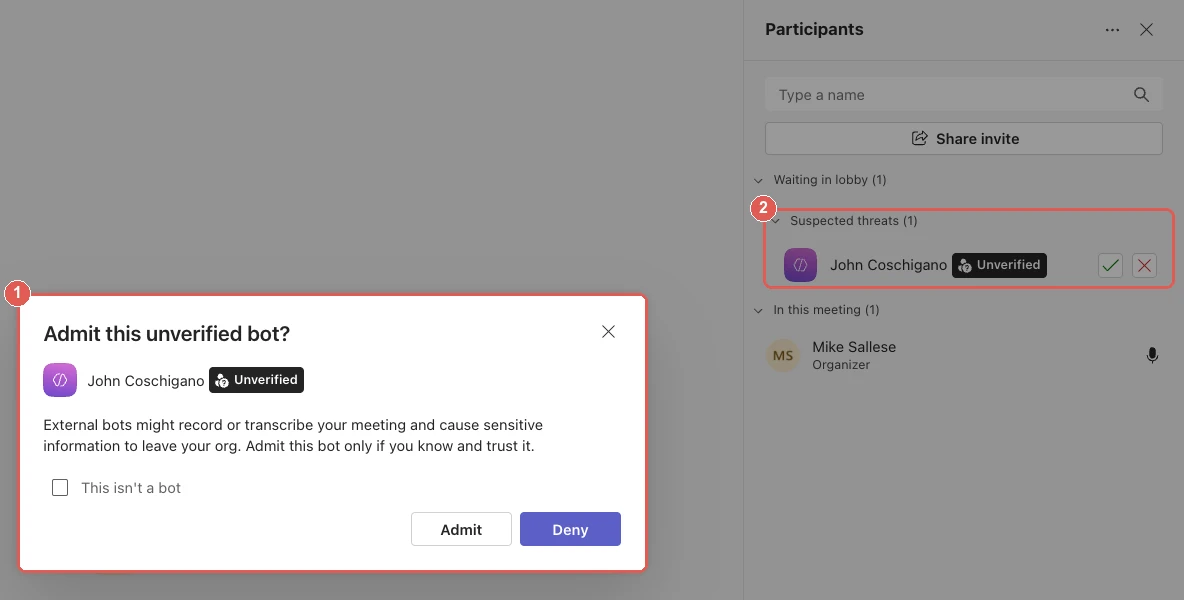
The next step is a policy that blocks identified bots without the lobby. Microsoft's message center notice MC1459141, last updated September 9, 2026, says admins will be able to set Teams meeting policies to automatically block identified external meeting bots from joining meetings, off by default, with general availability from early to late October 2026 (MC1459141; roadmap item 566201). Details, and what it means for each bot note taker, are in Microsoft Teams is blocking meeting bots in 2026.
Zoom: waiting room, host tools and app approval
Zoom doesn't have a bot-detection policy, so admins use the controls Zoom documents for any unwanted participant or app (Zoom Support, checked October 19, 2026):
- Waiting room, locked on. An admin turns on Enable waiting room under Admin Center › Settings › Meeting › Security, can set it to everyone or only to people not in the account, and can lock it so users can't switch it off. Every arrival then waits for the host.
- Host tools in the meeting. The host can Lock meeting, turn the waiting room on, or Remove participant, from Host tools in the meeting controls (Changing security settings in a Zoom meeting).
- App Marketplace controls. An admin can disable an app for everyone ("Disabling an app temporarily deactivates this app for all users on your account") and can require admin approval before users add any app; approval is on by default for multi-user accounts (Admin management of the Zoom App Marketplace).
- Zoom's own summary stays with the host. Zoom's meeting summary "only begins when the host or co-host clicks Start summary," and only they can stop it (Using Meeting Summary with AI Companion).
Google Meet
Meet has no bot policy of its own; the host admits or declines anyone outside the organization at the door, and Google's own notes feature, Gemini's Take notes for me, depends on the organizer's plan. See Gemini Take notes for me in Google Meet.
Written policies
Some companies don't wait for a setting. The BlueCross BlueShield of South Carolina notice above is one example of a blanket ban that names the bot tools and tells staff to turn off auto-join.
What still works: a note taker that doesn't join the call
Every control above acts on a participant: something that joins, waits in a lobby, shows up in the list and can be denied. A note taker that runs on your own computer isn't a participant, so there's nothing for the policy to act on.
That's how Scribbl works, and we make it:
- Google Meet: a Chrome extension. The call shows Live at the top left of your screen; nobody else sees a tile or a join message.
- Zoom and Microsoft Teams: Scribbl Desktop for Mac (Apple silicon) and Windows. It doesn't wait in the Teams lobby or the Zoom waiting room because it never asks to join.
- After each meeting: the video recording, a transcript with speaker names, AI notes and action items.
- Who can see it: recordings are private by default, and Scribbl doesn't use your meetings to train AI for anyone other than you.
Do it with Scribbl
- Add Scribbl. For Google Meet, add the Chrome extension and sign in: Start free. For Zoom and Teams, install Scribbl Desktop.
- Join the meeting as usual. Nothing joins, so there's nothing to admit and no setting for the host or IT to change. Tell everyone you're recording.
- Open the notes when it ends. The video, the transcript with speaker names, the AI notes and the action items are on the meeting page.
The free plan includes Google Meet, Zoom and Microsoft Teams, with 10 meetings a month. Pro is $13 per user per month billed annually, or $20 monthly (pricing).
| Scribbl (our pick) | Bot note takers (Otter, Fireflies, Fathom, Read AI) | |
|---|---|---|
| How it gets into the meeting | It doesn't. It runs on your computer | Joins as a guest participant from your calendar |
| Teams bot detection | Nothing to detect | Held in the lobby until an organizer admits it; blocked outright where the new policy is on |
| Zoom waiting room | Not affected | Waits for the host like any guest |
| What the host and IT see | No extra participant | A named participant, and in Teams an Unverified label |
| Meetings another company runs | Yes, your own notes | Only if that company lets the bot in |
| What you get | The video, a transcript with speaker names, AI notes and action items | Varies by plan |
(Bot behavior from each vendor's own help page, linked above; Teams and Zoom controls from Microsoft Learn and Zoom Support. As of October 19, 2026. For the full comparison of no-bot options, see AI note takers that don't join meetings.)
Whatever you use, say you're recording at the start of the meeting. Nothing joins with Scribbl, so nobody is told by the meeting app.
How to ask IT to approve an AI note taker
IT says no to bots for the reasons above, so give them the answer to each one. Keep it to the facts they check:
- Nothing joins the meeting. No guest access, lobby, waiting room or app setting has to change. There is no participant to admit.
- It runs on my own computer, the same one I take the call on.
- Who can see the recordings. With Scribbl, they're private by default; I choose what to share.
- Our meetings aren't used to train AI for anyone else. Scribbl doesn't.
- I'll tell attendees I'm recording, and I'll keep it off in the meetings you name.
Ask for approval for the meetings you run, offer a list of the meetings where it stays off, and point them at the privacy policy. If they want to see it first, one meeting on the free plan shows them everything: the recording, the transcript and the notes, with nothing in the participant list.
The free plan includes Google Meet, Zoom and Microsoft Teams, with 10 meetings a month. Start free.
FAQ
Why do companies block AI meeting bots?
Because a bot is an outside participant that records the meeting and stores it somewhere the company doesn't control. Microsoft's own admin page lists the risks: bots may record or transcribe without participants' awareness, store meeting data in third-party systems outside the organization's compliance boundary, and create privacy and data leakage risk. Bots also join from an attendee's calendar, so the host finds out when the bot appears, not before. That's why Teams now holds detected bots in the lobby and Zoom admins use the waiting room and app controls.
How does Microsoft Teams block AI note-taker bots?
With the meeting policy Manage external bots and their access to meetings. By default, Teams detects external bots when they try to join, marks them in the lobby and keeps them there until an organizer admits them, even when the meeting lets everyone else skip the lobby. Microsoft is adding a second option that blocks identified bots outright, off by default; its message center notice puts general availability in October 2026. Admins can also turn detection off.
How do Zoom hosts keep bots out of meetings?
With settings Zoom documents: the waiting room, which an admin can turn on for the account and lock, so every arrival waits for the host; the in-meeting Host tools, where the host can lock the meeting or remove a participant; and the App Marketplace admin pages, where an admin can disable an app for all users or require approval before anyone adds one. Zoom's own meeting summary can only be started by the host or a co-host.
What AI note taker works when bots are blocked?
One that runs on your own computer and doesn't join the call. Scribbl is one: a Chrome extension for Google Meet, and Scribbl Desktop for Zoom and Microsoft Teams on Mac (Apple silicon) and Windows. Nothing appears in the participant list, so there's nothing for the lobby, the waiting room or a bot policy to stop, and you still get the video, a transcript with speaker names, AI notes and action items.
Is Scribbl free, and will anyone see it join the call?
Yes, it's free to start, and nothing joins the call. There's no extra participant and no join message on Google Meet, Zoom or Microsoft Teams, and you don't need to be the host. The free plan includes Google Meet, Zoom and Microsoft Teams, with 10 meetings a month. Start free at extension.app.scribbl.co/signup. Tell everyone you're recording, whatever tool you use.
How do I ask IT to approve an AI note taker?
Give them the facts they check: nothing joins the meeting, so no guest access or lobby setting has to change; it runs on your own computer; who can see the recordings (with Scribbl, they're private by default); whether your meetings are used to train AI for other people (Scribbl doesn't); and that you'll tell attendees you're recording. Ask for approval for the meetings you run, and offer to keep it off for the ones they name.
Sources
All checked on October 19, 2026.
- Microsoft Learn: Manage external bots and their access to meetings hosted in your organization (the three risks, detection, lobby behavior, policy options, admit recommendation; page dated May 22, 2026, updated July 20, 2026)
- Microsoft 365 Message Center: MC1459141, Admin policy to automatically block identified external meeting bots (published August 21, 2026, updated September 9, 2026; off by default; general availability early to late October 2026)
- Computerworld: Microsoft struggles to address AI notetaker governance nightmare (Evan Schuman, July 1, 2026; analyst quotes)
- BlueCross BlueShield of South Carolina: AI Note-Taking Is Prohibited Effective Immediately (May 14, 2026)
- Zoom Support: Enabling and customizing the waiting room, Changing security settings in a Zoom meeting, Admin management of the Zoom App Marketplace, Using Meeting Summary with AI Companion
- Otter help center: Otter Notetaker overview (joins as a guest participant, visible, calendar auto-join)
- Fathom help center: Set up Fathom for Microsoft Teams and troubleshoot join failures (joins as a separate participant, outside guest, lobby)
- Read AI: Read for Microsoft Teams (joins as a participant)
- Scribbl: AI note takers that don't join meetings, desktop app, pricing, privacy policy
Try Scribbl
Let your meetings take their own notes.
Scribbl records, transcribes, and summarizes your Google Meet calls from your browser. No bot joins the call. Free forever for individuals.
Add to Chrome · It's free