Scribbl records your Google Meet, Zoom and Teams calls and writes the notes. No bot joins. Free for 10 meetings a month. Start free
How to Record Google Meet on a Chromebook (Free, With a Transcript)
Record Google Meet on a Chromebook with Google's Record button, the built-in screen recorder, or Scribbl free with a transcript and AI notes, no bot.
Updated November 10, 2026
The short answer
Checked against Google Meet Help on October 19, 2026 and Chromebook Help on November 10, 2026
To record a Google Meet on a Chromebook, click Meeting tools Record Start recording if your plan allows it, or press Shift + Ctrl + Show windows to screen record
- Google's Record button
- Works in Chrome on a Chromebook, but only on a paid plan, with recording turned on by your admin, when you're the host or allowed by the host. Not free Gmail or Business Starter.
- Built-in screen recorder
- Shift + Ctrl + Show windows, then Screen record. Pick Device audio and microphone. Saves a .webm video to Downloads, with no transcript.
- School Chromebook
- On Education Fundamentals or Education Standard, students and teachers can't record meetings they organize with Google's button. Ask your teacher before recording any class.
- Free, with a transcript
- Add Scribbl's Chrome extension: the video, a transcript with speaker names and AI notes for 10 meetings a month free. Nothing joins the call and you don't need to be the host.
Try Scribbl
Record Google Meet on your Chromebook free
Scribbl records, transcribes, and summarizes your Google Meet calls from your browser. No bot joins the call. Free for 10 meetings a month, no credit card.
Add to Chrome · It's freeTo record a Google Meet on a Chromebook, you have three choices. If your Google plan includes recording, click Meeting tools, then Record, then Start recording, exactly as on any computer. If it doesn't, press Shift + Ctrl + Show windows and use the Chromebook's built-in screen recorder, which saves a video file to your Downloads folder with no transcript. Or, to get more than a video for free, add Scribbl's Chrome extension: because a Chromebook runs Chrome, Scribbl records your Google Meet with nothing joining the call and no host permission, and gives you the video, a transcript with speaker names, AI notes and action items, free for 10 meetings a month. Whichever you pick, tell people you're recording.
This guide is only about Chromebooks: school and work Chromebooks managed by an admin, the ChromeOS screen recorder and its limits, storage, and students. For every device, including Mac, Windows, Android and iPhone, see how to record a Google Meet.
Your three ways to record Google Meet on a Chromebook
| Way to record | Cost | Who can use it | What you get | Where it's saved |
|---|---|---|---|---|
| Scribbl Chrome extension (our pick) | Free for 10 meetings a month; Pro $13 per user per month billed annually | Anyone in the call, host or not, on any Google account | The video, a transcript with speaker names, AI notes and action items | Your Scribbl account |
| Google Meet's Record button | A paid Google plan | The host, co-hosts, and people in the host's organization | A video; transcripts are a separate feature on some plans | The meeting organizer's Google Drive |
| Chromebook screen recorder | Free, built in | Anyone | A .webm video file only | Your Chromebook's Downloads folder |
Google Meet facts from Google Meet Help, checked October 19, 2026. Chromebook facts from Chromebook Help, checked November 10, 2026. Scribbl pricing as of October 2026.
How to record a Google Meet on a Chromebook with Google's Record button
Google Meet on a Chromebook is Google Meet in Chrome, so Google's own recorder works the same way it does on a Windows PC or Mac. Google says you can only record a meeting on a computer or an Android device, and a Chromebook counts as a computer.
- Join the call from the Google Calendar invite or at meet.google.com.
- At the bottom right, click Meeting tools, then Record.
- Optional: choose a language to save captions with the recording.
- Click Start recording, then Start in the pop-up. Everyone in the call gets a notification.
- To stop, click Meeting tools, Record, Stop recording, then Stop recording again. Recording also stops when everyone leaves, or after 8 hours.
The file goes to the meeting organizer's Google Drive, in the Google Meet folder, not to your Chromebook. The organizer and the person who started the recording get an email with the link. See where Google Meet recordings go for the details.
Why the Record button is missing on your Chromebook
The button only shows up when three things line up, and none of them depend on the Chromebook itself:
- A plan that includes recording. Google Workspace Business Standard or higher, Enterprise plans, Workspace Individual, Education Plus or the Teaching and Learning add-on, or a Google One plan with 2 TB or more. Free Gmail and Business Starter don't include it.
- An admin who turned it on. On a work or school account, a Google Workspace administrator must turn on recording for your account.
- A role that's allowed to record. The host, a co-host, someone in the host's organization when host controls are off, or a teacher or co-teacher in a meeting created through Google Classroom. If the host's account can't record, nobody in the meeting can.
If any of these is missing, the two ways below still work. For a full list of symptoms, see why you can't record a Google Meet.
How to record Google Meet on a Chromebook free with Scribbl
Scribbl is a Chrome extension, and Chrome is what a Chromebook runs, so it works on a Chromebook for Google Meet. It doesn't use Google's Record button, so it works on a free Gmail account, when you're not the host, and as a guest in another company's meeting. No bot joins the call and nobody has to admit anything.
- Add the Scribbl Chrome extension on your Chromebook and sign in. The free plan needs no credit card.
- Join your Google Meet call in Chrome as usual. Scribbl shows Live at the top left of the call. Tell everyone you're recording.
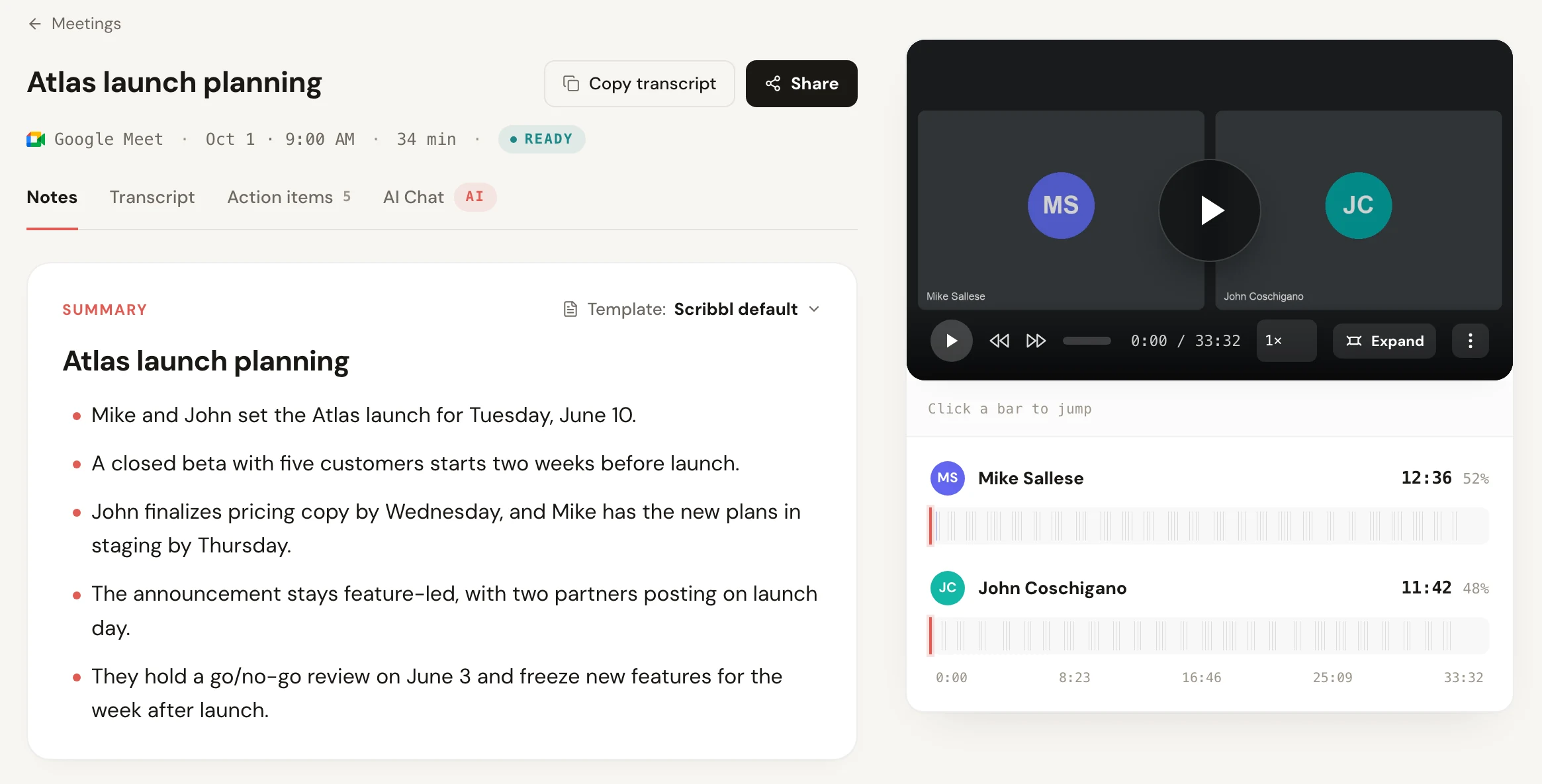
- When the call ends, open the meeting in Scribbl: the video, the transcript with speaker names, the AI notes and the action items are there.
Why this suits a Chromebook in particular: the meeting is kept in your Scribbl account instead of as a .webm file in your Downloads folder, and you can search the transcript and jump to the moment you need instead of scrubbing through a video.
The free plan includes Google Meet, Zoom and Teams, with 10 meetings a month and no length limit. Scribbl Pro is $13 per user per month billed annually, or $20 monthly. On a Chromebook, use Scribbl for Google Meet; Zoom and Teams use Scribbl Desktop, which is for Mac and Windows.
For other extensions that record Meet, see the best Google Meet recorder extensions.
How to screen record Google Meet with the Chromebook screen recorder
Every Chromebook has a screen recorder built in, called Screen capture. It records anything on your screen, so it works on any Google account and any role in the call. These are Google's steps from Chromebook Help:
- Start or join your Google Meet call.
- Press Shift + Ctrl + Show windows. Or select the time at the bottom right, then Screen capture.
- At the bottom of the screen, select Screen record.
- Choose full screen, partial screen or window. For a call, pick the Chrome window with Meet in it.
- Select Settings in the same bar, and under audio choose Device audio and microphone. Device audio is the call; microphone is you.
- Start: click anywhere for full screen, drag over the area for partial screen, or select the window.
- To stop, select Stop recording at the bottom right, or press Search + Shift + X.
You can also turn on Front Camera in Settings to put yourself in a bubble on the recording, and Show clicks and keys if you're recording a demo.
What the Chromebook screen recorder doesn't do
- No transcript, no speaker names, no notes. You get a video. To find one decision, you watch it again.
- Audio only if you choose it. If you leave the setting on Microphone, the other people in the call won't be on the recording. Google's page lists the audio choices but doesn't promise that every app's sound will be captured, so test on a short call first.
- GIF mode has no sound. If you record a partial screen, the dropdown offers Record video (.webm) or Record GIF (.gif). Google says GIFs don't capture audio or video input, so choose .webm.
- No notice to anyone. Google Meet's recording notice only covers Google's own recorder. Tell people yourself.
- It lives on your Chromebook. The file is saved locally, which matters on a Chromebook, as the storage section below explains.
Recording Google Meet on a school Chromebook as a student
Most students searching for this are on a Chromebook their school manages, signed in with a school Google account. Two things decide what you can do.
Your school's Google plan. Google's rules for Google Workspace for Education accounts:
| School's Google plan | Can you use Google's Record button? |
|---|---|
| Education Fundamentals, Education Standard | No. Teachers, staff and students can't record meetings they organize |
| Teaching and Learning Upgrade | Anyone in the same organization as the meeting organizer can record |
| Education Plus | Teachers, staff and students can record meetings they organize and meetings organized by someone in their organization |
Teachers and co-teachers can record meetings created through Google Classroom. Google also lists Education Plus recording for users with a Staff license, so whether a student account gets the button depends on the licenses your school assigned. If you don't see Record under Meeting tools, that's the school's setting, not your Chromebook.
Your school's admin. A managed Chromebook follows the school's policies, including which apps and extensions you can install. If an extension is blocked, ask your school's IT team.
Permission comes first. Ask your teacher before you record a class, and check your school's recording rules, which differ by school and by place. Say at the start of class that you're recording for your own notes. If your teacher says yes, Scribbl gives you the video, a transcript with speaker names and AI notes for each class, and it doesn't add anyone to the class. More for students in the AI notetaker for students and online classes guide.
Where Chromebook recordings are saved, and running out of storage
Where your recording ends up depends on how you made it:
| How you recorded | Where to find it |
|---|---|
| Scribbl | Your Scribbl account, with the transcript and AI notes |
| Google's Record button | The meeting organizer's Google Drive, in the Google Meet folder, plus an email with the link |
| Chromebook screen recorder | The Downloads folder, as a .webm file. Google also copies recordings to your clipboard |
To change the screen recorder's folder, press Shift + Ctrl + Show windows, select Settings, then Select folder.
Watch your storage. Chromebooks often have little storage, and a video of an hour-long call takes up a lot of it. To check, select the time at the bottom right, then Settings, then under System preferences choose Storage management. Google warns that when a Chromebook runs low it shows "Device is low on space," and when space runs out it may delete downloaded files automatically. A screen recording in Downloads is a downloaded file. Move recordings you want to keep to Google Drive, which Google recommends for freeing up space. Scribbl keeps each meeting in your Scribbl account, not in Downloads.
How to get a transcript of a Google Meet on a Chromebook
A recording is a video file. A transcript is a separate thing, and on a Chromebook you have two ways to get one.
Google's transcripts. Click Meeting tools, Transcribe, Start transcription, then Start. Only some plans have it: Business Standard, Business Plus, Enterprise Starter, Enterprise Standard, Enterprise Plus, Workspace Individual, Education Plus and the Teaching and Learning add-on. Google One plans don't include transcripts, and neither do free Gmail or Education Fundamentals. The transcript goes to the organizer's Google Meet folder in Drive.
Scribbl. Every Google Meet that Scribbl records comes back with a transcript with speaker names, on any Google account, including the free plan. You can search it and click a line to jump to that moment in the video. More in the Google Meet recording transcript guide.
The Chromebook screen recorder gives you no transcript.
Tell people you're recording
Whatever you use on your Chromebook, tell everyone before you start and give them the chance to say no. Recording rules differ by place, and Google's notice only appears for Google's own recorder. Something like: "I'd like to record this call so I have accurate notes. Is everyone OK with that?" See do you have to tell people you're recording.
Chromebook Google Meet recording FAQ
Can you record a Google Meet on a Chromebook?
Yes. Google Meet runs in Chrome on a Chromebook, so Google's Record button works the same as on any computer: Meeting tools, Record, Start recording, if your plan includes recording, your admin has turned it on, and you're the host or allowed by the host. Without that, use the Chromebook's built-in screen recorder for a video file, or Scribbl's Chrome extension for the video, a transcript with speaker names and AI notes, free for 10 meetings a month.
How do I screen record a Google Meet on a Chromebook?
Press Shift + Ctrl + Show windows, select Screen record, and choose full screen, partial screen or a window. Open Settings in the same bar and pick Device audio and microphone so other people's voices are recorded too. Click to start, and stop with the Stop recording button at the bottom right or Search + Shift + X.
Where do screen recordings go on a Chromebook?
To the Downloads folder by default, as .webm video files. You can pick another folder from Settings in the screen capture bar. Google warns that when a Chromebook runs out of space it may delete downloaded files automatically, so move recordings you want to keep to Google Drive.
Can a student record a Google Meet on a school Chromebook?
It depends on the school's Google plan and on permission. On Education Fundamentals or Education Standard, students, teachers and staff can't record meetings they organize with Google's Record button. On Education Plus they can record meetings they organize and meetings organized by someone in their organization. Whatever tool you use, ask your teacher first and follow your school's rules.
Does the Chromebook screen recorder record the other people in a Google Meet?
Only if you choose it. In the screen capture Settings, Google offers Device audio, Microphone, or Device audio and microphone. Pick Device audio and microphone to record both the call and your own voice, and do a short test call first.
How do I get a transcript of a Google Meet on a Chromebook?
Google's transcripts work on a Chromebook only on some paid plans: Business Standard, Business Plus, Enterprise Starter, Enterprise Standard, Enterprise Plus, Workspace Individual, Education Plus and the Teaching and Learning add-on. The Chromebook screen recorder gives no transcript. Scribbl's Chrome extension gives you a transcript with speaker names after every Google Meet it records, on any account, free for 10 meetings a month.
Is there a free way to record Google Meet on a Chromebook with notes?
Yes. Scribbl is a Chrome extension, so it runs on a Chromebook. The free plan records 10 meetings a month with no length limit and gives you the video, a transcript with speaker names, AI notes and action items. Nothing joins the call, you don't need to be the host, and it works on a free Gmail account. See also the free AI note taker for Google Meet.
How we checked
Google Meet facts checked October 6, 2026, and again October 19, 2026. Chromebook facts checked November 10, 2026.
- Google Meet Help, Record a video meeting (steps on a computer, who can record, Google Workspace for Education rules, Google Classroom, where recordings go, 8-hour limit, notifications)
- Google Meet Help, Premium Meet features for Google Workspace (which plans include recording and transcripts)
- Google Meet Help, Use Transcripts with Google Meet (transcript plans, steps, where saved)
- Chromebook Help, Take a screenshot or record your screen (Shift + Ctrl + Show windows, Screen record, audio and camera settings, stopping, .webm and .gif, Downloads folder)
- Chromebook Help, Free up space on your Chromebook (Storage management, low-space warning, automatic deletion of downloaded files, moving files to Google Drive)
- Chrome Enterprise and Education Help, Set Chrome policies for users or browsers (admins allow and block apps and extensions)
- Scribbl, pricing, as of October 2026
Try Scribbl
Record Google Meet on your Chromebook free
Scribbl records, transcribes, and summarizes your Google Meet calls from your browser. No bot joins the call. Free for 10 meetings a month, no credit card.
Add to Chrome · It's freeTry Scribbl
Record Google Meet on your Chromebook free
Scribbl records, transcribes, and summarizes your Google Meet calls from your browser. No bot joins the call. Free for 10 meetings a month, no credit card.
 Add to Chrome · It's free