Best AI Notetaker for Windows in 2026 (Compared and Ranked)
We compared the 6 best AI notetakers on Windows for Meet, Zoom, and Teams calls. Ranked by native Windows app, capture method, accuracy, free tier, and price.
Updated October 7, 2026
On this page12 sections
- 01How we compared AI notetakers on Windows
- 02The Windows differentiator
- 03The 6 best AI notetakers for Windows, compared
- 04The ranked picks
- 05How to download an AI notetaker on Windows
- 06The offline / local-on-Windows angle
- 07How to choose
- 08Bot vs. no-bot on Windows, side by side
- 09A word on recording and consent
- 10The recommendation
- 11AI notetaker for Windows FAQ
- 12Start free on Windows, without a bot
The best AI notetaker for Windows in 2026 runs natively on Windows, not just in the browser, and captures your meetings without sending a bot into the call. We compared the six leading tools for Google Meet, Zoom, and Microsoft Teams calls on Windows, scoring each on native Windows availability, how it captures audio (system-audio capture versus a meeting bot), transcription accuracy, free tier, and price. The top pick is Scribbl: a native Windows desktop app plus a Chrome extension, botless on all three platforms, whose Automations do the follow-up so the meeting gets acted on, not just stored. Below is the full ranked comparison, the Microsoft Store download path, the offline/local question, and a decision matrix to pick fast.
How we compared AI notetakers on Windows
For each tool we checked:
- Native Windows app, yes or no. The single most important column for this search. Many popular notetakers are web-app-plus-bot and have no standalone Windows client. We mark each one explicitly.
- Capture method on Windows. System-audio capture (a desktop app records what plays through your speakers) versus a Chrome extension for calls in the browser versus a meeting bot that joins the call as a visible participant.
- Transcription accuracy. How well the transcript holds up in clean conditions (good mic, one speaker) and noisy ones (crosstalk, background noise, accents).
- Free tier and caps, pricing, third-party rating (G2/Capterra style), and what happens after the call.
The Windows differentiator: native app vs. browser-only vs. bot
The phrase "for Windows" is doing real work in your search. Three very different things all get marketed as "AI notetaker for Windows", and the difference decides whether your Teams and Zoom desktop calls are actually covered.
- 1
1. Native Windows desktop app (system audio)
A real Windows program records whatever plays through your speakers using WASAPI loopback, the standard Windows API for capturing the system render stream, and mixes it with your microphone. Because the audio is already on your PC, nothing joins the call. This is the only method that captures the Microsoft Teams and Zoom desktop apps without a bot. Scribbl Desktop covers the Teams and Zoom desktop apps with no bot, and Granola records device audio too.
- 2
2. Chrome extension (calls in the browser)
A Chrome extension works with calls you take in the browser. It is botless and quick to set up, but it does not reach the native Teams or Zoom desktop apps. Scribbl's Chrome extension covers Google Meet.
- 3
3. Web app plus a meeting bot (no native Windows client)
The tool has no standalone Windows program. You drive it from a web dashboard and a bot joins your calendar meetings as a visible participant to record. It runs on a Windows PC through the browser, but a named notetaker appears in the room. Otter, Fathom, Fireflies, and tl;dv work this way by default.
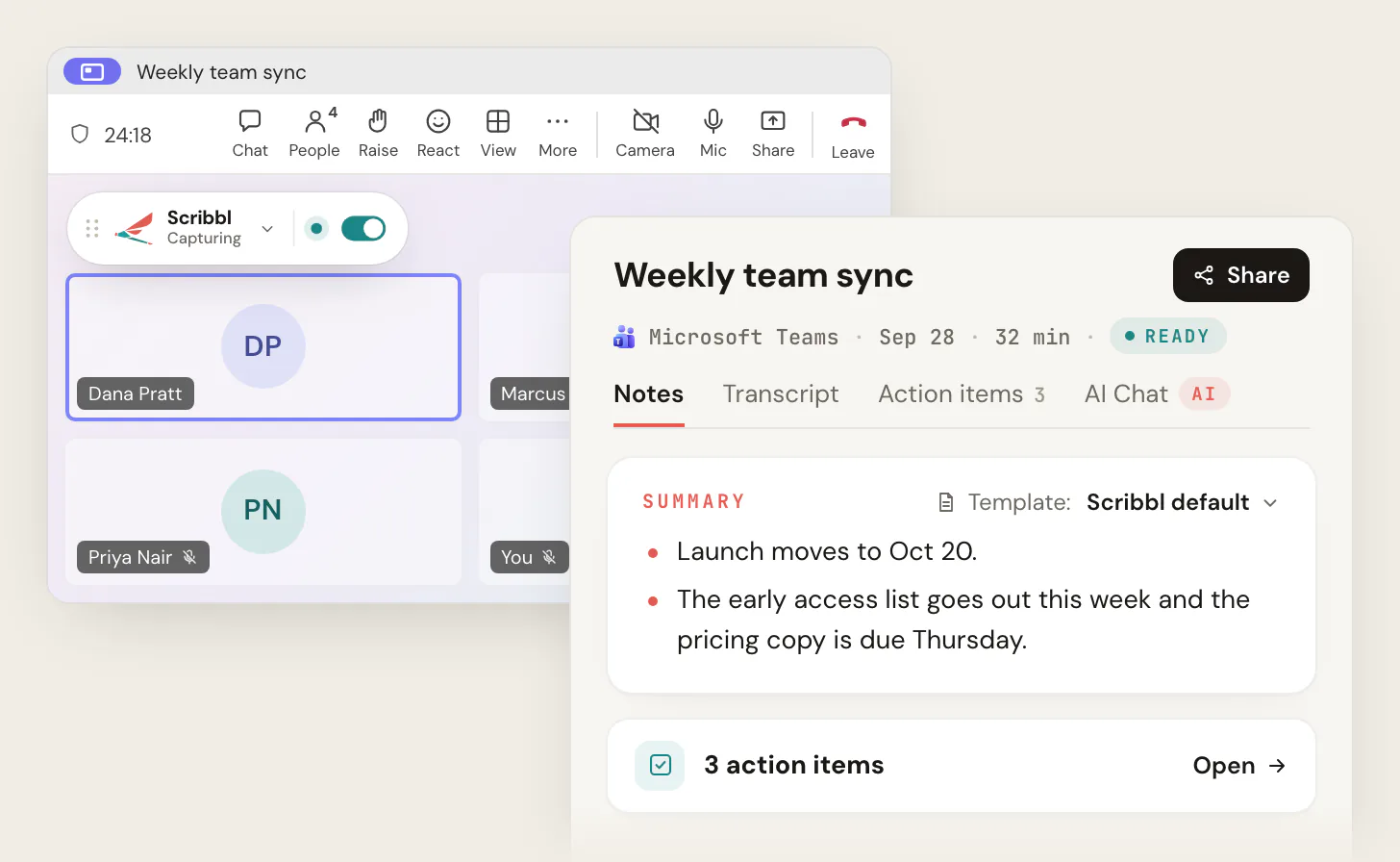
- 1 Botless (Scribbl, Granola): nothing joins the call. The participant list shows only real people.
- 2 Bot-based (Otter, Fathom, Fireflies, tl;dv): a named notetaker joins as a visible attendee and an X has joined notice fires.
- 3 Only the native desktop app captures the Teams desktop client; a browser extension would miss this call entirely.
The 6 best AI notetakers for Windows, compared
This is the highest-leverage view: every tool against the columns that matter for Windows. The "Native Windows app" column is the qualifier the keyword demands.
| Feature | Scribbl | Granola | Otter | Fathom | Fireflies | tl;dv |
|---|---|---|---|---|---|---|
| Native Windows desktop app | Yes | Windows + Chrome ext | No | No | No | No |
| Botless (no bot joins) | Yes | Yes | No | No | No | No |
| Capture method on Windows | Desktop (Zoom, Teams) + extension (Meet) | System audio | Bot | Bot | Bot | Bot |
| Google Meet / Zoom / Teams | All three | Any (desktop) | All three | All three | All three | All three |
| Captures Teams desktop app | Yes | Yes | via bot | via bot | via bot | via bot |
| Keeps the recording | Yes | No, deletes audio | Yes | Yes | Yes | Yes |
| Connects to ChatGPT / Claude | Yes | Yes | Yes | Yes | Yes | Yes |
| Free plan, no credit card | Yes | Yes | Yes | Yes | Yes | Yes |
| Third-party rating | 4.9 on G2 (725 reviews) | ~4.8 | ~4.4 | ~5.0 | ~4.7 | ~4.7 |
The ranked picks
We rank these by how well they serve the typical buyer searching "AI notetaker for Windows": someone who wants their own Meet, Zoom, and Teams calls on a Windows PC recorded and summarized, ideally without a bot, and ideally with a real Windows app.
1. Scribbl: best overall AI notetaker for Windows
Native Windows app: yes, plus a Chrome extension. Capture on Windows: Scribbl Desktop for Zoom and Teams, the Chrome extension for Google Meet. Botless on Google Meet, Zoom, and Microsoft Teams.
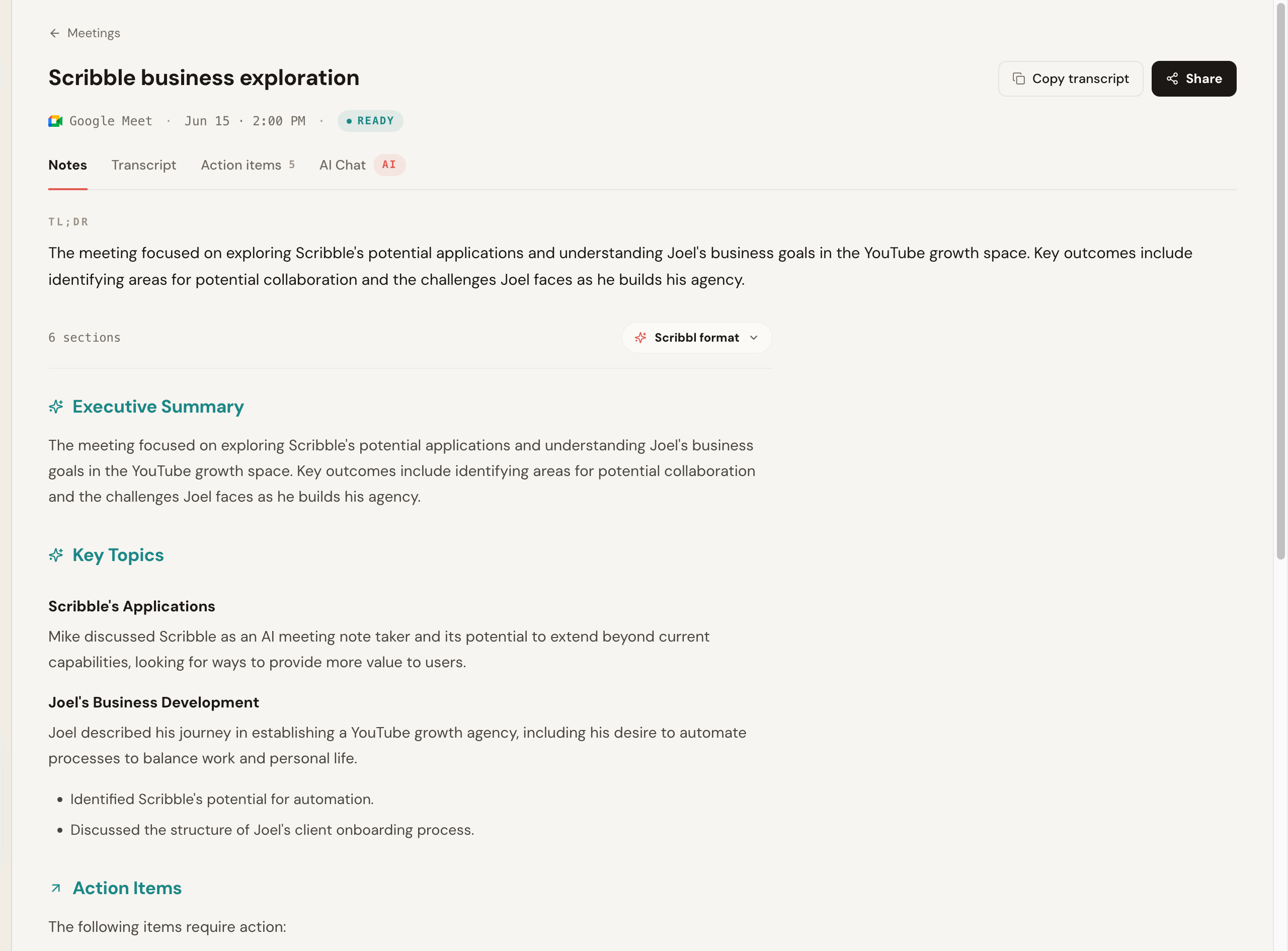
Scribbl is the most complete answer for Windows because it covers both halves of how you actually meet on a PC. The native Windows desktop app records the Microsoft Teams and Zoom desktop apps with no bot. The Chrome extension covers Google Meet. Nothing joins any platform, nothing is announced, and no email goes to attendees.
What sets it apart is the last step. Smart Collections sort each new meeting into groups you describe in one sentence, so you can ask ChatGPT or Claude about just one group: "What were the main objections in my sales calls this week?" Automations do the follow-up: they draft the recap email, log notes in HubSpot or Pipedrive, post to Slack or Teams, and open Linear, Jira, Asana, or Monday tickets, asking before they change anything by default. You can also tell it the job in plain words, and it runs with your own Claude. The free plan covers 10 meetings a month, includes Google Meet, Zoom, and Teams, and needs no credit card.
- Best for: anyone on Windows who meets across Meet, Zoom, and Teams and wants the recording turned into done work.
- Pros: real native Windows app plus Chrome extension; botless on all three platforms; captures the Teams and Zoom desktop apps; Smart Collections and Automations do the follow-up; free plan, no card; 5.0 from 3,000 reviews on the Chrome Web Store and 4.9 from 725 reviews on G2; 10,000+ organizations.
- Pricing: free plan with 10 meetings a month and no credit card; Pro is $13 per user per month billed annually, or $20 monthly. See the pricing page.
- Rating: 5.0 from 3,000 reviews on the Chrome Web Store and 4.9 from 725 reviews on G2.
2. Granola: best for people who take notes by hand
Native Windows app: desktop app (system audio). Capture on Windows: records device audio locally. Botless.
Granola is a desktop notetaker that records your meeting audio and merges your own typed notes with an AI-cleaned summary. No participant joins. It is built around the habit of jotting during a call and letting the AI fill in the rest, and because it captures system audio it works for any meeting your Windows PC can hear. It transcribes and then deletes the audio, so there is no recording or video to go back to.
- Best for: solo operators and managers who like typing during calls.
- Pros: botless by design; captures any meeting on your device; loved by note-takers.
- Cons: no recording or video, because it deletes the audio after transcribing; historically Mac-first, so confirm the current Windows build and feature parity; you have to actually take notes for the model to shine.
- Pricing: Basic is free (notes from the last 30 days); Business is $14 per user per month, billed monthly. Source: Granola pricing.
3. Otter: capable, but web app plus a bot on Windows
Native Windows app: no (web app). Capture on Windows: Otter Notetaker bot joins calendar meetings. Bot-based.
Otter is a well-known notetaker with strong live transcription and a clean summary view. On Windows, though, there is no standalone native desktop client: you use the web app, and an Otter Notetaker bot joins your calendar meetings to record. That means a visible assistant appears in the participant list, which is the opposite of botless.
- Best for: Windows users who live in the browser and do not mind a visible notetaker bot.
- Pros: mature product; strong live transcription; broad integrations.
- Cons: no native Windows app; bot joins the call as a visible participant; has been the subject of consumer-privacy litigation over its auto-joining bot, so check the consent flow for external calls.
- Pricing: Basic is free with 300 monthly transcription minutes; Pro is $8.33 per user per month billed annually, or $16.99 monthly. Source: Otter pricing.
4. Fathom: strong free tier, but bot-based
Native Windows app: no (web dashboard). Capture on Windows: a meeting bot joins the call. Bot-based.
Fathom is popular for its free plan and quick, clean summaries with timestamped highlights. On Windows it runs through a web dashboard and records via a bot that joins your meeting, so it works on a PC but puts a visible recorder in the room. There is no native Windows app capturing system audio locally. The free plan records without a cap, but advanced AI summaries cover only your first 5 calls each month, and AI action items, AI follow-up emails, and Ask Fathom need Premium.
- Best for: Windows users who want a strong free summary tool and accept a bot in the call.
- Pros: unlimited recording on the free plan; fast, tidy summaries; well-rated.
- Cons: no native Windows app; bot-based, so a notetaker is visible to attendees; advanced AI summaries are capped on the free plan.
- Pricing: free plan; Premium is $16 per user per month billed annually, or $20 monthly. Source: Fathom pricing.
5. Fireflies: best for heavy integrations, via a bot
Native Windows app: no (web app). Capture on Windows: Fireflies Notetaker bot. Bot-based.
Fireflies is built for teams that want transcripts routed into a lot of other tools, with a deep integration and search story. Like Otter and Fathom, it captures with a bot that joins your calendar meetings and is driven from the web, with no native Windows client.
- Best for: Windows teams that prioritize CRM and workflow integrations and accept a bot.
- Pros: very broad integrations; strong search across past meetings.
- Cons: no native Windows app; bot-based capture; the value is in setup-heavy automations.
- Pricing: free plan; Pro is $10 per seat per month billed annually, or $18 monthly. Source: Fireflies pricing.
6. tl;dv: solid free meeting AI, but bot-based
Native Windows app: no (web + bot). Capture on Windows: a meeting bot joins the call. Bot-based.
tl;dv is a capable meeting recorder with a strong free tier, good summaries, and sales-oriented features. On Windows it works through the browser and a bot that joins your calls, with no native Windows desktop app, so a visible notetaker is in every call.
- Best for: Windows users who want a free, sales-friendly meeting recorder and accept a bot.
- Pros: generous free plan; good summaries and clip-sharing; sales coaching features.
- Cons: no native Windows app; bot joins the call; botless is not an option.
- Pricing: free plan; paid tiers per the vendor.
How to download an AI notetaker on Windows
There are three install paths on Windows, and the right setup usually combines two of them.
- 1
1. Vendor desktop installer (covers desktop-app calls)
Download the desktop app directly from the tool's website and run the Windows installer. This is how you get the Scribbl desktop app. A vendor desktop app that captures system audio is what covers the Microsoft Teams and Zoom desktop clients on Windows.
- 2
2. Microsoft Store (one-click, good for offline/local)
Open the Microsoft Store and search the tool name. Self-contained notetaker apps install in one click and update automatically. The Store is the easiest path for a self-contained, often offline, Windows notetaker.
- 3
3. Chrome Web Store extension (covers Google Meet)
Install the Scribbl Chrome extension from the Chrome Web Store; it covers Google Meet. Pairing it with the Scribbl desktop app, which covers Zoom and Teams, is the setup that covers all three on one PC.
The offline / local-on-Windows angle
Some Windows users cannot send meeting audio to the cloud at all, whether for regulated data, legal calls, or company policy. Two things matter here.
First, botless is not the same as offline. Botless means nothing joins the call; offline means the audio is processed on your PC.
Second, local apps trade quality for control. Some Microsoft Store apps run the AI model on your device, so transcription and notes happen on the PC with no cloud account, at the cost of rougher summaries, lower accuracy on hard audio, and no sync. For most teams recording their own client, sales, and internal calls, Scribbl is the better balance: nothing joins the call, nothing is announced, no email goes to other attendees, every meeting still gets the video, a transcript with speaker names, AI notes and action items, recordings are private by default, and Scribbl doesn't use your meetings to train AI for anyone other than you.
How to choose: a Windows decision matrix
Match the tool to the one fact that matters most for you on Windows.
- Full coverage, no bot, Meet + Zoom + Teams: Scribbl (desktop app + extension)
- Most useful free plan on Windows: Scribbl, no credit card
- Teams and Zoom desktop apps, no bot: Scribbl Desktop
- Take notes by hand and let AI clean them: Granola
- CRM notes after every call: Scribbl Automations log them in HubSpot or Pipedrive
- Follow-up in Slack, Teams, Jira or Linear: Scribbl Automations post it and open the tickets
- You mostly use Google Meet: Scribbl's Chrome extension, nothing joins
- The call must become finished follow-up: Scribbl Automations draft the follow-up email
Bot vs. no-bot on Windows, side by side
The choice underneath this whole list is whether the recorder joins your call. On Windows it also decides whether your Teams and Zoom desktop calls are covered.
- What joins: nothing joins the call
- Coverage: native Windows desktop app plus Chrome extension
- Visible to the room: no tile, no join announcement
- Desktop-app calls: Teams and Zoom desktop captured directly
- Platforms: botless on Google Meet, Zoom, Microsoft Teams
- After the call: notes, action items, Smart Collections, Automations
- What joins: a named bot dials in as a participant
- Coverage: web app, often no native Windows client
- Visible to the room: an extra tile, often an X has joined notice
- Desktop-app calls: the bot joins; nothing local on your PC
- Platforms: exposed to Meet third-party-bot policy changes
- After the call: a transcript and summary in a separate app
A word on recording and consent
Running on Windows does not change your legal responsibilities. Recording laws vary by region, and some jurisdictions require consent from everyone on the call. In one-party-consent regions one participant's consent is enough; in all-party-consent regions everyone must agree. Removing the bot removes the surprise attendee, not the obligation. Tell people you are recording and get consent where it is required. See our guide on whether you have to tell people you are recording.
The recommendation
If you want the best AI notetaker for Windows in 2026, Scribbl is the one we recommend. It is a real native Windows desktop app plus a Chrome extension, it is botless on Google Meet, Zoom, and Microsoft Teams, it captures the Teams and Zoom desktop apps without a bot, and its Automations do the follow-up so the work gets done. It is rated 5.0 from 3,000 reviews on the Chrome Web Store and 4.9 from 725 reviews on G2, used by more than 10,000 organizations, and the free plan needs no credit card.
Related reading: the best botless meeting recorders, the best AI notetaker app overall, the AI notetaker for Mac, and how to record Google Meet.
AI notetaker for Windows FAQ
What is the best AI notetaker for Windows in 2026?
The best AI notetaker for Windows captures your meetings without sending a bot into the call, runs natively on Windows (not browser-only), and turns the meeting into finished follow-up. Scribbl is our top pick: it ships a Windows desktop app plus a Chrome extension, is botless on Google Meet, Zoom, and Microsoft Teams, gives every meeting the video, a transcript with speaker names, AI notes and action items, connects each meeting to ChatGPT or Claude, and has a free plan with no credit card. Most of the other tools compared here send a bot into the call (Otter, Fathom, Fireflies, tl;dv).
What is the best free AI notetaker for Windows?
Scribbl has the most useful free plan for Windows: 10 meetings a month with no credit card, and it includes Google Meet, Zoom, and Teams with no bot. Otter and Fathom also offer free tiers, but both send a bot into the call and cap something: Otter's Basic plan has 300 monthly transcription minutes, and Fathom's advanced summaries cover only your first 5 calls each month.
Does Otter have a Windows app?
Otter does not ship a standalone native Windows desktop app. On Windows you use Otter through the web app in your browser, plus an Otter Notetaker bot that joins calendar meetings. So Otter works on Windows, but as a web app plus a meeting bot rather than a native Windows client that captures system audio locally.
Does Fathom have a Windows app?
Fathom records through a meeting bot that joins your call, controlled from a web dashboard, rather than a native Windows desktop app that captures system audio. It works on a Windows PC through the browser, but it is bot-based, so a visible notetaker appears in the participant list.
Can an AI notetaker record system audio on Windows without a bot?
Yes. Native Windows desktop apps can capture system audio, for example with WASAPI loopback, the standard Windows API for grabbing whatever is playing through your speakers, mixed with your microphone. Because the audio is already on your PC, nothing has to join the call as a participant. Scribbl Desktop records the Zoom and Teams desktop apps on Windows with nothing joining the call, and Granola records your device audio with no bot.
How do I download an AI notetaker on Windows?
There are three paths on Windows. First, a vendor desktop installer downloaded from the tool's site (how you get the Scribbl desktop app). Second, the Microsoft Store, where self-contained notetaker apps install in one click. Third, a Chrome extension from the Chrome Web Store for browser-based calls like Google Meet. For full coverage on Windows, the strongest setup is a desktop app plus the Chrome extension, so both native-app calls and Google Meet in the browser are captured.
Is there an offline or local AI notetaker for Windows?
Yes. Some apps on the Microsoft Store run an AI model locally on your Windows machine, so audio and notes stay on your device with no cloud account required. The trade-off is rougher summaries, lower accuracy on hard audio, and no cross-device sync compared with cloud tools. For most teams, a botless tool like Scribbl is the better balance: nothing joins the call, every meeting gets the video, a transcript with speaker names, AI notes and action items, recordings are private by default, and Scribbl doesn't use your meetings to train AI for anyone other than you.
Do AI notetakers work with the Microsoft Teams desktop app on Windows?
It depends on capture method. Native Windows desktop apps that record system audio capture the Teams desktop client directly, because they record whatever plays through your speakers. Browser extensions only capture Teams in the browser, not the desktop app. Bot-based tools join Teams as a visible participant. Scribbl covers Teams through Scribbl Desktop on Windows, with no bot, and its Chrome extension covers Google Meet.
How accurate are AI notetakers on Windows?
Accuracy is best on clean audio (good mic, one speaker at a time) and drops in noisy rooms or with heavy crosstalk and accents. Accuracy depends far more on audio quality and the speech-to-text engine than on the operating system, so the same tool scores similarly on Windows and macOS.
Does a Windows notetaker need consent to record?
Yes. Removing the bot removes the surprise attendee, not your legal obligation. Recording laws vary by region and some require consent from everyone on the call. Tell people you are recording and get consent where it is required.
Start free on Windows, without a bot
You do not have to choose between good notes and a clean call. No bot ever joins your meeting. Scribbl is a native Windows desktop app plus a Chrome extension that records, transcribes, and summarizes Google Meet, Zoom, and Teams on Windows, connects each meeting to the AI you already use, and has a free plan with no credit card. Start free.
Try Scribbl
Let your meetings take their own notes.
Scribbl records, transcribes, and summarizes your Google Meet calls from your browser. No bot joins the call. Free forever for individuals.
Add to Chrome · It's free