6 Best AI Notetakers for Mac in 2026 (Compared, Native and Botless)
We compared the 6 best AI notetakers on macOS in 2026: native menu-bar apps, system-audio capture, and bot vs botless recording. Ranked picks, a Mac-specific comparison table, free-plan limits, pricing, and setup.
Updated October 7, 2026
On this page14 sections
- 01What makes a great AI notetaker on a Mac
- 02Native Mac app vs browser-based, decided
- 03Local, on-device (offline) vs cloud
- 04How we compared and ranked these Mac AI notetakers
- 05Mac AI notetakers compared at a glance
- 06Pricing and free plans
- 07The 6 best AI notetakers for Mac, ranked
- 08Built-in / free Mac options
- 09How to set up a Mac notetaker
- 10Privacy and compliance on a Mac
- 11Best AI notetaker for Mac by use case
- 12Our pick: Scribbl
- 13What Mac users actually say
- 14AI notetakers for Mac FAQ
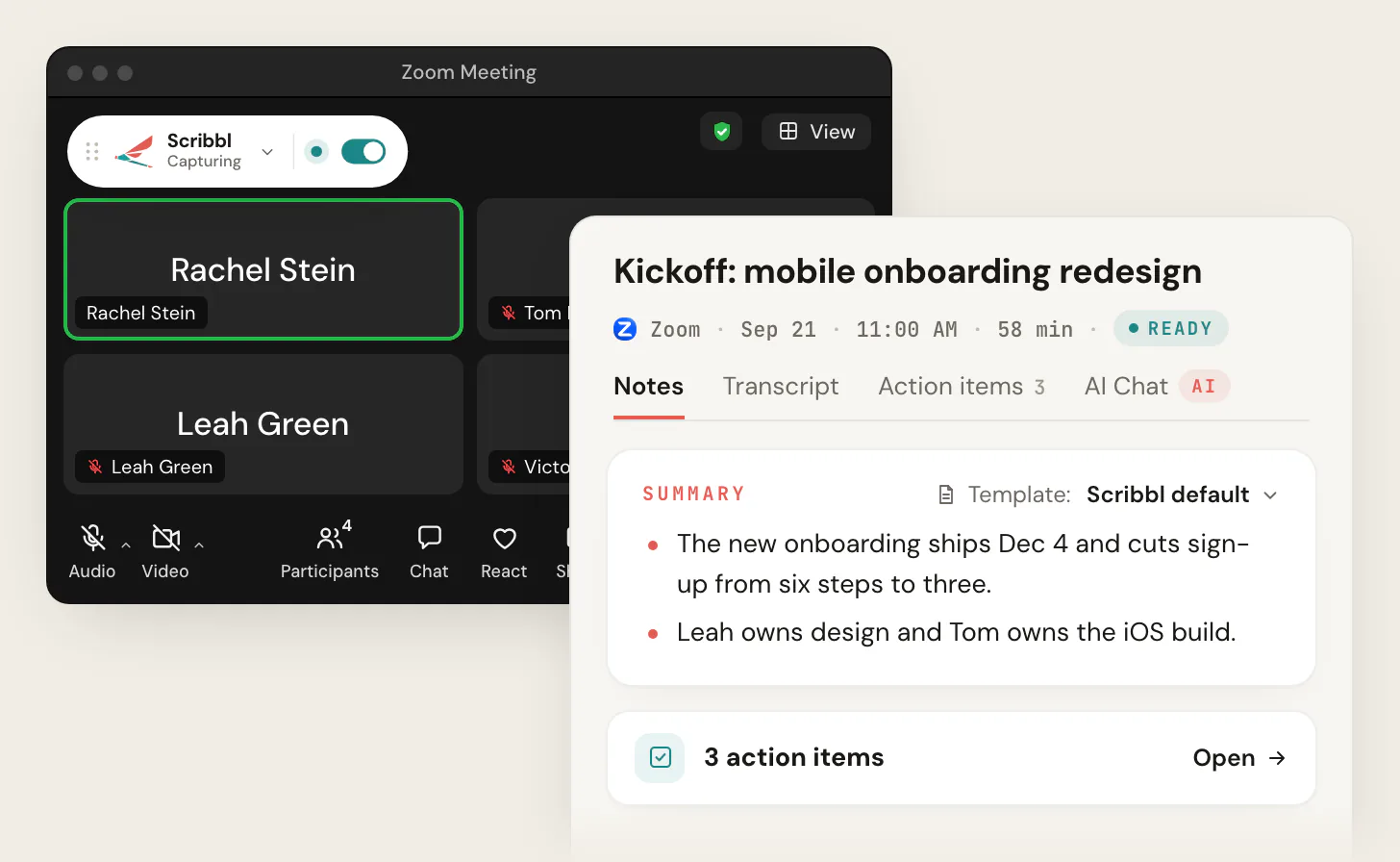
The best AI notetaker for Mac in 2026 for most people is Scribbl. It records, transcribes, and summarizes Google Meet, Zoom, and Microsoft Teams on a Mac with no bot, ships as a Chrome extension plus a macOS desktop app, gives every meeting the video, a transcript with speaker names, AI notes and action items, has a free plan with no credit card, and its Automations do the follow-up for you. The rest of the field splits into Mac-native menu-bar apps like Granola and bot-based tools like Fathom, Otter, and Fireflies. The ranked picks, the Mac-specific selection criteria, an at-a-glance comparison table, free-plan limits, pricing, a setup walkthrough, and the best pick per persona are below.
We compared the six leading AI notetakers on macOS and ranked them on the things the "for Mac" search actually cares about: is it a native Mac app or browser-only, does it capture system audio without a browser, and does a bot join the call or not. Then on summary and action-item quality, platform coverage, integrations, privacy, and price. We do not invent competitor prices or feature claims: Otter, Fathom, Fireflies, and Granola prices come from each vendor's pricing page on October 7, 2026, and anything else is marked approximate, so verify on the source. Last updated October 7, 2026.
What makes a great AI notetaker on a Mac
The "for Mac" qualifier is doing real work. A generic cross-platform list will not tell you whether a tool feels native, captures your desktop Zoom client, or keeps audio on your machine. These are the seven axes we scored, and the comparison table below rates every tool on them.
- Native Mac app vs browser-only. Does it install as a real macOS app, ideally with a menu-bar icon, or is it only a Chrome extension or web page? A browser-only tool cannot capture audio from the Zoom or Teams desktop client.
- System-audio capture. Can it record the other side of the call through macOS Screen and System Audio Recording permissions, without you keeping a browser tab open or routing audio through a virtual cable?
- On-device vs cloud. Does transcription run locally on your Mac (works without internet, but you record the call yourself and the notes are lighter) or in the vendor's cloud (needs a connection, and gives you fuller notes, video, and search)?
- Bot vs botless capture. Does a visible participant join the call from your calendar, or does nothing join the call? This decides how it feels in front of clients and whether it raises a consent question.
- Summary and action-item quality. A transcript is the floor. The useful tools add a clean recap, decisions, and action items with owners, not a wall of text.
- Integrations and what happens after. Does the output flow into Slack, your CRM, your docs, or the AI you already use, or does it sit in a separate app? Scribbl's Automations draft the follow-up email, log notes in HubSpot or Pipedrive, and post to Slack.
- Privacy and price. Who can see recordings, deletion controls, data residency, whether your meetings train AI, plus a real free plan and an honest starting paid price.
Native Mac app vs browser-based, decided
This is the first fork in the road, and it decides which calls you can even capture. A browser extension is the lightest way to record a Google Meet, but it is blind to the Zoom and Teams desktop apps. A native Mac app captures system audio through macOS permissions, so it records the native Zoom or Teams client, but it is one more app to launch.
| Feature | Scribbl (both) | Chrome extension | Native Mac app | Calendar bot |
|---|---|---|---|---|
| Records Google Meet | Yes | Yes | Via system audio | Yes |
| Captures the Zoom / Teams desktop app | Yes | No | Yes | Yes |
| Records without a browser tab open | Yes | No | Yes | Yes |
| Menu-bar / Dock app on macOS | Yes | No | Yes | No |
| Adds a visible participant to the call | No | No | No | Yes |
| Needs macOS Screen Recording permission | Desktop only | No | Yes | No |
The honest answer for anyone who runs back-to-back meetings on a Mac is that you want both shapes. The browser tools are easiest for Meet, the native apps reach the Zoom and Teams clients, and the bot is the one you want to avoid in front of clients. Scribbl ships both for exactly this reason: the Chrome extension for Google Meet, and Scribbl Desktop for the Zoom and Teams apps. For the browser-only angle, see our AI notetaker Chrome extension guide; for Windows, the AI notetaker for Windows version.
Local, on-device (offline) vs cloud
The second fork is where your audio goes. Apple silicon is fast enough to transcribe locally, so on-device transcription apps exist for the Mac. Here is what each approach gives you.
- On-device, offline. An on-device app runs an open transcription model on your Mac, so audio stays on the machine and it works with no internet. The trade: it transcribes recordings you make yourself rather than taking notes on live calls, and its summaries and action items are lighter.
- Cloud. Most notetakers (Scribbl, Otter, Fireflies, Fathom) process meetings in the cloud, which needs a connection and produces fuller summaries, action items, speaker names, and search across meetings. The right question is not "is the cloud bad" but "what are this vendor's retention, deletion, residency, and AI-training terms," which you should read before recording anything sensitive. Scribbl recordings are private by default, and Scribbl doesn't use your meetings to train AI for anyone other than you.
How we compared and ranked these Mac AI notetakers
We weighted the score toward what the "for Mac" search cares about.
| Criterion | Weight | How we scored it |
|---|---|---|
| Mac capture (native vs browser, system audio) | 25% | A real macOS app that captures system audio scored highest; browser-only scored lower for missing the Zoom and Teams desktop clients |
| Bot vs botless | 20% | Botless and invisible scored highest; a visible join-the-call bot scored lower, weighted for impact on external calls |
| Privacy and data handling | 15% | Private-by-default recordings, deletion controls, residency, and whether your meetings train AI |
| Summary and action-item quality | 15% | Clean recap, decisions, and owners, not a raw transcript dump |
| Free plan | 10% | Whether a real, usable free tier exists and what it caps; no-credit-card scored highest |
| Integrations and after-the-call | 10% | CRM, chat, docs, and whether output flows into an AI you already use |
| Languages | 5% | Breadth of supported languages |
This is a directional ranking, not a permanent leaderboard. Your own worst, messiest Mac call (crosstalk, a bad microphone, an accent or two) is the only benchmark that counts, so run that call through Scribbl on the free plan and judge the notes yourself.
Mac AI notetakers compared at a glance
The full matrix across the axes Mac users actually filter on. Starting-paid figures come from each vendor's pricing page on October 7, 2026, and change often; the G2 column is the public average on G2 (Scribbl: 4.9 from 725 reviews), and those averages shift. Confirm specifics on each vendor's site.
| Feature | Scribbl | Granola | Fathom | Otter.ai | Fireflies |
|---|---|---|---|---|---|
| Native macOS app | Yes | Yes | Yes | Web + mobile | Web + mobile |
| Chrome extension too | Yes | No | No | Yes | Yes |
| Captures Zoom / Teams desktop app | Yes | Yes | Yes | Yes | Yes |
| Botless (nothing joins) | Yes | Yes | Beta on Mac | Meet only | No |
| Keeps the recording | Yes | No, deletes audio | Yes | Yes | Yes |
| AI summary + action items | Yes | Yes | Yes | Yes | Yes |
| Connects to ChatGPT / Claude | Yes | Yes | Yes | Yes | Yes |
| Free plan | 10 meetings/mo, no card | Last 30 days of notes | Advanced summaries on 5 calls/mo | 300 min/mo | Yes |
| Starting paid (Oct 2026) | $13/user/mo annual | $14/user/mo | $16/user/mo annual | $8.33/user/mo annual | $10/seat/mo annual |
| G2 rating (approx, varies) | 4.9 (725) | ~4.7 | ~5.0 high vol | ~4.3 | ~4.7 large vol |
Pricing and free plans
Free is one of the top reasons people choose a Mac notetaker, so here is the free-tier and entry-paid picture with named numbers. Paid figures for Otter, Fathom, Fireflies, and Granola come from each vendor's pricing page on October 7, 2026 (lowest paid plan); tl;dv's is approximate. The G2 column is the public average with approximate review volume. Both move, sometimes monthly, so confirm the live number on each vendor's pricing page before you buy.
| Tool | Free plan | What the free tier caps | Starting paid | G2 |
|---|---|---|---|---|
| Scribbl | Yes, no credit card | 10 meetings a month, with Google Meet, Zoom, and Teams included; Pro lifts the limits | $13/user/mo billed annually, or $20 monthly (pricing) | 4.9 (725 reviews) |
| Granola | Yes (Basic) | Notes from the last 30 days | $14/user/mo (Business, billed monthly) | ~4.7 (growing) |
| Fathom | Yes (unlimited recording) | Advanced AI summaries cover only your first 5 calls a month; AI action items, AI follow-up emails, and Ask Fathom need Premium | $16/user/mo billed annually, or $20 monthly (Premium) | ~5.0 (high volume) |
| Otter.ai | Yes (Basic) | 300 transcription minutes a month, ~30-min per-call cap | $8.33/user/mo billed annually, or $16.99 monthly (Pro) | ~4.3 |
| Fireflies | Yes | Transcription credits, limited storage and search history | $10/seat/mo billed annually, or $18 monthly (Pro) | ~4.7 (large volume) |
| tl;dv | Yes | Recording count and AI feature limits | $18/user/mo billed annually, $29 monthly | ~4.7 |
The 6 best AI notetakers for Mac, ranked
We group the field the way the SERP and your actual decision do: Mac-native apps (real macOS apps, often menu-bar, that capture system audio), cross-platform / bot-based tools (web, extension, or a bot that joins from your calendar), and built-in / free options that ship with your Mac or an app you already pay for. Scribbl spans the first two on purpose: a native macOS desktop app and a Chrome extension, both botless.
Mac-native apps (native macOS, often botless)
1. Scribbl, the botless Mac overall pick
Scribbl is our top recommendation for most Mac users because it solves the exact problem that sends people searching for a better notetaker: the bot, and it does it on both halves of the Mac. Scribbl is botless: nothing joins the call, nothing is announced, and no notification goes to the people you are meeting with. It records, transcribes, and summarizes across Google Meet, Zoom, and Microsoft Teams, and it ships as both a Chrome extension and a macOS desktop app, so the extension handles Google Meet and the desktop app handles Zoom and Teams. It is rated 5.0 from 3,000 reviews on the Chrome Web Store and 4.9 from 725 reviews on G2, and used by more than 10,000 organizations.
The free plan covers 10 meetings a month, includes Google Meet, Zoom, and Teams, and needs no credit card.
The part that separates Scribbl is what happens after the call. Smart Collections sort each new meeting into groups you describe in one sentence, so when you connect Scribbl to ChatGPT or Claude you can ask about just one group: "What were the main objections in my sales calls this week?" Automations do the follow-up: they draft the follow-up email, log notes in HubSpot or Pipedrive, post to Slack or Teams, save notes to Notion, Google Drive, or Confluence, and open Linear, Jira, Asana, or Monday tickets, asking before they change anything by default. You can also tell it the job in plain words, and it runs with your own Claude.
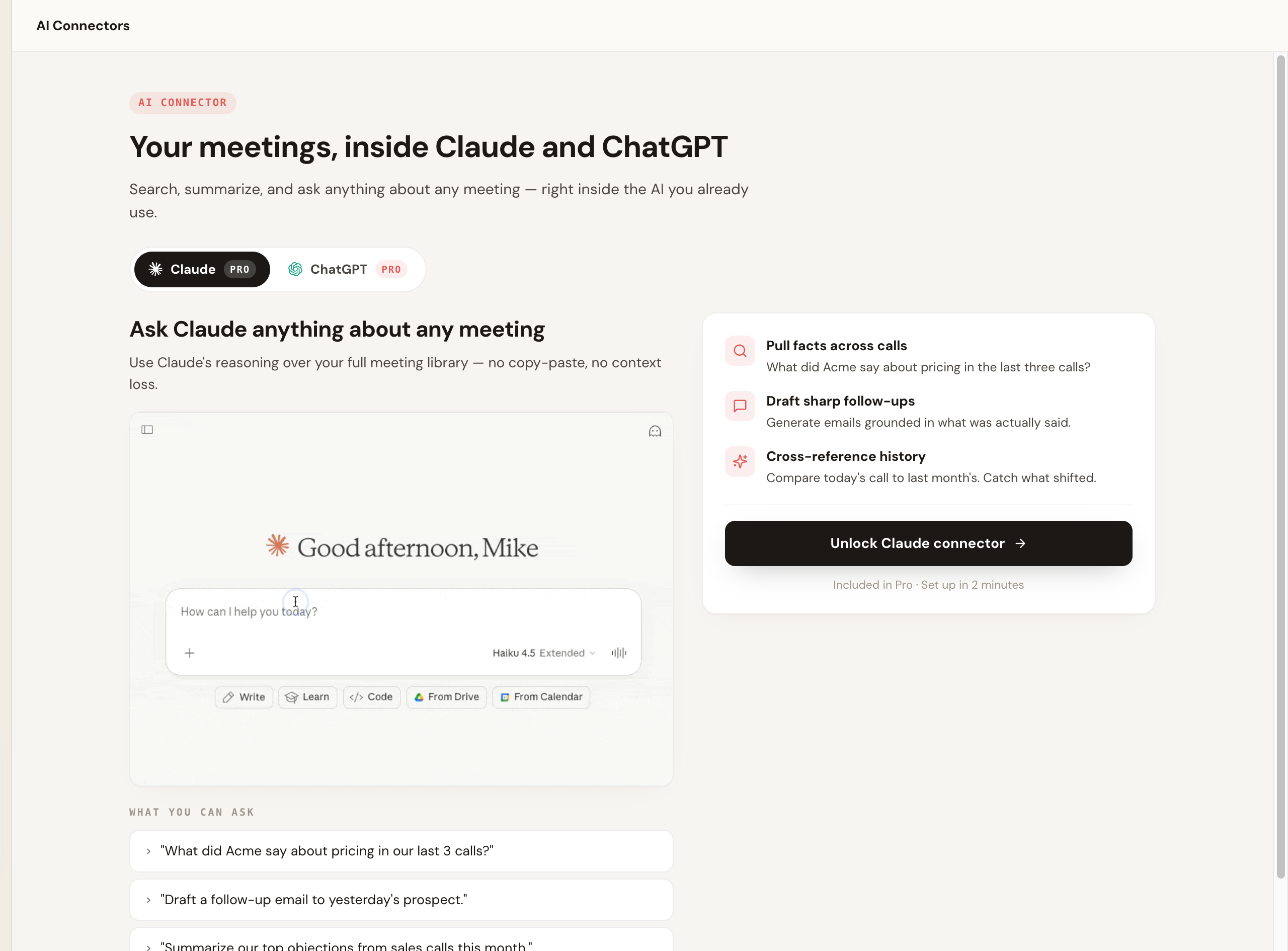
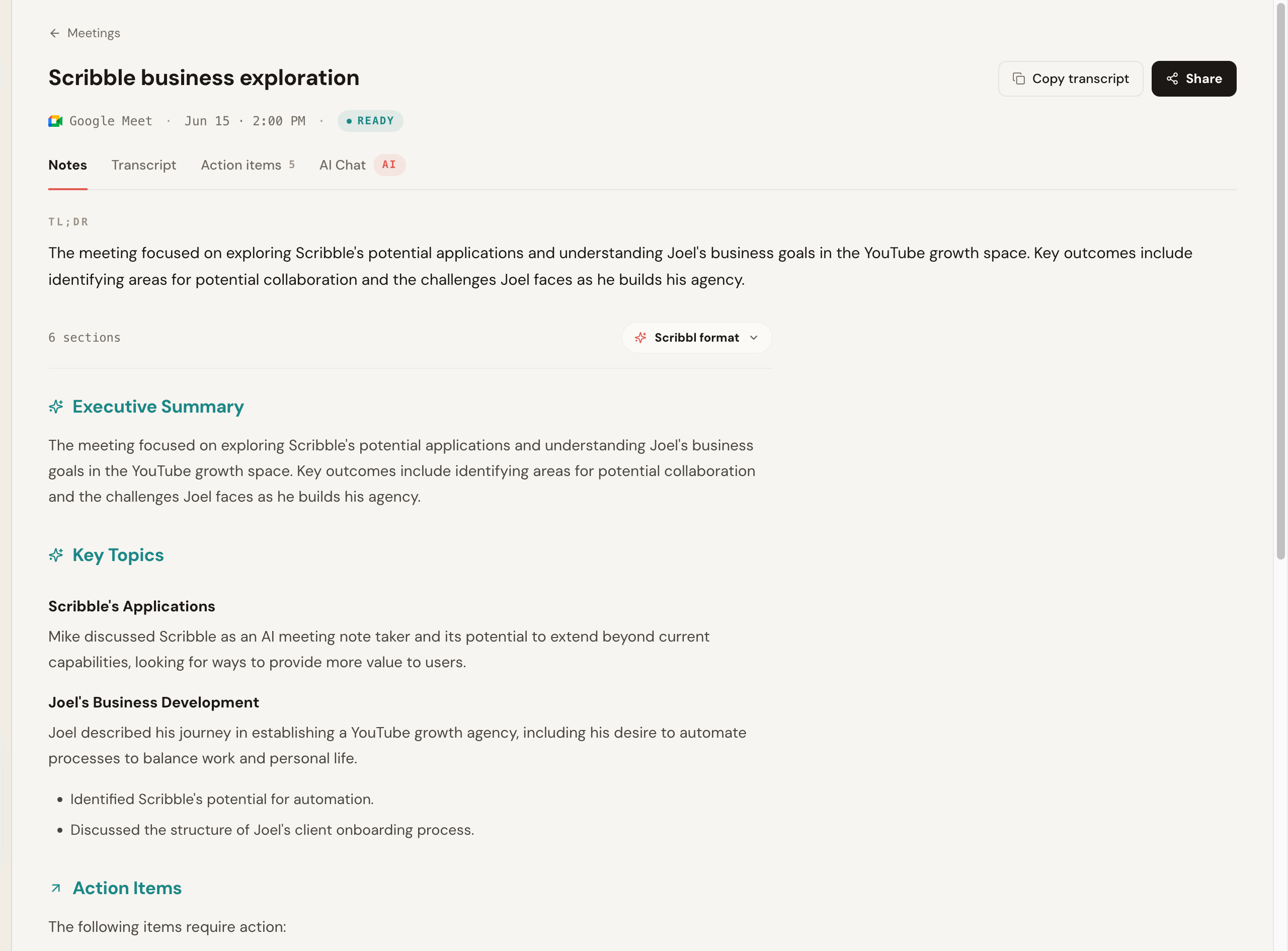
Pros: no bot ever joins; native macOS desktop app and Chrome extension, so the Chrome extension covers Google Meet and Scribbl Desktop covers the Zoom and Teams desktop apps; botless across Meet, Zoom, and Teams; free plan with no credit card; Smart Collections and Automations do the follow-up; 5.0 from 3,000 reviews on the Chrome Web Store and 4.9 from 725 reviews on G2. Pricing: free plan, 10 meetings a month, no credit card; Pro is $13 per user per month billed annually, or $20 monthly. See the pricing page. Rating: 5.0 from 3,000 reviews on the Chrome Web Store and 4.9 from 725 reviews on G2, used across 10,000+ organizations. Best for: Mac users with client, sales, or external calls who want notes with no bot, full Zoom and Teams coverage, and a free start. More in our botless AI notetaker explainer and the AI notetaker without a bot guide.
- Botless: nothing joins Meet, Zoom, or Teams
- Both shapes: Chrome extension and macOS desktop app
- Reaches: Google Meet with the Chrome extension, and the Zoom and Teams desktop apps with Scribbl Desktop
- Free: real free plan, no credit card
- Connects to: ChatGPT and Claude
- Smart Collections: ask about just one group of meetings
- Automations: the follow-up email drafted for you
- Trust: 5.0 from 3,000 reviews on the Chrome Web Store, 4.9 from 725 on G2
2. Granola
Granola is the Mac-native menu-bar app most people mean when they say they want something that "feels like a Mac app." It captures audio from your Mac and merges your own typed notes with an AI summary, with no bot joining the call, so it suits solo note-takers who like to jot during a meeting and have the AI clean it up afterward. Granola transcribes and then deletes the audio, so there is no recording or video to go back to. Several reviewers report gaps in speaker identification, so attribution on multi-person calls is its weak spot.
Pros: truly Mac-native menu-bar app; botless; blends your live typed notes with an AI summary; clean, fast desktop experience. Cons: no recording or video, because it deletes the audio after transcribing; speaker-ID gaps on multi-person calls; the free Basic plan keeps only notes from the last 30 days. Pricing: Basic is free (notes from the last 30 days); Business is $14 per user per month, billed monthly; Enterprise starts at $35 per user per month. Source: Granola pricing. G2: around 4.7 and growing as review volume builds; public average, varies. Best for: solo Mac professionals who take notes live and want them tidied up, with no bot. See our Granola alternative and Scribbl vs Granola comparisons.
Cross-platform / bot-based tools
These work on a Mac but were not built Mac-first; most reach you through the web, a Chrome extension, or a bot that joins the call from your calendar. They trade native feel and (usually) botless capture for breadth and integrations.
3. Fathom
Fathom is a popular notetaker that runs on Mac, and on G2 it carries one of the highest review volumes in the category at a near-5.0 average. A bot joins the meeting to record unless you use its bot-free capture, which is a beta on Mac. The free plan allows unlimited recordings, transcripts, and storage, but advanced AI summaries cover only your first 5 calls each month, and AI action items, AI follow-up emails, and Ask Fathom need Premium. With the bot, a participant appears in the call, which on macOS is in the meeting itself, not something the OS can hide.
So the page does not only show our own product, here is an honest, clearly-illustrative rendering of what a typical bot-based notetaker's post-call output looks like on a Mac, including the line that defines the category, the visible recording assistant in the attendee list. It is a diagram, not a screenshot of a real vendor's pixels.
Team reviewed the Q3 launch timeline and agreed to ship the beta the week of the 14th. Pricing page copy still open.
- Maria: finalize beta invite list (Fri)
- Dev: stage pricing copy for review
Pros: unlimited recording on the free plan; clean summaries; popular and well-supported; near-5.0 G2 at high volume. Cons: a bot joins and is visible to attendees (bot-free capture is a beta on Mac); advanced AI summaries cover only your first 5 calls a month on free; AI action items and follow-up emails need Premium. Pricing: free plan; Premium is $16 per user per month billed annually, or $20 monthly. Source: Fathom pricing. G2: around 5.0 at one of the highest review volumes in the category; public average, varies. Best for: Mac teams that want a clean, popular notetaker and are fine with a bot. See our Fathom alternative breakdown, Otter vs Fathom, and Scribbl vs Fathom.
4. Otter.ai
Otter is a mature transcription product with a strong live-transcription experience and a good mobile app, accessed on a Mac through the web and a Chrome extension rather than a heavy native client. By default it sends its Notetaker bot into calls across Meet, Zoom, and Teams, though it has a quieter no-bot mode for Google Meet. It is good on clean audio with a steeper drop on crosstalk, its free tier caps monthly minutes and per-conversation length, and its auto-join behavior has drawn consent scrutiny, so set it deliberately.
Pros: strong live transcription; good mobile app; established product; quiet no-bot mode on Meet. Cons: bot joins by default on Zoom and Teams; web-and-extension rather than a true native Mac app; accuracy drops on messy audio; minute caps on free. Pricing: Basic is free with 300 monthly transcription minutes and a roughly 30-minute per-conversation limit; Pro is $8.33 per user per month billed annually ($99.96 a year), or $16.99 monthly; Business is $19.99 billed annually, or $30 monthly. Source: Otter pricing. G2: around 4.3; the lowest in this group, dragged by auto-join and accuracy complaints. Public average, varies. Best for: live transcription and mobile capture on a Mac, if a bot is acceptable. See Otter alternative, Scribbl vs Otter, and Read AI vs Otter.ai.
5. Fireflies.ai
Fireflies is one of the more established and feature-rich options, with strong search, broad integrations, and team analytics, accessed on a Mac through the web and mobile. Its standard model sends a notetaker bot, often called Fred, into the meeting. The searchable archive and integration depth stand out, but it is a visible bot in every call, and it is heavier than most people need for plain notes.
Pros: very broad integrations; strong search; team analytics; large G2 review volume. Cons: visible bot; the feature surface can feel heavy; web rather than native Mac app. Pricing: free plan; Pro is $10 per seat per month billed annually, or $18 monthly; Business is $19 billed annually, or $29 monthly; Enterprise is $39 per seat per month, billed annually. Source: Fireflies pricing. G2: around 4.7 at one of the largest review volumes in the category; public average, varies. Best for: Mac teams that want a deep feature set and CRM depth and do not mind a join-the-call bot. See our Fireflies alternative and Scribbl vs Fireflies.
6. tl;dv
tl;dv focuses on recording and highlighting meetings, with clipping and sharing features teams use to spread context, available on a Mac through a desktop app and the web. It generally captures by joining the call as a bot. Its real strength is cutting and sharing moments rather than being a pure notes tool, so it fits teams whose workflow is built around sharing meeting clips.
Pros: excellent clipping and highlight sharing; good free tier; desktop and web on Mac. Cons: a bot joins; notes are secondary to clips for some teams. Pricing (confirm current): free plan available; paid tiers commonly from roughly $18 to $30 per user per month. Verify on tl;dv's site. G2: around 4.7; public average, varies. Best for: Mac teams that share meeting clips and want recording-first features. See our tl;dv alternative and Scribbl vs tl;dv.
Built-in / free Mac options: Apple Notes, ChatGPT Record Mode, Zoom AI Companion
This is the third bucket. Before you install anything, it is worth knowing what your Mac already has, because for light needs the built-ins are free and good enough.
- Apple Notes. Recent macOS lets Apple Notes record and transcribe audio, and Apple Intelligence can summarize text. It is convenient and private, but it is not a meeting notetaker: no auto-join, no per-meeting speaker mapping, and no action items pushed into your workflow.
- ChatGPT for macOS, Record Mode. The ChatGPT Mac app has a Record Mode that captures and transcribes desktop audio and produces a summary you can then chat with. Handy if you already pay for ChatGPT, but it is a general assistant feature, not a purpose-built notetaker with a meeting library, speaker labels, and integrations.
- Zoom AI Companion. If your meetings are mostly on Zoom and your account has it enabled, the host can get an AI summary of the call with no extra tool. It is bundled and convenient, but it only covers Zoom, the host has to enable it, and it does not span Meet and Teams.
These are real options for light use. The reason most people who run many meetings move to a dedicated tool is coverage (across Meet, Zoom, and Teams), botless capture in front of clients, speaker labels, a searchable meeting library, and follow-up that actually flows into the next step.
How to set up a Mac notetaker (download to first call)
Setup on a Mac has one step the other platforms do not: granting macOS the system-audio and screen-recording permission so the app can hear the other side of the call. Here is the path.
- 1
Install the extension and the desktop app
Add the Chrome extension for Google Meet, and download the macOS desktop app (the .dmg) for the native Zoom and Teams clients. Drag the app to Applications and open it.
- 2
Sign in and create your free account
Open the app or extension, sign in, and start on the free plan. With Scribbl the free plan needs no credit card, so you can test on a real call first.
- 3
Grant the macOS permissions
When prompted, allow Microphone, and for the desktop app allow Screen and System Audio Recording under System Settings, Privacy and Security. macOS may ask you to quit and reopen the app once for it to take effect.
- 4
Join your next call and confirm capture
Start or join a Zoom, Teams, or Meet call. Nothing joins the room with a botless tool. Run one real call, then check the transcript, summary, and action items to confirm capture before you rely on it.
Privacy and compliance on a Mac
The "for Mac" search skews privacy-conscious, so here is the honest landscape. There are three levers, and they stack.
- Botless capture. Removes the visible recorder from the room, which is a privacy and trust signal to the other side, even though it is a separate idea from where the audio is processed. Scribbl and Granola are botless. With Scribbl nothing is announced and no email goes to other attendees either.
- On-device transcription. Some Mac apps transcribe locally so audio never leaves your Mac, but you record the call yourself and the notes are lighter.
- Cloud terms. For any cloud tool, the real questions are retention window, deletion controls, data residency (which matters for EU and regulated teams), who can access the data, and whether it trains models. These differ across every tool and change over time, so read the current privacy policy and data-processing terms before recording sensitive calls. Scribbl recordings are private by default, and Scribbl doesn't use your meetings to train AI for anyone other than you.
Best AI notetaker for Mac by use case
Map the tool to your most common meeting and your privacy needs, not to the longest feature list.
| If you are... | Pick | Why |
|---|---|---|
| Most people on a Mac | Scribbl | Botless, native desktop app plus extension, covers Meet, Zoom, and Teams, free to start, connects to ChatGPT or Claude |
| Privacy-conscious | Scribbl | No bot in the room, nothing announced, no email to other attendees |
| Running back-to-back meetings | Scribbl | Nothing to launch per Google Meet call, desktop app for Zoom and Teams, follow-up written for you |
| In sales, on client calls | Scribbl | No visible bot on a prospect's call, then AI follow-up and CRM notes from what was said. See Scribbl for sales |
| Logging notes and searching past calls | Scribbl | Automations log notes in HubSpot or Pipedrive, post to Slack, and open Linear, Jira, or Asana tickets; search across every meeting |
| Meeting on a mix of Meet, Zoom, and Teams | Scribbl | All three in one account, with no bot on any of them |
| A solo note-taker who types during calls | Granola | Mac-native menu-bar app that blends your typed notes with an AI summary; reviewers report speaker-ID gaps on multi-person calls |
Our pick: Scribbl
If you want a Mac notetaker that gets out of the way and reaches every call, Scribbl is the one we recommend. It records, transcribes, and summarizes Google Meet, Zoom, and Microsoft Teams from a Chrome extension and a macOS desktop app, never adds a participant, and turns each meeting into a searchable transcript with AI notes and action items. The difference that matters most is what happens after: Smart Collections sort your meetings by themselves, so you can ask ChatGPT or Claude about just one group, and Automations draft the follow-up email, log the CRM note, and post the recap, so the work gets done instead of sitting in a transcript. The free plan needs no credit card, and Pro lifts the meeting limits.
What Mac users actually say
Ratings are a credibility signal, not a feature, so treat them as a tiebreaker rather than a deciding factor. Scribbl is rated 5.0 from 3,000 reviews on the Chrome Web Store and 4.9 from 725 reviews on G2, and it is in use across more than 10,000 organizations. The competitor figures in the table above are public G2 averages that shift as new reviews land, so verify them on each vendor's listing.
Across reviews, the themes that come up most for the Mac and botless angle are consistent. Paraphrased so we are not putting words in anyone's mouth, the recurring praise is:
- "No bot showing up on client calls" is the single most-cited reason people switch. The relief of not having a visible recorder in front of a prospect comes up again and again.
- "It just works across Meet, Zoom, and Teams" rather than being locked to one platform, which matters when your week is a mix of all three.
- "The follow-up writes itself" once meetings connect to ChatGPT or Claude, so the value lands after the call, not just as a transcript.
AI notetakers for Mac FAQ
What is the best AI notetaker for Mac in 2026?
Scribbl is our overall pick. It is a botless notetaker that records, transcribes, and summarizes Google Meet with its Chrome extension and Zoom and Microsoft Teams with Scribbl Desktop (on a Mac with Apple silicon), without anything joining the call. Every meeting gets the video, a transcript with speaker names, AI notes and action items, the free plan needs no credit card, and Automations do the follow-up. The rest of the field splits into Mac-native menu-bar apps like Granola and bot-based tools like Fathom, Otter, and Fireflies, all ranked in this guide.
Is there a free AI notetaker for Mac?
Yes. Scribbl's free plan covers 10 meetings a month, includes Google Meet, Zoom, and Teams, and needs no credit card: the Chrome extension records Google Meet, and Scribbl Desktop for Macs with Apple silicon records Zoom and Teams. Fathom, Otter, Fireflies, tl;dv, and Granola also publish free tiers, but each one caps something: Otter's Basic plan has 300 monthly transcription minutes, Fathom's advanced summaries cover only your first 5 calls each month, and Granola's Basic plan keeps notes from the last 30 days. Fathom, Otter, Fireflies, and tl;dv also send a bot into the call by default. Confirm current limits on each vendor's pricing page since they change.
What is the difference between a native Mac app and a browser-based notetaker?
A native Mac app installs as a real macOS application, often with a menu-bar icon, and captures system audio through Apple's Screen Recording or microphone permissions, so it can record the Zoom or Teams desktop client without a browser open. A browser-based notetaker is a Chrome extension or web app that only works with meetings inside the browser, like Google Meet, and cannot see audio from native desktop apps. Most heavy Mac meeting users want both: an extension for browser calls and a desktop app for the native Zoom and Teams clients. Scribbl ships both: the Chrome extension for Google Meet and Scribbl Desktop for Zoom and Teams.
Can an AI notetaker transcribe meetings offline on a Mac?
Some can. On-device transcription apps run an open transcription model locally on Apple silicon, so audio stays on your Mac and works with no internet connection. The trade-off is that they transcribe recordings you make yourself rather than taking notes on live calls, and their summaries and action items are lighter. Cloud notetakers like Scribbl, Otter, Fireflies, and Fathom need a connection and give you more: with Scribbl, every meeting gets the video, a transcript with speaker names, AI notes and action items, recordings are private by default, and Scribbl doesn't use your meetings to train AI for anyone other than you.
Do AI notetaker bots show up in the meeting on a Mac?
Most do, and the platform is irrelevant to it. Bot-based tools like Otter, Fireflies, Fathom, and tl;dv send a named participant into the call from your calendar by default, and everyone can see it in the attendee list; some platforms announce it. macOS does not hide that bot; it is in the meeting itself. Botless apps like Scribbl and Granola add no one to the call, so nothing is visible and nothing is announced. If a visible recorder would change the room on a client or candidate call, pick a botless Mac app.
How do I set up an AI notetaker on a Mac?
For a browser tool, install the Chrome extension, sign in, and join your next Google Meet. For a native Mac app, download the .dmg, drag it to Applications, open it, and grant the macOS permissions it asks for: Microphone, and for system audio, Screen and System Audio Recording under System Settings, Privacy and Security. The app prompts you the first time and macOS may ask you to quit and reopen it once. After permissions are granted, start or join your Zoom or Teams call and the app captures it. With Scribbl you install the Chrome extension for Google Meet and the desktop app for Zoom and Teams, then run one real call to confirm capture before relying on it.
Which AI notetaker is best for a privacy-sensitive Mac user?
Scribbl is the pick for most privacy-sensitive Mac users. It is botless, so no recorder joins the call, nothing is announced, and no email goes to other attendees, and you still get the video, a transcript with speaker names, AI notes, action items, and AI follow-up. Recordings are private by default, and Scribbl doesn't use your meetings to train AI for anyone other than you. For any cloud tool, read the current privacy policy, retention window, data-residency options, and whether your data trains models before recording sensitive meetings.
Does Apple have a built-in AI notetaker on Mac?
Partly. Apple Notes on recent macOS can record and transcribe audio, and Apple Intelligence can summarize text, but it is not a dedicated meeting notetaker: it does not auto-join calls, identify speakers across a meeting, or push action items into your workflow. ChatGPT for macOS has a Record Mode that transcribes and summarizes desktop audio, and Zoom's built-in AI Companion can summarize Zoom meetings for the host. These built-ins are convenient and free or bundled, but they are narrower than a dedicated notetaker and each has gaps, so most people who run many meetings use a purpose-built tool.
Does a Mac AI notetaker need consent to record?
Yes. Running on macOS or capturing without a bot does not change your legal obligation. Recording laws vary by country and US state, with some allowing one-party consent and others requiring all-party consent where everyone must agree. A botless app removes the surprise attendee, not the responsibility to disclose. Tell people you are recording or taking notes and get consent where it is required. This is general information, not legal advice; check your jurisdiction and company policy before recording sensitive calls.
How much do AI notetakers for Mac cost?
Free plans are common. On each vendor's pricing page in October 2026, the first paid plans were: Otter Pro at $8.33 per user per month billed annually, or $16.99 monthly; Fireflies Pro at $10 per seat per month billed annually, or $18 monthly; Granola Business at $14 per user per month, billed monthly; and Fathom Premium at $16 per user per month billed annually, or $20 monthly. Scribbl Pro is $13 per user per month billed annually, or $20 monthly, and Scribbl's free plan covers 10 meetings a month, includes Google Meet, Zoom, and Teams, and needs no credit card. Pricing changes often, so confirm the live number on each vendor's pricing page before you buy.
Related reading: botless AI notetaker, AI notetaker without a bot, best AI notetaker app, AI notetaker for Windows, AI notetaker Chrome extension, best Zoom AI notetaker, best botless meeting recorders, and AI notetaker with Slack.
Try Scribbl
Let your meetings take their own notes.
Scribbl records, transcribes, and summarizes your Google Meet calls from your browser. No bot joins the call. Free forever for individuals.
Add to Chrome · It's free