Scribbl records your Google Meet, Zoom and Teams calls and writes the notes. No bot joins. Free for 10 meetings a month. Get Scribbl for Zoom
How to Record a Zoom Meeting on Mac (Even Without Host Permission)
How to record a Zoom meeting on a Mac with Zoom's Record button, where the file goes, and how Scribbl records it free with notes, no host permission.
Updated November 21, 2026
The short answer
Tested on October 1, 2026, in Zoom Workplace 7.1.9 for Mac on a free Zoom account; Zoom Support checked October 23, 2026
On a Mac, click More Record in the Zoom desktop app, or press Cmd + Shift + R, if you're the host or the host allows you
- Where it goes
- An MP4 in Documents › Zoom on your Mac, once the meeting ends and Zoom finishes converting it. Don't close your MacBook until it's done.
- Not the host?
- Zoom's recorder only works if the host allows it: Participants › More › Allow Record. Cloud recording needs a paid plan.
- Mac screen recorder
- Cmd + Shift + 5 records the screen: drag a selection around the Zoom window. Only on macOS 27 or later can it record the other people's voices, with Include System Audio. No transcript.
- Free, with notes
- Scribbl Desktop for Mac records the Zoom call with nothing joining it and no host permission: the video, a transcript with speaker names and AI notes, free for 10 meetings a month.
Try Scribbl
Record Zoom on your Mac, free
Scribbl's desktop app records, transcribes, and summarizes your Zoom meetings from your own computer. No bot joins the call and you don't need to be the host. Free for 10 meetings a month, no credit card.
Get Scribbl for Zoom · It's freeHow to record a Zoom meeting on Mac:
- Open the meeting in the Zoom desktop app for Mac.
- Click More on the meeting toolbar, then Record, or press Cmd + Shift + R.
- If you're the host or a co-host on a paid plan with cloud recording turned on, choose Record on this computer or Record to the cloud. Otherwise Zoom records to your Mac.
- Check for the red REC at the top right of the meeting window.
- End the meeting and let Zoom convert the file. It opens the folder in Documents › Zoom when it's done.
That's Zoom's own recorder, and it only works if you're the host or the host allows you. If you're not the host, the Record button isn't there, or you also want notes, Scribbl Desktop for Mac records the Zoom call from your own Mac with nothing joining it and no host permission, and gives you the video, a transcript with speaker names and AI notes, free for 10 meetings a month.
This guide is only about the Mac. For Windows, phones and the browser, see how to record a Zoom meeting. The Zoom steps below come from our test on October 1, 2026, in Zoom Workplace 7.1.9 for Mac on a free Zoom account.
Three ways to record a Zoom meeting on a Mac
| Way to record | Cost | Who can use it | What you get | Where it's saved |
|---|---|---|---|---|
| Scribbl Desktop for Mac (our pick) | Free for 10 meetings a month; Pro $13 per user per month billed annually | Anyone in the call; the host doesn't have to allow it | The video, a transcript with speaker names, AI notes and action items | Your Scribbl account |
| Zoom's Record button | Free to your Mac; cloud recording needs a paid Zoom plan | The host, or a participant the host allows | An MP4 video and an M4A audio file; no transcript on the free plan | Documents › Zoom on your Mac, or the host's Zoom account |
| Mac screen recorder (Cmd + Shift + 5) | Free, built into macOS | Anyone | A video file only; other people's voices only on macOS 27 or later | Your Mac |
Zoom rules from Zoom Support, checked October 23, 2026. Mac screen recording from Apple's How to record the screen on Mac, September 14, 2026. Scribbl pricing as of October 2026.
How to record a Zoom meeting on Mac with Zoom's Record button
Recording to your computer only works in the Zoom desktop app for Mac. It doesn't exist when you join Zoom in a browser, which can only record to the cloud on a paid plan. These are the steps from our test in Zoom Workplace 7.1.9 for Mac:
- Start or join the meeting in the Zoom desktop app: New meeting or Join.
- Click More, the ··· button at the right end of the meeting toolbar, then Record. In our October 1, 2026 test, Record sat under More, where it has been since Zoom 6.7. If your toolbar shows a Record button, use that.
- Pick where to save it, on a paid plan. Zoom asks: Record on this computer or Record to the cloud. On the free plan, it records to your Mac without asking.
- Check for REC. A red REC appears at the top right of the meeting window, and everyone in the meeting sees it. Zoom's help page says the top left; in 7.1.9 it's on the right. Hover over it to pause or stop.
- End the meeting. Click End, then End meeting for all, or Leave meeting if you're not the host.
- Wait for the conversion. Zoom converts the recording to MP4 and M4A files, then opens the meeting's folder in Finder.
The Mac shortcuts:
| To do this | Press |
|---|---|
| Record on this computer | Cmd + Shift + R |
| Record to the cloud | Cmd + Shift + C |
| Pause or resume | Cmd + Shift + P |
Pause keeps everything in one file. Stop ends that file; if you record again in the same meeting, Zoom starts a new one.
Who can press Record on a Mac
| Who you are in the meeting | Record on this computer | Record to the cloud |
|---|---|---|
| Host | Yes, on free and paid plans | Yes, on a paid plan |
| Participant the host allowed | Yes | No |
| Any other participant | No | No |
Free Zoom meetings end at 40 minutes, so the recording stops there too. If Record is greyed out, one common cause is that your company's Zoom admin has turned recording off and locked the setting, which only the admin can change. Not being the host, without the host's permission, is another.
Record a Zoom meeting on Mac without host permission
With Zoom's own recorder, participants can't record unless the host allows it. You have three options.
1. Ask the host. The host clicks Participants, hovers over your name, clicks More and chooses Allow Record. Your More › Record then works, for recording to your Mac, not the cloud. You can also ask from your side, if the host allows requests: click More › Record and choose Request to record to this computer (as in our October 1, 2026 test). If the host doesn't see Allow Record, they need Record to computer files turned on in the Zoom web portal under Settings › Recording, where they also choose who is allowed to ask.
2. Record from your own Mac with Scribbl. It doesn't use Zoom's Record button, so the host doesn't have to do anything. Steps below.
3. Use the Mac screen recorder. Free, but on most Macs it misses the other people's voices. Details below.
Zoom's permission isn't needed when Zoom isn't the one recording. For every case across Zoom, Google Meet and Teams, see how to record a meeting when you're not the host.
Record a Zoom meeting on Mac free with Scribbl
Scribbl Desktop records your meetings in the Zoom app on your own Mac. It doesn't use Zoom's Record button, so it works when you're not the host, when the host hasn't allowed recording, and on Zoom's free plan. Nothing joins the call.
- Download Scribbl Desktop for Mac from scribbl.co/desktop, drag it to Applications, open it and sign in. The free plan needs no credit card.
- Allow the macOS permissions it asks for. In System Settings › Privacy & Security, allow Scribbl under Microphone (your voice) and Screen & System Audio Recording (the other people's voices). macOS may ask you to quit and reopen the app once.
- Join your Zoom meeting in Zoom for Mac as usual. In our test, Scribbl started recording as soon as the Zoom meeting began, showing Capturing, with nothing to click.
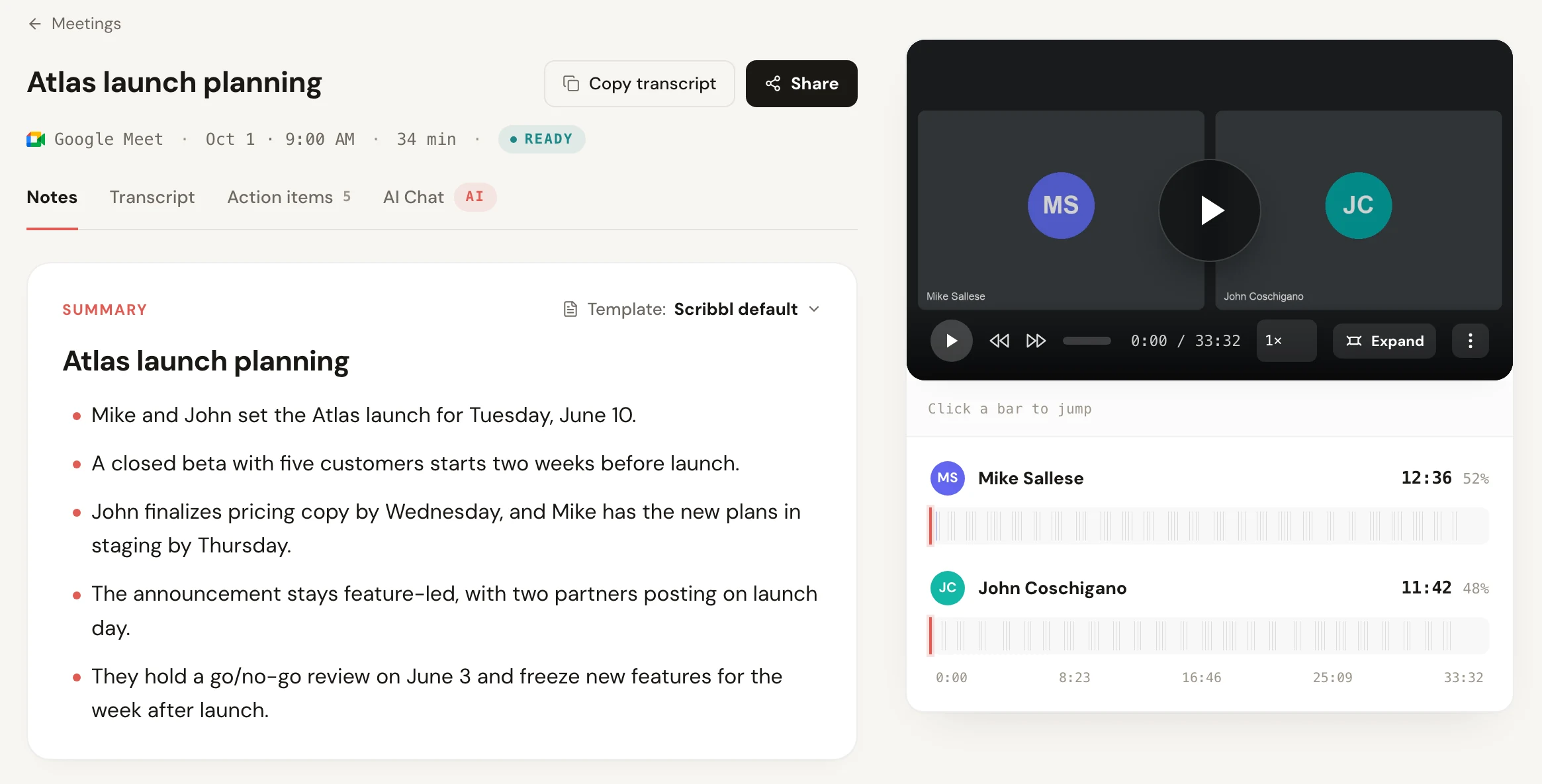
- Open the meeting in Scribbl when it ends. The video, a transcript with speaker names, AI notes and action items are there. No conversion to wait for, and no folder to find.
What you get after every Zoom meeting:
- The full video, with a timeline of who spoke when.
- A searchable transcript with speaker names and timestamps.
- AI notes: a summary, the key topics, decisions and action items.
What it needs: a Mac with Apple silicon (M1 or newer). On an Intel Mac, Zoom's own recorder and the Mac screen recorder still work. The free plan includes Google Meet, Zoom and Microsoft Teams, with 10 meetings a month. Pro is $13 per user per month billed annually, or $20 monthly. For other free options on a Mac, see the free AI note taker for Mac comparison, and for Zoom in particular, our Zoom AI note taker page.
Get Scribbl for MacScreen record a Zoom meeting with the Mac screen recorder
Every Mac has a screen recorder built in: Cmd + Shift + 5 opens Screenshot. It records whatever is on your screen, so Zoom doesn't need to allow it. These are Apple's steps:
- Start or join the Zoom meeting in Zoom for Mac.
- Press Cmd + Shift + 5.
- Choose to record the entire screen or a selected portion, and drag a selection around the Zoom window.
- Click Options and pick your microphone, or your own voice isn't recorded. On macOS 27 or later, also choose Include System Audio so the other people's voices are recorded. Only what you select is recorded.
- Click Record. Stop when the meeting ends.
| Your macOS | What gets recorded |
|---|---|
| macOS 27 or later | The Zoom window with the other people's voices (Include System Audio) and your voice (your microphone) |
| Earlier macOS | Your microphone, if you pick it; the other people come out faint or not at all |
On earlier versions, getting both sides means extra audio software, such as the free BlackHole virtual audio device or OBS Studio. Our guide to recording Google Meet audio walks through the Mac setup, and it works the same way for Zoom.
What you get is a screen video and nothing else: no transcript, no speaker names, no notes, and a large file on your Mac.
How to record Zoom meeting audio on a Mac
If you only want the sound, Zoom already does most of the work:
- Zoom's own recording saves the audio separately. Every computer recording comes with an
audio…m4afile next to thevideo…mp4in the meeting's folder. That M4A is the meeting's sound on its own. - One audio file per person. The host can turn on Record a separate audio file for each participant in the Zoom desktop app: click your profile picture, then Settings, then the Recording tab. Zoom then saves one file for each participant.
- Only have a video? Open it in QuickTime Player and choose File › Export As › Audio Only.
Where do Zoom recordings go on a Mac?
| Recording type | Where it's saved on a Mac |
|---|---|
| Record on this computer | /Users/[your name]/Documents/Zoom, one folder per meeting |
| Record to the cloud | The host's Zoom account: zoom.us › Recordings & Transcripts › Cloud recordings |
| Scribbl Desktop | Your Scribbl account, with the transcript and notes |
Each meeting's folder is named with the date, the time and the meeting name. Inside, the video…mp4 file is the recording you want, audio…m4a is the sound on its own and recording.conf is Zoom's settings file, which you can ignore.
To get there, click Open recordings on the Zoom Home tab, or open Documents, then Zoom in Finder.
To change the folder, click your profile picture in the Zoom app, then Settings, then the Recording tab, and click Change next to Storage location. Zoom recommends keeping it on your Mac's own drive: a folder that syncs to Dropbox, Google Drive or OneDrive, an external drive or network storage can break saving and converting. If your Mac syncs Desktop & Documents to iCloud, Documents › Zoom is one of those cloud-synced folders, so change the storage location to a folder that stays on your Mac.
A computer recording is stored only on the Mac that recorded it, and Zoom keeps no copy. Cloud recording, on paid plans such as Pro, Business and Enterprise, saves nothing on your Mac: the recording goes to the host's account, even if a co-host started it, and Zoom says processing generally takes about twice the recorded length. More in where do Zoom recordings go.
How to get a transcript of a Zoom meeting on a Mac
Zoom doesn't transcribe recordings saved to your Mac. On paid plans, turn on Create audio transcript in the Zoom web portal under Settings › Recording, and Zoom adds a VTT transcript file next to each cloud recording. Full steps in Zoom meeting transcription. The Mac screen recorder gives no transcript; Scribbl writes one with speaker names, plus AI notes, after every Zoom meeting it records.
Do you need permission to record a Zoom meeting on a Mac?
When Zoom records, it tells everyone: REC appears in the meeting, dial-in participants hear a message that the meeting is being recorded unless the host turned it off, and depending on the account's settings, Zoom shows a notice that staying in the meeting means agreeing to be recorded. Recorders on your own Mac don't trigger any of that. In the US, federal law and most states require only one person on the call to agree, which can be you, but some, including California, require everyone's agreement. This isn't legal advice; if it matters, check the rules where you and the other people are.
To record every Zoom meeting you're in on your Mac, host or not, with the video, a transcript and AI notes waiting when it ends: get Scribbl Desktop, free for 10 meetings a month. Recording Teams too? Here's how to record a Teams meeting on Mac.
On a Mac, Option+Y raises and lowers your hand in a Zoom meeting; how to raise hand in Zoom has the steps for every device.
Want something sillier for your next call? We made 20 free funny Zoom backgrounds you can download and upload in a few seconds.
FAQ
How do I record a Zoom meeting on a Mac?
Open the meeting in the Zoom desktop app for Mac, click More on the meeting toolbar, then Record, or press Cmd + Shift + R. A red REC appears at the top right of the meeting window. It works on the free Zoom plan, but only if you're the host or the host allows you. When the meeting ends, Zoom converts the recording to an MP4 in Documents › Zoom. Scribbl Desktop for Mac records the Zoom call without the host's permission, free for 10 meetings a month.
How do I record a Zoom meeting on a Mac without permission from the host?
Not with Zoom's own Record button: the host has to click Participants, then More next to your name, then Allow Record. A recorder on your own Mac doesn't need it. Scribbl Desktop records the Zoom app with nothing joining the call and gives you the video, a transcript with speaker names and AI notes. The Mac screen recorder (Cmd + Shift + 5) also works, but records the other people's voices only on macOS 27 or later.
Where do Zoom recordings go on a Mac?
Computer recordings go to /Users/[your name]/Documents/Zoom, in a folder for each meeting named with the date, time and meeting name. The video is the MP4 file inside it, and the audio on its own is an M4A file. In the Zoom app, click Open recordings on the Home tab. Cloud recordings go to the host's Zoom account, under Recordings & Transcripts at zoom.us.
How do I record only the audio of a Zoom meeting on a Mac?
When Zoom records to your Mac, it already saves the sound on its own as an M4A file next to the MP4 in the meeting's folder in Documents › Zoom. The host can also turn on Record a separate audio file for each participant in Zoom's Settings, on the Recording tab. If you only have a video, open it in QuickTime Player and choose File › Export As › Audio Only.
Does the Mac screen recorder record Zoom audio?
Only on macOS 27 or later, where you press Cmd + Shift + 5, click Options and choose Include System Audio, plus your microphone so your own voice is recorded too. It records only the audio you select. On earlier versions you can choose only a microphone, so the other people's voices come out faint or not at all unless you add extra audio software such as BlackHole. Either way you get a video file and no transcript.
What do I need to allow on my Mac to record a Zoom meeting with Scribbl?
The first time you open Scribbl Desktop, macOS asks you to allow it under Microphone, and under Screen and System Audio Recording, in System Settings › Privacy & Security, so it can hear the other people as well as you. macOS may ask you to quit and reopen the app once. Scribbl Desktop needs a Mac with Apple silicon, M1 or newer.
Can I record a Zoom meeting on a Mac for free?
Yes. The free Zoom plan records to your Mac in the Zoom desktop app, as the host or with the host's permission, but free meetings end at 40 minutes and there's no transcript. Scribbl's free plan records 10 meetings a month across Zoom, Google Meet and Microsoft Teams, with the video, a transcript with speaker names, AI notes and action items, and nothing joins the call.
How we checked
The Zoom for Mac steps, buttons and shortcuts come from real meetings we recorded in Zoom Workplace 7.1.9 for Mac on October 1, 2026, on a free Zoom account, for our guide on how to record a Zoom meeting. Zoom's rules come from Zoom's help pages, checked October 23, 2026. Mac screen recording comes from Apple's page, published September 14, 2026. The macOS permissions for a Mac note taker come from our Mac note taker guide, checked October 7, 2026.
- Zoom Support: Starting a computer recording, Finding your computer and cloud recordings, Managing computer recordings, Troubleshooting computer recording conversion
- Zoom Support: Starting a cloud recording, Cloud recording storage capacity, Enabling or disabling audio transcription for cloud recordings
- Apple: How to record the screen on Mac
- Apple: Export movies in QuickTime Player on Mac
- Scribbl: pricing and Scribbl Desktop
Try Scribbl
Record Zoom on your Mac, free
Scribbl's desktop app records, transcribes, and summarizes your Zoom meetings from your own computer. No bot joins the call and you don't need to be the host. Free for 10 meetings a month, no credit card.
Get Scribbl for Zoom · It's freeTry Scribbl
Record Zoom on your Mac, free
Scribbl's desktop app records, transcribes, and summarizes your Zoom meetings from your own computer. No bot joins the call and you don't need to be the host. Free for 10 meetings a month, no credit card.
 Get Scribbl for Zoom · It's free