How to Take Meeting Notes Without Missing Details (2026)
How to take meeting notes: what to include, how to write them before, during and after the call, a shorthand that keeps up, and a template to copy.
Updated October 19, 2026
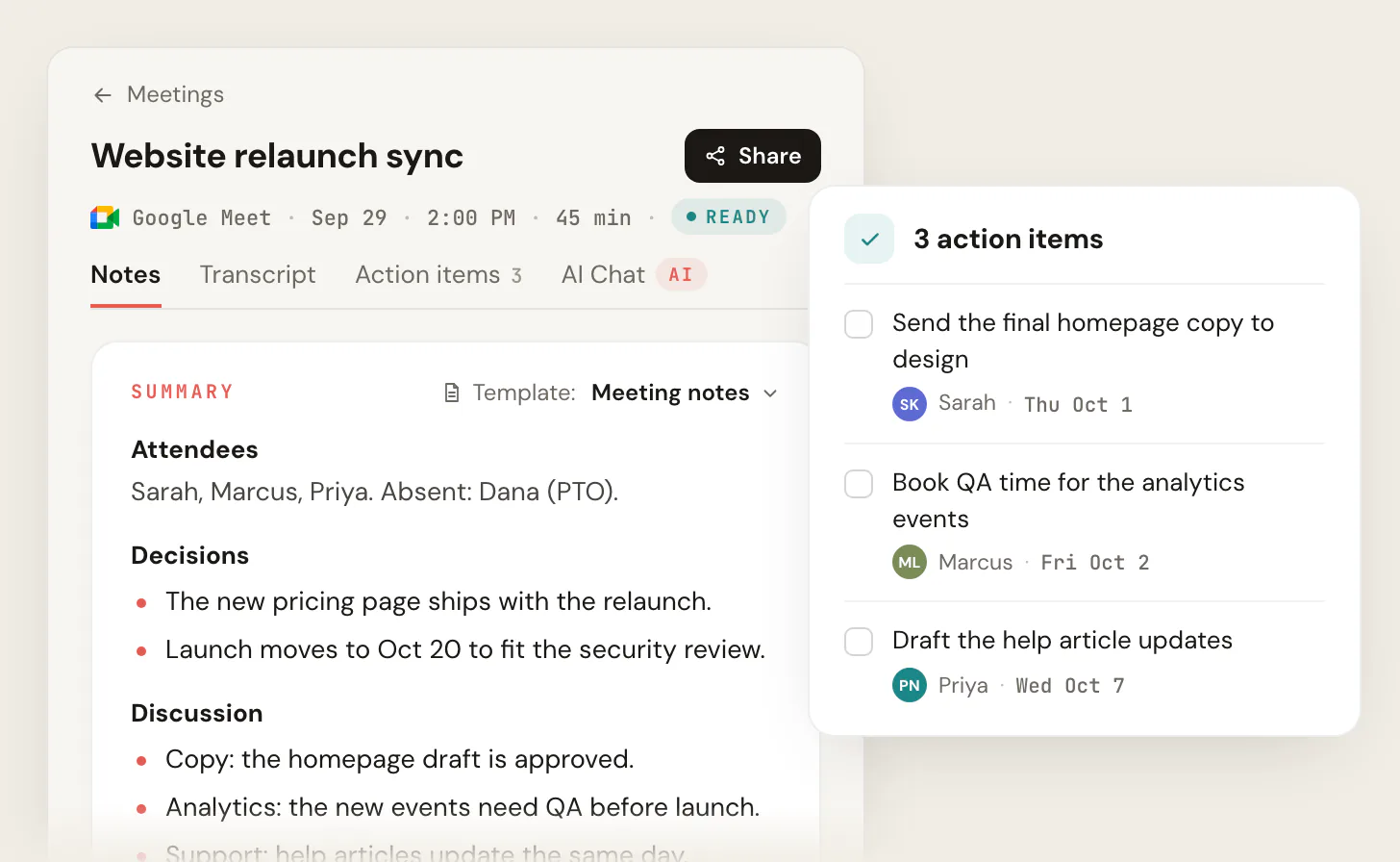
To take meeting notes without missing details, write down only four things while people talk: decisions, action items with an owner and a due date, open questions, and the one or two reasons behind a decision. Let a recording and transcript keep everything else, then clean up the notes and send them the same day.
Most notes miss details because the person taking them tries to write down everything, falls behind, and misses the moment someone says "I'll have it by Friday." Writing less, in a fixed format, is what keeps you up with the conversation.
This guide covers what to include, how to write meeting notes before, during and after the call, a shorthand that keeps up, a template to copy, and how to have the notes and action items written for you. Scribbl, an AI note taker, makes this page. Everything here works with a pen and paper, and if your meetings are on Google Meet, Zoom or Microsoft Teams, Scribbl writes the notes and the action items so you can listen.
What should you include in meeting notes?
Meeting notes should include the meeting details, the decisions, the action items with an owner and a due date, the open questions, and the short reason behind each decision. A good test: could someone who missed the meeting read your notes and know what was decided and what they need to do?
| Include | What to write | Example |
|---|---|---|
| Meeting details | Name, date, who attended, who was absent, why you met | Website relaunch sync, Oct 12. Sarah, Marcus, Priya. Absent: Dana. |
| Decisions | What was agreed, written as a fact | Launch moves to Oct 20. |
| Action items | Verb + task + owner + due date | Send the final homepage copy to design, Sarah, Thu Oct 15. |
| Open questions | What is unresolved, who will answer it, by when | Do we need legal sign-off? Dana to check by Wed. |
| Context | The one or two reasons a future reader needs | Moved the date to fit the security review. |
| Links | The recording, transcript, and any document mentioned | Recording and transcript: [link] |
Decisions
What was agreed, stated as a fact. "We talked about the launch date" is noise. "Decision: launch moves to Oct 20" is what you keep. If you can't tell whether something was decided, it wasn't, so log it as an open question instead.
Action items with an owner and a due date
No owner means nobody does it. No date means it never gets done. Write each one as a verb plus a name plus a date: "Send the revised SOW, Priya, Fri." These are the details most notes miss, because they are often said once, in passing, at the end of a long point. For more on writing them, see action items: definition and examples.
Open questions
What is unresolved, who will resolve it, and by when. This is where you put the topic the room wants to argue about so the meeting can move on.
Context worth keeping
The one or two "why" facts a future reader needs to understand a decision. Not the debate, just the reason: "Chose vendor B because their support covers weekends."
What to leave out
The back-and-forth, side conversations, and anything you would only need word for word, such as a pricing breakdown or a technical spec. That belongs in the recording and transcript. Your notes point to it instead of copying it.
How do you write meeting notes?
You write meeting notes in three steps: set up the notes before the call, capture the four things during it, and clean up and send the notes right after. The steps below work on paper, in a doc, or in a note app.
- 1
Set up the notes
Paste the agenda as headings. Put empty Decisions and Action items sections at the top.
- 2
Pick who takes notes
Name one person, or turn on your note taker, before the call starts.
- 3
Listen for decisions and owners
'Let's go with,' 'I'll take,' 'by Friday.' Write those, not the debate.
- 4
Mark, don't chase
Too detailed to catch? Write 're: pricing, see transcript' and keep listening.
- 5
Read the action items back
In the last few minutes, fill in any missing owner or date while everyone is there.
- 6
Clean up and send the same day
Fix names and dates, then send the notes or a recap email and move tasks to your tracker.
Before the meeting
Good notes start five minutes before anyone joins.
- Paste the agenda in as headings, so every point has an obvious home. The meeting preparation checklist covers the rest of the prep.
- Put empty Decisions and Action items sections at the very top, above the agenda, so they stare at you until you fill them.
- Decide who takes notes before the call. Name a person, or confirm your note taker is on. Deciding at minute three means minutes one to three are gone.
- Don't run the meeting and take the notes. If you are leading the conversation, your attention is on steering it to a decision. Hand the notes to someone else or to a tool. This is the most common reason notes come out thin.
How to take notes during a meeting
Your job is to listen for the moments worth writing. "Let's go with" and "we need to decide" mean a decision is landing. "I'll take," "I can own" and "by Friday" mean an action item is forming. Write those down.
Put things in your own words instead of quoting. In a study by Pam Mueller and Daniel Oppenheimer, students who took notes on laptops tended to copy lectures word for word and did worse on conceptual questions than students who wrote by hand and had to summarize (Psychological Science, 2014). The lesson isn't "use a pen." It's "stop transcribing."
When something is too detailed to catch, don't try. Write a marker like re: pricing, see transcript and keep listening. You are building an index to the meeting, not a copy of it.
In the last few minutes, read the action items back out loud: "So Sarah sends the copy Thursday, Marcus books QA by Friday?" Saying it forces a name and a date on anything that is missing one.
After the meeting
Within an hour, while it's fresh:
- Check every action item has a real name and a real date. Fix anything that is vague.
- Add the links: the recording, the transcript and any document someone mentioned.
- Send the notes the same day to everyone who attended and anyone who needs to know. The meeting recap format and how to write a follow-up email cover the wording.
- Move each task into the tool where your team tracks work, so nobody has to reopen the notes to find it.
- Start the next meeting by going through last time's action items. That one habit does more for follow-through than any template. See action item tracking.
The shorthand that keeps up
Notes come out as half sentences because writing loses the race against speech. You don't win by writing faster. You win by writing less, with symbols, so each note is a few characters instead of a sentence.
Pick a small key and use it in every meeting until it's automatic:
!          decision made
@name      owner of an action item
?          open question
->         leads to / next step
~          rough number, check later
re:        topic marker
EOD / EOW  end of day / end of week
So a minute of a call becomes: ! launch -> Oct 20, then @Sam draft launch email EOW, then ? legal sign-off, @Dana to check. Three lines, a few seconds of writing, and you never looked away long enough to miss the next point.
Which meeting note-taking method to use
The method matters less than using the same one every time. Pick by the kind of meeting.
| Method | How it works | Best for |
|---|---|---|
| Recording + AI notes, plus your four things | A tool keeps the full record and writes the notes; you write only decisions, owners, questions and reasons | Client calls, sales calls, project meetings, anything you may need to check later |
| Running list | Three headings (Decisions, Actions, Questions) and you add lines under them as they happen | Standups and status calls |
| Cornell method | A wide column for notes, a narrow column for questions you add after, and a summary at the bottom in your own words | Training, strategy sessions, anything you need to remember |
| Outline | Agenda items as headings, short points under each | Meetings with a clear agenda |
| Mind map | The topic in the middle, ideas branching out | Brainstorms and discovery calls |
The Cornell method was developed by Walter Pauk at Cornell University (Wikipedia). Its summary step, writing one or two lines on what the meeting was about, is what makes notes stick.
Typing keeps up better than handwriting and lands the notes somewhere you can share. Handwriting forces you to summarize. Pairing either with a recording gets you both: your hands catch the judgment calls, and the recording catches every word. Wherever recording comes into it, tell everyone you're recording before you start.
A meeting notes template to copy
Paste this into a doc, Notion or your note app. Keep the sections; drop anything you don't need.
# [Meeting name], [Date]
Attendees: [names]   Absent: [names]
Purpose: [one line: why we met]
Recording: [Yes/No, everyone told at the start]

## Decisions
- [Stated as a fact: "Launch moves to Oct 20."]

## Action items
| Task (starts with a verb)   | Owner   | Due        | Status      |
|-----------------------------|---------|------------|-------------|
| Send final homepage copy    | Sarah   | Thu Oct 15 | Not started |
| Book QA for analytics       | Marcus  | Fri Oct 16 | In progress |

## Open questions
- [Question], answered by [name] by [date]

## Context worth keeping
- [The one or two reasons a future reader needs]

## Summary (your own words)
[One or two sentences: what this meeting was actually about.]

Recording and transcript: [link]
For other layouts, see the meeting summary template, the action items template, the client meeting notes template, and the meeting minutes format with action items when you need formal minutes.
AI tools that write meeting notes for you
The surest way not to miss a detail is to have the whole meeting on record and a first draft of the notes written for you. Google Meet, Microsoft Teams and Zoom each have a built-in AI feature for this, on certain plans. Scribbl writes AI meeting notes on all three in one account. Every detail below was checked on the vendor's own page on October 12, 2026.
| Tool | What you get after the meeting | What you need |
|---|---|---|
| Scribbl (our pick) | The video recording, a transcript with speaker names, AI notes and action items, on Google Meet, Zoom and Microsoft Teams. Nothing joins the call | The free plan includes Google Meet, Zoom and Microsoft Teams, with 10 meetings a month. Pro is $13 per user per month billed annually, or $20 monthly |
| Google Meet: Take notes for me | A notes doc with a summary, decisions, next steps and details, saved in the organizer's Google Drive | An eligible Google Workspace edition or Google AI plan. One language at a time |
| Microsoft Teams: intelligent recap | AI notes and follow-up tasks in the meeting's Recap | A Teams Premium or Microsoft Copilot license |
| Zoom: My Notes | A summary with action items | The free My Notes Basic includes 3 uses a month; the paid My Notes plan is unlimited |
Sources: Google Meet Help, Microsoft Support, Zoom and Scribbl pricing, as of October 12, 2026.
Whichever tool you use, treat its notes as a first draft. Read the action items, fix any owner or date it got wrong, and decide what was a real commitment and what was someone thinking out loud. For the full walkthrough of AI notes on each platform, see how to use AI to take meeting notes.
Notes and action items written for you: Scribbl
Scribbl is an AI note taker for Google Meet, Zoom and Microsoft Teams, and we make it. Nothing joins the call: Google Meet uses a Chrome extension, and Zoom and Teams use Scribbl Desktop for Mac (Apple silicon) and Windows. After each meeting you get the video recording, a transcript with speaker names, AI notes and action items. You spend the meeting listening and asking questions instead of typing.
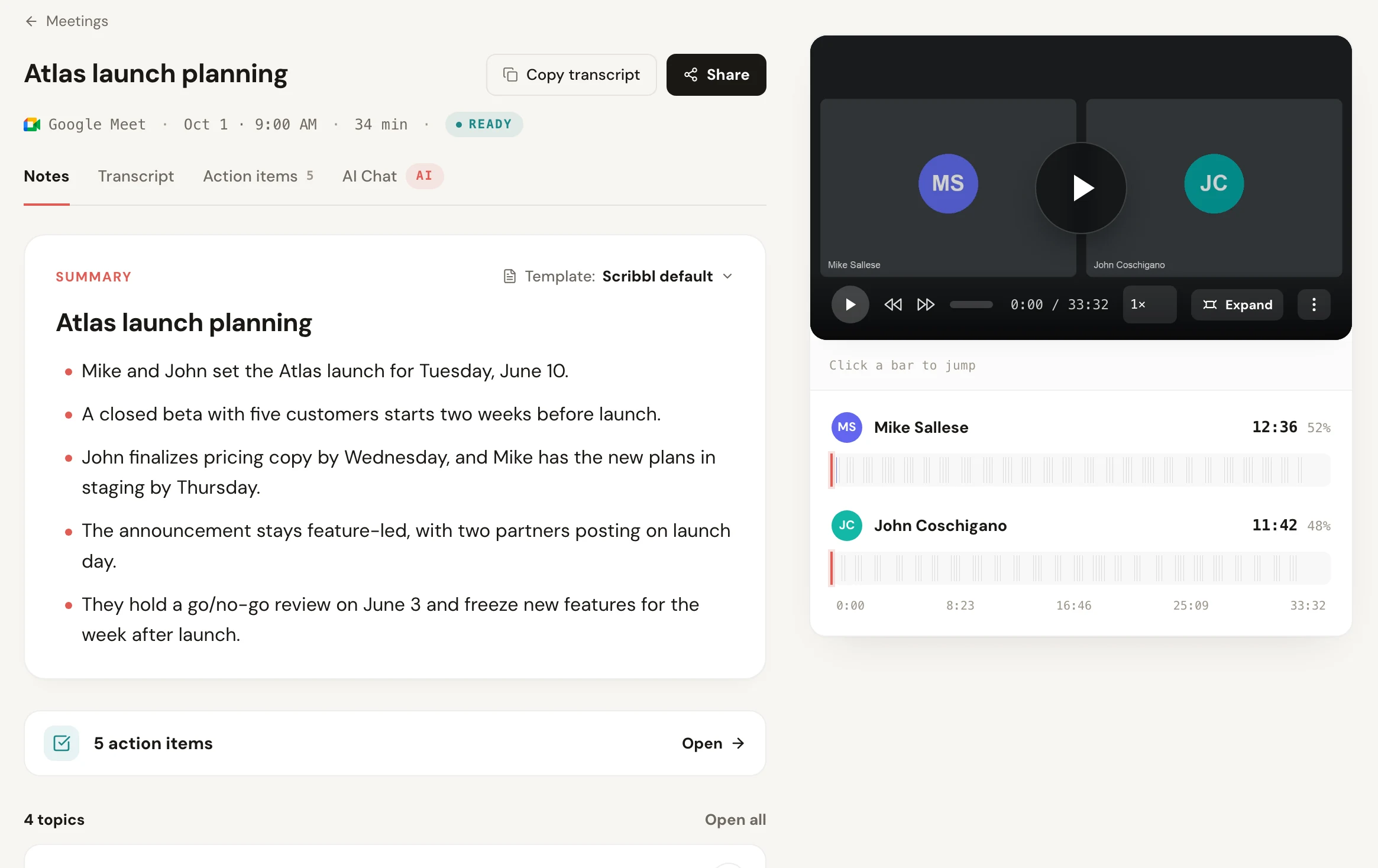
Look at the third line of that summary: "John finalizes pricing copy by Wednesday, and Mike has the new plans in staging by Thursday." That is the kind of detail that gets lost when you are typing and talking at once. Here it already has a name and a day.
How Scribbl covers each step of this guide:
- During the meeting: Scribbl keeps the full record, so you only need to note what you want to flag, or nothing at all.
- The four things: the notes list the decisions and the action items with owners. Note templates let you choose the layout, such as the meeting notes layout at the top of this page.
- Checking a detail later: open the transcript or jump to that point in the video. Connect Scribbl to ChatGPT or Claude (Pro) and ask what a client asked for last month.
- Sending and tracking: Smart Collections sort meetings by themselves, and Automations do the follow-up when a meeting lands in a collection: draft the follow-up email, post the notes to Slack or Microsoft Teams, save them to Notion or Confluence, open an Asana, Monday, Linear or Jira ticket, log a note in HubSpot or Pipedrive, or add a Google Sheet row. They ask before they change anything by default.
The free plan includes Google Meet, Zoom and Microsoft Teams. It covers 10 meetings a month. Pro is $13 per user per month billed annually, or $20 monthly (pricing). Recordings are private by default, and Scribbl doesn't use your meetings to train AI for anyone other than you. As with any recorder, tell everyone you're recording before the meeting starts.
Try Scribbl freeFAQ
How do you write meeting notes?
Set up the notes before the call by pasting the agenda in as headings, with empty Decisions and Action items sections at the top. During the call, write only decisions, action items with an owner and a due date, open questions, and the reason behind each decision, in your own words. Before people leave, read the action items back. After the call, check every item has a name and a date, add the recording link, and send the notes the same day.
What should you include in meeting notes?
Include the meeting name, date, who attended and who was absent, the purpose, the decisions, the action items with an owner and a due date, the open questions with who will answer them, and the one or two reasons behind each decision. Add a link to the recording and transcript and to any document mentioned. Leave out the back-and-forth; the recording keeps it.
How do I take meeting notes without missing details?
Stop trying to write everything. Write only the four things that need your judgment (decisions, action items, open questions, reasons) and let a recording and transcript keep every word. When something is too detailed to catch, write a marker such as 're: pricing, see transcript' and keep listening. Read the action items back before the meeting ends so missing names and dates get filled in.
What is the fastest way to take meeting notes by hand?
Use a small symbol key so each note is a few characters, not a sentence: ! for a decision, @name for an owner, ? for an open question, and dates inline. Write only the four things that matter and put them in your own words instead of quoting. The speed comes from writing less, not writing faster.
Should I take notes by hand or type them?
Handwriting forces you to summarize, which helps you remember. Typing keeps up better and puts the notes somewhere you can share right away. The best setup is a recording for the full record plus your own short notes on decisions, owners, questions and reasons, whichever way you write them.
What is the difference between meeting notes and meeting minutes?
Meeting notes are an informal record for the people involved: decisions, action items and what to do next. Minutes are the formal record of a group's meeting, such as a board meeting, often including motions and votes, and they are usually approved at the next meeting. Most team meetings need notes, not minutes.
Is it rude to record a meeting to take notes?
No, as long as you tell everyone. Recording rules vary by team and by place, so say you're recording before you start, the same way you would for any recording, and note it at the top of your notes.
Do I still need to take notes if AI is recording?
Less, and a different kind. The tool keeps the record and writes a first draft. You check the decisions, fix any owner or date it got wrong, and decide what was a real commitment and what was someone thinking out loud.
What is the single most important thing to write down?
Action items with a named owner and a due date. A decision with no owner is a wish. If you capture only one thing in a meeting, capture who is doing what by when, and put it somewhere it gets tracked to done.
How can I get AI meeting notes for free?
Google Meet, Teams and Zoom each put their full AI notes on certain paid plans; Zoom's free My Notes Basic includes 3 uses a month. Scribbl's free plan includes Google Meet, Zoom and Microsoft Teams, with 10 meetings a month, and gives you the video, a transcript with speaker names, AI notes and action items for each one.
Sources
Checked on October 12, 2026.
- Pam A. Mueller and Daniel M. Oppenheimer, "The Pen Is Mightier Than the Keyboard: Advantages of Longhand Over Laptop Note Taking," Psychological Science, 2014
- Wikipedia: Cornell Notes (developed by Walter Pauk at Cornell University)
- Google Meet Help: Take notes for me in Google Meet
- Microsoft Support: Recap in Microsoft Teams
- Zoom: My Notes plans
- Scribbl: pricing
Try Scribbl
Let your meetings take their own notes.
Scribbl records, transcribes, and summarizes your Google Meet calls from your browser. No bot joins the call. Free forever for individuals.
Add to Chrome · It's free