Meeting minutes AI: from transcript to an approved record
AI writes a first draft of your meeting minutes in seconds. Here is the workflow that turns that draft into a formal record people can trust, with a prompt and template.
Updated October 29, 2026
The short answer
Free plans checked on each vendor's pricing and help pages, October 6, 2026
AI writes the first draft of your minutes from a transcript in seconds, and a human checks it before the group approves it
- 1. Capture
- Record the call and get a full transcript with speaker names. Get consent first.
- 2. Generate
- Run a minutes prompt over the transcript. This is the only step AI owns.
- 3. Verify
- Check every decision, owner, due date and motion against the transcript, because AI invents details.
- 4. Approve
- Circulate within 24 hours and approve the minutes at the next meeting.
- Draft written for you
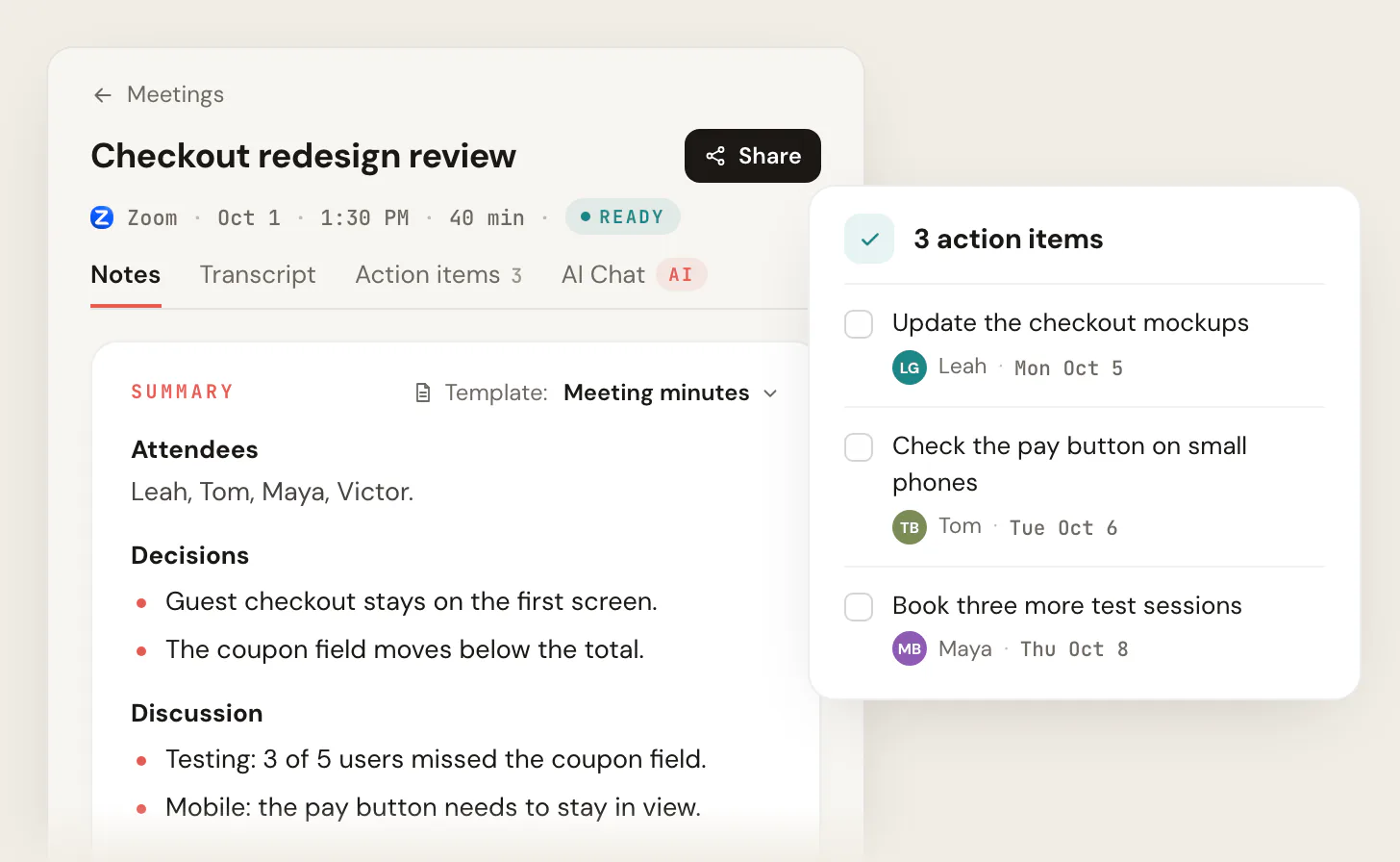
- Scribbl records Google Meet, Zoom and Teams with nothing joining the call and writes AI notes with decisions and action items, with the transcript and video to check them against. Free for 10 meetings a month.
AI is good at meeting minutes, but not in the way most people assume. It will not sit in the corner and produce a signed, approval-ready record on its own. What it does well is the slow part: turning a full transcript into a structured first draft (attendees, decisions, action items, motions) in a few seconds, so a human spends two minutes editing instead of twenty minutes typing. That is the whole game. Minutes are a formal record, sometimes a legal one, so the value of AI here is the draft and the speed, not removing the human who is accountable for what the record says.
This guide treats minutes as what they actually are: the official account of what a group decided, not a personal scratchpad. It shows you how to get a clean transcript, the exact prompt to turn that transcript into draft minutes, a template you can paste, and the verification step that keeps AI minutes honest. If you want the looser personal-notes version of this, how to take better meeting notes is the better starting point.
Is there a free AI for meeting minutes?
Yes. Scribbl's free plan writes AI notes with decisions and action items for 10 meetings a month, with the transcript and video to check them against; it includes Google Meet, Zoom and Microsoft Teams, and nothing joins the call. Fathom and Otter have free plans too, with a bot in the call by default. Google Meet's Take notes for me and Microsoft Teams intelligent recap need paid plans, and free Zoom covers 3 hosted meetings a month.
| Free option | What you get toward minutes | The limit |
|---|---|---|
| Scribbl free plan (our pick) | AI notes with decisions and action items, a transcript with speaker names, and the video | 10 meetings a month, no length limit |
| Fathom free plan | Unlimited recordings and transcripts, and a basic AI summary of every call | Advanced summaries on your first 5 calls each month; AI action items are paid; a bot joins by default |
| Otter Basic | Transcripts with speaker identification | 300 minutes a month, 30 minutes per conversation |
| Zoom Basic | AI meeting summaries | 3 hosted meetings a month; free meetings end at 40 minutes |
| Google Meet, Take notes for me | AI notes | Not on free Gmail: needs an eligible Workspace edition or Google AI plan, held by the organizer |
| Teams intelligent recap | AI notes and suggested tasks | Needs a Teams Premium or Microsoft Copilot license |
Sources, checked October 6, 2026: Scribbl pricing, Fathom help, Otter help, Zoom pricing, Google help, Microsoft.
Whichever you use, the AI gives you a draft, not the record. If you already have a transcript from any of these, the prompt in step 2 turns it into minutes in any AI assistant, and steps 3 and 4 make it something people can approve.
Minutes are not notes, and that changes everything
Before any tool enters the picture, get the distinction straight, because it decides how careful you have to be.
Meeting notes are informal and for you or a small team. They can be messy, abbreviated, and they are not binding. Meeting minutes are the formal record of what a body decided. They are shared with stakeholders, often require approval at the next meeting, and in many contexts (boards, nonprofits, HOAs, public bodies, committees governed by Robert's Rules of Order) they are a legal document. Robert's Rules is explicit that minutes record what was done, not what was said, and that they should never carry the secretary's opinion.
That single difference is why "let the AI handle it" is the wrong instinct for minutes. An AI summary that paraphrases a decision slightly wrong is annoying in notes and a real problem in minutes, because the minutes are what gets cited six months later. So the workflow below keeps a verifiable transcript underneath the AI draft at every step. You should be able to point at the exact moment in the recording where a decision was made.
- Best for: minutes, board records, anything that gets approved or cited
- Every line traces to a timestamp you can replay
- Decisions and motions quoted, not paraphrased
- A human verifies before it becomes the record
- Best for: a quick personal recap, low stakes
- Nothing to check the paraphrase against
- A wrong owner or date is invisible until it bites
- Fine as notes, risky as the official record
Step 1: capture a transcript, not just a summary
You cannot verify a draft against a summary. You verify it against a transcript and, ideally, a recording. So the first decision is how you capture the call, and the rule is simple: capture the full, speaker-labeled transcript and the video, then let the AI write the summary on top of that. Summary-only tools save you the storage and cost you the audit trail.
Two practical choices here.
Bot or bot-free. A bot-based notetaker dials a visible extra guest into the meeting; you have seen "Otter.ai Notetaker" sitting in the attendee list. A bot-free tool records from your own browser or computer without joining as a participant. For internal board prep where everyone expects the bot, either is fine. For client, external, or sensitive governance calls, an uninvited fourth "attendee" reads badly and sometimes gets removed. Bot-free capture avoids the whole question. Scribbl takes the bot-free approach on Google Meet, Zoom and Teams, giving you the recording, a transcript with speaker names, and an AI summary with nothing in the participant list.
Consent. Recording is governed by law, and it is not uniform. U.S. federal law (18 U.S.C. 2511, the Electronic Communications Privacy Act of 1986) follows a one-party-consent standard, but several states require all parties to consent.
If your meeting lives in Google Meet, you have several capture routes. Native Gemini "Take notes for me" is gated to paid Workspace editions (Business Standard, Business Plus, Enterprise Standard, Enterprise Plus, plus some Frontline tiers), so it silently does nothing on free accounts or on most cross-company calls where the organizer is on another plan (per Google Workspace documentation, as of June 2026). A bot-free extension runs the same way regardless of who organized the meeting. For the platform-by-platform breakdown, see Google Meet AI note taker and how to record Google Meet.
Notetaker
- Recording: on
- Transcript: speaker-labeled, ready after the call
- AI minutes: generate after the call
- Bot in attendee list: none
Step 2: turn the transcript into draft minutes with AI
This is the step AI actually owns. Once you have a clean transcript, you can either click "summarize" in your notetaker and then reshape it into minutes, or paste the transcript into any capable assistant with a prompt that forces the minutes structure. The prompt matters more than the tool. A vague "summarize this meeting" gives you notes. A specific prompt gives you minutes.
Here is a prompt that produces a usable minutes draft. Paste your transcript where indicated.
You are drafting the official minutes for the meeting below. Minutes
record what was DECIDED and DONE, not everything that was said, and must
not include opinions or commentary.

From the transcript, produce minutes with these sections, in this order:

1. Header: meeting name, date, start time, end time, meeting type
   (regular / special / board / standup), and whether a quorum was present.
2. Attendees: present, absent, and any guests. Use only names that appear
   in the transcript. If a name is unclear, write [unclear] rather than guess.
3. Agenda items: one short heading per topic discussed.
4. Decisions: each decision as a single declarative sentence. For any
   formal motion, quote it: who moved it, who seconded, and the vote result.
5. Action items: a table with columns Owner | Action | Due date. Use only
   owners and dates stated in the transcript. If a due date was not given,
   write "not specified". Do not invent dates.
6. Open questions / parked items: anything raised but not resolved.

Rules: Do not infer facts that are not in the transcript. Do not soften or
embellish. Mark anything ambiguous with [verify]. Keep it neutral and brief.

TRANSCRIPT:
[paste full transcript here]
The two instructions that do the heavy lifting are "use only names and dates that appear in the transcript" and "mark anything ambiguous with [verify]." Those turn the AI from a confident guesser into a flagger, which is exactly what you want before a human review. The output drops straight into the template below.
- 1
Capture
Record the call and capture a full speaker-labeled transcript. Get consent first. This is your source of truth for everything that follows.
- 2
Generate
Run the minutes prompt over the transcript, or click summarize in your notetaker and reshape into the minutes structure. Seconds, not minutes.
- 3
Verify
Read the draft against the transcript. Confirm every decision, owner, due date, and quoted motion. Resolve every [verify] flag. This is non-negotiable.
- 4
Approve
Circulate within 24 hours, collect corrections, and get the minutes approved at the next meeting. Approved minutes are the record.
A minutes template you can paste
Whether AI fills this in or you do, the structure is the same. This format satisfies most boards, committees, and project bodies, and it maps cleanly to the prompt above. For a deeper, action-item-first variant, see the meeting action items template. For a filled-in sample, see this meeting minutes format with action items.
MEETING MINUTES

Meeting:        [Name / body]
Date:           [YYYY-MM-DD]
Time:           [Start] - [End]
Type:           [Regular / Special / Board / Project]
Location:       [Video call / room]
Quorum present: [Yes / No]

ATTENDEES
Present:  [Names]
Absent:   [Names]
Guests:   [Names]

AGENDA ITEMS
1. [Topic]
2. [Topic]

DECISIONS
- [Decision stated as one sentence.]
- MOTION: [Exact wording]. Moved by [Name], seconded by [Name].
  Result: [Carried / Failed], vote [for]-[against]-[abstain].

ACTION ITEMS
| Owner   | Action                  | Due date     |
|---------|-------------------------|--------------|
| [Name]  | [What they will do]     | [YYYY-MM-DD] |

OPEN QUESTIONS / PARKED
- [Item raised but not resolved.]

Minutes taken by: [Name]
Approved on:      [Date approved at next meeting]
Two formatting notes. Keep decisions as declarative sentences ("The board approved the 2026 budget"), not narration ("We talked about the budget and most people seemed fine with it"). And keep action items in a table with a real owner and a real date, because a to-do with no owner is a to-do nobody does. If you track action items across many meetings, the action items template and how to write an objective summary both go deeper on keeping the language clean.
Step 3: verify, because AI invents details
This is where AI minutes go wrong, and it is entirely preventable. Language models fill gaps confidently. They will attach a due date that was never said, assign an action item to the wrong person, or paraphrase a decision in a way that subtly changes its meaning. In personal notes, you shrug. In minutes that get approved and cited, that is the failure mode that matters.
The fix is a short, deliberate read against the transcript. Budget two minutes.
- Decisions: does each one match what was actually decided? Open the transcript at that moment if you are unsure.
- Motions: is the wording exact, and are the mover, seconder, and vote count right? These are the highest-stakes lines in the document.
- Owners and due dates: did the named person actually agree to the task, and was that date actually stated? Resolve every "not specified" and every [verify] flag.
- Names: real attendees only, spelled right. AI mangles names it has not seen written.
- Tone: strip any opinion or hedging the model added. Minutes are neutral.
Step 4: circulate and get them approved
A draft sitting in your notes app is not the record. Minutes become the record when they are circulated, corrected, and approved. Send the verified draft to attendees within 24 hours while memories are fresh, ask for corrections by a deadline, and put approval of the minutes on the next meeting's agenda. For boards and formal bodies, the approved minutes (and ideally a signature from the secretary) are what counts. A fast, accurate draft is worthless if it never closes that loop, so treat circulation as part of the job, not an afterthought.
If your minutes feed an external audience like clients, the recap you send them is a related but separate artifact; the client meeting notes template covers turning minutes into a client-facing follow-up. For teams running many recurring meetings across Google Meet, Zoom, and Teams, a single bot-free notetaker that produces the same draft format every time is what makes this workflow stick; Scribbl for teams and agencies are built around exactly that.
AI meeting minutes FAQ
Is there a free AI for meeting minutes?
Yes. Scribbl's free plan writes AI notes with decisions and action items for 10 meetings a month, with the transcript and video to check them against, and it includes Google Meet, Zoom and Microsoft Teams. Fathom and Otter have free plans with limits, and free Zoom gives AI meeting summaries for 3 hosted meetings a month. Google Meet's Take notes for me and Microsoft Teams intelligent recap need paid plans. Treat any AI output as a draft and check it against the transcript before it becomes the minutes (checked October 6, 2026).
Can AI write meeting minutes by itself?
It can write a complete first draft from a transcript, including decisions, attendees, and action items, in seconds. It cannot be the final authority on the record. AI invents plausible details (dates, owners, paraphrased decisions), so a human has to verify the draft against the transcript and the body has to approve it. Treat AI as the fastest typist you have ever had, not as the secretary who is accountable for the document.
What is the difference between AI meeting notes and AI meeting minutes?
The tool can be identical; the standard is not. Notes are informal, personal, and not binding. Minutes are the formal record of what a group decided, are shared with stakeholders, usually get approved, and are sometimes a legal document. So for minutes you keep a verifiable transcript under the AI draft, quote decisions and motions instead of paraphrasing, and run a verification step before the draft becomes the record. See how to take better meeting notes for the notes side.
Will Google Meet or Zoom generate minutes automatically?
They generate summaries and action items, which is most of a minutes draft, but not formatted minutes with motions, votes, and a quorum line. Native Gemini "Take notes for me" is also gated to specific paid Google Workspace editions, so it does nothing on free accounts or on calls organized by someone on another plan (per Google Workspace docs, as of June 2026). A platform-independent notetaker that you reshape with the prompt above is more reliable for actual minutes. See Google Meet AI note taker.
Do I need to record the meeting to use AI for minutes?
You need a transcript at minimum, and a recording is strongly recommended for minutes specifically. The transcript is what the AI drafts from and what you verify against. The recording is your evidence when an approved decision is later disputed. A summary with no underlying transcript or recording gives you nothing to check or cite, which defeats the point of a formal record. Tools that capture all three are covered in best meeting transcription software.
How fast should I send minutes after a meeting?
Within 24 hours. Memories fade fast, and corrections are easiest while the meeting is fresh. AI helps here directly: because the draft is ready seconds after the call, the only thing between you and circulation is the two-minute verification. Circulate, collect corrections by a deadline, then approve at the next meeting.
Try Scribbl
Get the minutes drafted for you
Scribbl records, transcribes, and summarizes your Google Meet calls from your browser. No bot joins the call. Free forever for individuals.
Add to Chrome · It's free